Filter Products
The real power of Smart Collections Builder lies in its filtering capabilities. With advanced attributes, conditions, and values, you can create rules that match exactly the products you want—no more, no less.
Let's break down how filtering works and how to use it effectively.
The Three Parts of Every Rule#
Each rule you create consists of three components:
- Attribute: What product property are you checking?
- Condition: How should it be compared?
- Value: What are you looking for?
Think of it like a sentence: "Include products where [Attribute] [Condition] [Value]."
For example: "Include products where Price is greater than 100."
Available Attributes#
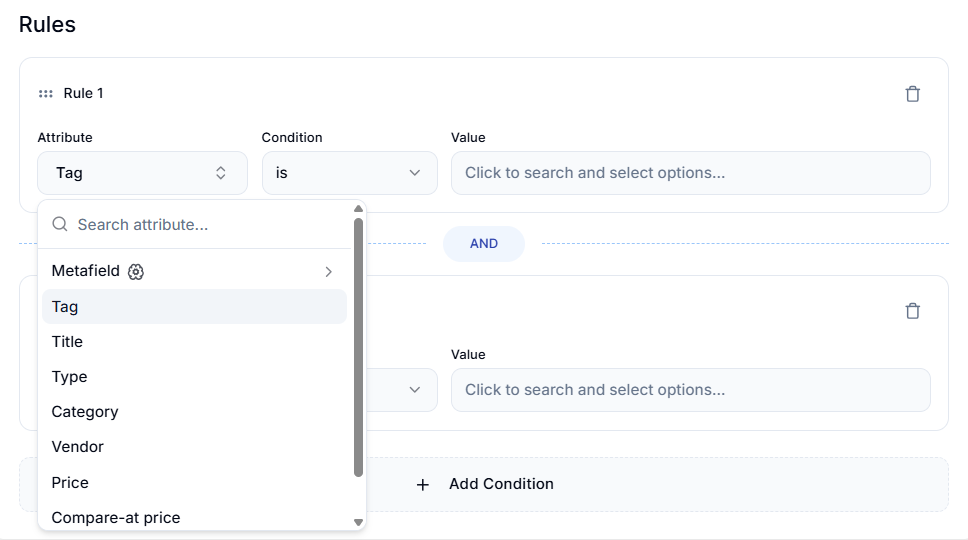
Attributes are the product properties you can filter on. Smart Collections Builder supports:
| Attribute | What It Checks |
|---|---|
| Metafield | Custom data fields you've set up in Shopify |
| Tag | Product tags assigned in Shopify |
| Title | The product name |
| Type | The product type (e.g., "Snowboard", "Jacket") |
| Category | The product category |
| Vendor | The brand or vendor name |
| Price | The current selling price |
| Compare-at-price | The original/compare price |
| Product Status | Whether the product is active, draft, or archived |
Available Conditions#
Conditions determine how the attribute is compared to your value. Here's what each one means:
| Condition | What It Does | Best For |
|---|---|---|
| is | Exact match only | Precise filtering (Type is "Snowboard") |
| is not | Excludes exact matches | Excluding specific items or creating "negative" collections |
| contains | Includes the value anywhere | Partial matches (Title contains "Pro") |
| does not contain | Excludes if value appears anywhere | Avoiding certain keywords |
| starts with | Begins with the value | SKU prefixes, naming conventions |
| ends with | Ends with the value | SKU suffixes, sizing patterns |
| greater than | Numeric value is higher | Price or quantity thresholds |
| less than | Numeric value is lower | Budget or sale collections |
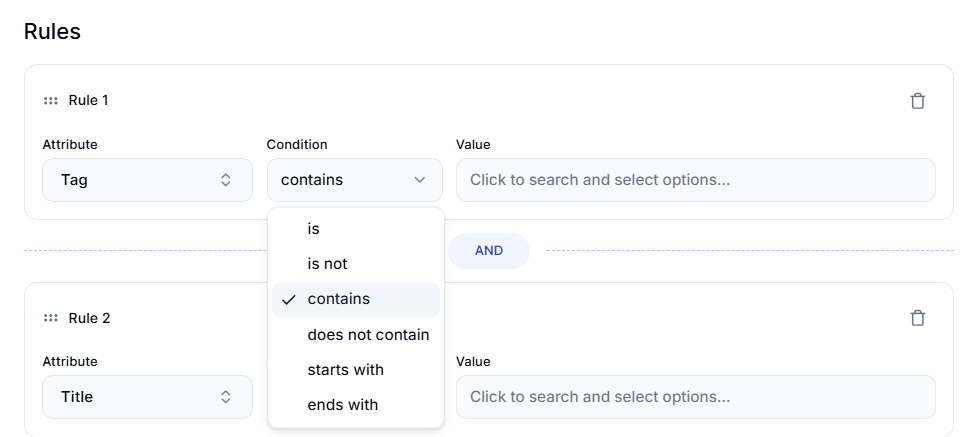
Note: Available conditions vary depending on which attribute you select. For example, "greater than" only appears for numeric attributes like Price.
Setting the Value#
The Value is what you're matching against. This could be:
- Text: For tags, titles, types, etc. (e.g., "Premium", "Winter").
- Numbers: For prices and quantities (e.g., 100, 49.99).
Example#
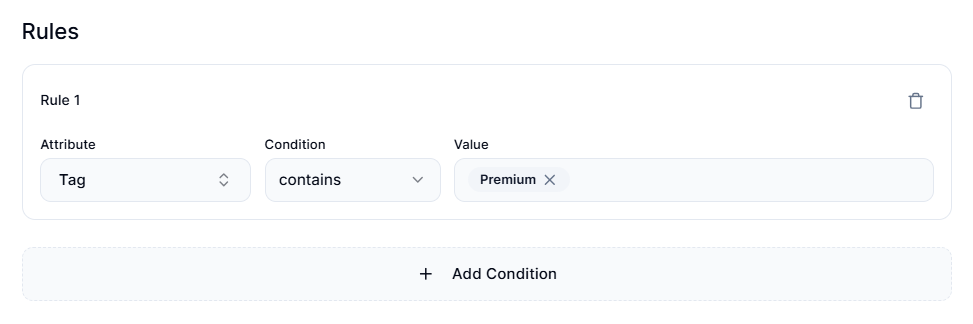
If you set:
Attribute → Tag
Condition → contains
Value → Premium
The app includes all products that have a tag containing the word "Premium" (like "Premium", "Premium-Edition", "Super-Premium", etc.).
Combining Multiple Rules#
One rule is good, but multiple rules are where things get powerful. You can add as many rules as you need to precisely target the products you want.
Click + Add Condition to add more rules. The way rules combine depends on your Rule Type:
- Match All: Products must satisfy ALL rules.
- Match Any: Products must satisfy AT LEAST ONE rule.
- Combination: Custom grouping with AND/OR logic.
Pro Tip: While there's no hard limit on rules, we recommend keeping it to 15 rules or fewer per collection. This keeps your logic manageable and easy to understand.
Real-World Example#
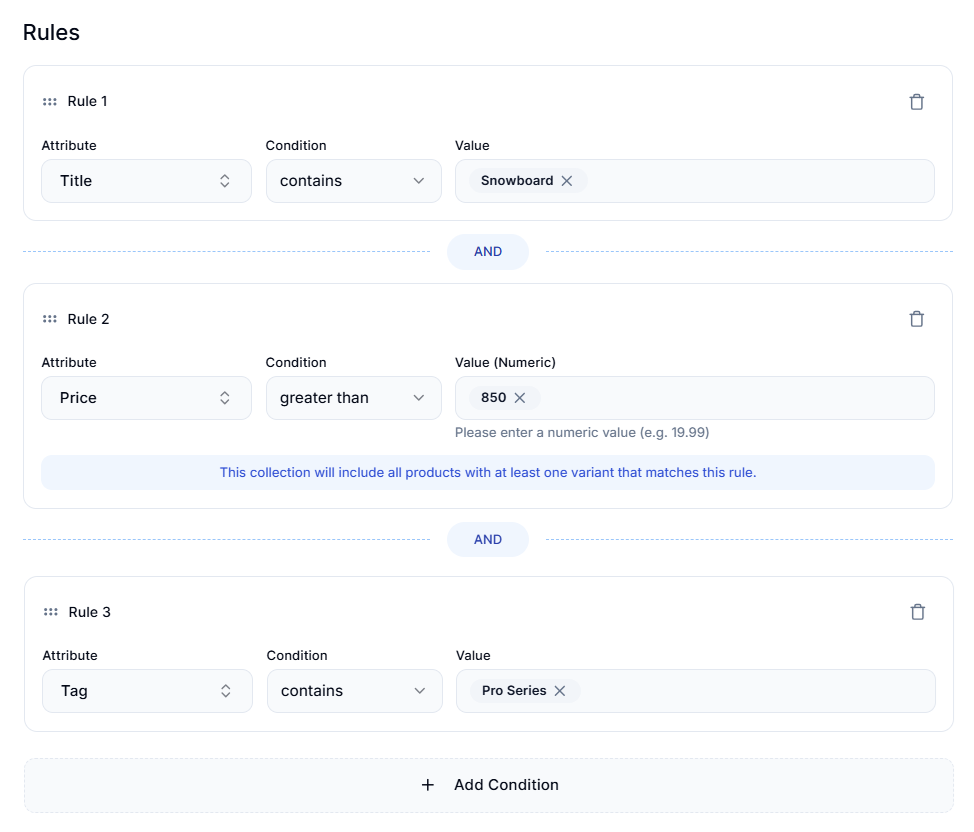
Let's create a "Pro Series Snowboards Over $850" collection:
Rule 1:
Attribute → Title
Condition → contains
Value → Snowboard
This filters for products with "Snowboard" in the name.
Rule 2:
Attribute → Price
Condition → greater than
Value → 850
This narrows it to snowboards over $850.
Rule 3:
Attribute → Tag
Condition → contains
Value → Pro Series
This further filters to only Pro Series items.
With Match All selected, only products matching ALL three rules make it into the collection.
Tips for Effective Filtering#
Be Specific When Needed#
If "contains" is too broad, try "is" for exact matches. "Contains red" matches "red", "reddish", and "Alfred"—while "is red" only matches "red".
Use Consistent Data#
Filters are only as good as your product data. Make sure tags, metafields, and other attributes are consistently formatted across products.
Test Your Rules#
After creating a collection, check the products to make sure the rules work as expected. If not, edit the collection and adjust.
Start Broad, Then Narrow#
It's often easier to start with one simple rule, check the results, and then add more rules to narrow down.
Creating "Negative" Collections#
Want to find products WITHOUT certain attributes? Use "is not" or "does not contain" conditions. For example, to find products without a "Sale" tag, use: Tag → does not contain → Sale.
Working with Metafields#
Metafields are custom data fields in Shopify—they're incredibly powerful for advanced filtering. Some common examples:
- Material type (Cotton, Polyester, Wool)
- Season (Spring, Summer, Fall, Winter)
- Collection year (2023, 2024)
- Custom attributes specific to your products
To filter by Metafield:
- Select Metafield as the attribute.
- Choose the specific metafield from the dropdown.
- Set the condition and value.
Supported Metafield Types#
Smart Collections Builder supports the most common metafield types, including:
- Single-line text and multi-line text
- Integers and decimals
- Dates and date-times
- Booleans (true/false)
- URLs
- Colors
- Product references
- List versions of supported types
Unsupported Metafield Types#
Currently, we don't support these metafield types:
- Volume, Dimension, Weight
- Rating, Money
- JSON
- File references, Page references, Collection references
- Metaobject references, Mixed references
If a specific metafield type is important for your use case, let us know—we're always working to expand support!
Product vs. Variant Metafields#
Currently, Smart Collections Builder only supports product-level metafields. Variant metafields aren't available for filtering at this time.
Have questions about filtering? We're here to help! Reach out via live chat or email us at support@bevycommerce.com.