Delete Collections
Sometimes you need to remove a collection that's no longer serving its purpose. The Delete option lets you remove collections from both Smart Collections Builder and your Shopify store.
Before You Delete#
⚠️ Important: Deleting a collection is permanent and can't be undone. Once deleted, the collection is removed from both Smart Collections Builder AND your Shopify admin.
Before deleting, consider the following questions:
Do you really need to remove it?#
Maybe you just need to edit the rules instead.
Is this the right collection?#
Double-check the name and contents.
Have you backed up any important settings?#
Take a screenshot of the rules. You might want to recreate them later.
How to Delete a Collection?#
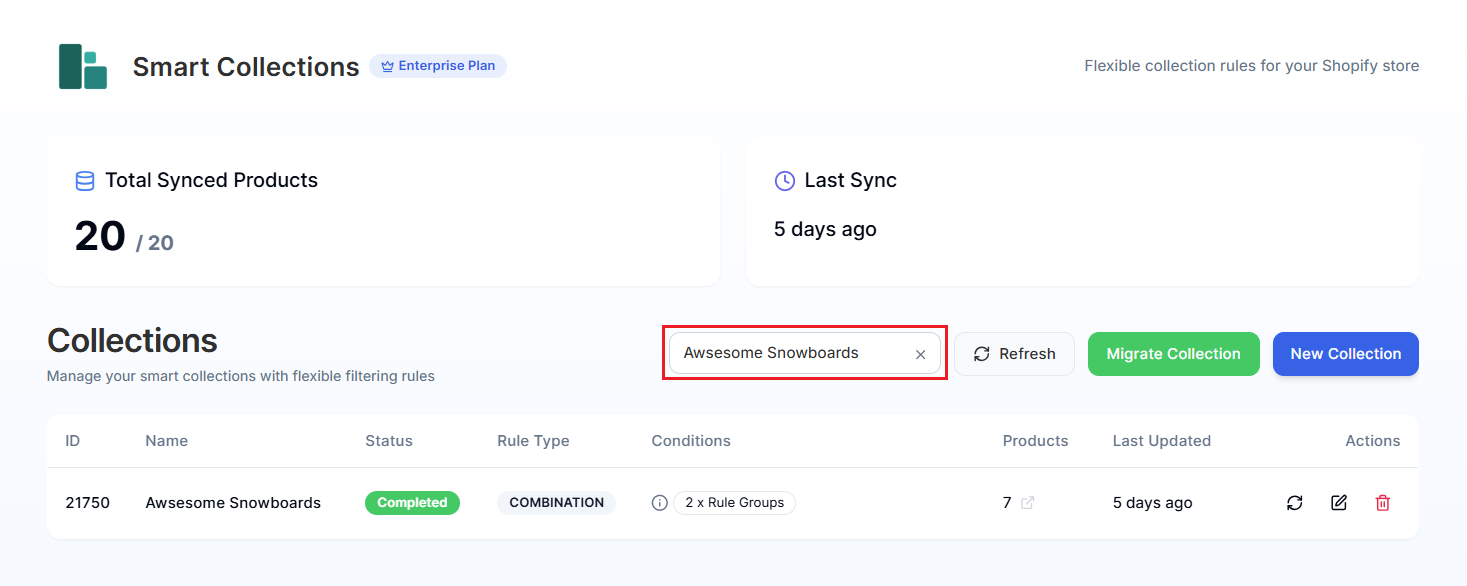
Step 1: On the app dashboard, find the collection you want to delete in the table.
Pro Tip: Use the Search collections box to quickly find it by name.
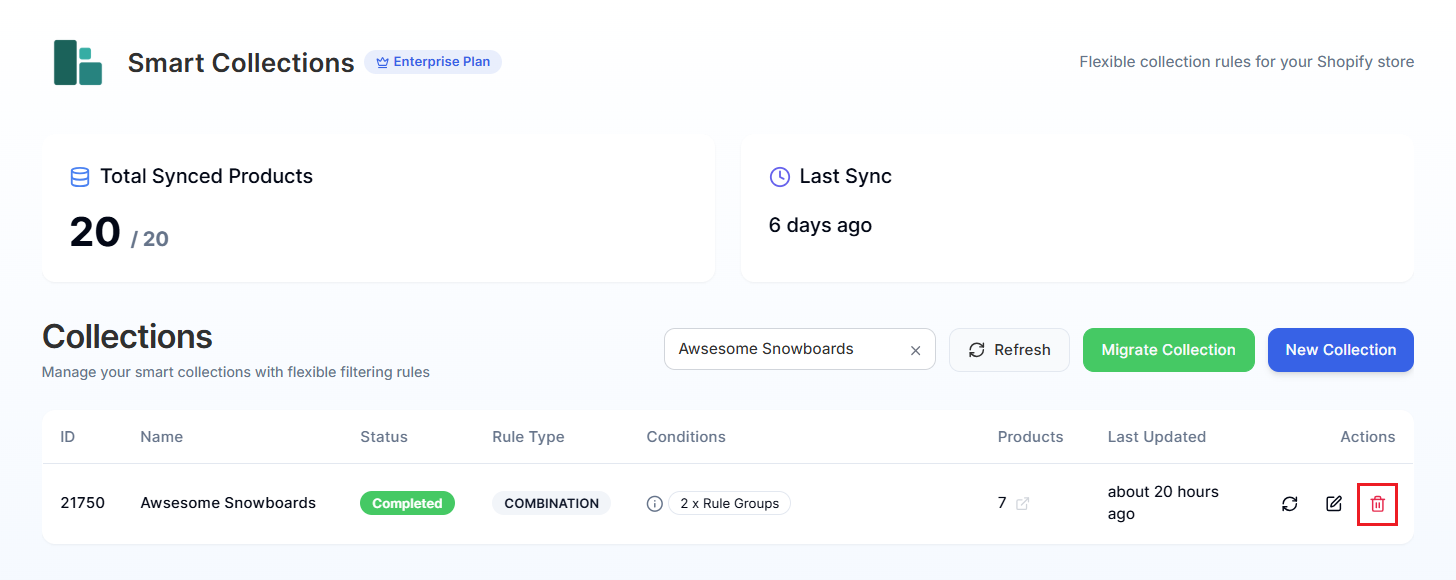
Step 2: Click the Delete icon (trash can) in the Actions column.
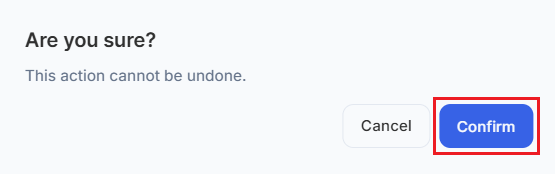
Step 3: A confirmation modal appears asking you to confirm. Click Confirm to permanently delete the collection.
After Deletion#
Once you confirm:
- The collection status briefly shows as it's being processed.
- The collection is removed from both the app and Shopify.
- Products that were in the collection aren't deleted—just the collection itself.
- The collection disappears from your dashboard table.
What Gets Deleted?#
When you delete a collection:
| Deleted | NOT Deleted |
|---|---|
| The collection itself | The products in the collection |
| Collection rules | Product tags, metafields, or other data |
| Collection description & image | Other collections |
Your products remain safely in your store—they just won't be grouped in that collection anymore.
About Migrated Collections#
If you originally migrated a collection from Shopify into Smart Collections Builder and then delete it here, it's also deleted from Shopify. The app now manages that collection, so removal happens in both places.
Accidentally Deleted Something?#
Unfortunately, deleted collections can't be restored. If you need to recreate it:
- Click New Collection on the dashboard.
- Set up the name, description, and image again.
- Rebuild the rules.
For step-by-step instructions, check the Create Collections article.
This is why we recommend taking screenshots of important collection rules before deleting!
Need help? We're here for you! Reach out via live chat or email us at support@bevycommerce.com.