Installing Price Rules
Installing Price Rules is a straightforward process that requires no coding or technical knowledge. Within minutes, you can integrate the app with your Shopify store and start automating your sales campaigns.
Before You Install#
To ensure a smooth setup, here’s what you need to know:
- Shopify Admin Access: You must be logged into your Shopify store with administrative privileges.
- Catalog Awareness: Know your approximate total parent product count. Plan limits are based on products, while variants are managed under those products.
- Data Safety: Installation doesn't immediately change any prices. Your store data remains untouched until you explicitly create and activate a rule.
Installation Steps#
Step 1: Log in to your Shopify admin panel.
Step 2: Navigate to the Price Rules page on the Shopify App Store.
Step 3: Select Install to add the app to your store.
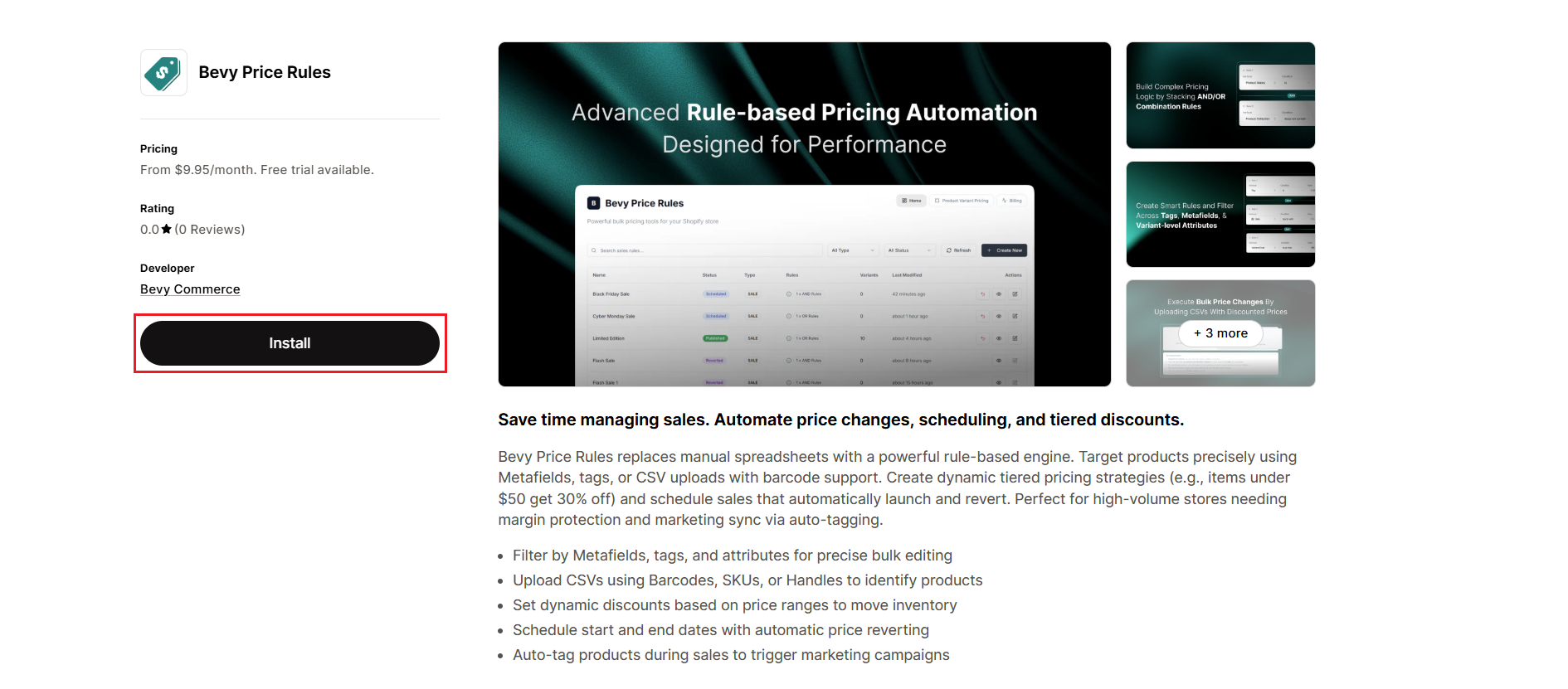
Step 4: Review the permissions request. The app requires read_products and write_products access to function. Select Install app to confirm.
Step 5: Choose the tier that corresponds to your store’s total product count. For detailed guidance, refer to the Choosing the Right Plan section below.
The Sync Process#
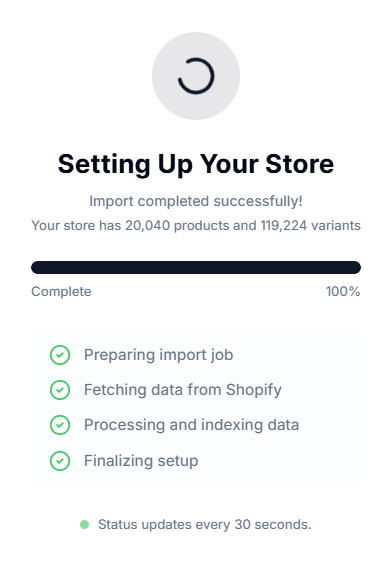
Once installed, Price Rules initiates an automatic sync with your Shopify product catalog.
What Happens?#
The app fetches product IDs, prices, and variant data to build a local index. This allows the app to filter products and apply rules without slowing down your live storefront.
Duration#
For small catalogs, this is immediate. For stores with tens of thousands of products, the initial sync runs in the background and may take several minutes to complete.
Status Indicator#
You can review the total synced products and variant count to confirm the process is complete.
Choosing the Right Plan#
Selecting the correct plan is critical for the app to function correctly. Price Rules tiers are based on your Total Store Product Count, not just the number of products you intend to put on sale.
- Standard: Up to 500 products.
- Premier: Up to 1,500 products.
- Pro: Up to 5,000 products.
- Enterprise: Up to 25,000 products.
Note: If your catalog size exceeds your plan limit (e.g., you have 1,000 products but select the Standard plan), the app will fail to sync all items or prevent you from activating sales rules.
First Steps After Installation#
Once the sync is complete, we recommend the following workflow to verify the installation:
1. Create a Test Rule#
Before running a store-wide sale, create a "Flash Sale Test" rule targeting a few products.
2. Check the Revert Function#
Schedule the test sale to end in 15 minutes. Verify that the price changes on your storefront and automatically reverts to the original price when the time expires. This confirms that the background jobs are running correctly.
Important Notes#
Theme Independence#
Price Rules works entirely via the Shopify Admin API. It doesn't inject code into your theme, so it won't conflict with your design or impact site loading speed.
App Conflicts#
If you use other pricing apps (such as repricers or bulk editors), ensure they don't target the same products simultaneously. Conflicting rules from different apps can cause pricing errors.
Shopify Markets#
Currently, Price Rules updates the base Listing Price and Compare-at-Price. This version doesn't explicitly support market-specific price lists.
Need Help?#
If your initial sync is taking longer than expected, you’re unsure which plan matches your catalog size, or need help setting up your first test rule, our team is here to assist.
Email support@bevycommerce.com, and we’ll help you get up and running quickly.