Create Price Rules
You can create price rules to launch store-wide promotions, schedule temporary flash sales, or permanently adjust pricing strategies without manual data entry. This guide outlines how to configure product targeting, set discount logic, and schedule automated price reversions.
Build a New Rule#
- Navigate to the Price Rules Home or dashboard.
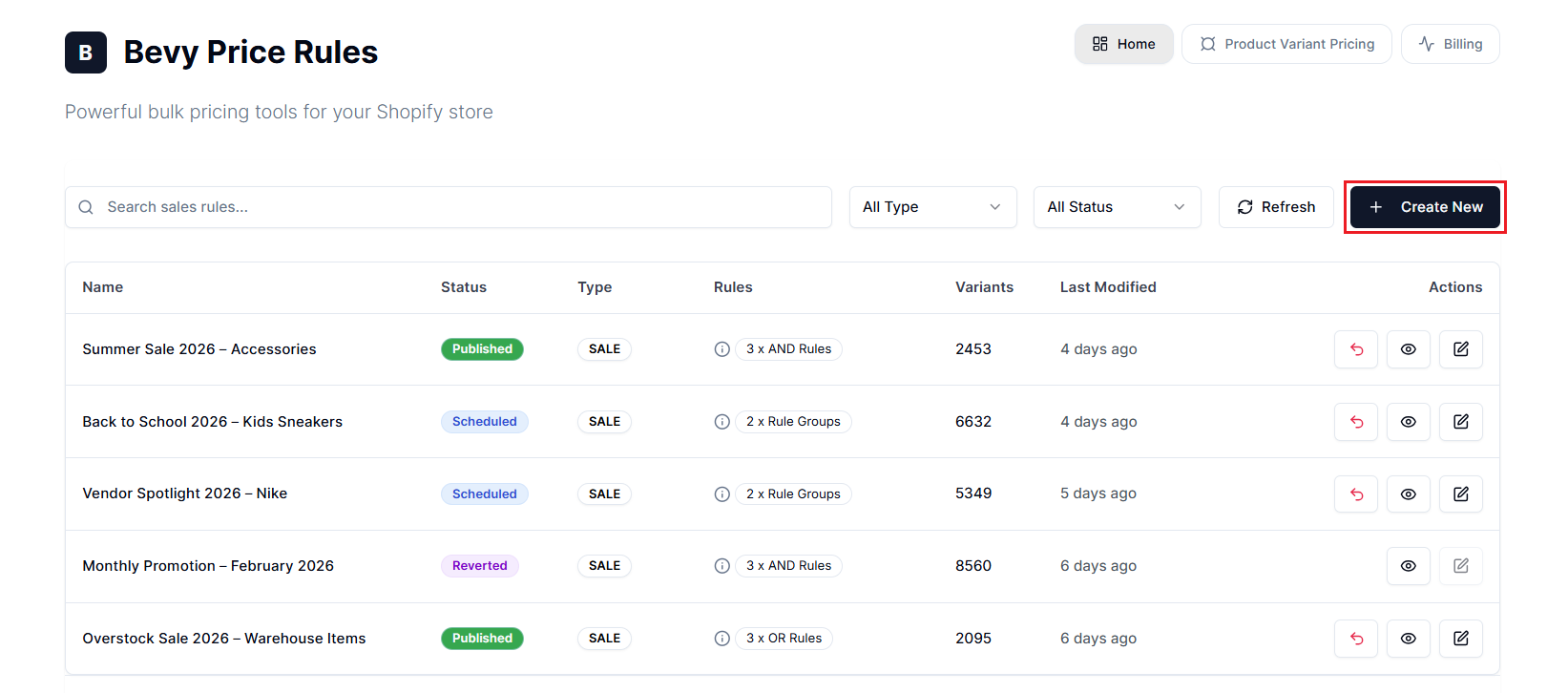
- Select Create New in the top right corner. This prompts you to create a New Price Change.
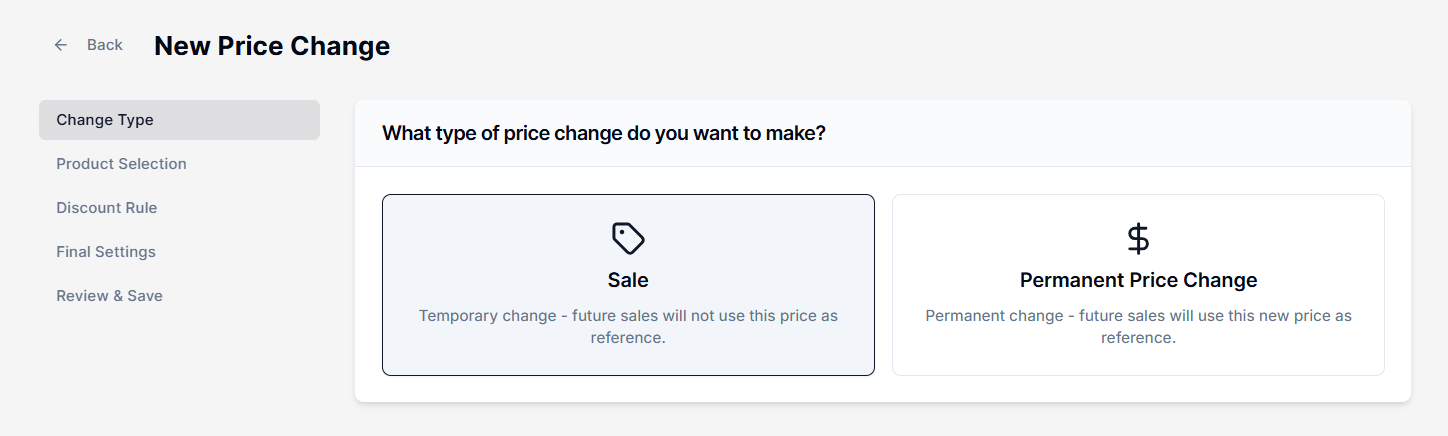
Step 1: Select Change Type#
Choose how the price change affects your products:
Sale#
Creates a temporary price reduction. When the sale ends, the app automatically reverts prices to their original state. This is the standard option for promotions like “Black Friday” or “Weekend Flash Sale.”
Permanent Price Change#
Updates the base price permanently. Future sales will use this new price as the reference point. Use this for repricing inventory or permanent markdowns.
Step 2: Select Products#
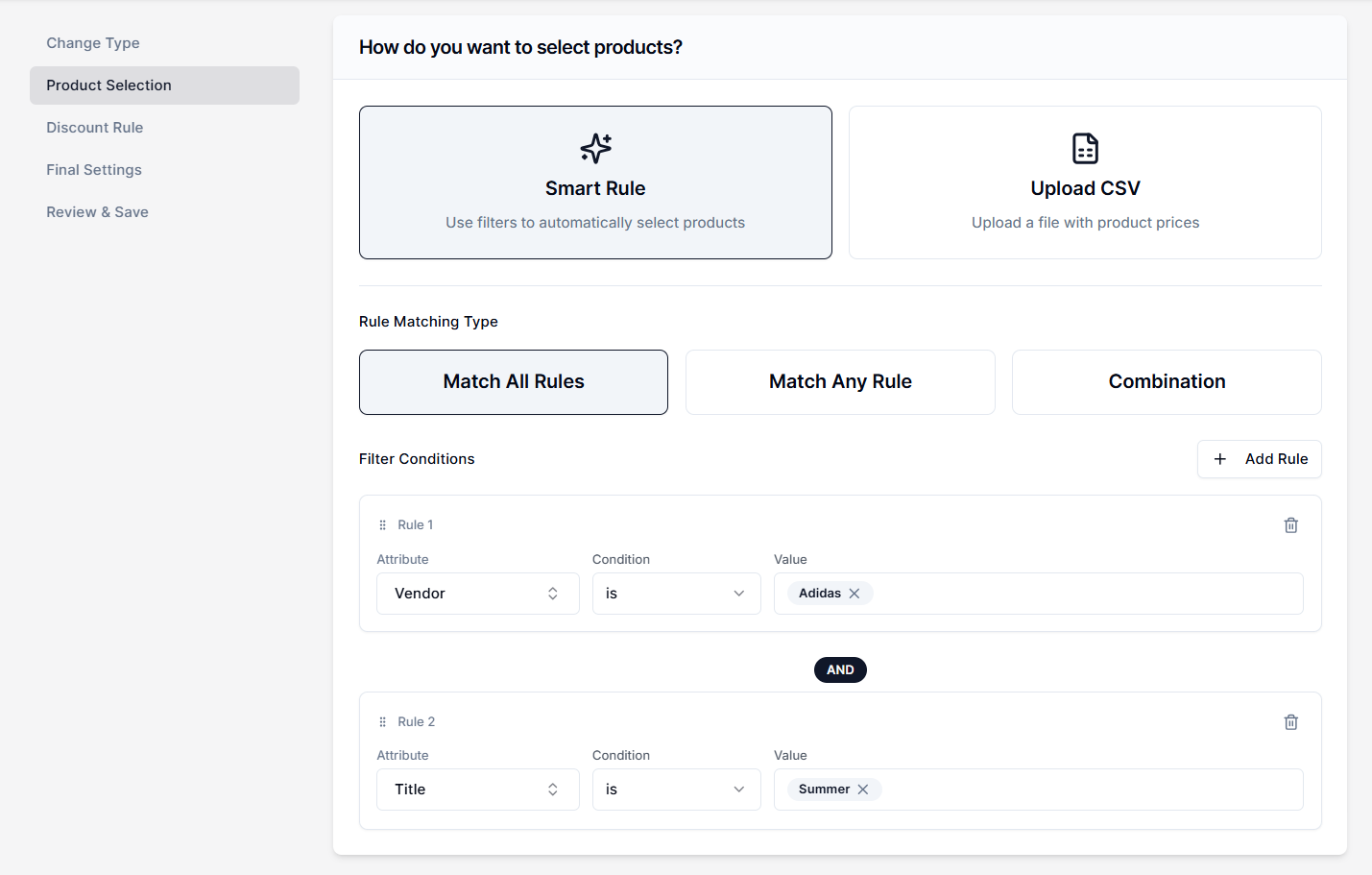
Define which items are included in the rule. There are two ways of doing this:
Option A: Smart Rule (Recommended)#
Use filters to target products based on their attributes.
- Select Smart Rule.
- Choose your matching logic:
- Match All Rules (AND): The product must meet every condition (e.g., Vendor is “Adidas” AND Tag contains “Summer”).
- Match Any Rule (OR): The product must meet at least one condition (e.g., Tag contains “Summer” OR Tag contains “Beach”).
- Combination: Use this for complex targeting. You can create multiple Rule Groups.
- Rules inside a group use AND logic (all must match).
- The groups themselves are connected by OR logic (a product can match any group).
- Add conditions using attributes such as Metafield, Tag, Title, Vendor, Price, and more.
- Example: Target products where (Vendor is “Adidas” AND Price > $100) OR (Tag contains “Clearance”). This includes expensive Adidas items plus everything in clearance, regardless of brand.
To learn more about how the AND, OR, and Combination rules work, read the Rule Matching Types article.
For more details on attributes, refer to the Filter Conditions guide.
Option B: Upload CSV#
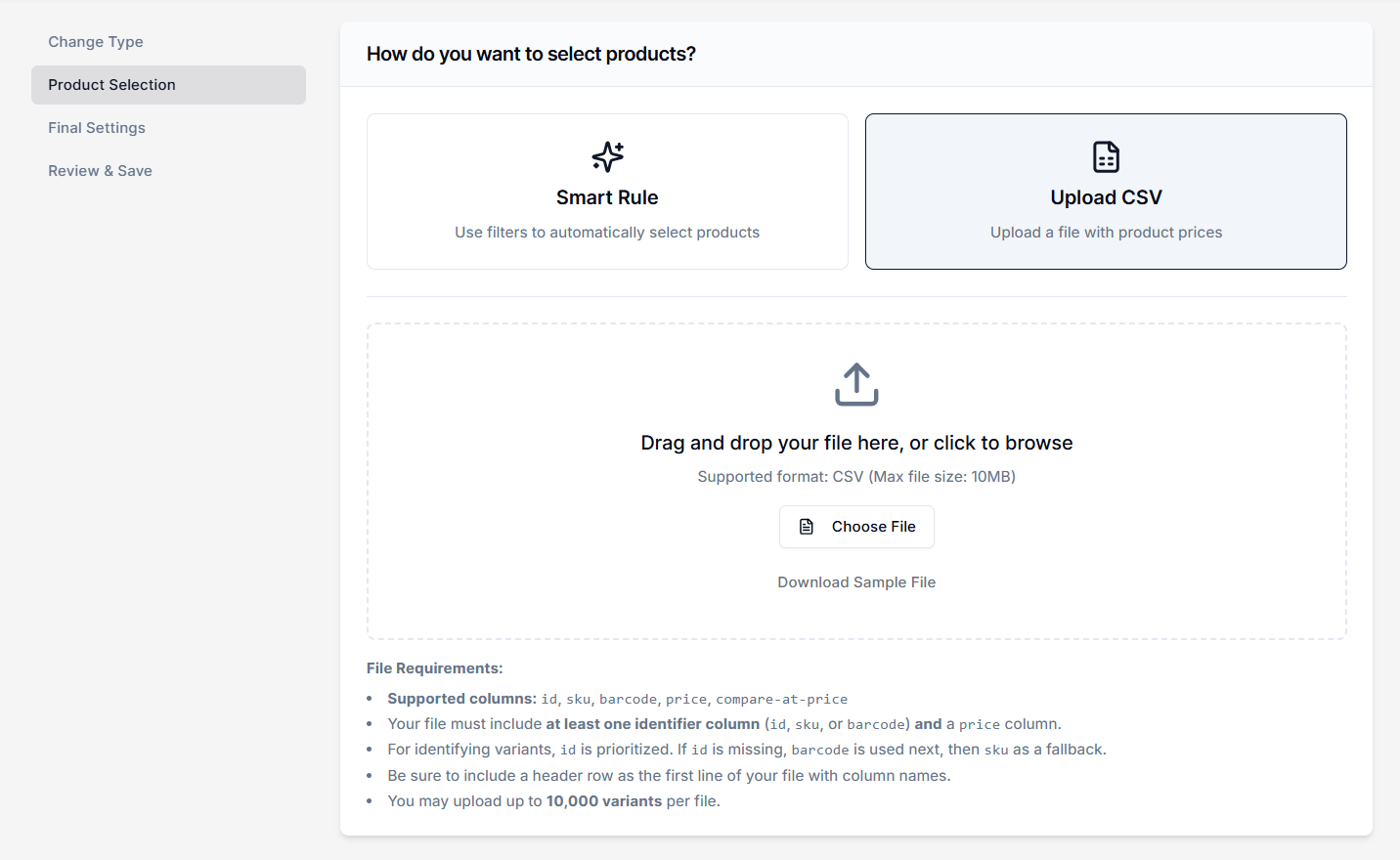
Use a spreadsheet to upload a product list. This method is ideal for targeting specific variants provided by external partners.
- Select Upload CSV.
- Prepare Your File: You don’t need to map columns manually. The app automatically detects data based on your header row. Therefore, your CSV must follow these File Requirements:
- Format: CSV file
- Size: 10MB (Maximum)
- Required Columns: Your file must include a price column and at least one identifier column: ‘id’, ‘sku’, or ‘barcode’.
- Header Row: The first line of the file must contain the exact column names listed above.
- Upload: Drag and drop your file into the upload zone or select Choose File.
- Download Sample: If you’re unsure about the format, select Download Sample File within the upload box to get a pre-formatted template.
Important Notes#
- Identifier Priority: The app matches products in this order of priority: id (Variant ID) > barcode > sku
- Limit: You may upload up to 10,000 variants per file.
Step 3: Configure Discount Logic#
Define how the price changes.
Note: This step is applicable only if you select Option A: Smart Rule in Step 2.
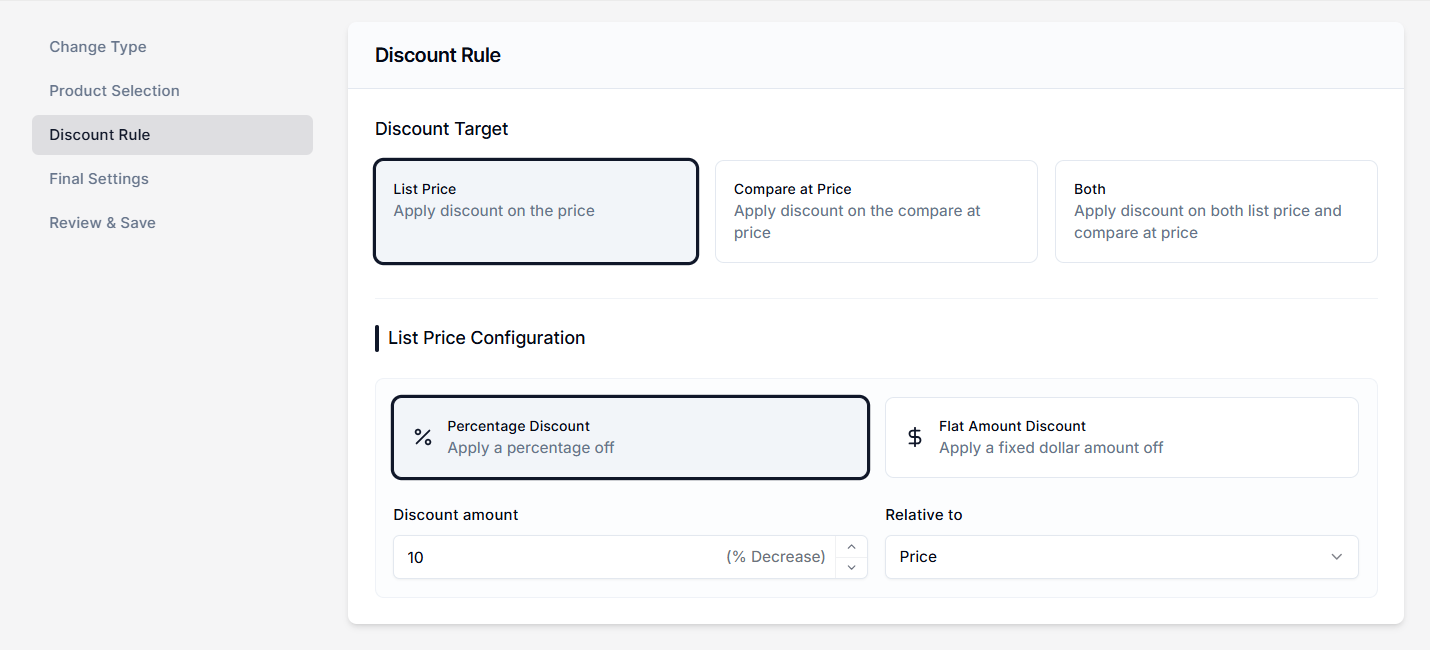
Discount Target#
Select which price field to update:
- List Price: Applies the discount to the regular selling price.
- Compare at Price: Updates the original price (often used to artificially inflate the “was” price before a sale).
- Both: Updates both the List Price and Compare at Price simultaneously.
Discount Type#
- Percentage Discount: Reduces the price by a set percentage (e.g., 20% off).
- Flat Amount Discount: Reduces the price by a fixed currency amount (e.g., $5 off).
Configuration Values#
Once you select a discount type, define the specific values:
- Discount amount: Enter the discount amount as a numeric value.
- Example: If you selected Percentage Discount, enter "20" for 20% off. If you selected Flat Amount Discount, enter "10" for $10 off.
- Relative to: Select the reference price used as the base for calculation.
- Price: Calculates the new value based on the current selling price.
- Compare at Price: Calculates the new value based on the existing Compare-at (original) price.
Tiered Discount#
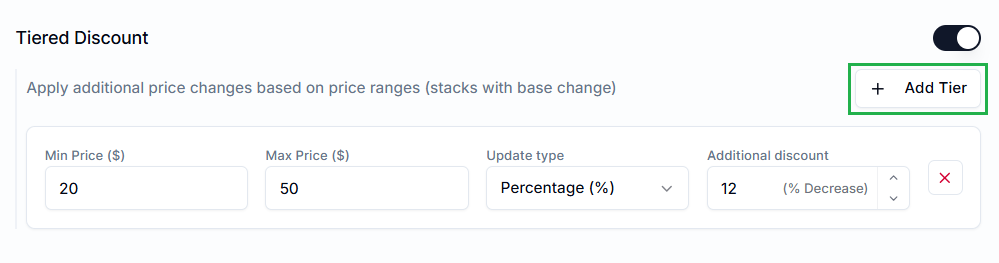
Turn on Tiered Discount to apply additional discounts based on the product’s price range.
Note: These discounts stack with your base discount calculation.
How to Configure#
- Select Add Tier.
- Define the price bracket using the Min Price ($) and Max Price ($) fields (e.g., "$10 to $50").
- Choose the discount update type for this specific tier through the dedicated dropdown (e.g., Percentage, Flat Amount, or Fixed Price).
- Enter a value (e.g., "12") in the Additional discount field to apply to items in this range.
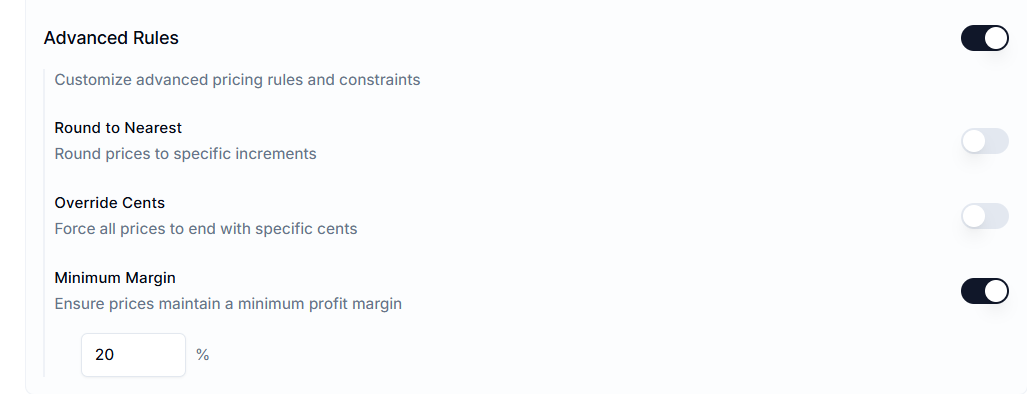
Advanced Rules#
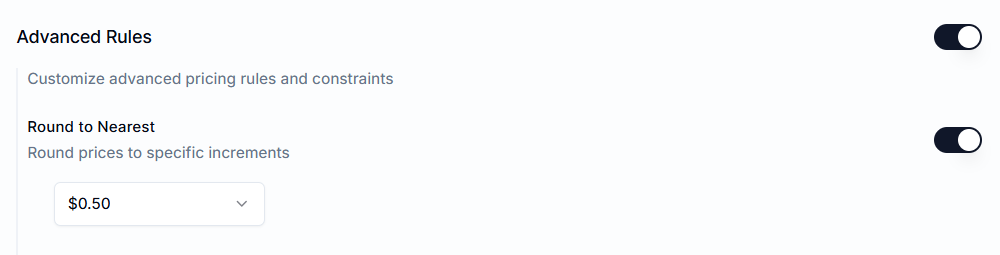
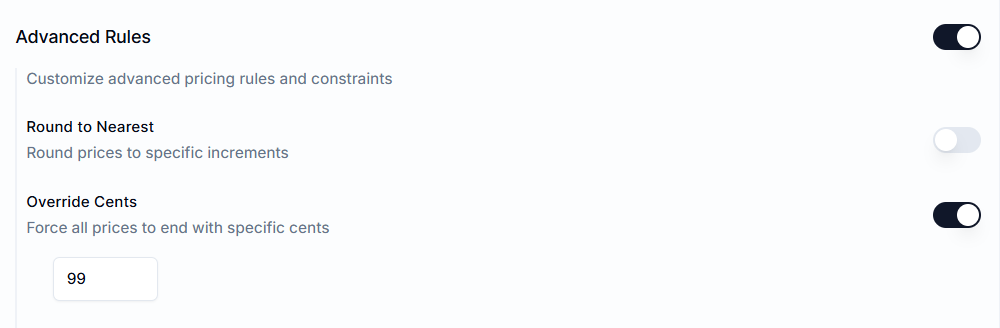
Enable Advanced Rules to control the final price display and protect your margins with built-in profitability safeguards.
- Round to Nearest: Adjust the calculated price to the closest selected increment (e.g., select 0.50 or 1.00) for consistent pricing.
- Override Cents: Force all calculated prices to end with a specific decimal value (e.g., enter 99 to display prices as $19.99, $24.99, etc.).
- Minimum Margin: Prevent discounts from reducing a product’s profit below a set threshold.
- Input: Enter a percentage (e.g., 20 %).
- How it works: The app checks the product’s Cost per item. If the discounted price drops below this margin threshold, the system overrides the discount to maintain your minimum profit.
Step 4: Final Settings & Scheduling#
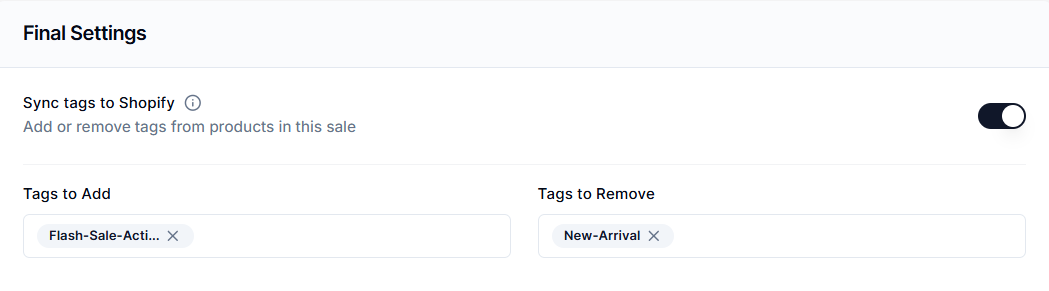
Sync Tags to Shopify#
Enable Sync tags to Shopify to manage product tags during your campaign. This integration is essential for creating temporary “On Sale” collections or triggering email flows in marketing tools like Klaviyo.
- Tags to Add: Enter the tags you want applied to products when the sale starts (e.g., Flash-Sale-Active). The app automatically removes these specific tags when the sale ends.
- Tags to Remove: Enter any existing tags you want stripped from the products when the sale activates (e.g., remove New-Arrival from items entering a clearance sale).
Enable Schedule#
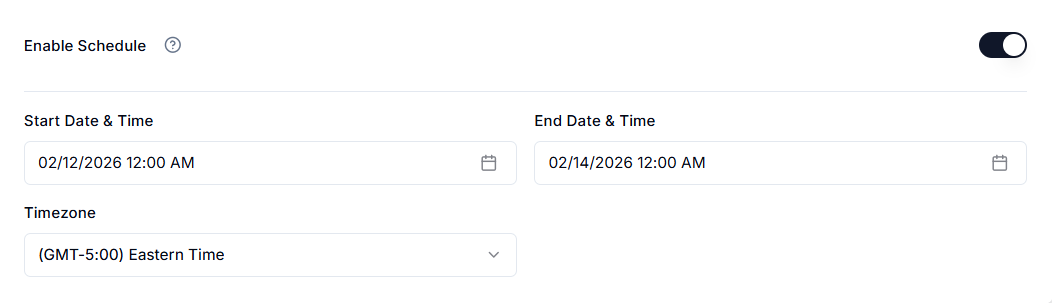
Turn on this option to set the precise timing of your sale.
- Start Date & Time: Select the date and time when the rule activates and updates prices.
- End Date & Time: Select the expiration date and time. The app will automatically trigger revert at this time to restore product prices to their original values.
- Timezone: Select your store’s operating timezone (e.g., GMT-5:00 Eastern Time) to ensure the sale starts and ends exactly when your customers expect it.
Step 5: Review & Publish#
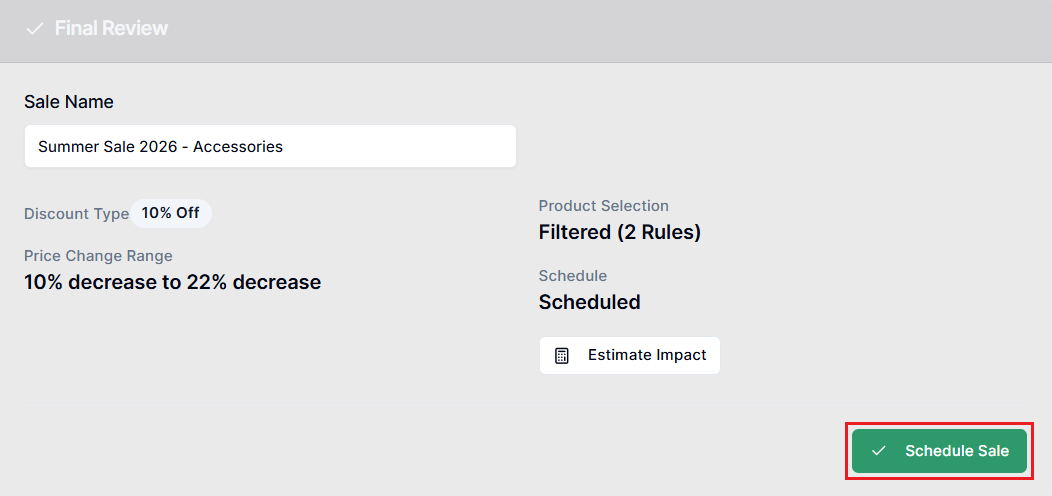
- Enter a Sale Name. Use a descriptive name, such as “Summer Sale 2026 - Accessories”.
- Select Estimate Impact to preview how many products will be affected by this rule.
- Select Schedule Sale or Publish Sale (if not scheduled).
Important Notes#
Change Type: Sale#
For rules set as Sale type, the app stores the current price before making changes. When the sale ends (either by schedule or manual revert), the system restores the exact pre-sale price.
Important: Do not manually edit prices in Shopify Admin while a Price Rules sale is active, as this may cause data inconsistencies during reversion.
Large Catalog Performance#
For stores with tens of thousands of products, publishing a rule initiates a background job. It may take several minutes for all prices to update on your storefront.
Important: For major campaigns, we recommend scheduling the sale 15-30 minutes in advance to allow sufficient time for system-wide synchronization before traffic peaks.
What’s Next?#
- Edit the rule later: See Edit Price Rules
- Restore changes: See Revert Price Change
- Review price change history: See Check Activity Log
Need Help?#
You’re now ready to create and publish rules with confidence. If you have questions about setting up a price rule, configuring discount logic, or scheduling a sale, our support team is happy to assist.
Email support@bevycommerce.com, and we’ll get back to you as quickly as possible.