Check Activity Log
Price Rules maintains a comprehensive audit trail for every sales campaign. Using the activity logs, you can verify that prices were updated correctly, monitor the progress of large bulk operations, and troubleshoot any discrepancies in your store data.
There are two types of logs available for every sale and price changes with a Published status: the Affected Products Log (granular product data) and the Detailed Activity Log (system-level job status).
For sales that have been Reverted, Scheduled, or Drafted, only the Detailed Activity Log is available.
Accessing Logs#
To view logs for a specific campaign:
Step 1: Navigate to the Price Rules Home or dashboard. Step 2: Locate the specific rule in the table. Step 3: Select the View icon (eye symbol) to open the activity details page.
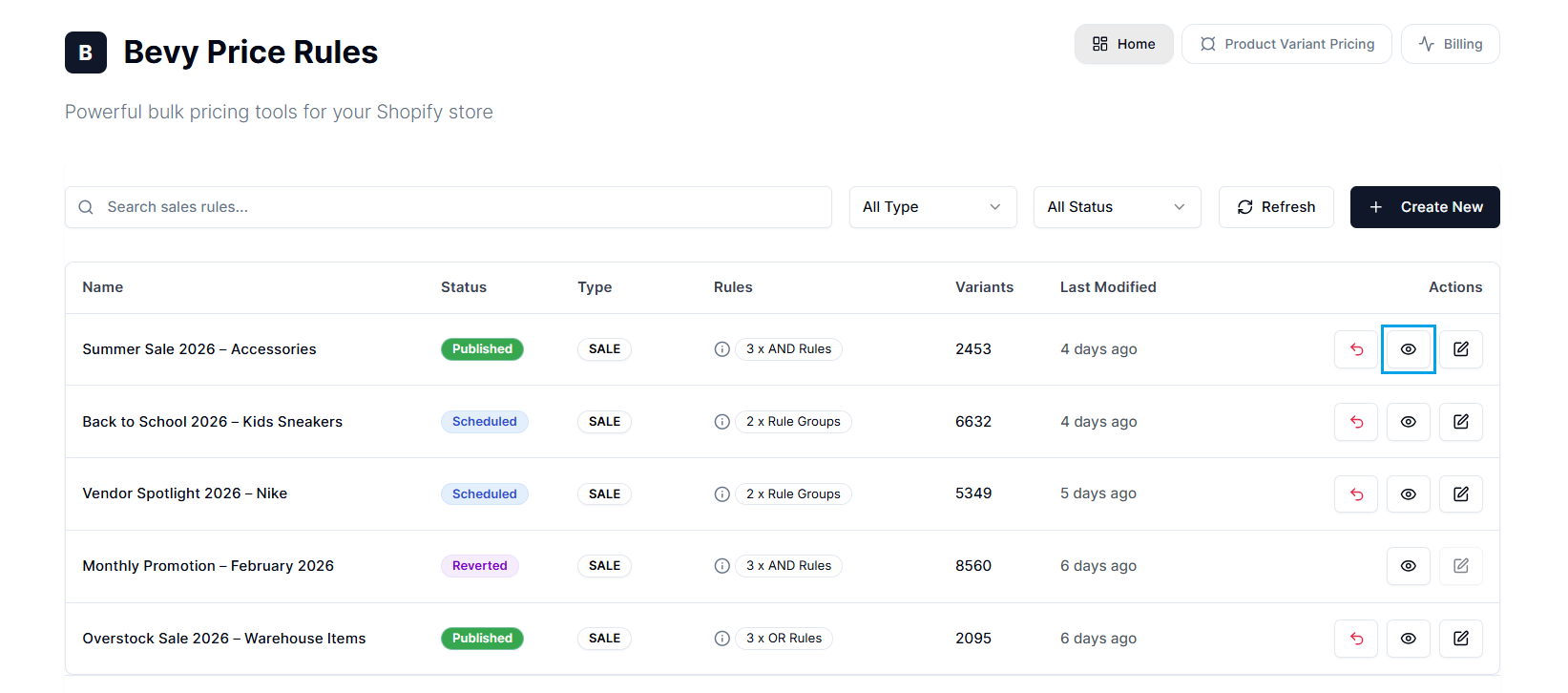
Step 4: Scroll down to find the log sections.
Affected Products & Price Changes#
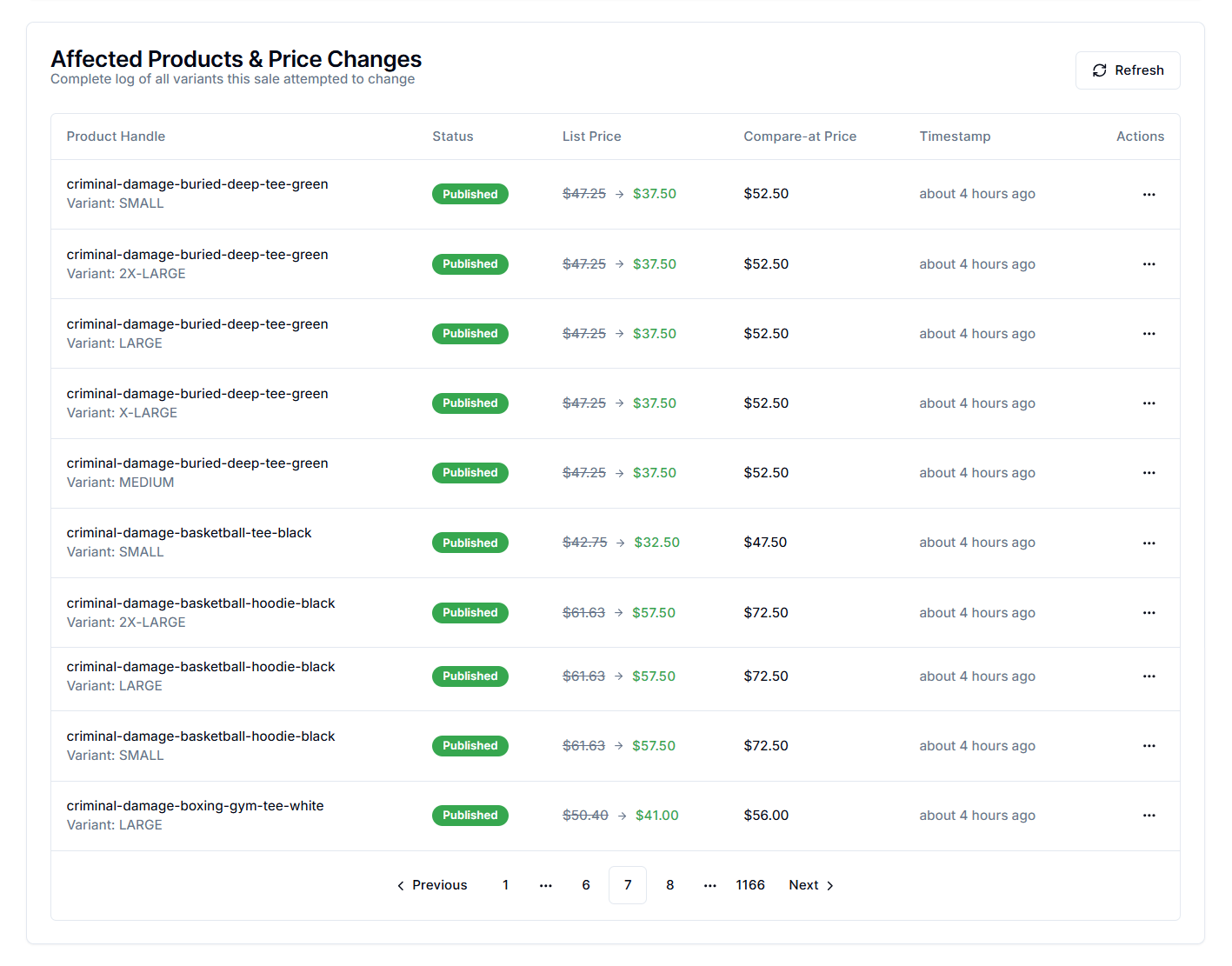
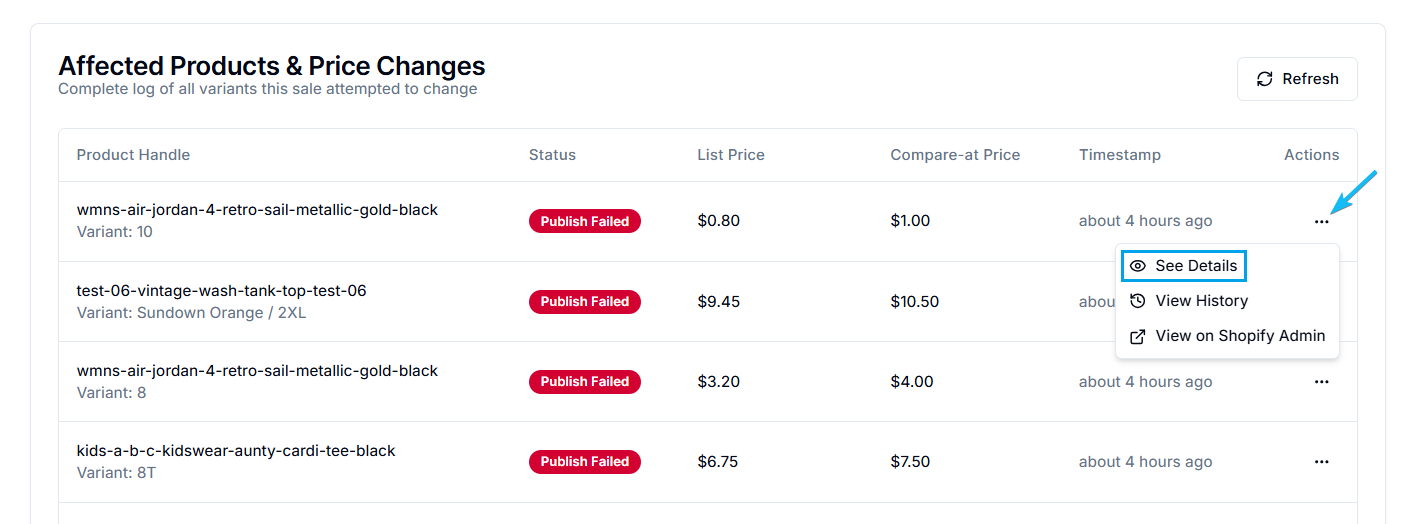
This table provides a line-by-line record of every variant modified by the price rule. It serves as your primary tool for verifying that the correct discounts were applied.
Key Columns:
- Product Handle: Identifies the specific item (e.g., "buried-deep-tee-green | Variant: MEDIUM").
- Status: Indicates the result of the update (e.g., Active, Published, etc.).
- List Price: Displays how the product price changes after the rule is applied. For a published rule, you’ll see the original and new prices side by side (e.g.,
$72.25→ $65.80), so you can quickly confirm that the discount is calculated correctly. - Compare-at-Price: Displays the value that appears as the crossed-out original price on your storefront.
- Timestamp: The exact time the update occurred ("about 1 hour ago", "6 days ago").
Note: If a customer claims a product isn’t discounted, check this log. If the product appears here with a Published status and the correct price change, the issue may lie with your theme or cache rather than the app’s pricing engine.
Refresh Data#
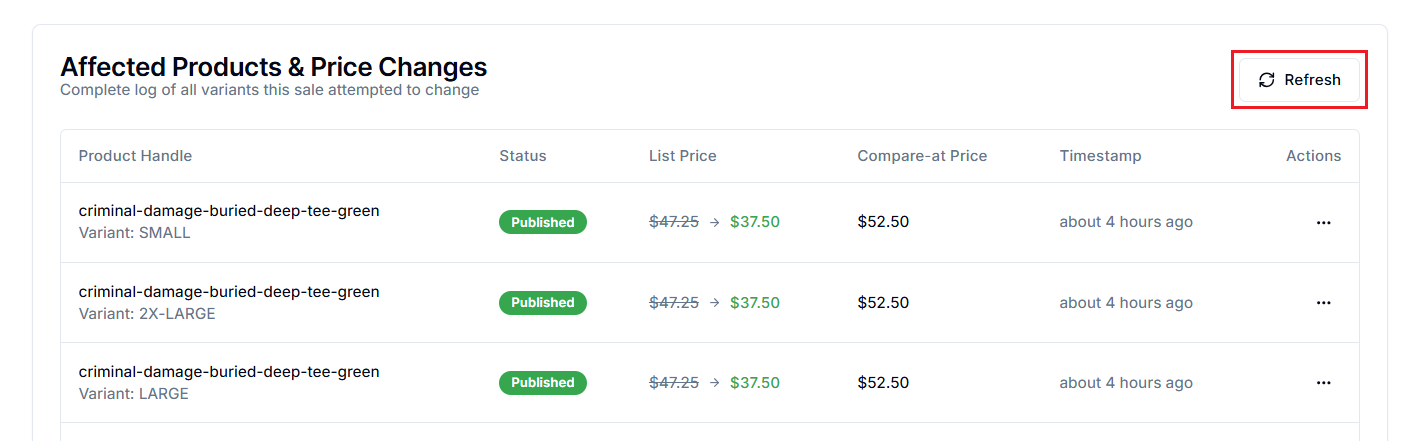
Because the app processes price updates in background batches, the table may not reflect the most recent changes for large catalogs immediately.
- Solution: Select the Refresh button in the top-right corner of the table. This forces the dashboard to retrieve the latest status from the server, updating the Status badges and List Price calculations to reflect real-time progress.
Variant Actions#
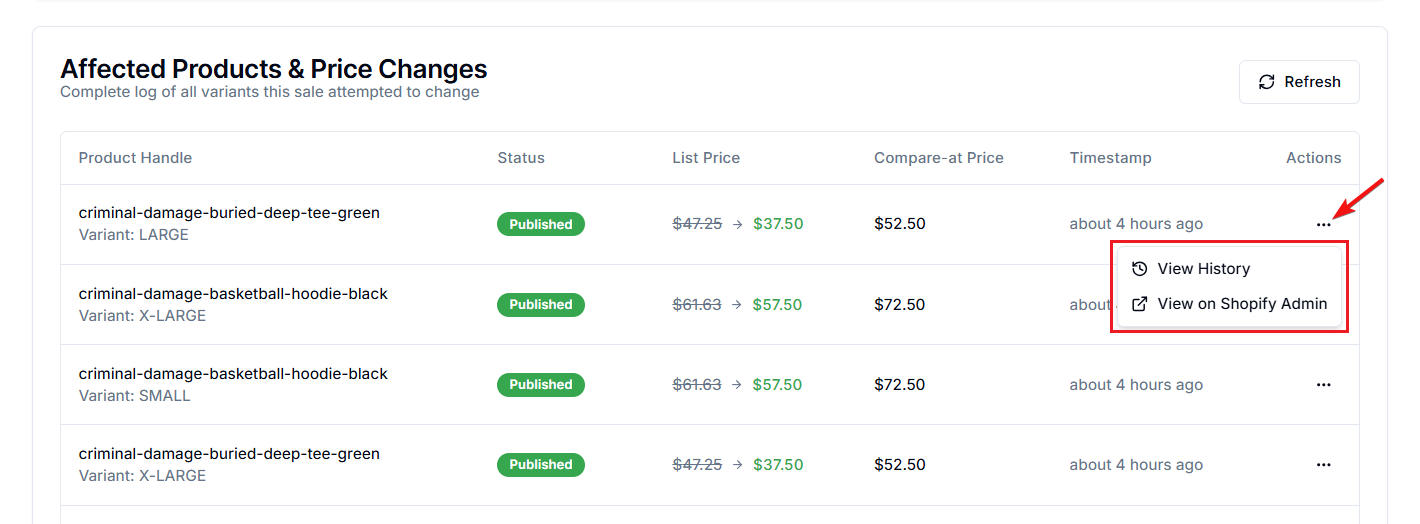
For a deeper investigation into a specific item, use the Actions column located on the far right of each row. Click the three dots (...) to access the following options:
1. View History#
Select View History to open the individual Price Timeline for that variant.
Use this option if you suspect a different rule or an external app changed a product’s price. It shows the complete audit trail of that variant, not just the changes from the current sale.
2. View on Shopify Admin#
Select View on Shopify Admin to open a new tab directly to that product’s editing page in your Shopify store.
Use this option to manually correct product data (e.g., missing SKUs or costs) that may be causing errors.
3. See Details#
If a product shows a Publish Failed status, select See Details to open a diagnostic modal. It lets you know the cause of the error - price calculation resulted in a negative number or anything else.
Detailed Activity Log#
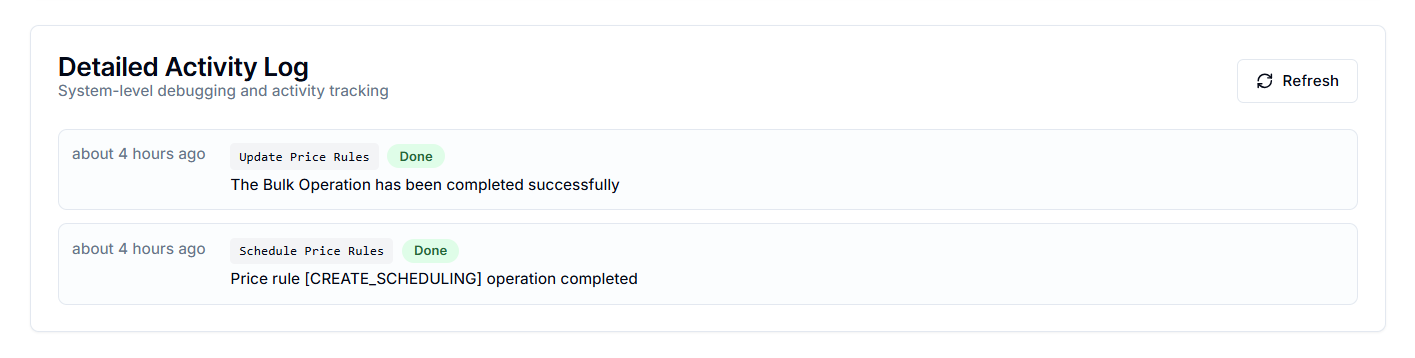
Located below the product variant list, this log tracks the background jobs that the app processes. It is useful for monitoring the overall health of the sale, especially during setup or reversion.
Common Events#
The Detailed Activity Log tracks high-level system operations. Unlike the Affected Products list (which shows individual variant changes), this log tracks the rule’s lifecycle.
1. Create Price Rules#
Create Price Rules means you have successfully created a new pricing rule. This event appears when you first save the rule. If the status shows Done, it confirms that the system has successfully registered the rule in the database.
2. Schedule Price Rules#
Schedule Price Rules means the system has successfully registered your selected Start and End times with the background scheduler. This event confirms that the automation is locked and will run as scheduled. You'll see this whenever you set a schedule or modify the rule’s dates.
3. Update Price Rules#
Update Price Rules means you have modified an existing rule, such as changing the discount percentage or adding a new filter. This indicates that the system has reprocessed the rule to apply your new settings. If the rule is already active, the update typically triggers a new bulk operation to adjust prices accordingly.
4. Revert Price Rules#
Revert Price Rules means the sale has ended. This event is triggered when a rule reaches its scheduled End Date or when you manually click the Revert button. It confirms the system has restored original prices and removed any associated marketing tags.
Status Indicators#
Each event in the Detailed Activity Log is assigned a status badge indicating the operation’s outcome.
- Done: The operation has been successfully processed by the server. The rule is saved, scheduled, or updated correctly.
- Running: The operation is ongoing and processing items.
- Failed: The system couldn’t complete the request. This may happen due to a database timeout or connection error.
Points to Keep in Mind#
-
If you manually change a product’s price in the Shopify Admin after the sale starts, the Price Rules log will still show the price calculated at the start of the sale. The log is a historical record of the app’s actions, not a live feed of the current state of Shopify.
-
For stores with large catalogs, price updates run as batched background jobs to prevent API timeouts. You may see the Detailed Activity Log show “Running” while the Affected Products list populates gradually. This is normal behavior. Do not refresh or edit the rule until the system log shows Done.
-
Price Rules utilizes an event sourcing architecture. This means the logs can’t be edited or deleted and are maintained indefinitely for compliance. You can use these logs to audit price history if you need to prove the validity of a discount to regulators or internal stakeholders.
-
You cannot undo or edit a specific line item inside the log. If you need to reverse a price change, you must either:
- Revert the entire sale rule, or
- Edit the rule’s filters to exclude the specific product and republish
- The Activity Log tracks changes made by the Price Rules app exclusively. It does not display price edits made through Shopify’s bulk editor, CSV imports, or other third-party applications.
Need Help?#
If you’re reviewing logs and unsure why a variant shows Publish Failed, why an event is stuck in Running, or whether a price was applied correctly, our support team can help.
Email support@bevycommerce.com, and we’ll assist you in interpreting the activity data and diagnosing it quickly.