Data Resync
Surge: AI Search automatically keeps your store's search index in sync with Shopify. Every time a product is added, updated, or removed in Shopify, Surge picks up the change and updates its search index within seconds, so shoppers always see accurate results.
However, sometimes, you need more control. The data resync option lets you manually trigger a full sync of your products, blogs, and collections on demand.
Why Resync Data?#
Surge automatically detects changes in catalog data and processes them in real time. This covers the vast majority of day-to-day updates without any manual action from your part.
However, a manual resync is useful in specific situations:
After a Bulk Product Import#
CSV imports in Shopify may not always trigger automatic updates for every product. A manual resync ensures that every imported record is added to the Surge index.
Mismatched Product Count#
If the Products count on the Surge dashboard is lower than your actual active product count on Shopify, a resync reconciles the two.
After a Failed Automatic Sync#
If the Sync History log shows a "Failed" status for a recent entry, a manual resync usually resolves the issue.
After Making Changes to Metafields#
If you add or remove a metafield namespace in the Metafields Indexing settings, a resync re-indexes your entire catalog with the updated field configuration.
After Editing Products Outside Shopify#
Third-party inventory management tools may push changes to Shopify in ways that bypass Surge's automatic update detection. A manual resync ensures those changes are reflected in search results.
Before You Resync#
Resyncing is safe and non-destructive. It reads data from Shopify and writes it to the Surge index. It never modifies your Shopify products, collections, or any storefront content. That said, keep these points in mind before you start:
Syncs Queue One at a Time#
You cannot run two syncs simultaneously. If a sync is already in progress, the Resync button is grayed out and labeled Sync in progress until the current sync finishes.
Duration Depends on the Catalog Size#
A store with 500 products usually takes under a minute to sync. A store with 15,000 products may take 5 to 10 minutes. Plan accordingly and avoid triggering a resync right before a flash sale or promotional event.
Active Products Only#
Surge only indexes products with an "Active" status in Shopify. Draft and unlisted products are excluded from the sync, and changing a product's status from "Active" to "Draft" or "Unlisted" immediately removes it from the index.
How to Resync Data?#
Follow these steps to run a manual resync.
Step 1: Visit the Surge: AI Search dashboard.
Step 2: Find the "Sync History" button in the top-right corner of the dashboard and click it to open the Data Resync page.

Step 3: Click the "Resync" button.
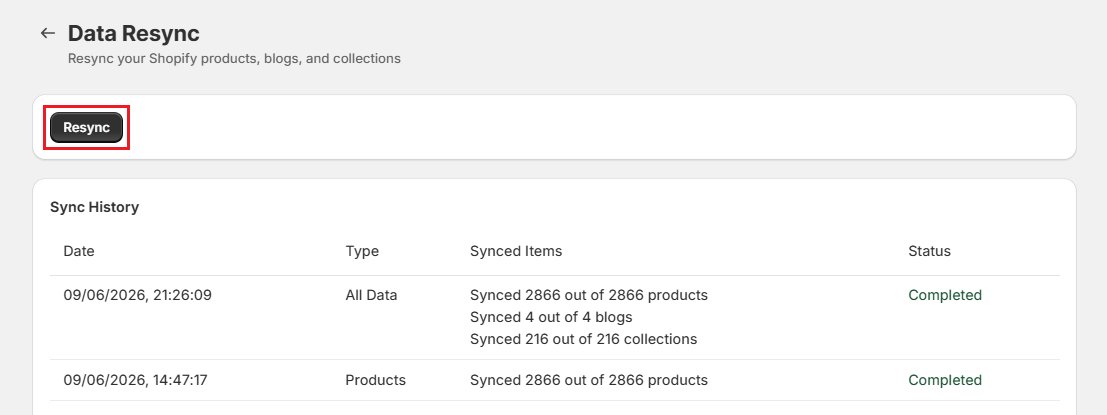
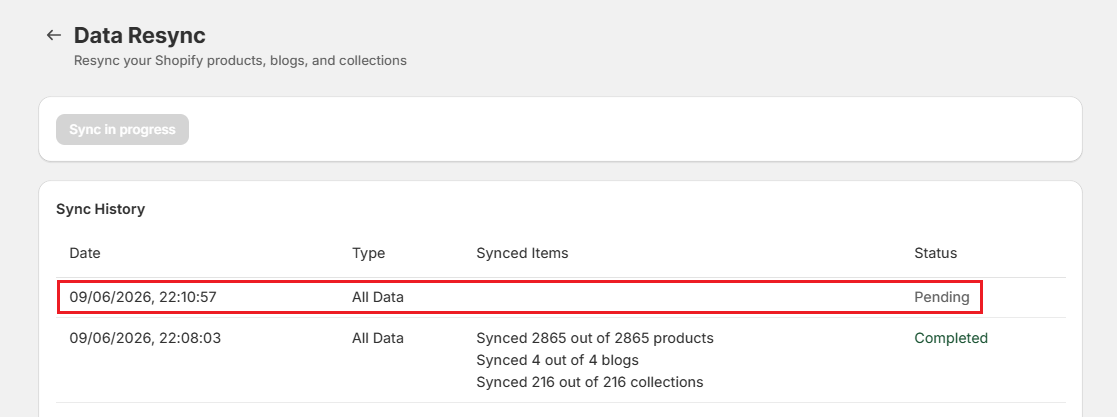
It changes immediately to "Sync in progress", and a new row appears at the top of the Sync History table with a "Pending" status.
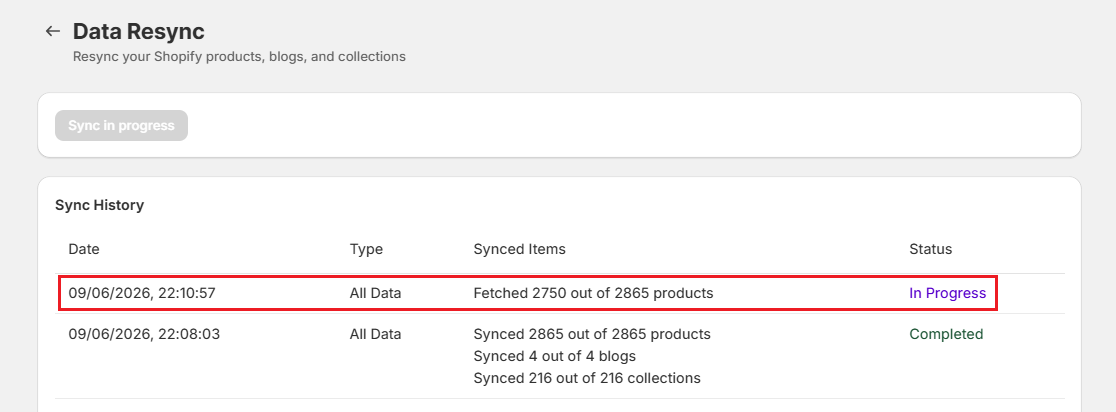
The "Pending" status transitions to "In Progress" within 5 to 10 seconds, and the Synced Items column begins updating with a live counter, for example, "Fetched 2750 out of 2865 products". You do not need to stay on this page; the sync runs in the background.
When finished, the status changes to "Completed". The Synced Items column shows the final count for all available data types: products, blogs, and collections.
Note: While a resync runs, shoppers on your storefront still see normal search results. Surge serves search from the existing index and updates individual records as the sync processes them. There is no downtime during a resync.
Sync Types#
The Sync History table shows two distinct sync types. Understanding the difference helps you read the history log and know when each type runs.
| Sync Type | What It Syncs | What Causes It |
|---|---|---|
| All Data | Products, blogs, and collections in one operation | Manual resyncs triggered via the Resync button |
| Products | Products only | Automatic syncs triggered by individual product webhook events (create, update, delete) |
Note: You cannot manually choose the sync type. Clicking the Resync button always runs an All Data sync. The Products-only type is reserved for Surge's automatic webhook-driven updates.
Understanding the Sync History Table#
Every sync event, whether automatic or manual, appears as a row in the Sync History table on the Data Resync page. Here is what each column means:
| Column | What It Shows |
|---|---|
| Date | The exact date and time the sync started. |
| Type | Either All Data (full sync) or Products (product-only webhook sync). |
| Synced Items | A line-by-line breakdown of what was synced. During an active sync, this counter updates in real time. |
| Status | The outcome of the sync: Pending, In Progress, Completed, or Failed. |
Understanding Sync Status#
Each sync entry moves through a predictable lifecycle. Here is what each status means and what to do when you see it.
1. Pending#
What It Means:
The sync has been queued but has not yet started processing. This status typically lasts 5 to 10 seconds before transitioning to "In Progress".
What to Do:
Wait for it to advance. If it stays "Pending" for more than two minutes, try reloading the page.
2. In Progress#
What It Means:
The sync is actively running. The Synced Items column shows a live counter (such as "Fetched 1,500 out of 2,866 products") that updates as each batch of records is processed.
What to Do:
The sync runs in the background. You can navigate away from the page and return later to check the result.
3. Completed#
What It Means:
The sync finished successfully. All products, blogs, and collections were indexed. The Synced Items column shows the final totals, for example:
- "Synced 2866 out of 2866 products"
- "Synced 4 out of 4 blogs"
- "Synced 216 out of 216 collections"
What to Do:
No further action is required. Your search index is up to date.
4. Failed#
What It Means:
The sync encountered an error for one or more data types. A red "Failed" status with an info icon (i) appears. Hovering over the icon shows the error message, for example, "Failed to sync one or more collections". A partial sync may still have succeeded for the other data types.
What to Do:
Resync again. If the failure repeats, contact our support team.
Important Notes#
Resync Doesn't Cause Downtime#
The existing index continues to serve search results throughout the sync. New and updated records become searchable as they are processed, not all at once at the end.
One Sync at a Time Only#
The Resync button is disabled while a sync is in progress. Wait for the current sync to reach the "Completed" status before triggering another one.
"No Blogs to Sync" is Not a Failure#
If your store has no blog posts, this message appears in the Synced Items column. The overall status remains "Completed" unless another item failed.
Best Practices#
Check the Sync History Weekly#
Glance at the latest entries in the log during your scheduled dashboard review. If you see consecutive failed entries, investigate before they affect the shopper experience.
Do Not Run Concurrent Resyncs#
If you make multiple changes to the catalog, do all your edits first, then run a single resync. Triggering multiple resyncs in quick succession does not speed up indexing.
Validate After a Resync#
After any manual resync, search for 2 to 3 of your recently updated products on your storefront to confirm the index reflects your latest catalog state.
Match Resync Timing to Low-traffic Windows#
Although resyncing does not affect search availability, running a large sync during peak traffic hours can add server load. Schedule manual resyncs for early morning or late evening when traffic is lower.
Need Help?#
Not sure whether your catalog is syncing correctly or why certain products are missing from search results? Reach out to us through live chat in the app or by email at support@bevycommerce.com, and we'll help you verify your sync status and resolve any indexing issues.