Dashboard Overview
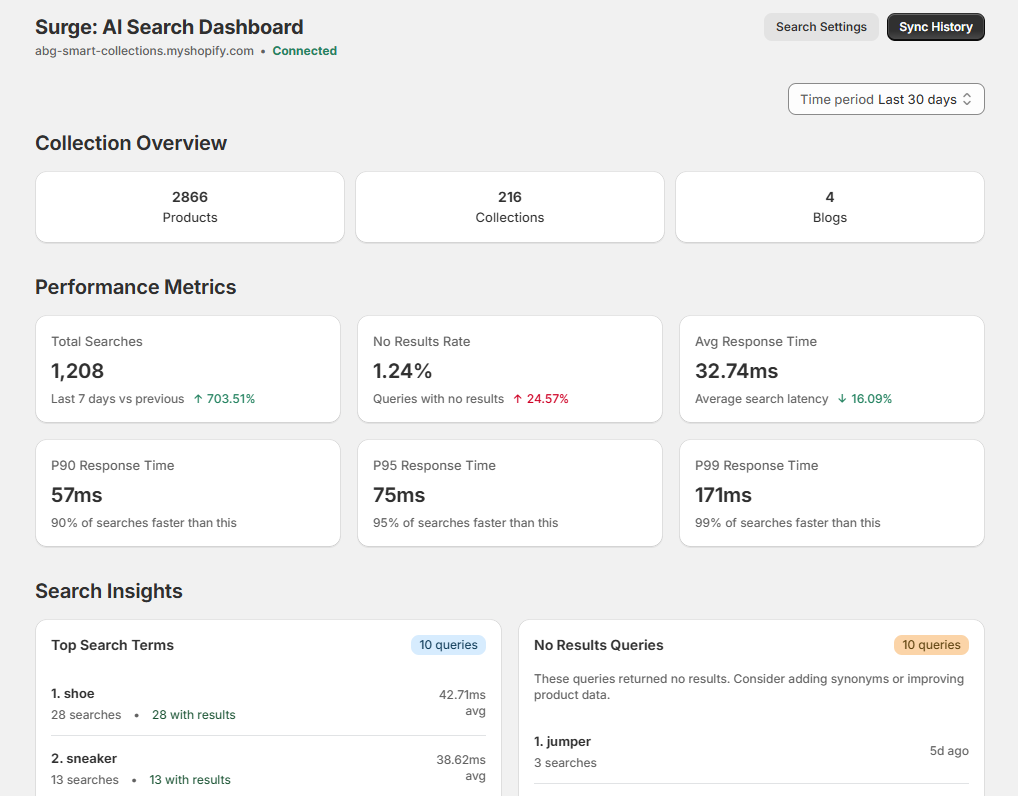
The Surge: AI Search dashboard lets you manage app settings, monitor search performance, and understand how shoppers interact with your store.
Every time a shopper runs a search, Surge captures it, and the dashboard turns that data into clear, actionable insights.
Getting Started#
To open the Surge dashboard, go to your Shopify admin and click "Apps" in the left sidebar, and from the dropdown, select Surge: AI Search.
What You See at the Top#
The dashboard header shows your store's myshopify.com domain and a green Connected badge, confirming that Surge is successfully linked to your Shopify store. If the badge shows Disconnected, reinstall the app or contact support.
Note: The Connected badge confirms that product webhooks are active and Surge is receiving live updates from Shopify. A Disconnected status means the app is not receiving product changes, which can cause search results to show outdated product information.

App Blocks#
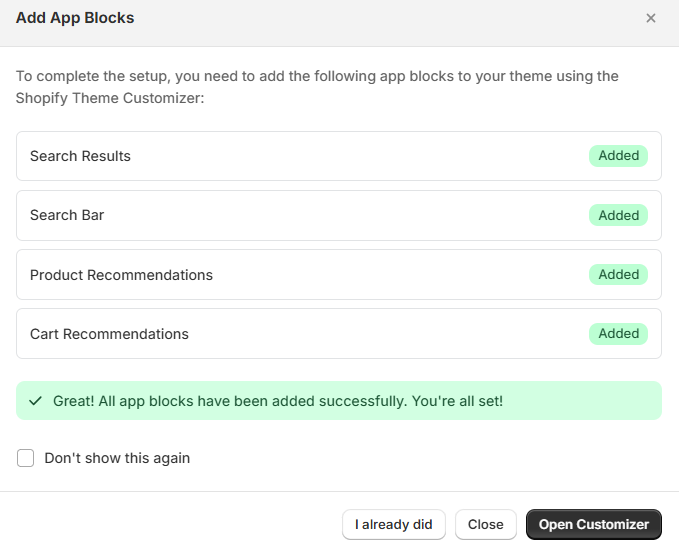
Clicking the Connected badge displays an Add App Blocks prompt. This dialog confirms which search components are active on your storefront. There are four app blocks:
| App Block | What it does |
|---|---|
| Search Bar | Powers the instant search overlay that appears as shoppers click and type in the search field. |
| Search Results | Displays the full search results page with filters, sorting, and product cards when a shopper presses Enter after typing a search query. |
| Product Recommendations | Shows product suggestions wherever the app block is added in your theme. It is typically placed on product detail pages to encourage additional purchases. |
| Cart Recommendations | Displays relevant product suggestions wherever the app block is added in your theme. Most merchants place it on the cart page to encourage add-on purchases. |
Each block shows a green Added badge when it is active in your live theme. If any block is missing, add it to your theme via the Shopify Theme Editor. To learn more, check the Add App Blocks guide.
Search Settings#
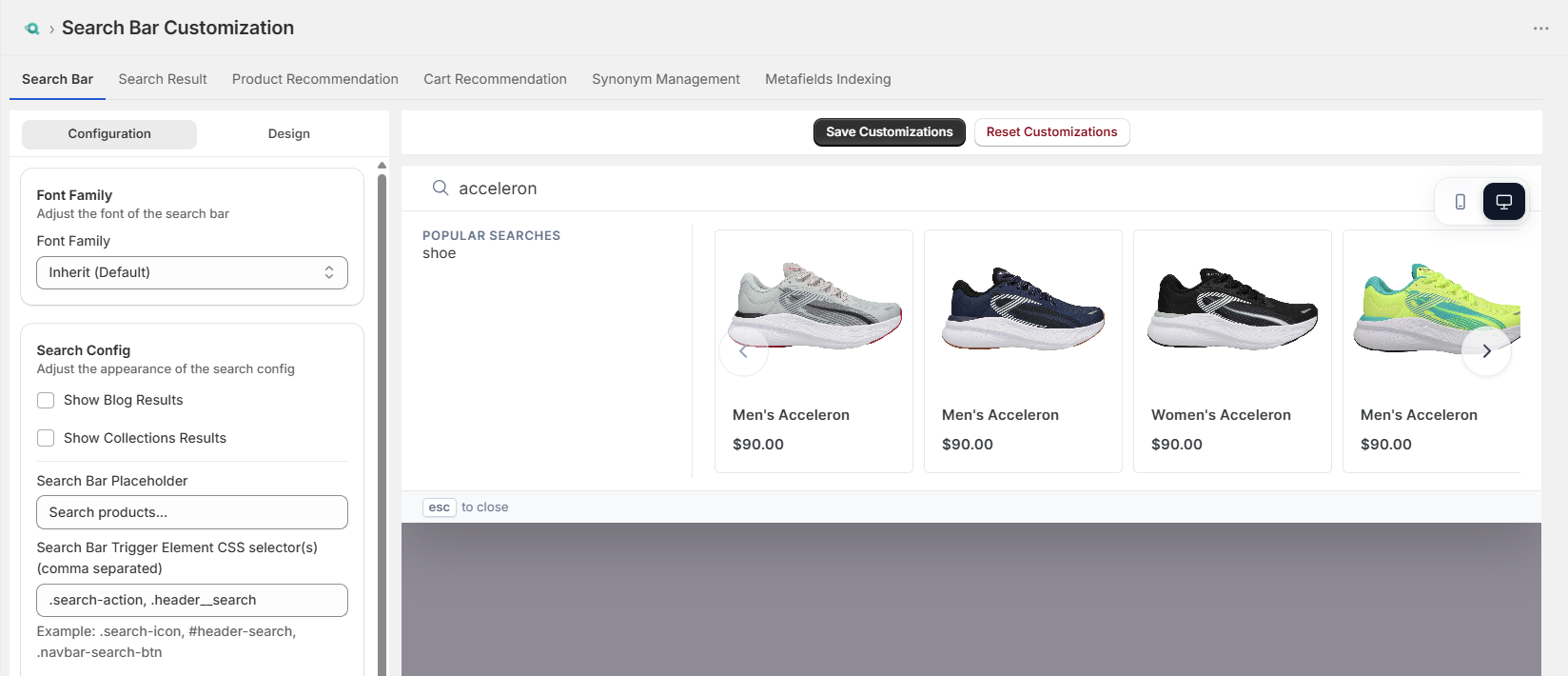
Click the "Search Settings" button at the top-right of the dashboard to open the search components customization page.

This is where you configure how Surge looks and behaves on your storefront. The customization page has six tabs:
- Search Bar: Controls the behavior and appearance of the instant search overlay that appears as shoppers type.
- Search Result: Configures the full search results page that shoppers land on after submitting a query.
- Product Recommendation: Controls how Surge displays product suggestions on individual product detail pages.
- Cart Recommendation: Configures the product recommendation widget on the cart page.
- Synonym Management: Let you define equivalent search terms so shoppers can find the same products even when they use different words.
Tip: Start managing synonyms after reviewing your No Results Queries list on the dashboard. The zero-result searches are your fastest guide to which synonyms you need to add.
- Metafields Indexing: Listing a metafield here adds it to the Surge search index, making it available as a filter option in the search result page.
Note: Metafield indexing triggers a partial resync of your catalog. For stores with large catalogs, it may take 5 to 15 minutes for the new field to become available as a filter.
Sync History#
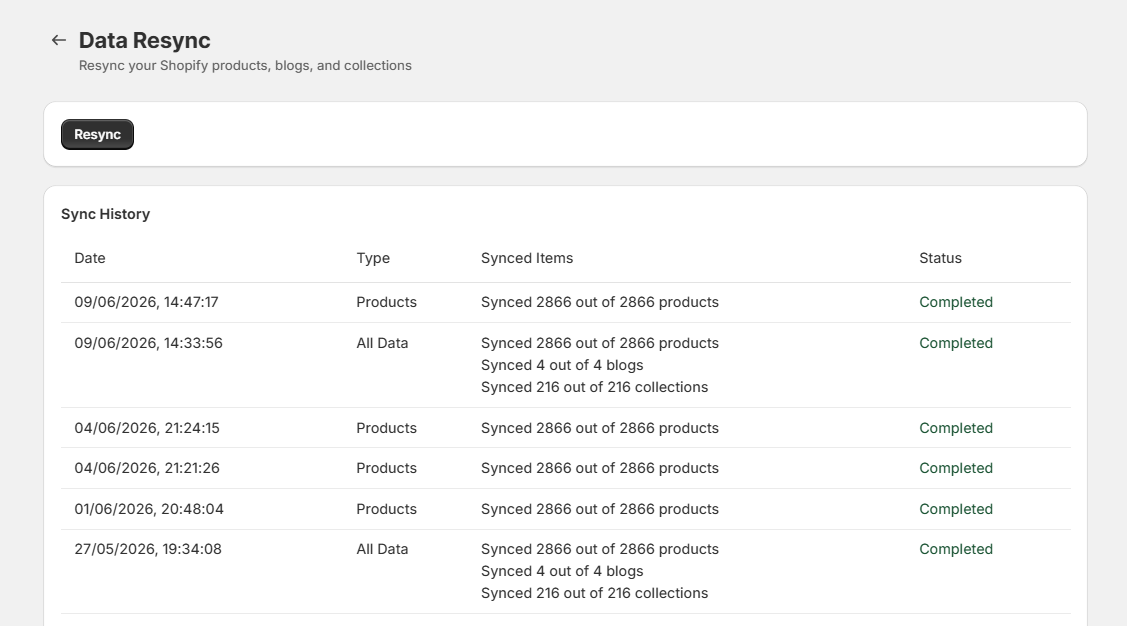
Click "Sync History" at the top-right of the dashboard to view a log of all catalog synchronization events between Shopify and Surge.

Sync history shows:
- Date: The exact date and time the sync ran.
- Type: Whether the sync ran automatically (triggered by a product update in Shopify) or manually (by clicking Resync).
- Synced Items: The number of items affected during the sync.
- Status: Whether the sync completed successfully or encountered an error.
Tip: If your product count on the dashboard does not match your Shopify catalog, check Sync History for any failed syncs. A failed sync often means Surge missed a webhook event. Use the Resync option to run a full resync.
Time Period Filter#
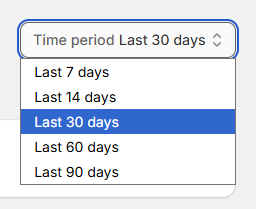
Use the Time period dropdown at the top-right of the dashboard to control the date range for the analytics data shown on the page. The filter applies to every section below it: Performance Metrics, Search Insights, and Activity Over Time.
Available time periods:
| Time Period | Best Used For |
|---|---|
| Last 7 days | Day-to-day monitoring and identifying sudden spikes or drops in search activity |
| Last 14 days | Short-term trend tracking and validating recent changes or optimizations |
| Last 30 days | Month-over-month performance review and identifying consistent patterns |
| Last 60 days | Broader trend analysis and measuring the impact of catalog or configuration changes over time |
| Last 90 days | Long-term trend analysis and understanding seasonal patterns or sustained performance shifts |
The dashboard updates all metrics instantly when you change the time period. No page reload is required.
Tip: Use the Last 7 days as your default view for routine check-ins. Switch to Last 30 days or Last 60 days when you want to evaluate the impact of a site redesign, a seasonal sale, or a batch product import.
Analytics#
The main body of the dashboard is divided into four analytics sections. Each section is described below:
Collection Overview#
The Collection Overview row shows three stat cards at the top of the analytics section:
Products#
Total active Shopify products currently indexed in Surge. This should match your active product count in Shopify. If it's lower, click "Sync History" and run a full resync.
Collections#
The number of Shopify collections indexed in Surge. This count is based on your Shopify admin and updates automatically when collections are created or removed.
Blogs#
The number of blog posts that have been indexed and are available in Surge search.
Note: Collection Overview counts are unaffected by the Time Period filter. They always show the current catalog state, not historical data.

Performance Metrics#
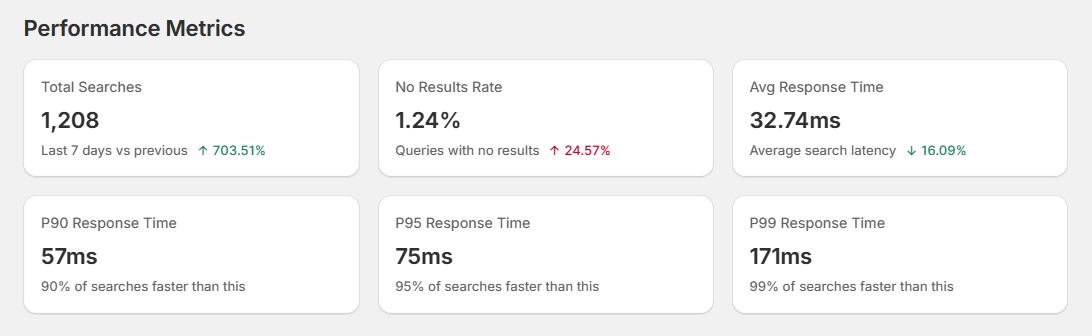
The Performance Metrics section provides a real-time picture of total searches and search speed for the selected time period. Six metric cards are displayed:
Total Searches#
The total number of search queries submitted by shoppers during the selected period. The percentage change compares this period to the previous period of equal length.
No Results Rate#
Percentage of searches that returned zero products. A lower number is better. Industry benchmarks aim below 5%. If your No Results Rate exceeds 10%, review your No Results Queries list and act on the top terms by adding synonyms, correcting product titles, or expanding your catalog.
Avg Response Time#
The mean time, in milliseconds, between a shopper submitting a search query and Surge returning results. Higher values may appear when a store has an extremely large catalog or complex filter configurations.
P90, P95, & P99 Response Times#
These percentile response times show how fast search performs for most shoppers, including slower edge cases.
- P90: 90% of all searches are completed within this recorded time, and 10% were slower.
- P95: 95% of all searches are completed within this recorded time, and 5% were slower.
- P99: 99% of all searches are completed within this recorded time, while the remaining 1% represent the slowest searches.
Tip: Pay attention to P99 specifically. A low P99 means even your heaviest queries resolve quickly. If your P99 climbs above 500ms, check whether you have a large number of indexed metafield filters or very broad search queries returning thousands of results.
Search Insights#
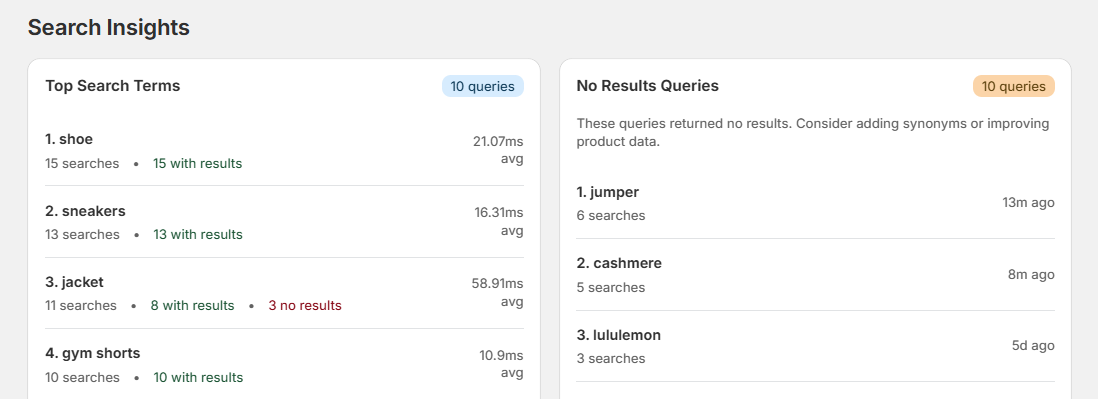
The Search Insights section is the most actionable part of the dashboard. It contains two panels that together show you what shoppers are looking for and where your catalog falls short.
Top Search Terms#
A ranked list of the most frequently searched terms during the selected period. For each term, you can see:
- Total Searches: How many times shoppers searched for this term.
- With Results: How many of those searches returned at least one product.
- No Results: How many searches for this term returned nothing.
- Avg Response Time: How fast Surge returned results for this specific term.
Example:
Let's say the term "shoe" had 74 searches, 71 with results, and 3 with no results. The 3 zero-result searches likely used slightly different spellings. Adding "shoe" as a synonym for "shoes" in Synonym Management would capture those misses.
No Results Queries#
A list of search terms that returned no matching products. Each entry shows the search term, how many times it was searched, and the last time it was searched.
Tip: Review the No Results Queries list weekly. Schedule 15 minutes to process the list and either add synonyms, update product titles, or flag catalog gaps for your customers.
Activity Over Time#
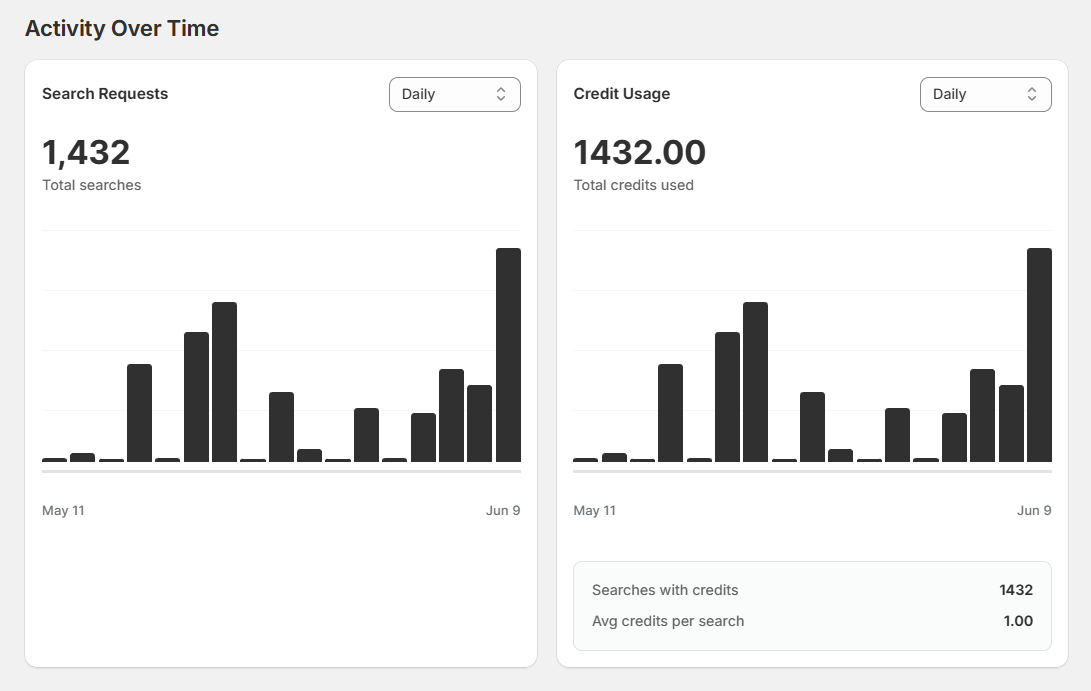
The Activity Over Time section includes two bar charts showing how search requests and credit consumption have changed over the selected period.
Search Requests#
Shows the total number of search queries per hour, day, or month based on the selected granularity. Hover over any bar to view the exact time period and number of queries.
Example:
Let's say May 22 had 233 searches, which was the highest single-day peak. Checking your marketing calendar for that date can explain the spike and help you replicate the conditions.
Credit Usage#
Shows how many search credits your store consumed per hour, day, or month. The chart also shows:
- Total credits used: The total credits consumed in the selected period.
- Searches with credits: The number of searches that drew from your credit balance.
- Avg credits per search: Currently 1.00, meaning each query costs exactly one credit.
Tip: Switch the Credit Usage chart to Monthly view when you're approaching the end of your billing period. This gives you a clear picture of your current month's consumption and whether you need to upgrade before the plan resets.
Important Notes#
Keep these points in mind as you use the dashboard:
-
The time period filter affects analytics only, not Collection Overview counts. Switching from Last 7 days to Last 60 days changes the Performance Metrics, Search Insights, and Activity Over Time charts, but the Products, Collections, and Blogs counts always show current totals.
-
Performance Metrics update within seconds of a search event. You don't need to refresh the page to see new searches appear. The dashboard reflects near-real-time data.
-
The No Results Queries list shows up to 10 entries. The search count (for example, "10 searches") indicates how many times a specific term returned zero results during the selected time period. Act on the list in order of frequency (how often a term is searched), not recency.
Best Practices#
Get the most out of the Surge dashboard by following these habits:
-
Act on zero-result queries promptly. Each zero-result search is a shopper who left empty-handed. Add synonyms, fix product naming, or flag catalog gaps within 2 to 3 days of spotting them.
-
Use the time period comparison to measure impact. After any significant change (a sale, a catalog import, a theme update), switch between Last 7 days and Last 30 days to see whether Total Searches and No Results Rate improved or worsened.
-
Keep your product titles shopper-friendly. Surge handles typos efficiently, but product titles that use internal codes (for example, "SKU-4471-BLK" instead of "Black Running Sneaker") make it harder to match shopper intent. Standardize your product titles in Shopify for the best results.
-
Monitor P99 response time after catalog changes. Bulk product imports and new metafield indexing temporarily increase query complexity. Check P99 the day after a large import to confirm performance returns to baseline.
-
Switch the Activity Over Time charts to Monthly view at month-end. This gives you a clean comparison between months and makes it easy to spot growth trends in search volume.
What's Next?#
Now that you understand the dashboard, here are the logical next steps:
Need Help?#
Have questions about your dashboard metrics or sync status? Reach out to us through live chat in the app or by email at support@bevycommerce.com, and we'll help you understand your data and ensure everything is working as expected.