Manage Synonyms
In search, a synonym is a mapping between two or more terms that shoppers consider interchangeable. When a customer searches for a term that matches a synonym entry, Surge automatically expands the search to include the related terms.
Synonyms do not change your product data. Your product titles, tags, and descriptions remain exactly as they are. They only affect how search queries are interpreted, helping reduce zero-result searches and making it easier for shoppers to find relevant products.
Example: Your store sells chinos. A shopper searches for dress pants. Without a synonym, the search may return no relevant results. By mapping dress pants to chinos, Surge can return the appropriate products even though the exact search term does not appear in your catalog.
Common synonym use cases include:
- Regional vocabulary differences: sneakers and trainers.
- Industry and casual terms: television and TV, sofa and couch.
- Abbreviations and full names: t-shirt and tee.
- Brand-specific terminology: puffer jacket and puffy jacket.
- Alternate spellings: gray and grey.
Types of Synonyms#
Surge supports two types of synonyms. Understanding the difference helps you choose the right type for each situation:
1. Multi-Way Synonyms#
Multi-way synonyms create a mutual relationship between words. When a customer searches for any term in the group, Surge returns results for all related terms. The relationship works in both directions.
Example: You create a multi-way synonym group for sofa, couch, and settee.
- A search for sofa returns products matching couch and settee.
- A search for couch returns products matching sofa and settee.
- A search for settee returns products matching sofa and couch.
Use multi-way synonyms when all terms describe the same product or concept and can be used interchangeably. Common use cases include regional variations, formal and informal names, and widely used abbreviations.
2. One-Way Synonyms#
One-way synonyms create a directional relationship. When a customer searches for the root term, Surge expands the search to include the mapped terms. However, the reverse is not true: searching for a mapped term does not expand back to the root term.
Example: Root term = accessories, mapped terms = bags, scarves, hats, belts.
- A search for accessories returns products matching bags, scarves, hats, and belts.
- A search for bags returns only bag products, not all accessories.
Use one-way synonyms when a broad term should expand into more specific terms, but those specific terms should remain independent. This helps shoppers discover relevant products without broadening their searches beyond what is intended.
Before You Add Synonyms#
Ten minutes of preparation before building your synonym library will save you time and produce better results.
Review Zero-Result Searches#
Open the Surge dashboard and find the No Results Queries report under Search Insights. This list is your best starting point because it shows exactly what shoppers are trying to find but cannot.
Think About How Your Customers Talk#
Your product titles use your brand's language, but your customers use everyday words. The gap between those two vocabularies is where synonyms live.
Check for Regional Differences#
If your store serves customers in multiple regions, the same product may go by different names in different countries. Sneakers in the United States, trainers in the United Kingdom, and runners in Australia all refer to the same footwear.
Plan Your Synonym Type#
Decide whether each mapping should be one-way or multi-way. Mixing these two types is the most common setup mistake.
Keep Synonym Groups Focused#
Avoid large, loosely related groups. Each group should represent a clear relationship between terms. In most cases, 3-5 terms per group are ideal for predictable results.
How to Add Synonyms?#
Follow these steps to add a synonym rule:
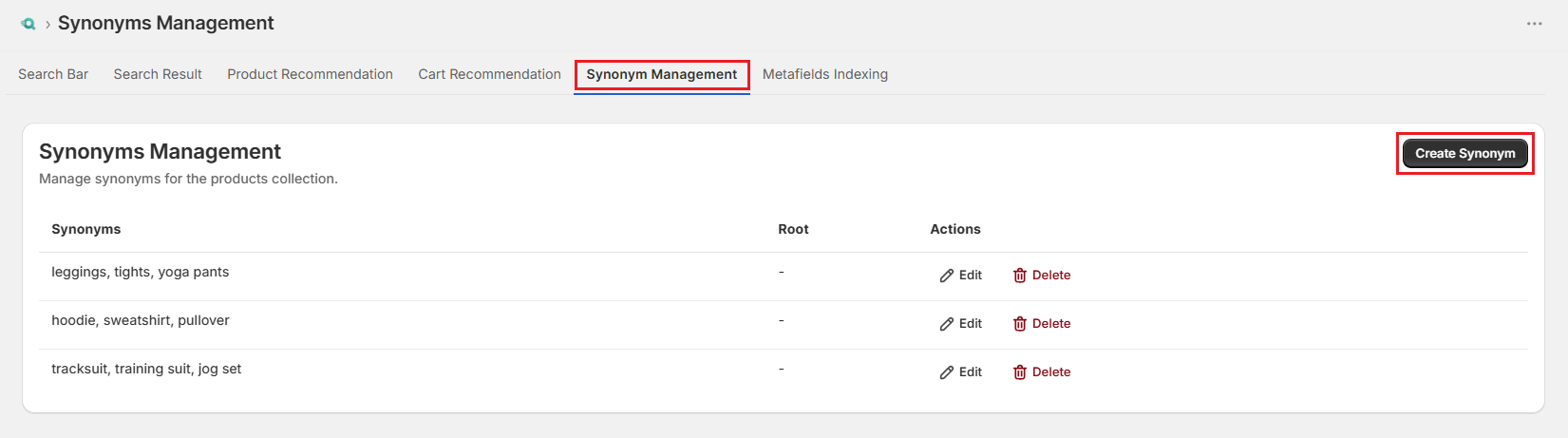
Step 1: Go to your Surge: AI Search dashboard.
Step 2: Click "Search Settings" in the top-right corner.

Step 3: Select the "Synonym Management" tab.
Step 4: Click "Create Synonym".
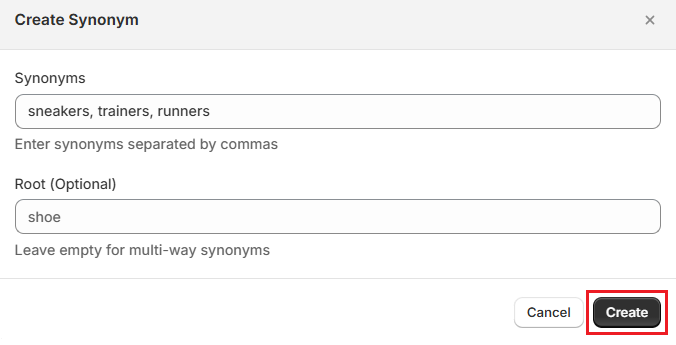
Step 5: In the Synonyms field, enter the search terms you want to link, separated by commas. You can add as many terms as needed.
Step 6: (Optional) For a one-way synonym, enter the Root term in the dedicated field. For a multi-way synonym, leave this field blank.
Step 7: Click "Create" to confirm.
How to Manage Synonyms?#
Once you've built a synonym library, you'll need to update entries over time as your catalog changes and your analytics reveal new zero-result queries.
Editing Synonyms#
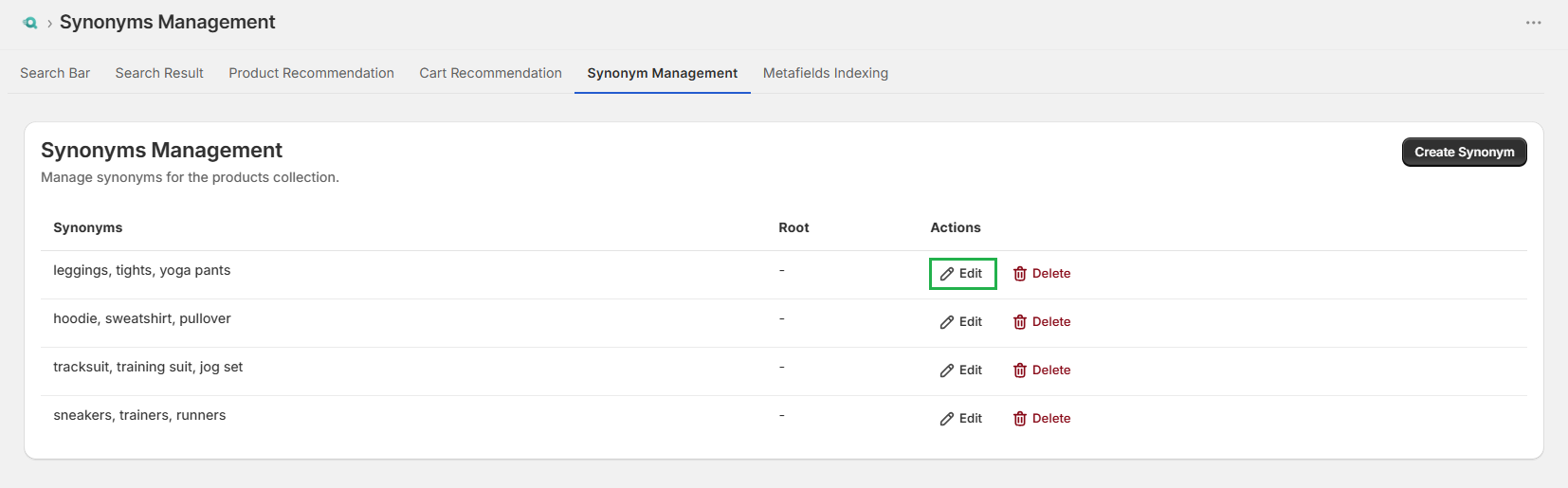
Step 1: Go to the Synonym Management tab.
Step 2: Click "Edit" next to a synonym.
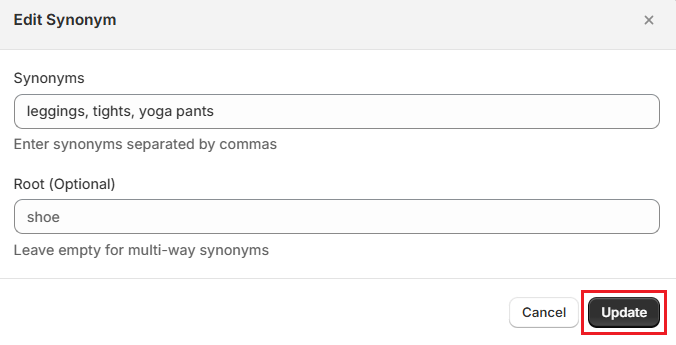
Step 3: Update the search and root terms as needed.
Step 4: Click "Update".
Deleting Synonyms#
Step 1: Go to the Synonym Management tab.
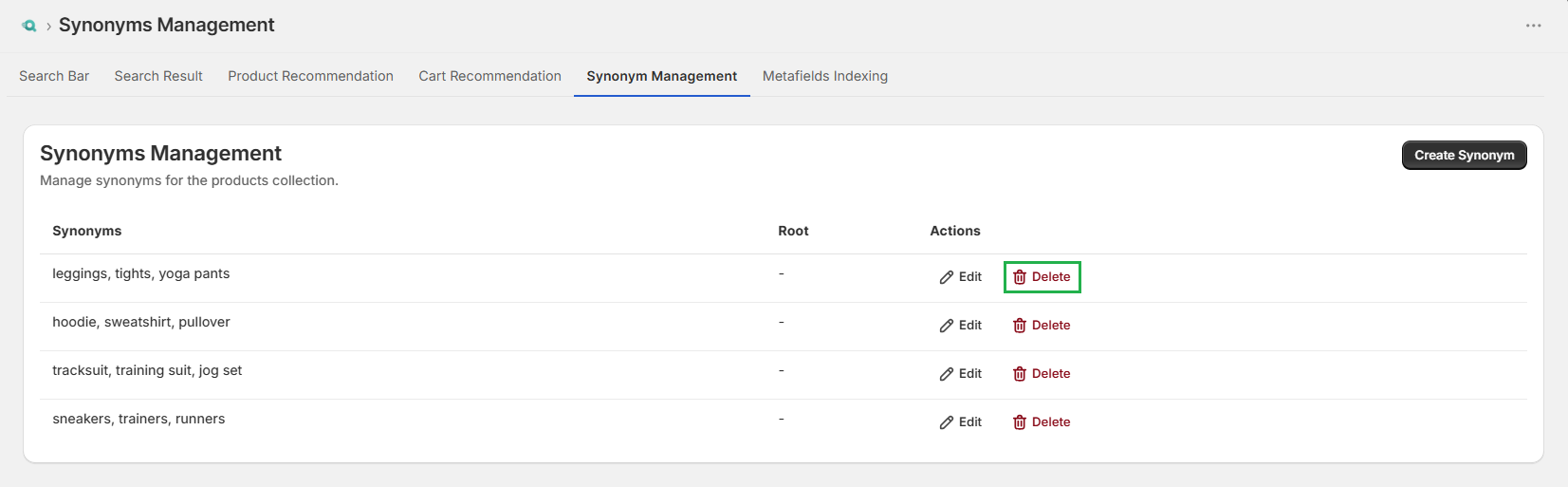
Step 2: Click "Delete" next to a synonym.
Step 3: Click "Delete" to confirm the deletion in the modal that appears.
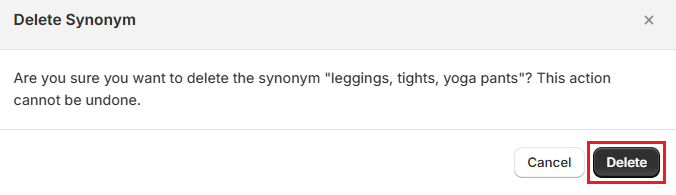
Note: Deletion is permanent. If you delete a synonym by mistake, you need to recreate it.
Build Your Synonym Library Over Time#
A synonym library is never finished. It grows alongside your catalog, your customer base, and the search trends in your market. Here's how to build one systematically.
Start With Zero-result Searches#
The Surge analytics show every query that returned no results. Check this list and work through it regularly. For each query, decide:
- Does a matching product exist? If yes, map the query as a synonym.
- Does a matching product exist but with different wording? Update the product's tags and consider adding a synonym.
- Is the query for something you don't carry? Flag it as a potential catalog gap.
Group Synonyms by Theme#
As your library grows, organize synonyms by product category. This makes the list easier to audit and reduces the chance of conflicting mappings. For example:
- Footwear Group: sneakers, trainers, runners, kicks, athletic shoes
- Outerwear Group: jacket, coat, parka, windbreaker, anorak
- Bottoms Group: trousers, pants, chinos, slacks, dress pants
Review the List Quarterly#
Each quarter, review your full list of synonyms against your current product catalog. Remove entries for products you no longer carry. Add new entries for recent catalog additions where the terminology might differ from common shopper language.
Important Notes#
Synonyms Aren't Typo Correction#
Surge handles typos separately using its built-in typo-tolerance engine. Synonyms are for intentional alternate terms, not misspellings. You don't need to add "jakcet" as a synonym for "jacket" because typo tolerance already catches that.
Expand Category With One-Way Synonyms#
When you want a broad category term to return specific product types, one-way synonyms give you control without causing over-broad results in the other direction.
Cover Regional Language Variations#
If your store ships internationally, add synonyms for regional vocabulary differences. UK and US English differ significantly in clothing and electronics terminology. A customer in London searching for "jumper" should find your sweater listings.
Add Common Abbreviations#
Short-form terms are common in search. Add synonyms for abbreviations your customers use:
- "TV" for "television"
- "AC" for "air conditioner"
- "BB cream" for "blemish balm cream"
Avoid Circular Mappings#
Don't create multi-way synonyms between terms that refer to genuinely different products. If "boots" and "heels" are in the same synonym group, a shopper searching for one will see both, which may not be what they want.
Case Doesn't Matter#
Synonym matching is case-insensitive. A synonym mapping "Jacket" also catches "jacket" and "JACKET". You don't need to create separate entries for different capitalizations.
Need Help?#
If a synonym isn't working as expected, or if you have questions about which type of synonym to use in a specific scenario, reach out to us through live chat in the app or by email at support@bevycommerce.com.