Switching Subscription Plans
Your store's needs will change as it grows. Surge makes it straightforward to move between plans at any time, whether you want to unlock more monthly search credits or adjust your spend. This article walks you through every step and covers what to expect when upgrading or downgrading.
Plan Overview#
Surge uses a credit-based subscription model. Each plan gives you a fixed number of search credits per month. One credit is used each time a shopper searches your store.
| Plan | Monthly Price | Monthly Credits |
|---|---|---|
| Basic | $19 | 10,000 |
| Pro | $49 | 50,000 |
| Scale | $149 | 250,000 |
| Enterprise | $299 | 1,000,000 |
Note: All plans include every Surge feature. The only difference between plans is the monthly credit volume. Unused credits reset at the start of each new billing cycle and do not carry over.
How to Switch Plans?#
The whole process takes under two minutes. Here is what to do:
Step 1: Open the Surge: AI Search app from your Shopify admin.
Step 2: Go to the Billing tab.
Step 3: Under Subscription Management, click "Change Plan". The Pricing page opens and highlights your current plan.
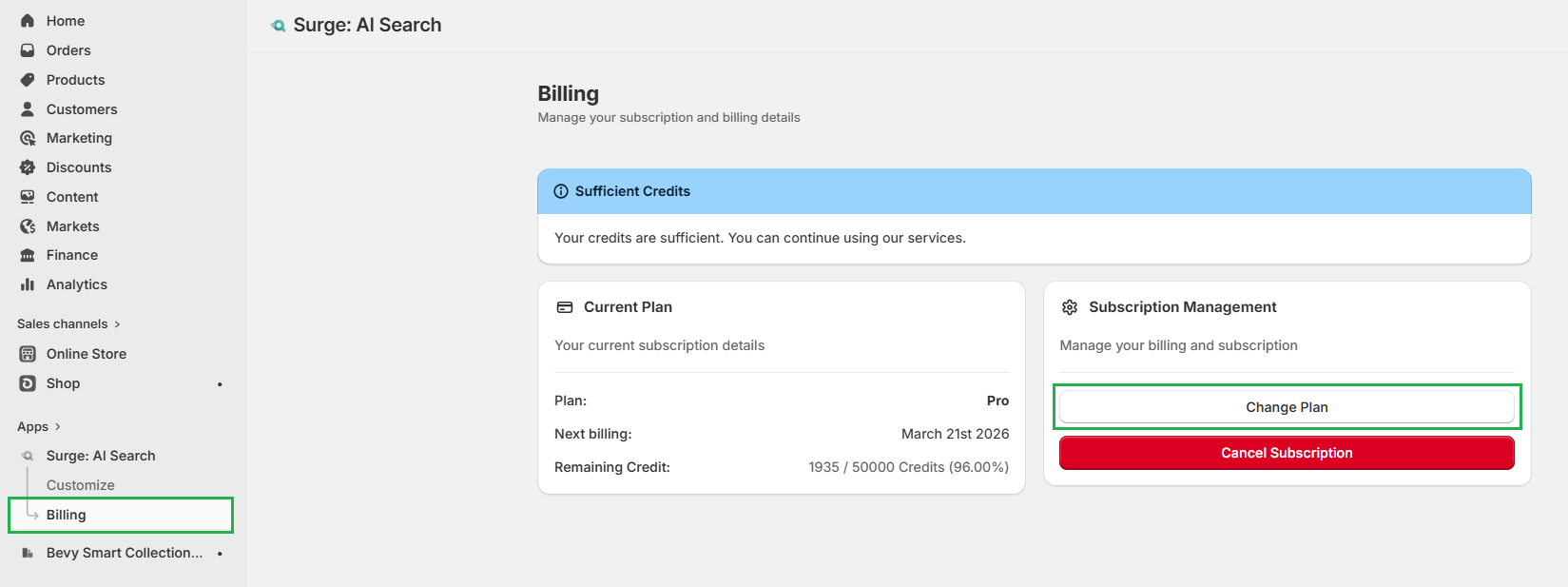
Step 4: Review the available plans and click "Change Plan" on the option you want.
Step 5: Shopify redirects you to the payment confirmation page. Follow the prompts and click "Approve" to confirm. Your subscription updates automatically once payment is confirmed.
Upgrading to a Higher Plan#
Upgrading is instant. As soon as you confirm payment, the new plan takes effect, and your credit allowance increases to match the new tier.
Here's what happens when you upgrade:
- Your new credit limit is available straight away.
- Shopify charges the prorated difference for the remainder of your current billing cycle.
- All your existing settings, analytics data, and search configurations stay exactly as they are.
- Your shoppers see no interruption to the search experience.
Downgrading to a Lower Plan#
Downgrading follows a different timeline. When you switch to a lower plan, the change does not take effect immediately.
Here's what happens when you downgrade:
- You keep access to your current plan until your billing cycle ends.
- The lower plan activates at the start of the next billing cycle.
- Your credit allowance adjusts to match the new plan from that point forward.
- All settings, filters, and analytics data are preserved.
Important: Before you downgrade, check your recent monthly credit usage in the Billing tab. If your store consistently uses more credits than the lower plan provides, search results will stop appearing once the new limit is reached. Purchase additional credits through the billing portal to keep your store's search running if needed.
Choosing the Right Plan#
The best way to choose a plan is to look at your daily or monthly search volume. The number of credits you need equals the number of searches your customers perform each month.
Use the following table as a guide:
| Plan | Monthly Credits | Suitable Daily Search Volume | Est. Monthly Store Visitors |
|---|---|---|---|
| Basic | 10,000 | Up to ~330 searches/day | Up to ~50,000 visitors/month |
| Pro | 50,000 | Up to ~1,650 searches/day | Up to ~250,000 visitors/month |
| Scale | 250,000 | Up to ~8,300 searches/day | Up to ~1,000,000 visitors/month |
| Enterprise | 1,000,000 | Up to ~33,000 searches/day | 1,000,000+ visitors/month |
Not Sure About Your Search Volume?#
Check the Activity Over Time section in Surge analytics to get a sense of daily query counts. If you do not yet have enough data, start with the Basic plan. You can always upgrade with one click.
Managing Credits & Overage#
How Do Credits Work?#
Each search query a shopper runs on your store uses one credit from your monthly allowance. Credits reset automatically at the start of each billing cycle, regardless of how many you used. There is no carryover.
What Happens When You Run Out of Credits?#
When your store reaches its monthly credit limit, new search queries stop returning results. Your store's search bar will still appear, but shoppers will not see results until you either purchase additional credits or your cycle resets.
Important: Running out of credits mid-month directly affects your customers' experience and your conversion rate. Monitor your usage in the Billing tab and set a calendar reminder to review it weekly if you are on a lower-tier plan.
Purchasing Additional Credits#
If you reach your credit limit before the end of the month, you can purchase extra credits through the Billing portal at any time. The additional credits are available immediately after payment is confirmed. You do not need to upgrade your plan to purchase extra credits, though upgrading is often the more cost-effective choice if overages happen frequently.
Free Trial Information#
All Surge plans, except Enterprise, include a 14-day free trial period. During the trial, you have access to the full Surge feature set with no charges. This gives you time to set up the app, test the search experience on your store, and confirm the integration looks right before your first billing date.
Here's what to know about the free trial:
- The trial starts the moment you install and activate Surge on your store.
- No charge is applied until the trial period ends.
- You can cancel before the trial ends and will not be charged.
Tip: Make the most of your trial by indexing your metafields, creating synonyms, running a few test searches, and reviewing the analytics panel. The goal is to confirm that the search experience looks and feels right for your shoppers before the first billing date.
Best Practices for Managing Your Plan#
Review Your Credit Usage Before the Billing Date#
Visit the Billing tab a few days before your billing date each month. If you are tracking toward 90 percent or more of your credit limit, consider upgrading before the cycle ends rather than purchasing overage credits, which is typically less cost-effective.
Start One Tier Below Your Peak Estimate#
If you are unsure which plan to start with, begin with the plan just below your estimated monthly search volume. You can upgrade instantly the moment you need more credits. Starting lower gives you a chance to validate actual usage before committing to a higher monthly spend.
Plan Around Seasonal Traffic#
If your store sees predictable spikes, such as holiday seasons, sales events, or product launches, upgrade your plan in advance of those periods rather than reacting once you run out of credits. Downgrade again afterward to bring costs back in line.
Use the Trial Period to Confirm Your Volume#
During your trial, track the number of daily searches your store generates. Multiply that number by 30 to estimate your monthly credit need. Use that figure to pick the right plan before your first billing date.
Need to Discuss Something?#
Not sure whether you should upgrade, downgrade, or purchase additional credits? Reach out to us through live chat in the app or email at support@bevycommerce.com, and we'll help you review your search volume and choose the most cost-effective option.