Search Bar
The search bar is often the first interaction shoppers have with a storefront and one of the most frequently used tools for product discovery. It allows customers to quickly find products by entering product names, attributes, or other search terms. A well-configured search bar helps shoppers find relevant products faster, reduces friction, and can directly impact conversion rates.
Surge: AI Search replaces Shopify's default search bar with an AI-powered instant search experience. It appears on the storefront once you add Surge's Search Bar App Block to your theme using the Theme Editor.
Why Customize the Search Bar?#
Out of the box, Surge's Search Bar works well. But tailoring it to your store's needs unlocks meaningful improvements. For example, you can modify visual elements such as colors, fonts, border radius, and opacity to ensure the search bar blends naturally with your storefront design.
How to Access Customization Options?#
There are two ways to reach the Search Bar Customization page:
- From the dashboard: Visit the Surge: AI Search dashboard, then click "Search Settings" at the top-right.
- From the sidebar: Click "Customize" under Surge: AI Search in the sidebar of Shopify admin.
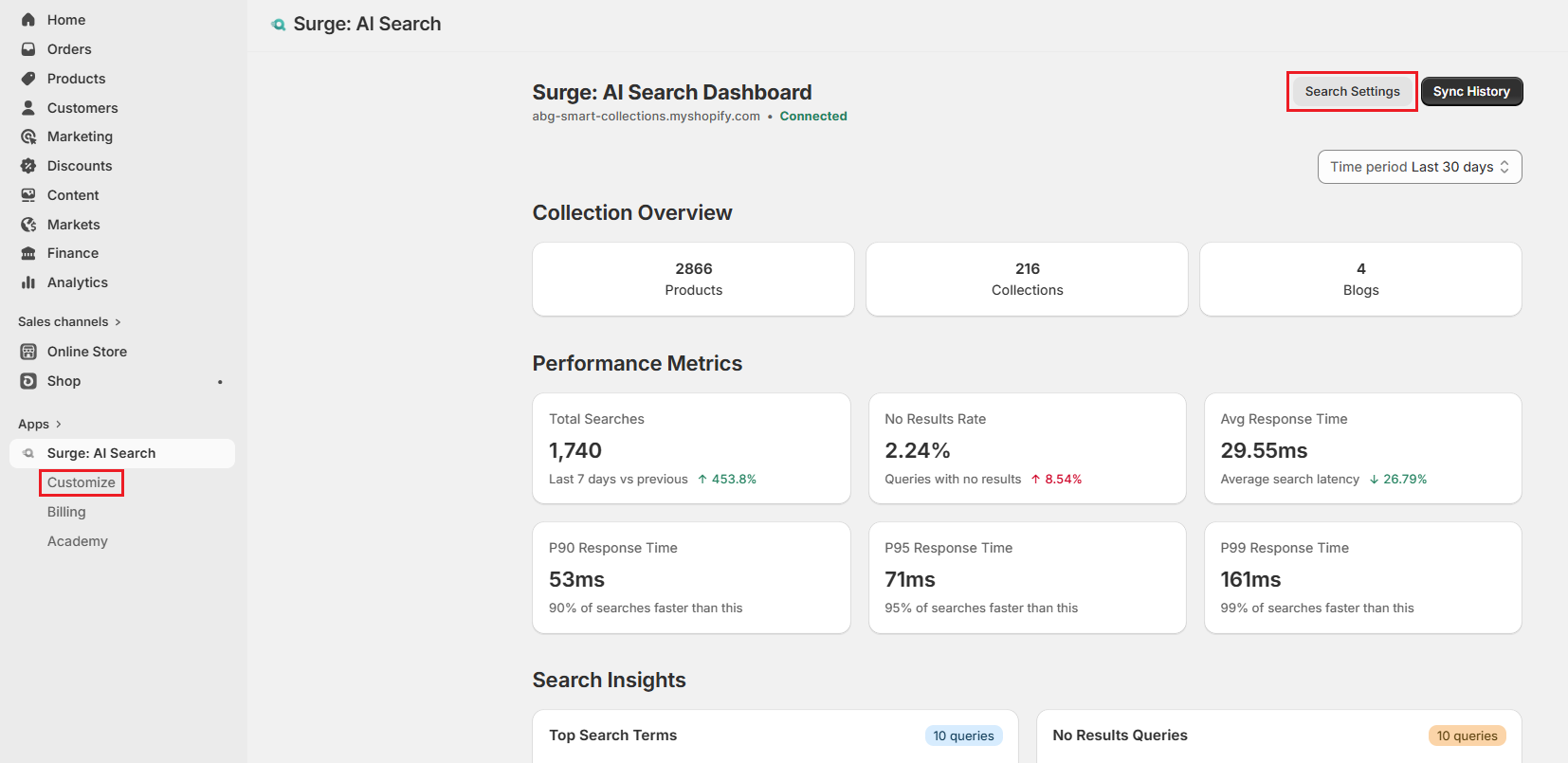
Both open the Search Bar Customization tab by default.
How to Customize the Search Bar?#
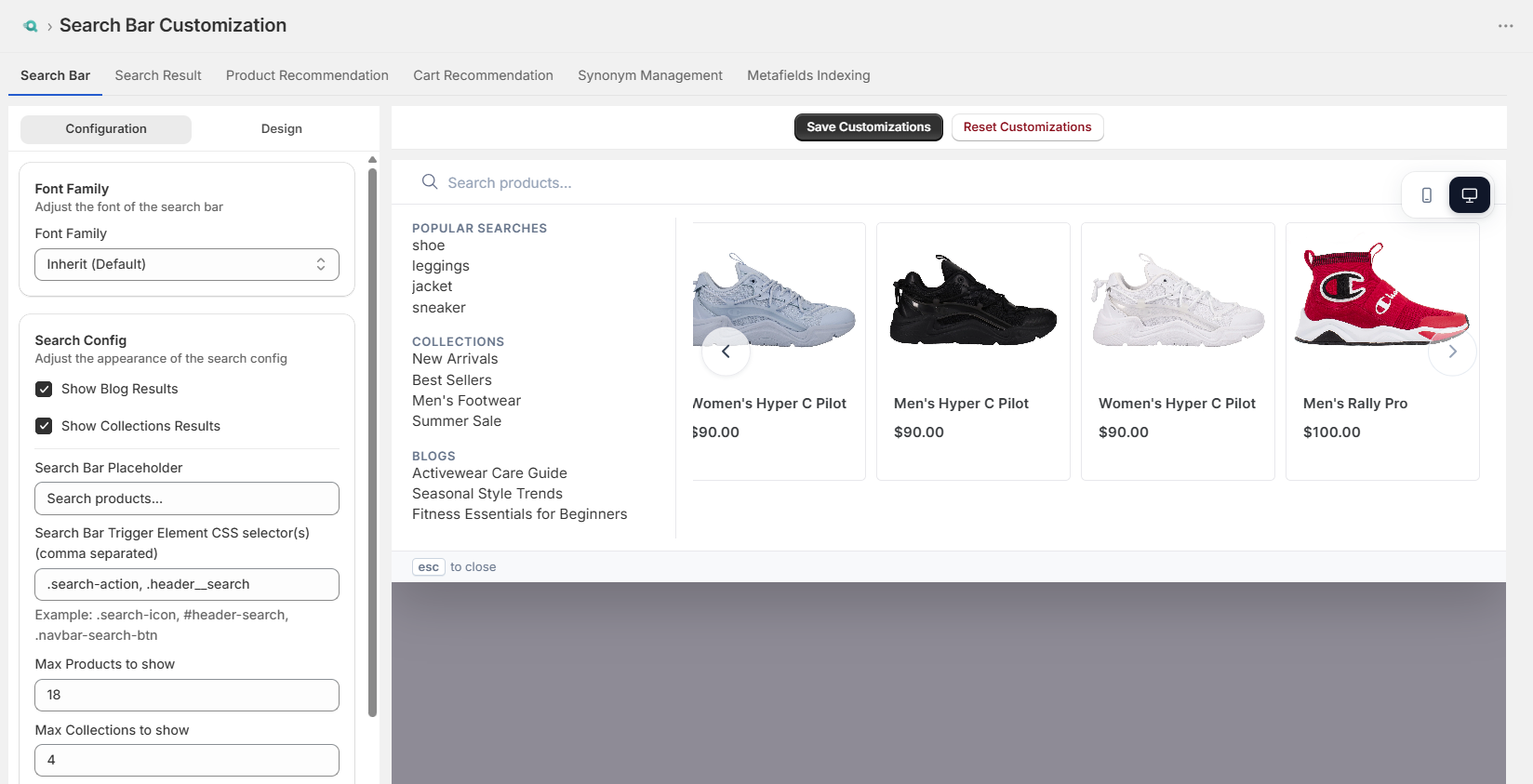
The Search Bar customization tab has two sub-tabs: Configuration and Design. Both panels share the live preview on the right side of the screen.
Configuration#
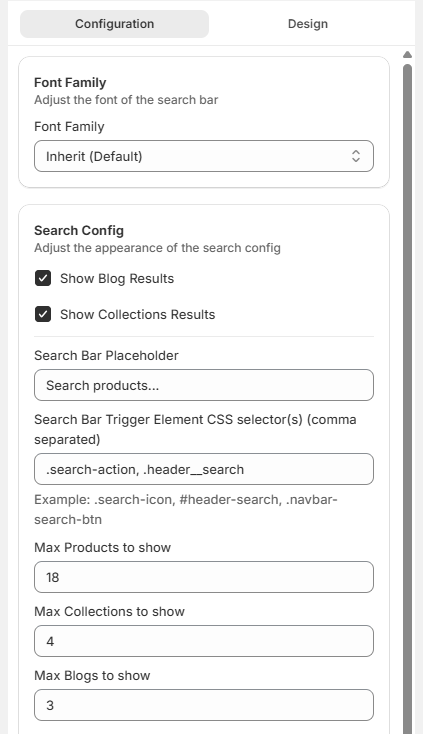
The Configuration sub-tab contains all behavioral settings for the search bar. Changes here affect which content appears in the dropdown and how shoppers interact with it.
Font Family#
The Font Family setting controls the typeface used inside the search overlay dropdown. By default, it is set to Inherit, which automatically uses the store's active theme font. This ensures visual consistency across the storefront. You only need to change this setting if you want the search experience to use a different font from the rest of the theme.
Search Config#
The Search Config section determines which content types are displayed in the instant search dropdown.
Show Blog Results#
When enabled, matching blog posts appear alongside product results in the dropdown. This is useful for content-rich stores that use blogs for product guides, tutorials, or buying advice.
Show Collections Results#
When enabled, matching collection names appear in the dropdown, allowing shoppers to navigate directly to product categories without browsing manually.
Search Bar Placeholder#
This defines the placeholder text shown inside the search input before a shopper begins typing. You can customize it to reflect brand tone or encourage specific behavior, such as "Find your perfect fit".
Search Bar Trigger Element CSS Selector(s)#
This setting defines which CSS elements in the theme open the search overlay. When a shopper clicks a matching element, Surge intercepts the action and launches its own search experience instead of Shopify's default search. You can add multiple selectors by separating them with commas, for example, .search-icon, #header-search.
Max Products to show#
Controls the maximum number of product results displayed in the instant search dropdown.
Max Collections to show#
Defines the maximum number of collection results shown when the Show Collections Results option is enabled.
Max Blogs to show#
Defines the maximum number of blog results shown when the Show Blog Results option is enabled.
Max popular searches to show#
Defines the maximum number of popular searches to display based on analytics from the last 30 days.
Design#
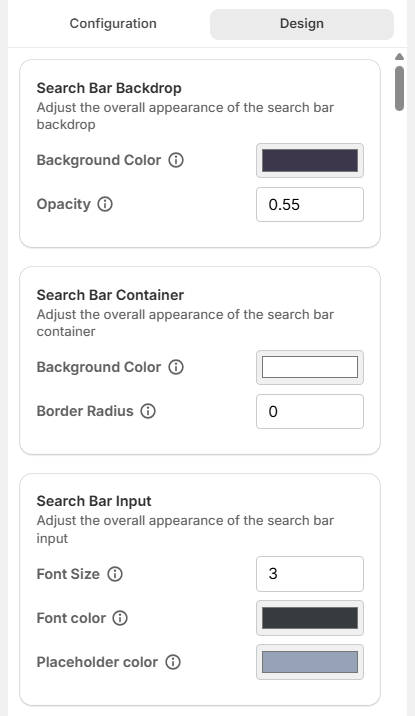
The Design sub-tab controls the visual styling of the search dropdown or overlay.
Search Bar Backdrop#
- Background Color: Sets the background color of the search bar backdrop that appears behind the search overlay.
- Opacity: Controls the backdrop's transparency. Values range from "0" (transparent) to "1" (fully opaque).
Search Bar Container#
- Background Color: Sets the background color of the search dropdown container.
- Border Radius: Controls how rounded the corners of the dropdown appear. A value of "0" creates sharp corners, while higher values produce a more rounded, card-like appearance.
Search Bar Input#
- Font Size: Defines the size of the text entered in the search input field.
- Font Color: Sets the color of the typed search text.
- Placeholder Color: Defines the color of the placeholder text shown before the customer types.
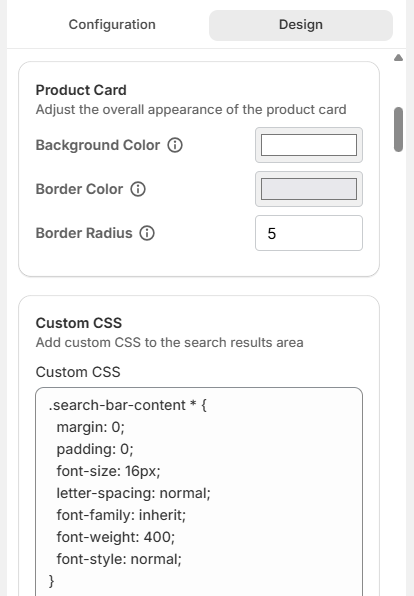
Product Card#
- Background Color: Sets the background color of individual product cards.
- Border Color: Defines the border color around each product card.
- Border Radius: Controls the roundness of product card corners. Higher values create a softer, more rounded design, while lower values keep edges sharp.
Custom CSS#
For advanced customization, the Custom CSS field allows you to apply targeted style overrides to the search bar and its components. This enables fine-grained control over the appearance when default design settings are insufficient.
How to Preview Customization?#
Surge provides a live preview panel that allows you to see changes before they are applied to the storefront.
- From the Search Bar Customization tab, make changes in the Configuration and Design sub-tabs.
- The preview panel on the right updates in real time as changes are made.
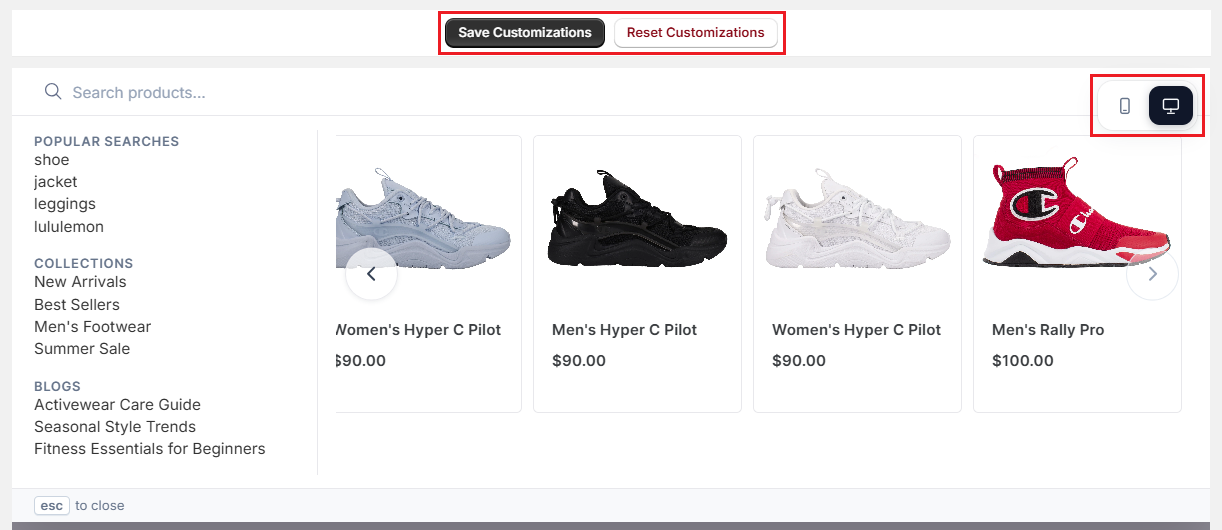
- The device toggle at the top of the preview allows switching between Desktop and Mobile views.
- Type a sample query in the preview input to see how search suggestions and results appear with the current settings.
How to Save & Reset Customization?#
Two buttons at the top of the preview panel confirm or decline the changes:
- Save Customizations: Saves all current configuration and design settings and immediately applies them to your live storefront.
Note: Use the preview panel to review all changes before saving, especially for high-traffic stores.
- Reset Customizations: Reverts all settings to default. Use this if a set of changes did not work as expected and you want to start fresh.
Important Notes#
-
Surge uses Shopify's App Block system to embed the search bar. If the Surge Search Bar App Block is removed from the theme, the search bar will no longer appear on the storefront, even if settings remain saved in the app. The block must be added and enabled through the Shopify Theme Editor for the feature to function.
-
A complete data sync must be finished before testing search behavior. If the catalog is still indexing, search results may appear incomplete. Sync status can be monitored from the Sync History.
-
The CSS selector used for the search trigger must match the active theme. If the theme is changed or updated, the selector should be reviewed. An incorrect selector may prevent the Surge overlay from opening, causing Shopify's default search to be used instead.
-
The "Show Blog Results" setting only works if blog content has been indexed. If no blogs are indexed, a data resync is required before blog results can appear in search.
Best Practices#
-
Popular Searches should be enabled for stores where shoppers may browse without a specific intent. This feature helps guide discovery by surfacing trending or commonly used queries, thereby increasing session depth and engagement.
-
The search experience should be tested using real product queries before publishing changes. Testing with actual catalog terms ensures that results, images, and pricing display correctly and that the search behavior matches shopper expectations.
-
On mobile-heavy stores, the number of displayed results should be kept low (ideally 8 or fewer products). This prevents excessive scrolling and ensures the most relevant results remain visible within the limited screen space.
-
The search dropdown background should remain neutral (such as white or off-white) to maintain readability. Brand colors are better applied to accent elements rather than the main background.
What's Next?#
Now that the search bar is configured, here are the related areas to set up next:
- Search Results: Customize the full-page search results layout, filter panels, and sorting options.
- Synonyms Management: Add word equivalences to help shoppers find products they misspell or describe differently.
- Metafields Indexing: Enable custom product attributes as filterable fields on the search results page.
Need Help?#
If the search bar isn't appearing, the results look incorrect, or you're unsure how to configure a specific setting, reach out to us through live chat in the app or by email at support@bevycommerce.com.