Cart Recommendations
Cart Recommendations help you increase average order value by suggesting relevant products when shoppers are already in a buying mindset. The widget appears in the customer’s cart, making it easy to discover additional products without interrupting the checkout journey.
How Do Cart Recommendations Work?#
Cart recommendations are mostly driven by the products currently in the cart. Surge: AI Search analyzes those products and uses a combination of behavioral data, product relationships, and catalog attributes to determine which items are most relevant to suggest. This includes factors such as:
- Products that are frequently purchased together
- Browsing and purchase patterns across the store
- Product type, vendor, tags, metafields, and other indexed attributes
Example: Let's say a shopper adds a pair of running shoes to their cart. The recommendation widget may suggest socks, replacement laces, or a shoe cleaning kit. Similarly, a shopper purchasing a camera might see recommendations for a compatible lens, carrying case, or spare battery.
Why Use Cart Recommendations?#
Adding a recommendation widget to the cart is one of the lowest-effort and highest-impact ways to improve revenue performance without increasing traffic. It works by leveraging high purchase intent during cart review.
| Benefit | How Cart Recommendations Deliver It |
|---|---|
| Increase revenue per order | Surfaces complementary items or accessories while shoppers are actively preparing to check out. |
| Reduce cart abandonment | Keeps shoppers engaged in the cart by showing relevant options instead of ending the journey at a decision point. |
| Improve product discoverability | Exposes relevant but less-visible products based on what the shopper has already added to their cart. |
| Personalize the experience | Dynamically updates recommendations based on the exact items in the cart, ensuring each shopper sees context-aware suggestions. |
| Drive upsell and cross-sell | Displays higher-value alternatives and related items without requiring manual merchandising or rule configuration. |
Why Customize Cart Recommendations?#
Customizing cart recommendations lets you tailor the widget's behavior and appearance to align with your store strategy, branding, and merchandising goals. While the recommendation engine determines what to show, customization controls how it is presented and how it behaves when data is limited.
How to Access Customization Options?#
There are two ways to reach the Cart Recommendation Customization page:
- From the dashboard: Visit the Surge: AI Search dashboard, then click "Search Settings" at the top-right.
- From the sidebar: Click "Customize" under Surge: AI Search in the sidebar of Shopify admin.
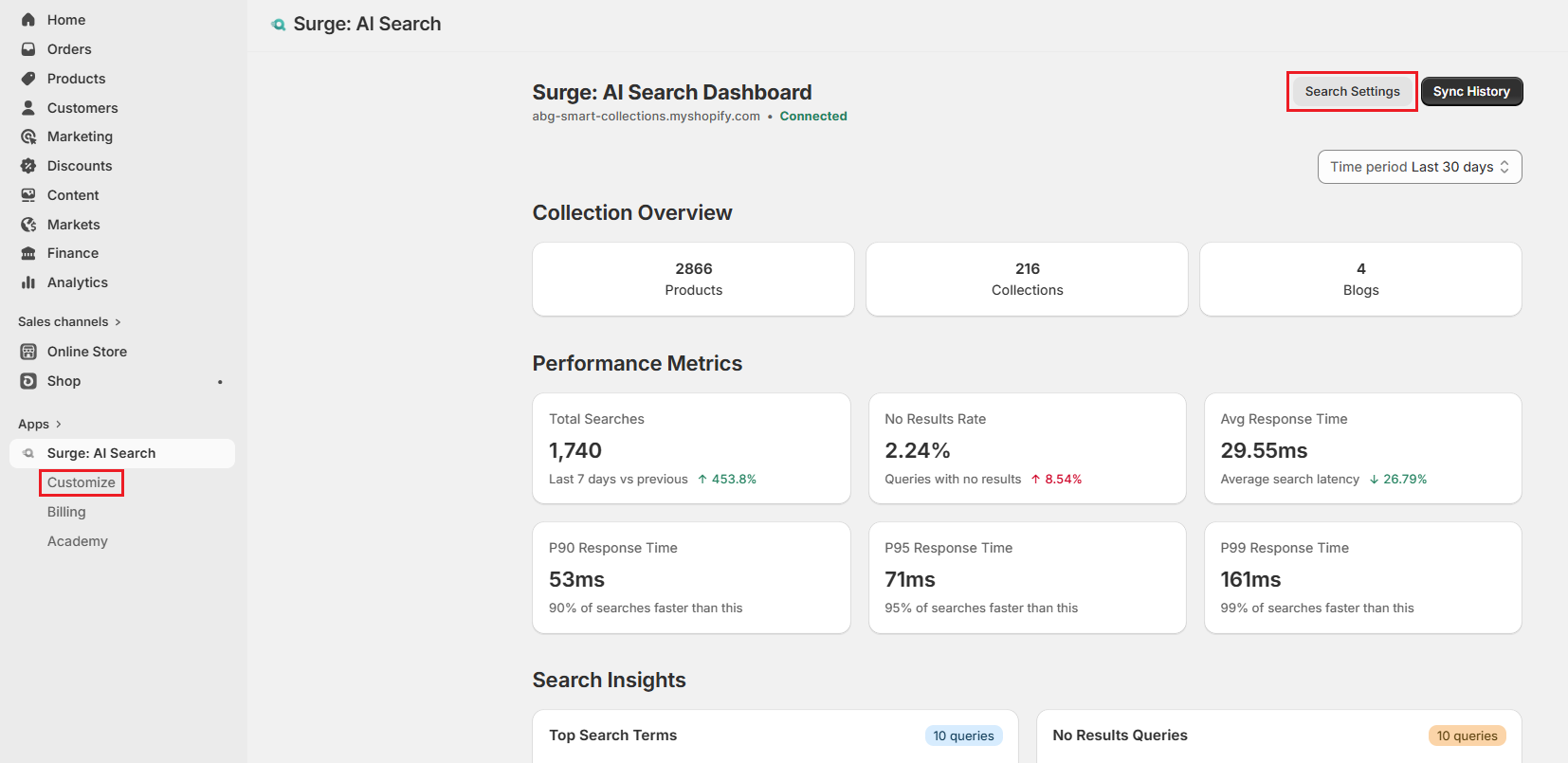
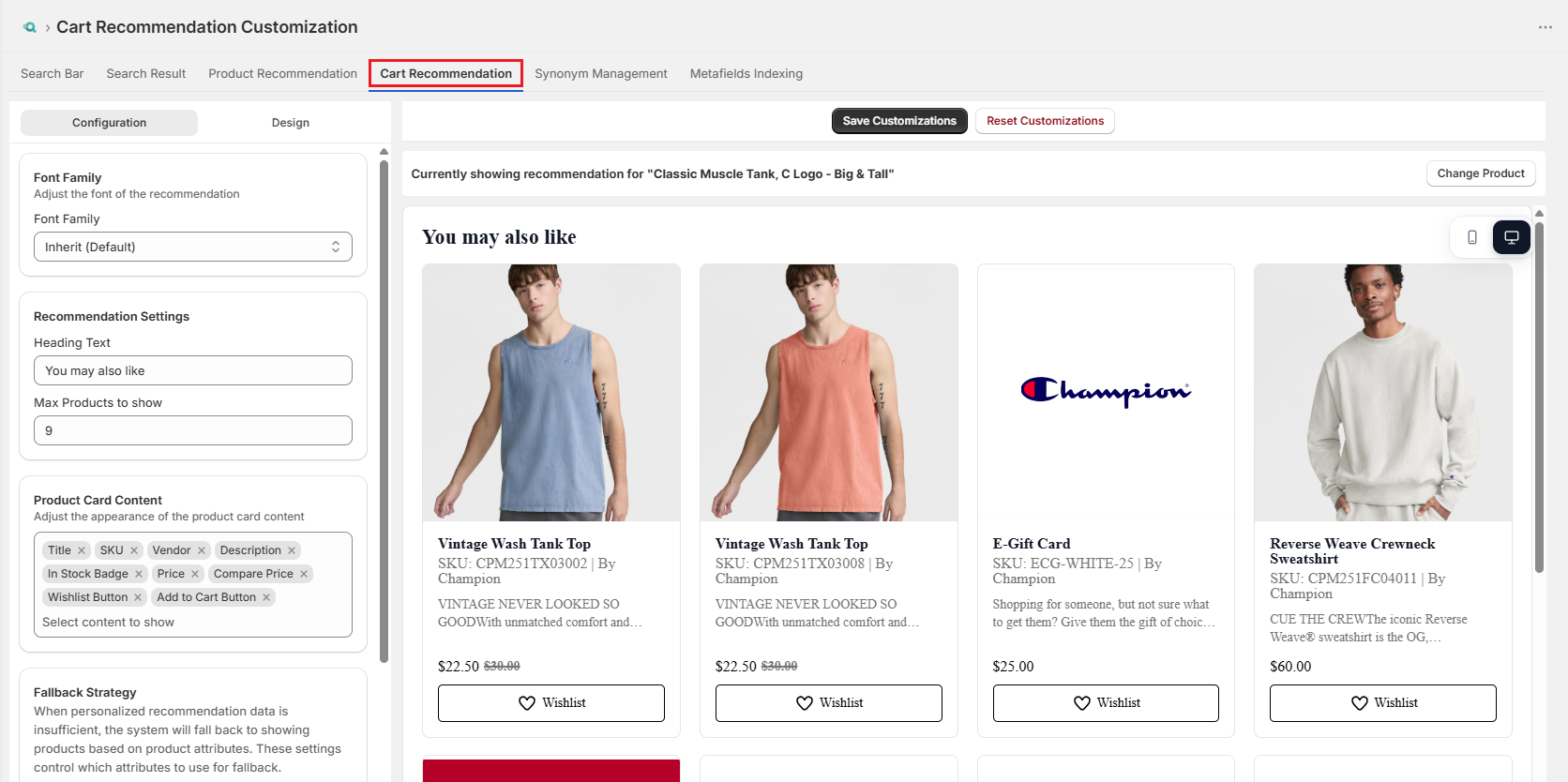
Both open the Search Bar Customization tab by default. Select "Cart Recommendation" to switch tabs.
Note: The recommendation widget is rendered on the cart page through the Shopify App Block. If the widget doesn't appear on the storefront, verify that the Cart Recommendations block from Surge: AI Search has been added to the cart page template in the Theme Editor.
How to Customize Cart Recommendations?#
The Cart Recommendations tab is divided into two sections:
- Left Panel: Contains all Configuration and Design settings discussed below.
- Right Panel: Displays a live preview that updates in real time as you customize.
Configuration#
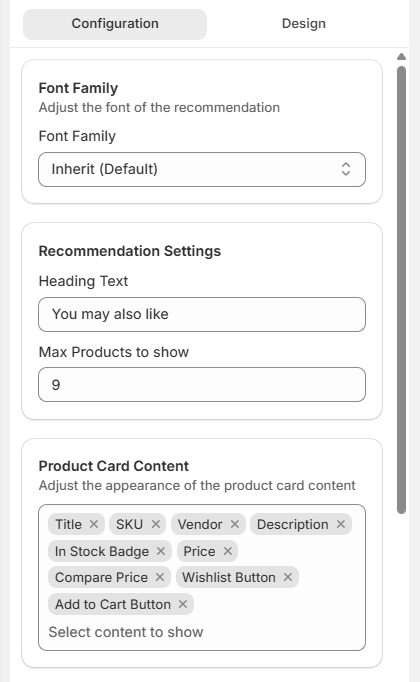
The Configuration tab controls how many products appear and what details they include.
Font Family#
This setting defines the typeface used throughout the Cart Recommendations widget. By default, it is set to Inherit, meaning the widget automatically adopts the font family from the active Shopify theme.
If a different font is required, select a font from the dropdown to override the inherited style and ensure consistent text appearance within the widget.
Recommendation Settings#
This section controls the key content elements of the Cart Recommendations widget.
- Heading Text: Defines the title displayed above the recommendation grid (for example, "You may also like").
- Max Products to Show: Sets the maximum number of recommended products displayed in the widget.
Product Card Content#
This section determines which product details appear on each card. You can select items from an input list and remove any selected items using the "X" option.
Available product card details include:
- Title
- SKU
- Vendor
- Description
- In Stock Badge
- Out of Stock Badge
- Price
- Compare Price
- Wishlist Button
- Add to Cart Button
Fallback Strategy#
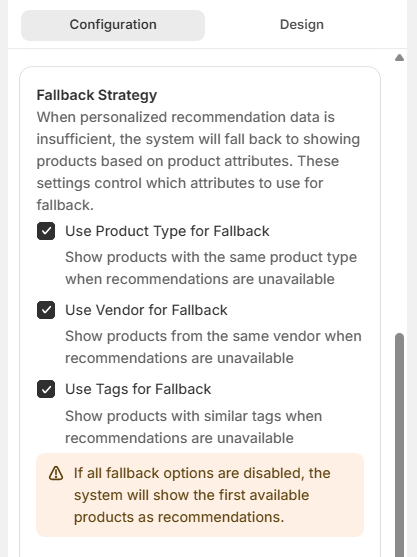
When there is insufficient behavioral data for a product, such as newly added or low-traffic items, the system uses fallback rules based on catalog attributes.
Available fallback options include:
- Product Type: Shows products of the same type.
- Vendor: Shows products from the same brand or supplier.
- Tags: Shows products with similar tags.
Important: If all fallback options are disabled, the widget defaults to displaying the first available products in the catalog, which may not always be contextually relevant. It is recommended to keep at least one fallback option enabled to ensure meaningful results.
Design#
The Design section controls the visual styling of the entire Cart Recommendations widget.
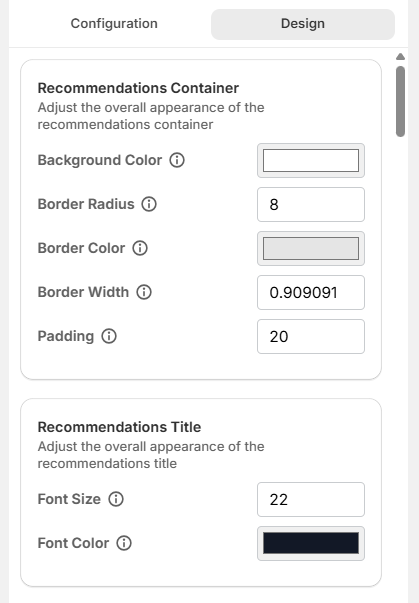
Recommendations Container#
This section controls the widget's outer wrapper and defines its overall structure and spacing.
- Background Color: Sets the container's background color.
- Border Radius: Controls the container's corner roundness.
- Border Color: Defines the container's border color.
- Border Width: Sets the container's border width.
- Padding: Controls internal spacing within the container.
Recommendations Title#
This section styles the heading text displayed above the recommendation widget.
- Font Size: Defines the title text size.
- Font Color: Sets the title text color.
Product Card#
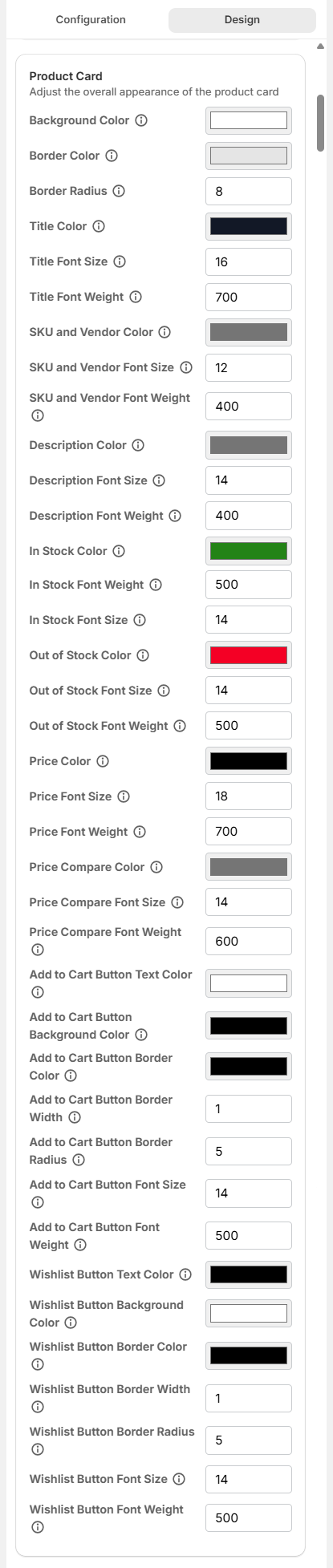
This section controls the styling of individual product cards within the widget.
- Background Color: Sets the card's background color.
- Border Color: Specifies the color of the card's border.
- Border Radius: Controls how rounded the corners of the card appear.
- Title Color: Sets the color used for the product title text.
- Title Font Size: Controls the size of the product title text.
- Title Font Weight: Determines how bold or light the product title appears.
- SKU and Vendor Color: Sets the text color for SKU and vendor information.
- SKU and Vendor Font Size: Controls the size of SKU and vendor text.
- SKU and Vendor Font Weight: Defines the weight of SKU and vendor text.
- Description Color: Specifies the color of the product description text.
- Description Font Size: Sets the font size of the product description text.
- Description Font Weight: Controls the weight of the description text.
- In Stock Color: Defines the color used for in-stock status text.
- In Stock Font Weight: Sets the weight of the in-stock status text.
- In Stock Font Size: Controls the size of the in-stock status text.
- Out of Stock Color: Specifies the color used for out-of-stock status text.
- Out of Stock Font Size: Sets the size of the out-of-stock status text.
- Out of Stock Font Weight: Controls the weight of the out-of-stock status text.
- Price Color: Defines the color of the product price display.
- Price Font Size: Sets the size of the product price.
- Price Font Weight: Determines product price weight.
- Price Compare Color: Sets the color for the compare-at price.
- Price Compare Font Size: Controls the size of the compare-at price.
- Price Compare Font Weight: Defines the weight of the compare-at price.
- Add to Cart Button Text Color: Sets the color of the text inside the add to cart button.
- Add to Cart Button Background Color: Defines the button's background color.
- Add to Cart Button Border Color: Sets the button border color.
- Add to Cart Button Border Width: Controls the width of the button border.
- Add to Cart Button Border Radius: Defines how rounded the button corners are.
- Add to Cart Button Font Size: Sets the size of the button text.
- Add to Cart Button Font Weight: Controls the weight of the button text.
- Wishlist Button Text Color: Sets the color of the wishlist button text.
- Wishlist Button Background Color: Defines the background color of the wishlist button.
- Wishlist Button Border Color: Sets the border color of the wishlist button.
- Wishlist Button Border Width: Controls the width of the wishlist button border.
- Wishlist Button Border Radius: Defines how rounded the wishlist button corners are.
- Wishlist Button Font Size: Sets the font size of the wishlist button text.
- Wishlist Button Font Weight: Determines the weight of the wishlist button text.
Custom CSS#
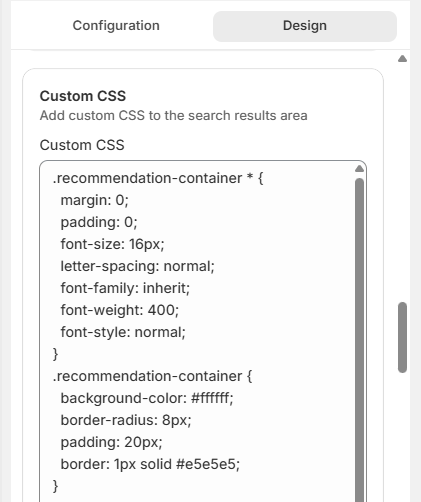
The Custom CSS field lets you apply advanced styling rules directly to the widget, giving you full control beyond the built-in design options.
How to Preview & Confirm Customization?#
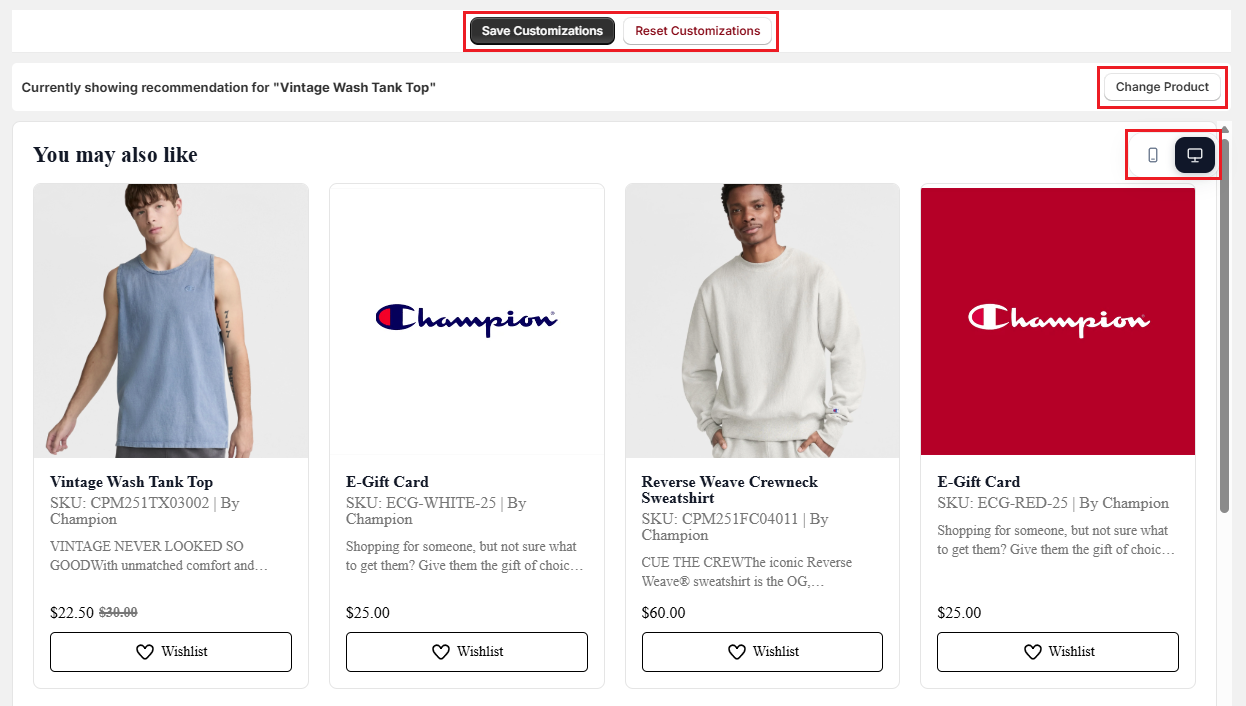
The Cart Recommendation Customization tab includes a live preview panel on the right side of the screen. This preview updates in real time whenever changes are made in the Configuration or Design tabs, allowing you to review updates before applying them to the live store.
The preview toolbar also includes tools to test different scenarios and layouts:
Change Product#
Opens the product selector and allows a different item from the catalog to be loaded into the widget preview. This helps evaluate how recommendations behave for products with different attributes.
Example: Switching from a simple product like a "Plain T-Shirt" to a more complex product like a "Multi-Pocket Travel Backpack" to see how the recommendation adapts.
Device Preview Toggle#
Switches the preview between Desktop and Mobile views, allowing users to check responsiveness and layout behavior across screen sizes.
Steps to Preview Changes#
-
Make adjustments in the Configuration and Design tabs.
-
Observe the updates instantly in the live preview panel.
-
Use Change Product to test how recommendations appear for different products in the cart context.
-
Switch between Desktop and Mobile views to ensure the widget is fully responsive.
Once the configuration is finalized, select "Save Customizations" to apply the changes to the live storefront. If the changes are not required, select "Reset Customizations" to discard all updates and restore the default settings.
Important Notes & Tips#
-
The Cart Recommendations widget requires the dedicated Surge App Block to be added to the cart page template through the Shopify Theme Editor. If the theme is changed or updated, the block must be added again. However, all configuration settings in the app are saved and restored when the block is reinserted.
-
Placing the widget above the checkout button can improve visibility and increase engagement. However, it may also slow down shoppers who are ready to complete their purchase. It is recommended to test different placements and compare performance before finalizing positioning.
-
The Add to Cart button should always be placed on product cards. If shoppers are required to open a product page before adding an item, most will not complete the action. A one-click add-to-cart experience significantly improves conversion from recommendations.
-
The recommendation widget title should be written based on purchase context rather than generic messaging. Instead of using "You might also like," use more specific titles such as "Complete your kitchen setup" or "Frequently added together" to better reflect the shopper's intent and improve engagement.
Need Help?#
Customers not seeing the right products in cart recommendations or unsure if your settings are configured correctly? Reach out to us through live chat in the app or by email at support@bevycommerce.com, and we'll help you troubleshoot and refine your setup.