Product Recommendations
Every shopper who visits a store brings context: the product they are viewing, the searches they have performed, the items in their cart, and their browsing behavior. Product recommendations use that context to surface relevant products at the moments when shoppers are most likely to engage. By helping customers discover additional products, recommendations can increase average order value, improve product discovery, and reduce exit points throughout the buying journey.
Surge: AI Search includes a built-in Product Recommendation widget you can add anywhere on the storefront (preferably the product details page) using Shopify App Blocks. The widget displays a curated row of products that are relevant to the shopper's current context, helping them continue exploring the catalog without leaving the page.
How Do Product Recommendations Work?#
Surge generates product recommendations by combining two sources of data:
Behavioral Data#
Every time a shopper searches for a term, views a product, or completes a purchase, Surge records that interaction. Over time, patterns emerge across the store. For example, shoppers who view one product may frequently view or purchase another. Surge uses these patterns to identify relationships between products and generate more relevant recommendations.
Catalog Attributes#
For new stores, newly added products, or products with limited interaction history, Surge relies on attribute matching. It compares product characteristics such as product type, vendor, tags, price range, collections, and other indexed fields to identify similar or related products.
As a store receives more traffic and shopper interactions, its behavioral data becomes richer, allowing the quality of recommendations to improve over time.
Why Customize the Product Recommendations Widget?#
A product recommendation widget should feel like a natural extension of the storefront, not a separate element competing for attention. Proper configuration ensures that recommendations are visually consistent with the store's design, display useful product information, and remain relevant across different devices and scenarios.
Effective customization provides several key benefits:
- Brand alignment: Matching colors, typography, product cards, and button styles with the storefront's existing design helps the widget blend seamlessly into the theme.
- Faster product evaluation: Displaying important details such as product titles, prices, and availability allows shoppers to assess recommended products without opening additional pages.
- Consistent recommendations: Configuring fallback options ensures the widget can continue showing relevant products, even when a product has limited behavioral data or recommendation history.
- Mobile-friendly experiences: Reviewing the widget on smaller screen sizes helps ensure that product cards, navigation controls, and layouts remain easy to browse on mobile devices.
When configured correctly, the recommendation widget enhances product discovery and encourages additional purchases without disrupting the shopping experience.
Before Getting Started#
Before customizing the Product Recommendation widget, the following prerequisites must be in place to ensure the feature works correctly:
1. App Block is Added to the Theme#
You must integrate the Product Recommendations App Block into the store's theme. In the Surge dashboard, click "Connected" and confirm that the Product Recommendations block is marked as Added. If it is not added, you must open the Theme Editor and insert the block into the product page template.
2. Catalog is Fully Synced#
The recommendation engine relies on indexed product data. If new products have been added or existing product attributes have been updated, run a Data Resync to ensure the recommendations reflect the latest catalog information.
How to Access Customization Options?#
There are two ways to reach the Product Recommendations Customization page:
- From the dashboard: Visit the Surge: AI Search dashboard, then click "Search Settings" at the top-right.
- From the sidebar: Click "Customize" under Surge: AI Search in the sidebar of Shopify admin.
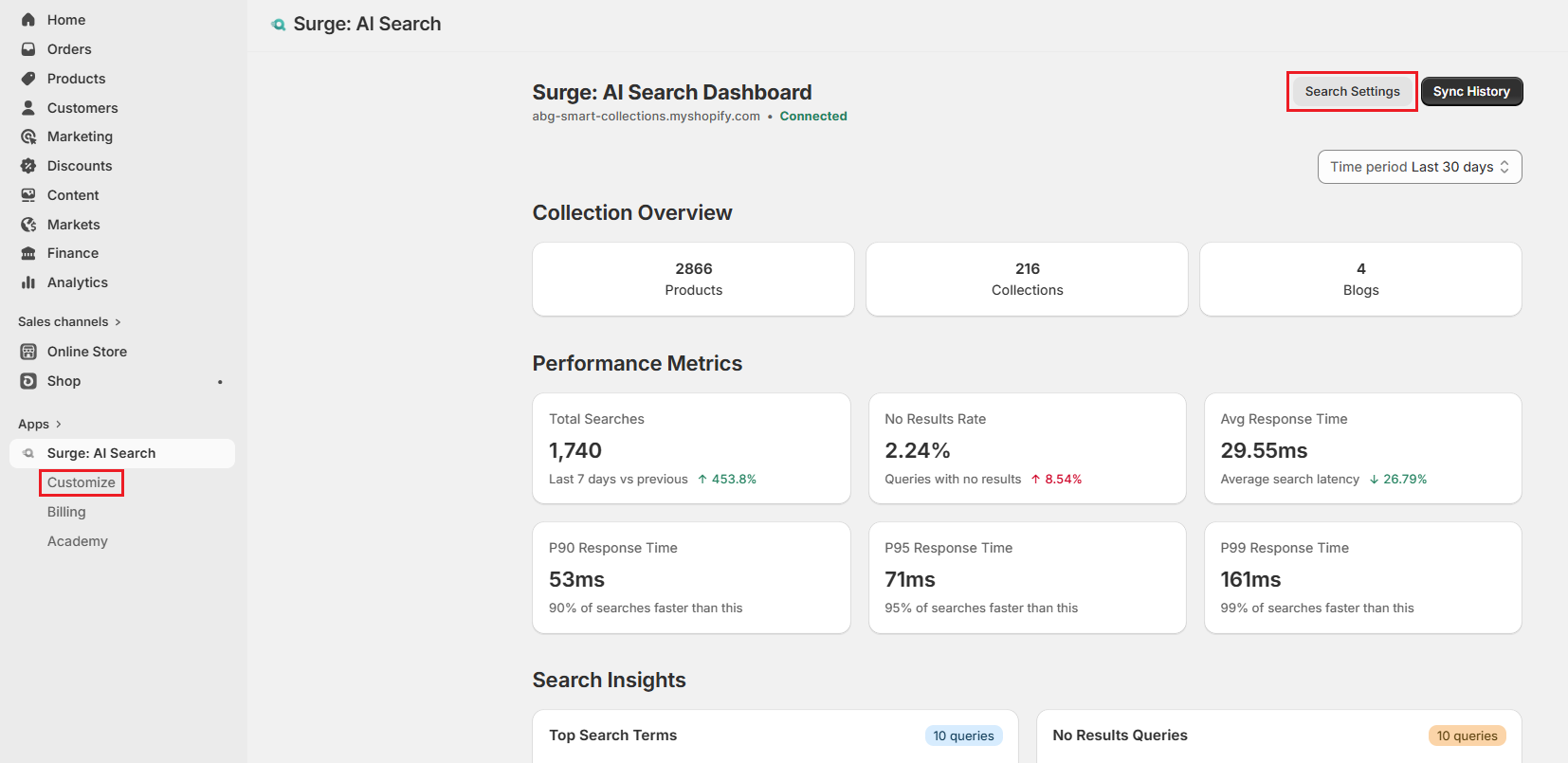
Both open the Search Bar Customization tab by default. Select "Product Recommendation" to switch tabs.
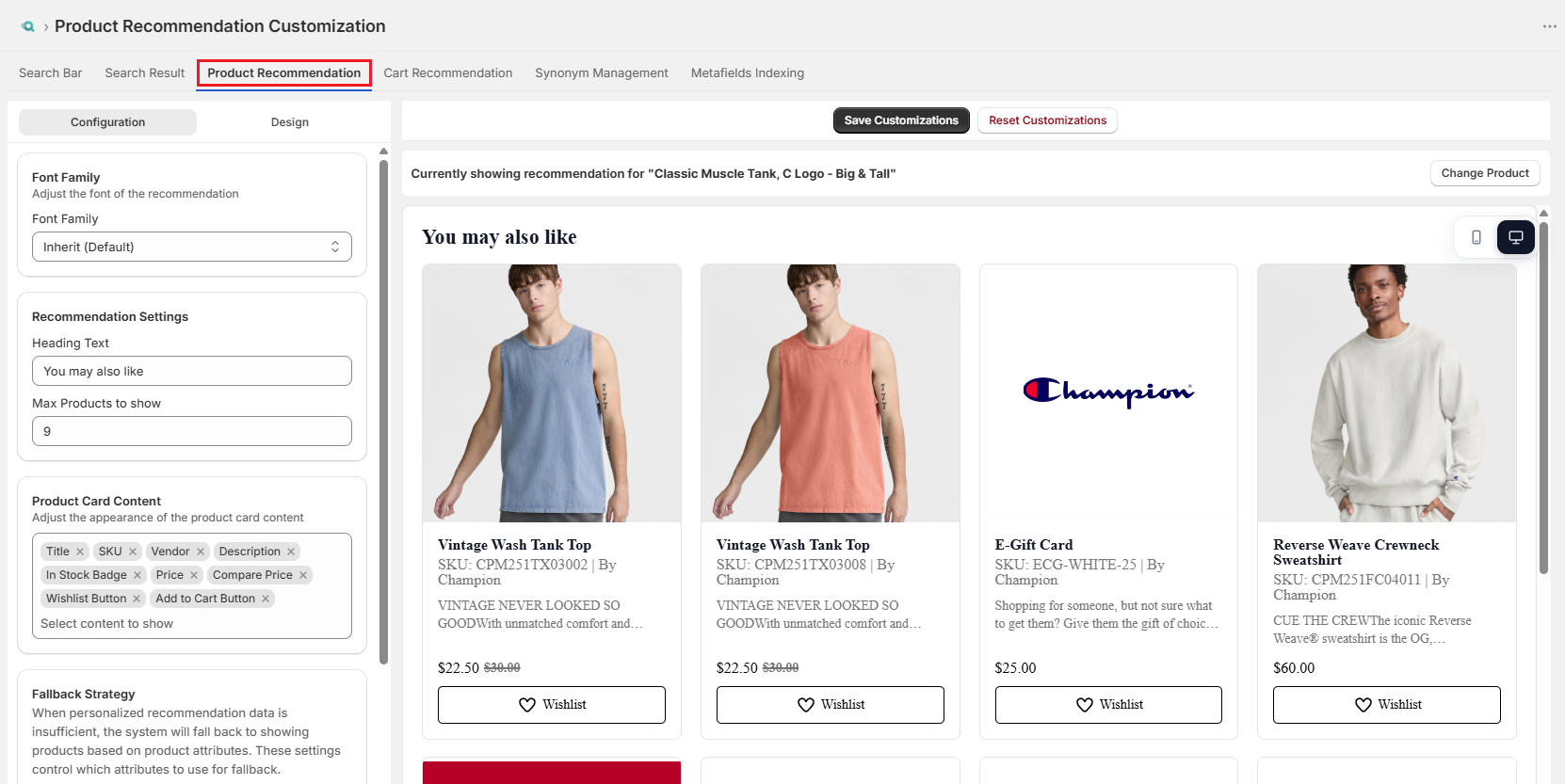
How to Customize Product Recommendations?#
The Product Recommendation tab is divided into two sections. The left panel contains all Configuration and Design settings, organized under separate sections. The right panel displays a live preview that updates in real time as changes are made.
Configuration#
The Configuration tab controls the functional behavior of the recommendation widget: what it shows, how many items it displays, and what happens when the recommendation engine lacks sufficient data to personalize results.
Font Family#
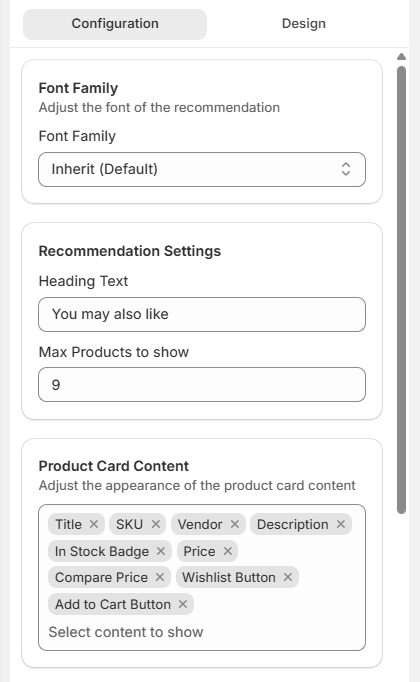
This setting defines the typeface used for all text within the recommendation widget. By default, it is set to Inherit, meaning the widget automatically uses the font from the active Shopify theme.
If a different font is required, select it from the available dropdown options to override the inherited styling and apply a consistent typeface within the widget.
Recommendation Settings#
This section controls the most visible elements of the Product Recommendations widget.
- Heading Text: Defines the title displayed above the product grid, such as "You may also like".
- Max Products to Show: Sets the maximum number of recommended products that appear in the widget at one time.
Product Card Content#
This section determines which product details are displayed on each card. Click the input field to select the information you want to show. Individual details can be removed by selecting the "X" icon next to each option.
Available product card details include:
- Title
- SKU
- Vendor
- Description
- In Stock Badge
- Out of Stock Badge
- Price
- Compare Price
- Wishlist Button
- Add to Cart Button
Note: These settings only affect what is displayed on the product cards. They do not influence how Surge indexes, ranks, or selects recommended products. All changes are purely presentational.
Fallback Strategy#
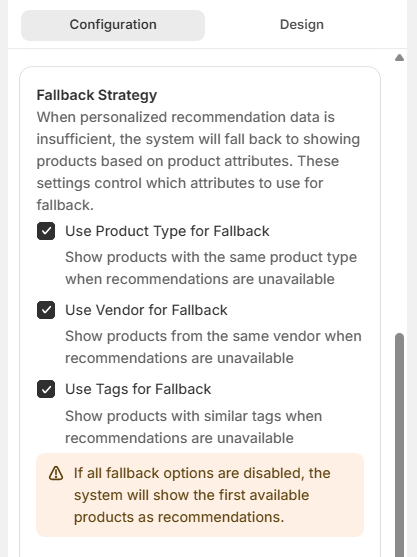
When the recommendation engine does not have enough shopper behavioral data for a product, which is common for newly added items or rarely viewed products, it falls back to showing products based on catalog attributes instead.
This section allows the selection of fallback rules:
- Use Product Type for Fallback: Displays products with the same product type.
- Use Vendor for Fallback: Displays products from the same vendor as the fallback.
- Use Tags for Fallback: Displays products with similar tags.
Important: If all fallback options are disabled, the widget falls back to showing the first available products in the catalog, which may not be relevant to the current product. Keep at least one fallback option enabled to ensure meaningful recommendations for all products.
Design#
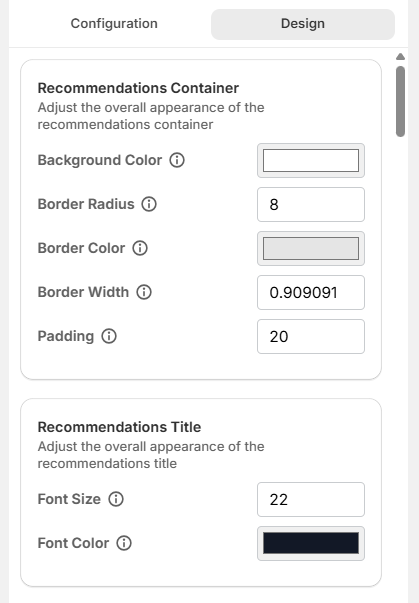
The Design tab controls the visual appearance of the entire Product Recommendation widget. It is organized into four main sections:
Recommendations Container#
This section controls the outer wrapper that contains the entire widget and defines its overall layout and structure.
- Background Color: Sets the background color of the recommendations container.
- Border Radius: Controls the roundness of container corners.
- Border Color: Defines the container border color.
- Border Width: Sets container border thickness.
- Padding: Controls the spacing inside the container.
Recommendations Title#
This section styles the heading text displayed above the product grid, such as "You may also like."
- Font Size: Defines the title text size.
- Font Color: Sets the title text color.
Product Card#
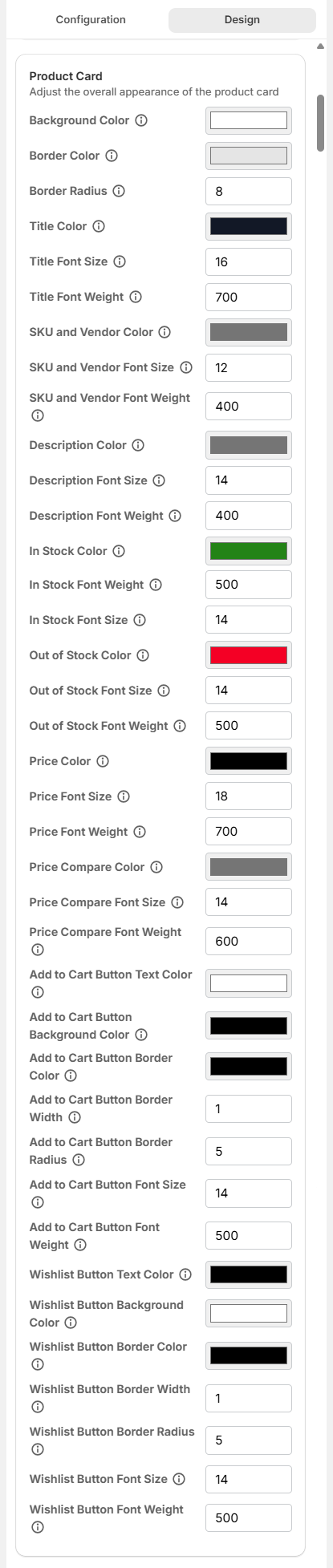
This section controls the visual styling of individual product cards within the widget.
- Background Color: Sets the background color of each product card.
- Border Color: Defines the border color of product cards.
- Border Radius: Controls the roundness of product card corners.
- Title Color: Defines the product title color.
- Title Font Size: Defines the product title size.
- Title Font Weight: Defines the weight of the product title.
- SKU and Vendor Color: Defines the color of the SKU and vendor text.
- SKU and Vendor Font Size: Defines the size of SKU and vendor text.
- SKU and Vendor Font Weight: Defines the weight of SKU and vendor text.
- Description Color: Defines the color of the product description.
- Description Font Size: Defines the size of product description text.
- Description Font Weight: Defines the weight of product description text.
- In Stock Color: Defines the color of in-stock text.
- In Stock Font Weight: Defines the weight of in-stock text.
- In Stock Font Size: Defines the size of in stock text.
- Out of Stock Color: Defines the color of out-of-stock text.
- Out of Stock Font Size: Defines the size of out-of-stock text.
- Out of Stock Font Weight: Defines the weight of out-of-stock text.
- Price Color: Defines the product price color.
- Price Font Size: Defines product price size.
- Price Font Weight: Defines product price weight.
- Price Compare Color: Defines the color of the compare-at-price.
- Price Compare Font Size: Defines the size of the compare at price.
- Price Compare Font Weight: Defines the weight of the compare at price.
- Add to Cart Button Text Color: Defines the color of the add-to-cart button text.
- Add to Cart Button Background Color: Defines the background color of the add to cart button.
- Add to Cart Button Border Color: Defines the border color of the add-to-cart button.
- Add to Cart Button Border Width: Defines the border width of the add to cart button.
- Add to Cart Button Border Radius: Defines the border radius of the add-to-cart button.
- Add to Cart Button Font Size: Defines the size of the add to cart button text.
- Add to Cart Button Font Weight: Defines the weight of the add to cart button text.
- Wishlist Button Text Color: Defines the color of the wishlist button text.
- Wishlist Button Background Color: Defines the background color of the wishlist button.
- Wishlist Button Border Color: Defines the border color of the wishlist button.
- Wishlist Button Border Width: Defines the border width of the wishlist button.
- Wishlist Button Border Radius: Defines the border radius of the wishlist button.
- Wishlist Button Font Size: Defines the size of the wishlist button text.
- Wishlist Button Font Weight: Defines the weight of the wishlist button text.
Custom CSS#
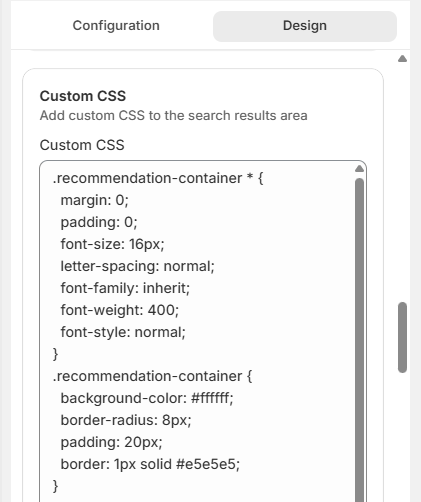
The Custom CSS field lets you apply custom styling rules directly to the widget. It provides full control over the appearance beyond the built-in design settings.
How to Preview & Save Customization?#
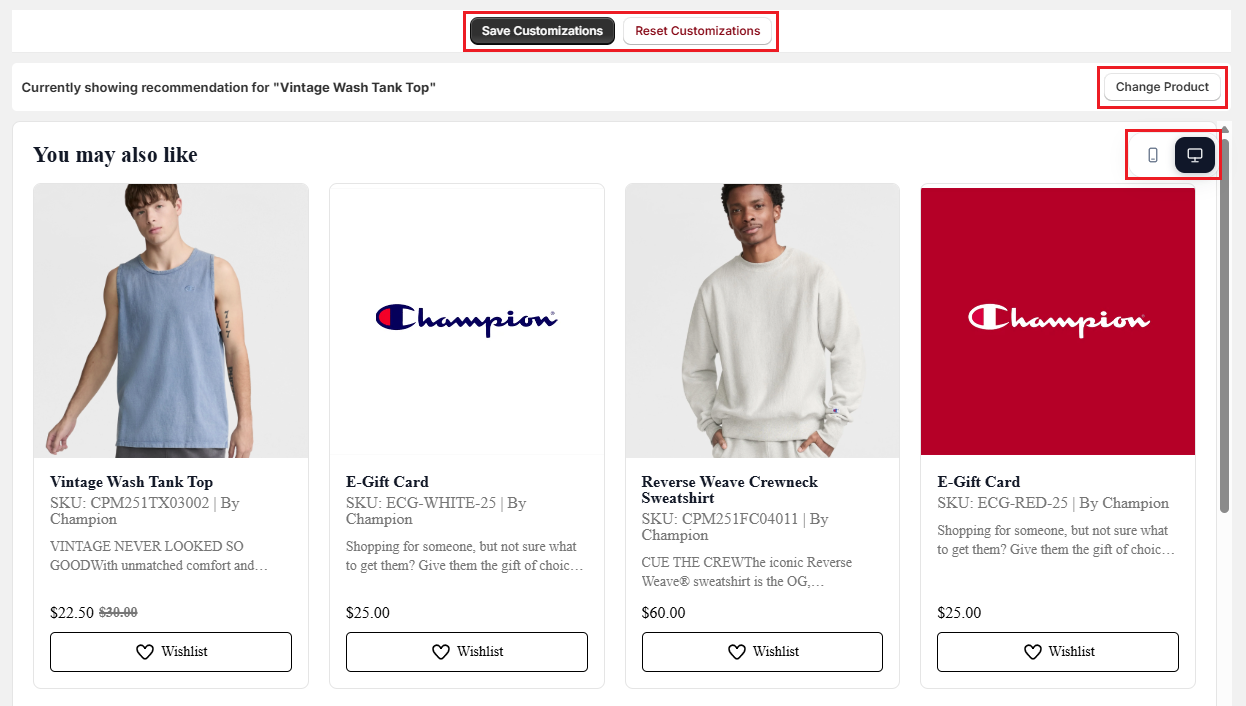
The right side of the Product Recommendation Customization tab contains a live preview of the widget. The preview updates in real time as settings are changed in the Configuration or Design tabs, allowing you to review changes before they are saved.
The preview toolbar provides two tools for testing different recommendation scenarios:
- Change Product: Opens a product selector that allows a different product from the catalog to be loaded into the preview. This is useful for evaluating how recommendations appear for products with long titles, limited product information, etc.
- Device Preview Toggle: Switches between Desktop and Mobile views to show how the widget appears on different screen sizes.
To Preview Changes:
-
Make adjustments in the Configuration and Design tabs.
-
Review the changes in the live preview panel.
-
Use the "Change Product" option to test recommendations for different products.
-
Switch between Desktop and Mobile views to verify the layout and responsiveness.
When you reach the desired configuration, click "Save Customizations" to apply the changes to the live storefront. To discard any unsaved changes and return to the default configuration, click "Reset Customizations".
Important Notes#
Product Data Must Be Fully Synced#
The recommendation engine relies on indexed product data. If a sync is incomplete or product information is outdated, recommendations may be limited or unavailable.
Recommendation Quality Improves Over Time#
AI-based and personalized recommendations depend on shopper behavior such as searches, product views, and purchases. New or recently installed stores may initially rely more heavily on fallback logic until sufficient behavioral data has been collected.
Widget Placement & Styling Are Controlled Separately#
The Shopify Theme Editor controls where the widget appears on the page, while the Surge: AI Search controls its recommendation logic, content, and visual design.
Changes Apply to All Product Pages#
Widget settings are global and affect every product page where the Product Recommendations App Block is displayed. Individual products cannot have separate recommendation widget designs or layouts.
Best Practices#
Use Contextual Widget Title#
The widget title helps set shopper expectations and can significantly influence engagement. Titles that reflect recommended intent generally work better than generic labels.
For Example:
- Complete the Look: For complementary products.
- Frequently Bought Together: For cross-sell recommendations.
- Trending Right Now: For popular products.
- What Other Shoppers Are Buying: For social-proof recommendations.
Hide Out-of-Stock Products When Possible#
Shoppers are more likely to engage with recommendations they can purchase immediately. Displaying unavailable products can create frustration and reduce trust.
Out-of-stock products should only be included when there is a specific business need, such as:
- Waitlists
- Pre-orders
- Coming Soon campaigns
Maintain High-Quality Product Data#
Recommendation quality is directly tied to catalog quality.
For the best results:
- Use consistent product types.
- Apply accurate and meaningful tags.
- Organize products into appropriate collections.
- Keep vendor information standardized.
Well-structured catalog data improves both fallback recommendations and overall recommendation relevance.
Optimize Product Card Content#
Product cards should provide enough information for shoppers to evaluate products quickly without creating visual clutter.
Consider displaying:
- Product title
- Price
- Availability status
- Vendor (when relevant)
Descriptions should be used carefully. Long descriptions can create uneven card heights and make product grids harder to scan.
Test Across Multiple Products & Devices#
A design that looks good for one product may not work for all products.
Before publishing changes, test the widget using:
- Products with long titles
- Products with compare-at prices
- Products with limited product information
- Out-of-stock products
The layout should also be reviewed in Desktop and Mobile views to ensure a consistent experience across devices.
Need Help?#
If recommendations aren't appearing as expected, fallback rules aren't producing relevant results, or you're unsure which settings will work best for your store, reach out to us through live chat in the app or email at support@bevycommerce.com. We'll help you optimize your recommendation strategy and troubleshoot any setup issues.