Installing Surge
Getting Surge: AI Search up and running on your Shopify store is straightforward and takes under five minutes. No coding experience is required.
Before Installation#
Take five minutes to prepare before installing. This makes the setup process smoother and helps you avoid the most common issues.
What You Need#
-
Shopify admin access with permission to install apps and edit themes.
-
A duplicate of your active theme. Before you configure Surge, duplicate your current theme so you can make changes safely. Your live store stays unchanged until you publish the duplicate.
How to Duplicate Your Theme#
In your Shopify admin, go to "Online Store". Click the three-dot menu (...) on your active theme and select "Duplicate". Shopify creates a copy named "Copy of [Theme Name]".
Things to Know#
You Get a 14-day Free Trial#
Basic, Pro, and Scale plans include a free trial. You won't be charged until the trial period ends.
The Initial Sync Takes Under Ten Minutes#
After installation, Surge indexes your entire product catalog. Larger catalogs take longer. The Sync History shows you the sync progress.
Remove Conflicting Search Apps First#
If you have another search or filter app installed, remove it before installing Surge to avoid conflicts with theme assets and search behavior.
Note: If the app added code directly to your theme, you may also need to remove those code snippets manually. Check the documentation for the app you are removing for cleanup instructions, or contact its support team.
Review Your Current Search Setup#
Before installing, note how your current search bar looks and where it appears in your theme. This provides a reference point for configuring Surge components in the theme editor. Take a screenshot if it helps.
Installation Steps#
Follow these steps in order. Each step takes under two minutes.
Step 1: Install the app from the Shopify App Store
(a) Log in to your Shopify admin.
(b) Visit the Surge: AI Search listing on the Shopify App Store.
(c) Click "Install".
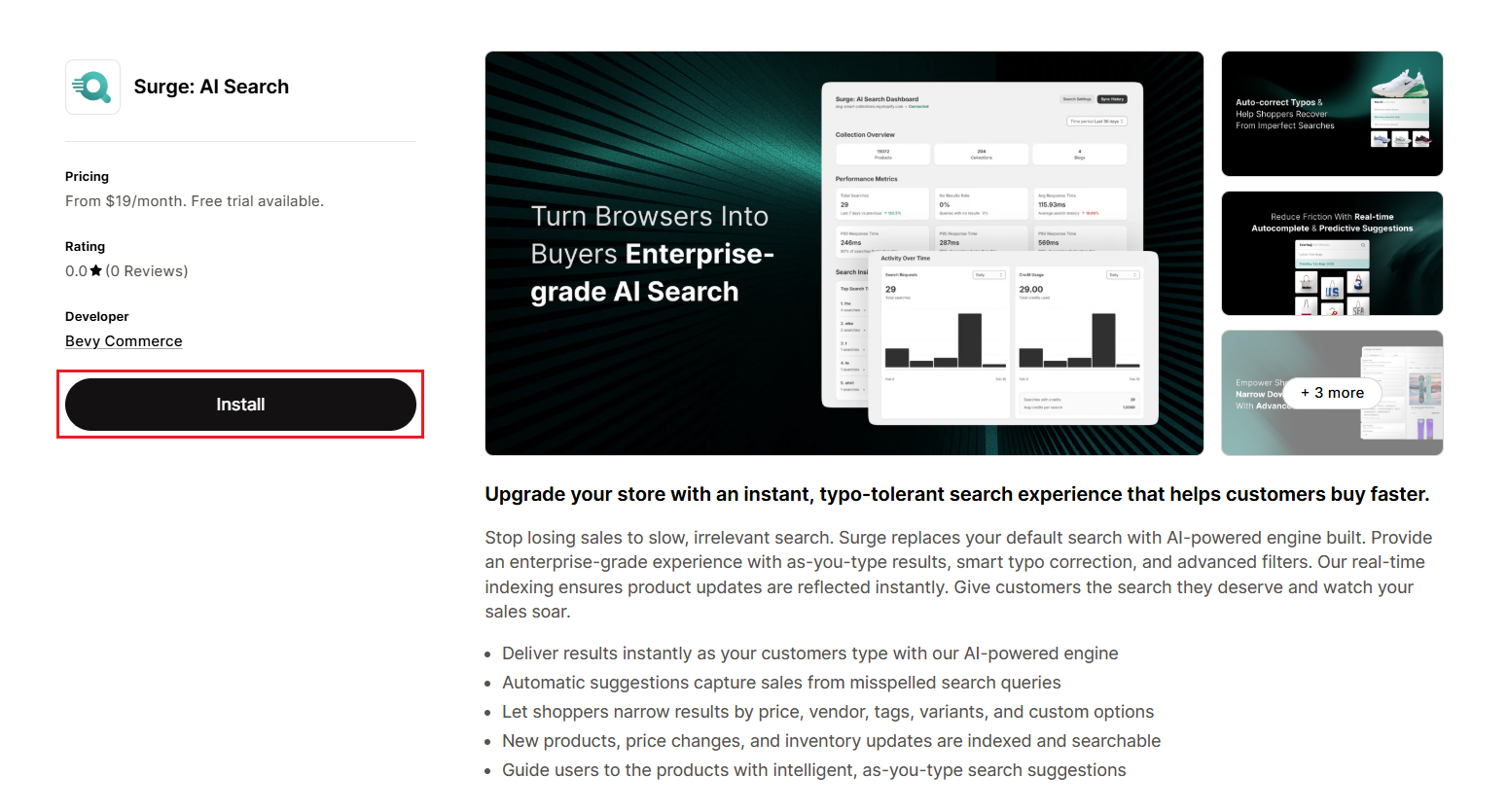
(d) Review the requested permissions and click "Install" to confirm. Surge needs access to your products and inventory to build the search index and theme to embed the search widgets.
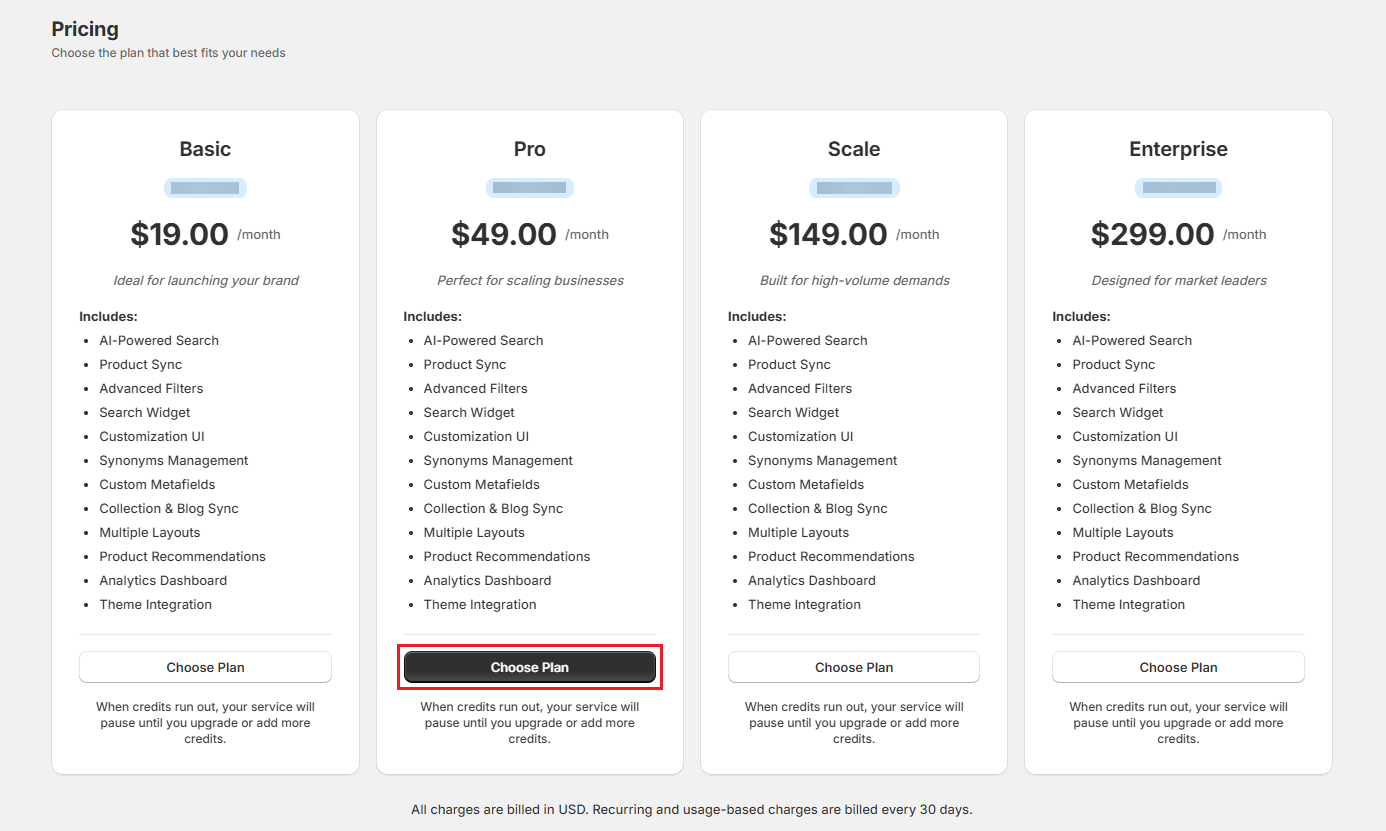
Step 2: Choose a subscription plan
After installation, Surge asks you to choose a plan. Pick the one that matches your expected monthly search volume.
Note: You can change your plan at any time from the Surge Billing tab. All plans, except Enterprise, include a 14-day free trial, so you can explore every feature before any charge applies.
After Installation#
Step 1: Let the initial sync complete in the background
As soon as you install Surge, it begins indexing your product catalog in the background so search is ready for your shoppers. You don't need to wait for the sync to complete before moving to the next step.
Step 2: Enable Surge in your theme via App Blocks
Surge prompts you to add App Blocks to your theme. We recommend clicking "Close" instead of "Open Customizer" in the modal, as the latter will take you directly to your live theme editor.
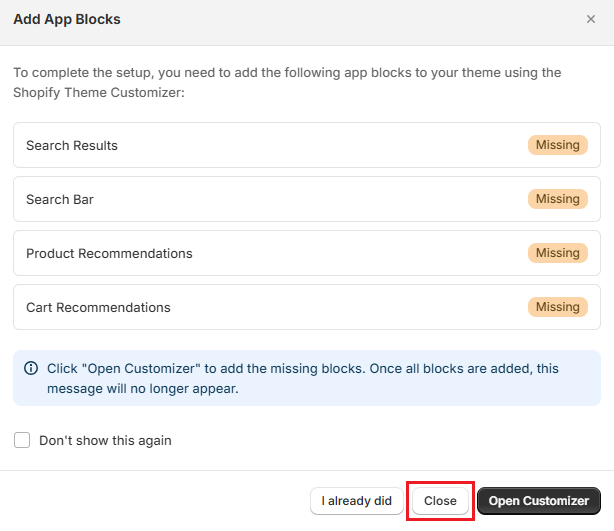
As a best practice, duplicate your live theme first and configure the Surge App Blocks in the draft theme. This lets you review and test your changes before publishing them to your storefront.
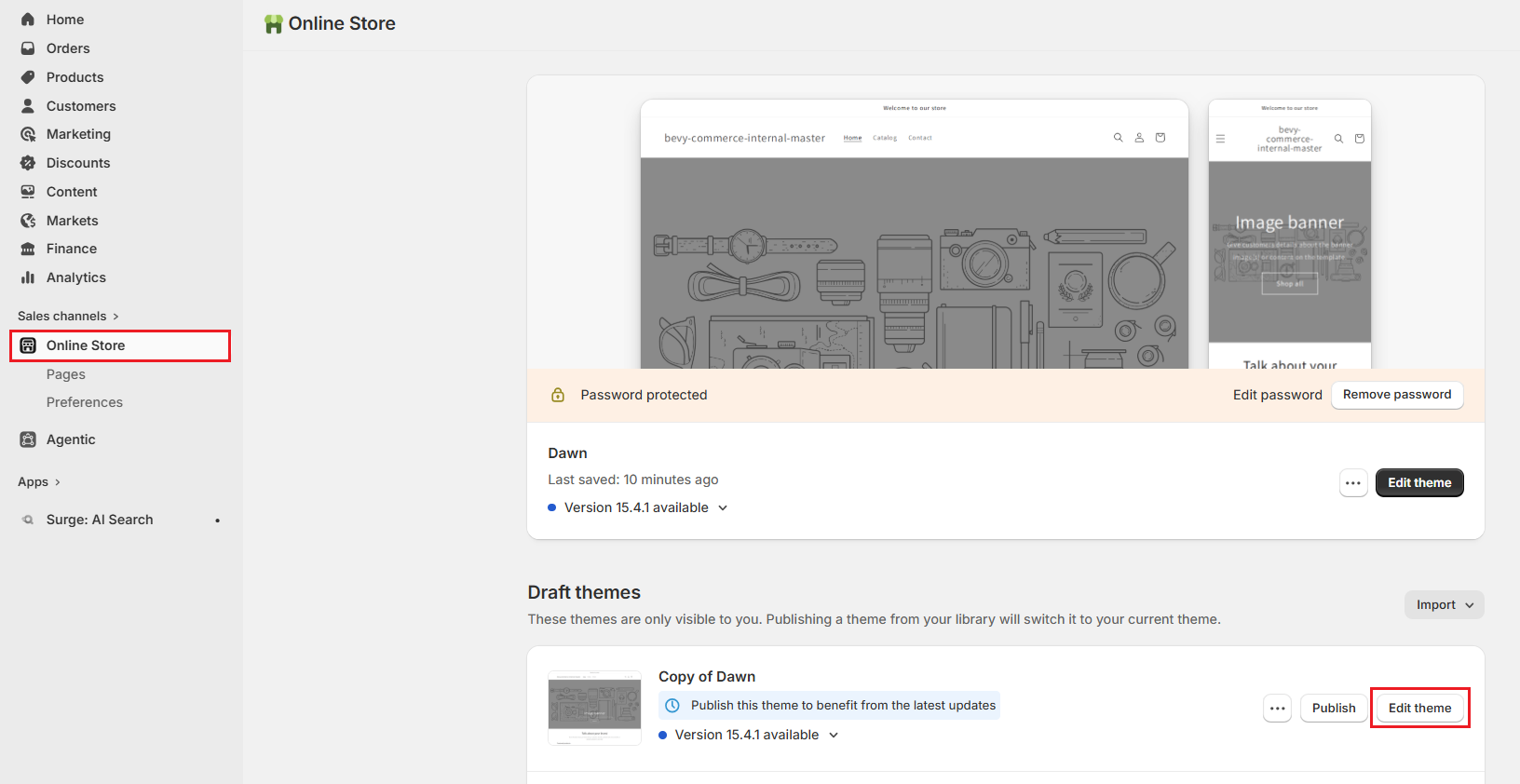
(a) In your Shopify admin, go to "Online Store".
(b) Find your duplicate theme and click "Edit theme" to open the Theme Editor.
(c) Navigate to the page and section where you want to add the app block.
(d) On the sidebar, click "Add section", then switch to the Apps tab.
(e) Select the available App Blocks from the Surge app that you want to add to the section.
Note: Surge offers Search Bar, Search Results, Product Recommendations, and Cart Recommendations blocks. To learn more about each block, read the Add App Blocks article.
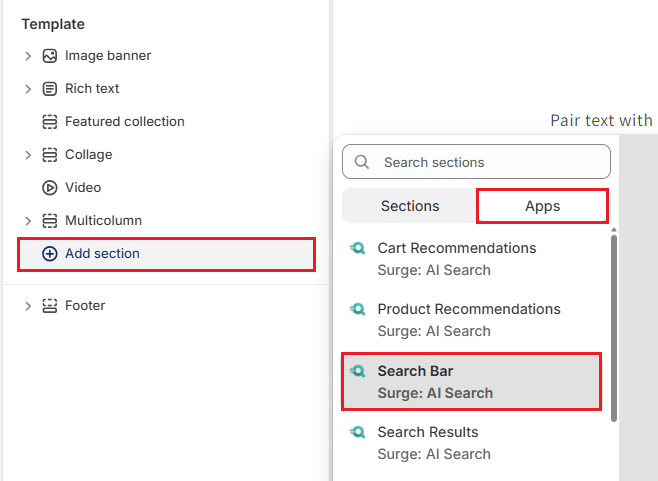
(f) Click "Save".
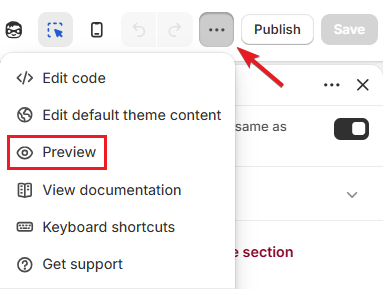
Pro Tip: Use the "Preview" option in the Theme Editor to test your search before publishing. Type a product name in the search bar to confirm results appear correctly.
Step 3: Publish your duplicate theme
(a) Go to "Online Store".
(b) Find your duplicate theme (the one with Surge configured).
(c) Click "Publish".
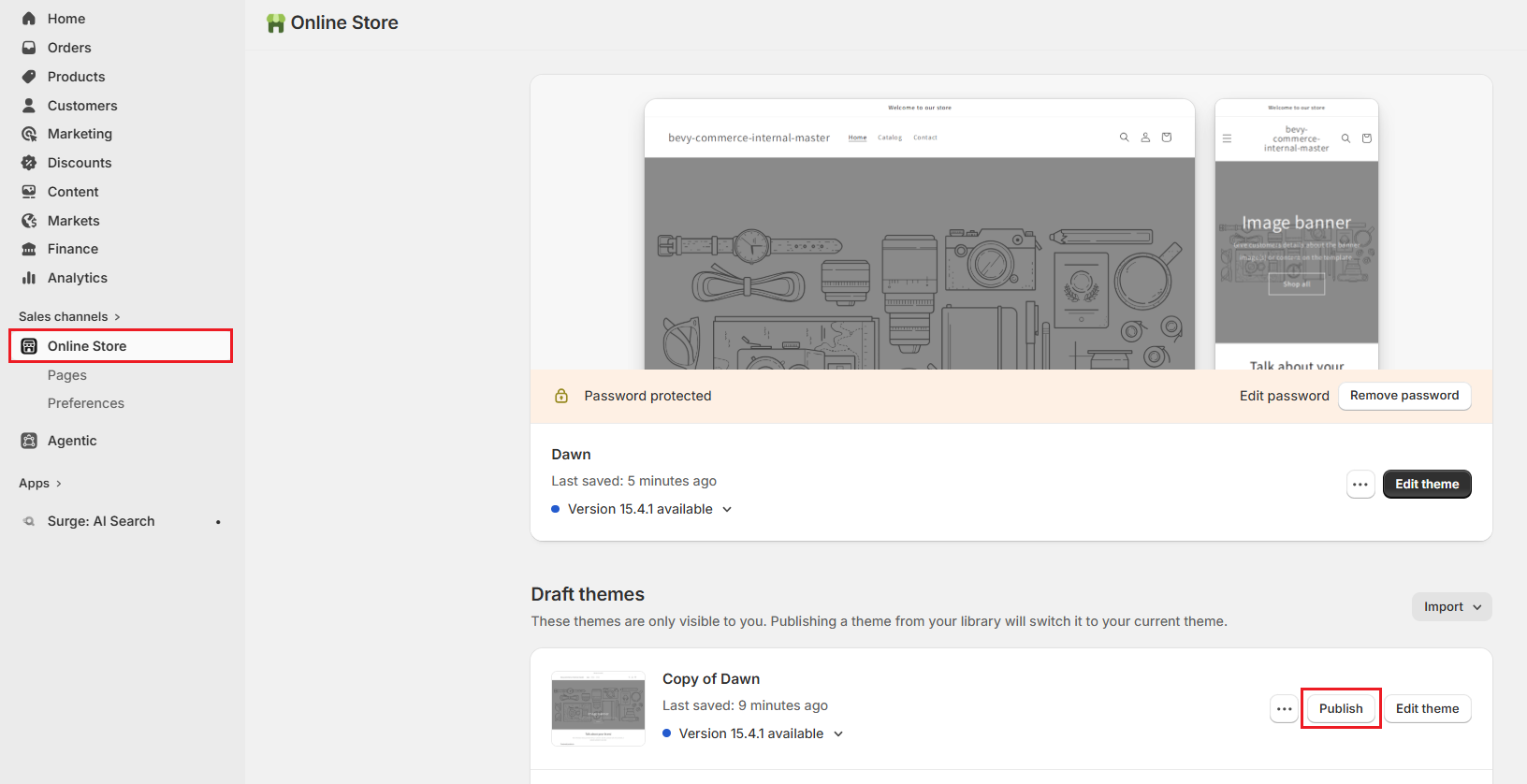
(d) Confirm the publication when prompted.
Your store now serves Surge-powered search to all shoppers. Your previous theme is still saved and can be re-published at any time if you need to roll back.
What Happens Next?#
Once Surge is live, a few things happen automatically in the background.
Ongoing Product Sync#
Surge monitors your Shopify catalog for changes. When you add a product, update a price, change inventory status, or edit a product description, Surge picks up that change and updates the search index within seconds. You do not need to trigger any manual sync.
Search Analytics Begin Collecting Data#
From the moment your first customer performs a search, Surge starts recording query data. You can view this data in the Analytics section of the Surge dashboard. Allow 3 to 7 days of traffic to accumulate before drawing conclusions from the reports.
Need Help?#
Not sure if Surge is installed correctly or whether your search experience is configured the way you want? Reach out to us through live chat in the app or by email at support@bevycommerce.com, and we'll help you review your setup.