Add App Blocks
App Blocks connect Surge's search and UI components to your Shopify theme. You can place the instant search bar, search results page, and product recommendation widgets exactly where you want them on your storefront, all without touching any code.
Note: Without App Blocks, Surge can index your store data and process searches in the background, but shoppers can't see or interact with any of its features.
Before You Add App Blocks#
Take care of these points before opening the Theme Editor:
1. Create a Duplicate Theme#
Always configure App Blocks on a duplicate theme, never on your live theme. This way, your shoppers continue to see the default search until you publish the duplicate.
Go to the Online Store in your Shopify admin, click the three-dot menu (...) on your live theme, and select "Duplicate".
2. Confirm Your Theme Supports App Blocks#
All Shopify themes released after June 2021 (Online Store 2.0 themes) support App Blocks. Popular themes such as Dawn, Craft, Sense, and Crave all support them. If you are using an older or heavily customized third-party theme, check with the theme developer. If your theme does not support App Blocks, contact our support team for guidance on unsupported themes.
Available App Blocks#
Surge provides four components. The table below shows each one, what it does, and the storefront page where it can be placed.
| Block Name | What It Does | Recommended Page |
|---|---|---|
| Search Bar | Activates the instant search bar and as-you-type suggestion overlay across the entire storefront | All pages (global) |
| Search Results | Replaces Shopify's default search results page with Surge's AI-powered results, including advanced filtering and sorting controls. | Search page |
| Product Recommendation | Displays AI-powered product recommendation carousels that adapt to each shopper's search behavior, helping them discover complementary items | Product details page |
| Cart Recommendation | Displays AI-powered product recommendation carousels that adapt to each shopper's behavior, encouraging them to add relevant items and increasing average order value. | Cart page |
How to Add App Blocks?#
Search Bar#
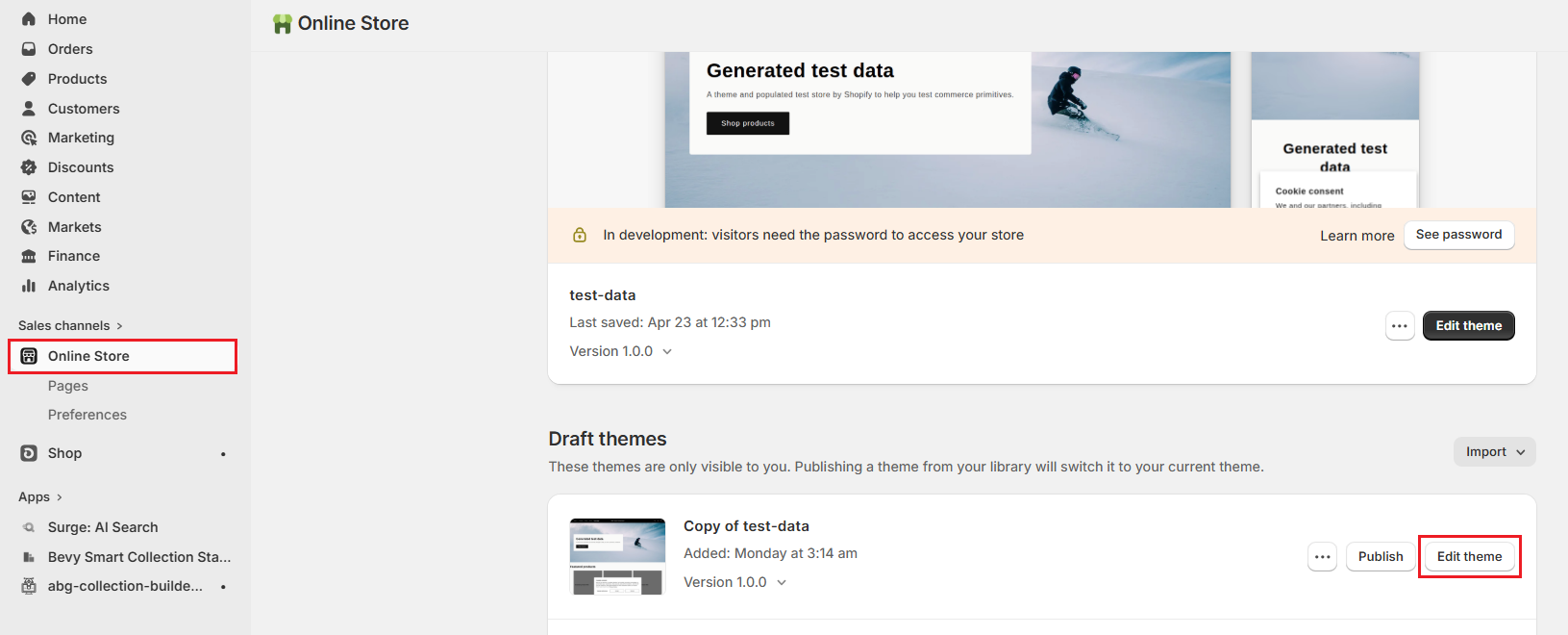
Step 1: Go to the "Online Store" in your Shopify admin.
Step 2: Click "Edit theme" on your duplicate theme. This opens the Theme Editor with Homepage by default.
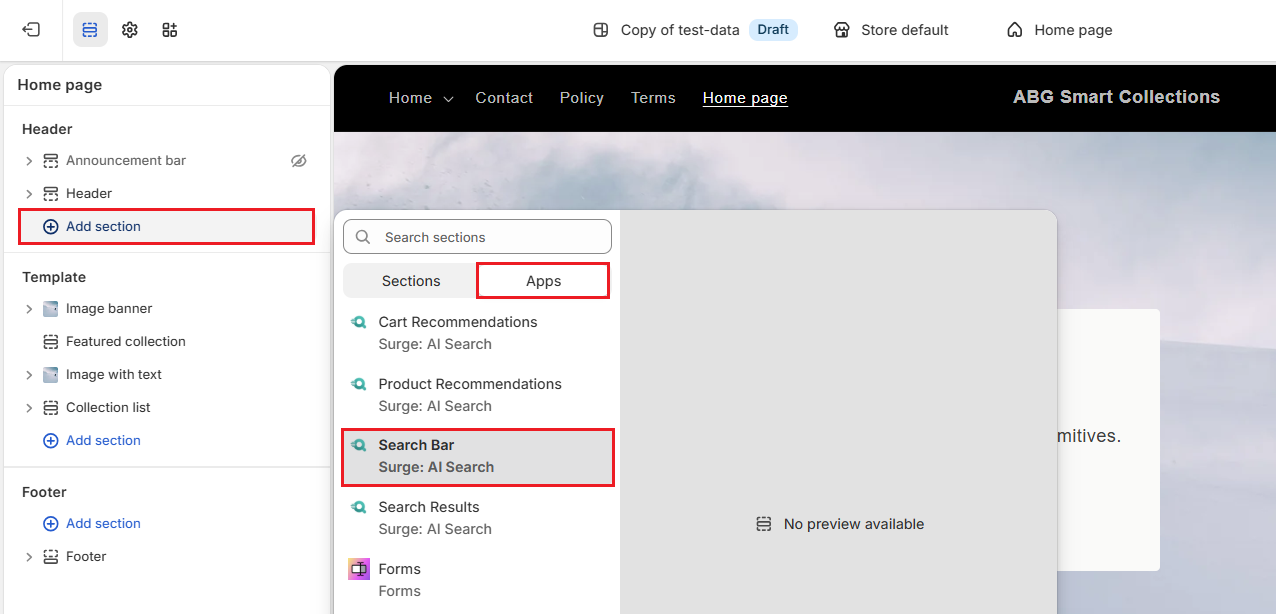
Step 3: In the left sidebar, click "Add section" under Header.
Step 4: Switch to the Apps tab and select the "Search Bar" block from the Surge: AI Search app.
Step 5: Click "Save".
Note: You can also customize the search bar using the available settings in the Surge app.
Search Results#
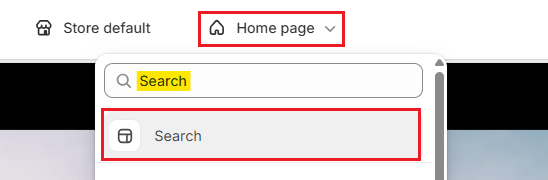
Step 1: In the Theme Editor, click the page selector at the top of the screen.
Step 2: Type "Search" in the search box and select the "Search" page.
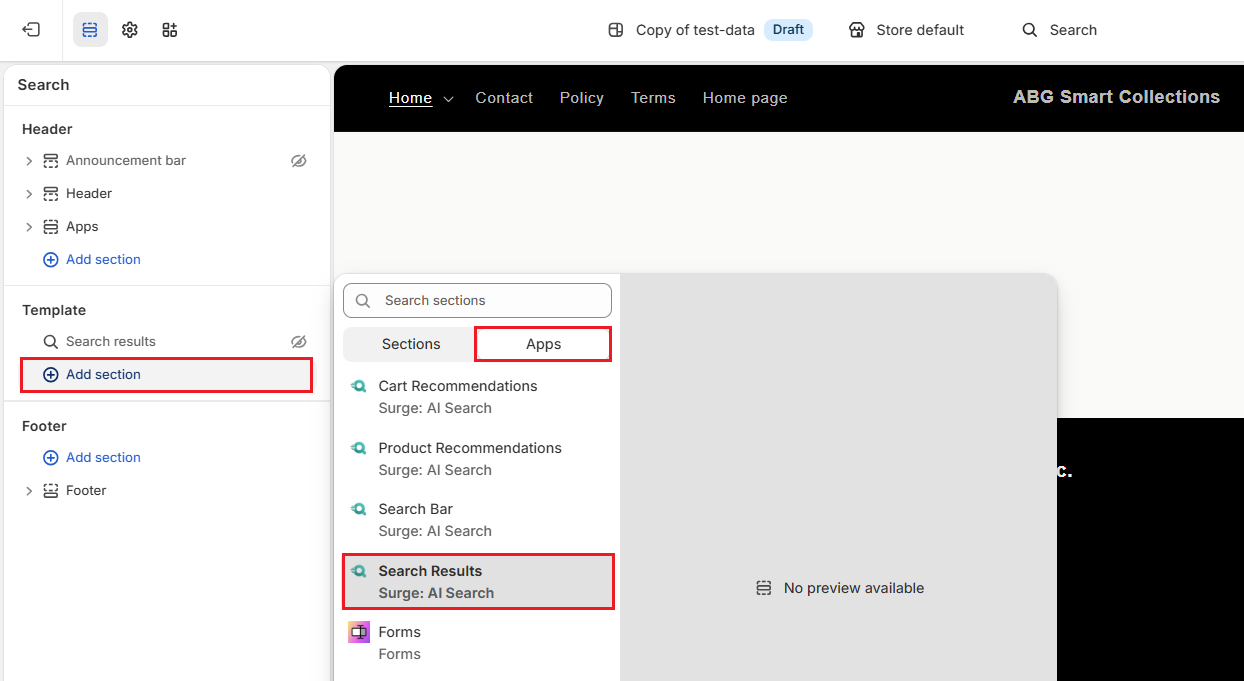
Step 3: In the left sidebar, click "Add section" under Template.
Step 4: Switch to the Apps tab and select the "Search Results" block from the Surge: AI Search app.
Step 5: (Optional): Click the drag icon next to the Search Results block to move it to another section on the page.
Step 6: Click "Save".
Note: You can also customize search results using the settings available in the Surge app.
Product Recommendations#
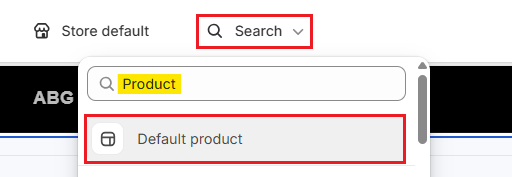
Step 1: In the Theme Editor, click the page selector at the top of the screen.
Step 2: Type "Product" in the search box and select the "Default product" page.
Step 3: In the left sidebar, click "Add section" under Template.
Step 4: Switch to the Apps tab and select the "Product Recommendations" block from the Surge: AI Search app.
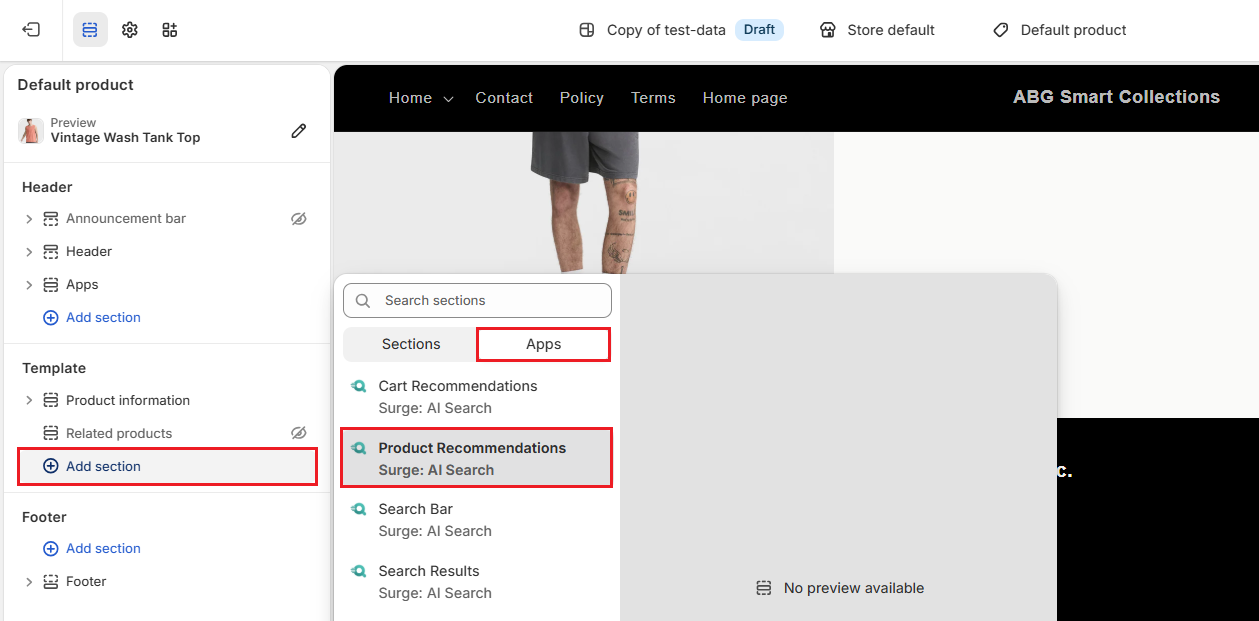
Step 5: (Optional): Click the drag icon next to the Product Recommendations block to move it to another section on the page.
Step 6: Click "Save".
Note: You can also customize product recommendations using the settings available in the Surge app.
Cart Recommendations#
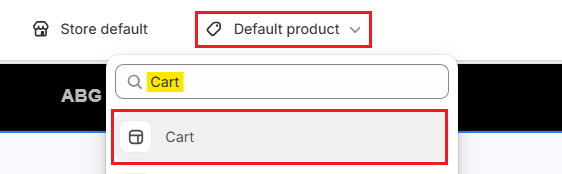
Step 1: In the Theme Editor, click the page selector at the top of the screen.
Step 2: Type "Cart" in the search box and select the "Cart" page.
Step 3: In the left sidebar, click "Add section" under Template.
Step 4: Switch to the Apps tab and select the "Cart Recommendations" block from the Surge: AI Search app.
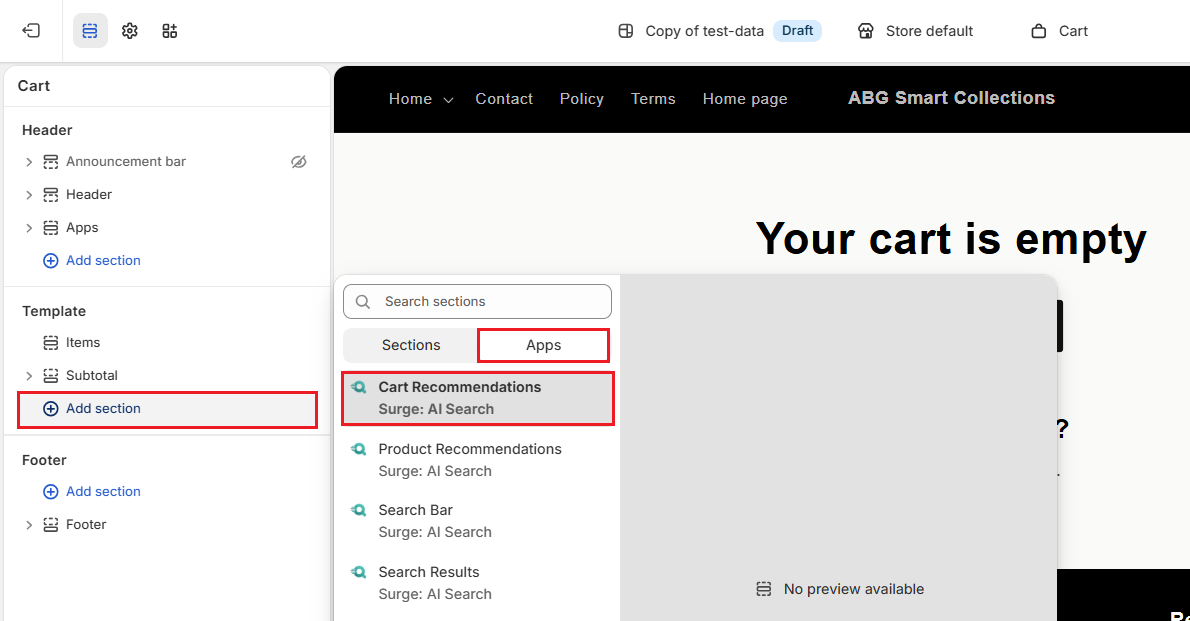
Step 5: (Optional): Click the drag icon next to the Cart Recommendations block to move it to another section on the page.
Step 6: Click "Save".
Note: You can also customize cart recommendations using the settings available in the Surge app.
Preview & Publish#
After adding the App Blocks, you can publish the duplicate theme. However, before pushing, preview and check the full experience to confirm everything works correctly.
Step 1: Click the three-dot menu "..." at the top right of the Theme Editor. Select "Preview" to open a preview of your duplicate theme.
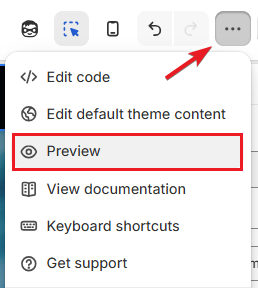
Step 2: Run a test search and verify that:
- The search overlay appears correctly
- Search results load successfully
- The filter sidebar is displayed
- Filtering updates the results as expected
Step 3: If you added product recommendations, check that the widget appears on the relevant pages.
Step 4: If everything looks right, go back to the Theme Editor and click "Publish" at the top right.

Important Notes#
- Always configure App Blocks on a duplicate theme. Your live storefront stays unchanged until you publish.
- Add the Search Bar before adding any other block. The Search Results, Filter, and Recommendations blocks depend on it to function.
- Surge App Blocks do not modify your theme's underlying code. If you uninstall Surge, the blocks are removed automatically and your theme returns to its default state.
Need Help?#
App Blocks setup is the most hands-on step in configuring Surge, and it is completely normal to have questions along the way. If something doesn't look right in the Theme Editor or if your theme requires a custom setup, we're here to help.
Reach out to us through live chat in the app or by email at support@bevycommerce.com, and we'll help you set up your search experience correctly.