Index Metafields
Shopify gives every product a standard set of fields: title, description, vendor, tags, price, etc. However, most stores need custom fields or richer product data, such as materials, compatibility, battery life, certifications, and care instructions. This is where metafields come in.
Metafield indexing is the process of bringing these custom fields into Surge's search index so they can be used as filters. Surge: AI Search lets you index Shopify metafields, unlocking powerful filtering (e.g., Fabric, Material, Compatibility) and improving product discovery for customers.
Example: Let's say a merchant sells laptop accessories. Each product has a metafield called "Compatibility" with values such as "MacBook Pro 14", "Dell XPS 13", and "Lenovo ThinkPad X1". Indexing this metafield creates a filter in the search sidebar. A shopper can select their exact laptop model and instantly see only compatible accessories.
Why Index Metafields?#
Standard Shopify filters cover the basics. However, shoppers searching for niche or high-consideration products expect to filter by the specific attributes that drive their purchase decisions. Fabric composition, frame material, allergen information, compatibility specs - these details live in metafields, and without indexing them, they remain invisible to search.
Indexing your metafields directly improves the search experience in three ways:
- Relevance: Products appear in search results when customers search for a custom attribute value. For example, searching for "vegan" in a food or wellness store surfaces all products where the Certification metafield equals "vegan".
- Discoverability: Customers who browse with filters find relevant products faster, reducing bounce rates and improving conversions.
- Catalog Depth: You expose the full richness of your product data rather than keeping it locked on the backend.
Before You Index Metafields#
Before you start the setup process, confirm the following:
Your Metafields Are Defined in Shopify#
Step 1: In Shopify Admin go to > Settings > Metafields and metaobjects > Products.
Step 2: Confirm that your product metafield definitions exist. If they do not exist yet, create them first. Each metafield definition needs this configuration:
- Name: To identify the metafield, for example, "Fabric".
- Type: The type of data that the metafield stores, such as single-line text, multi-line text, integer, etc.
- Description (optional): To add descriptive information, for example, what values to enter for the metafield.
- Validation (optional): To assign rules for the input values, such as character limit, item count, etc.
Important: Activate the "Filter on the product list and in the Admin API" option.
Some Products Have Values Assigned#
A metafield definition with no values on any product won't produce any filter options. Make sure at least some of your products have metafield values before indexing them. You can add metafield values to products individually from each product's edit page in Shopify admin.
How to Index Metafields?#
Follow these steps to index a metafield in Surge:
Step 1: Go to your Surge: AI Search dashboard.
Step 2: Click "Search Settings" in the top-right corner.

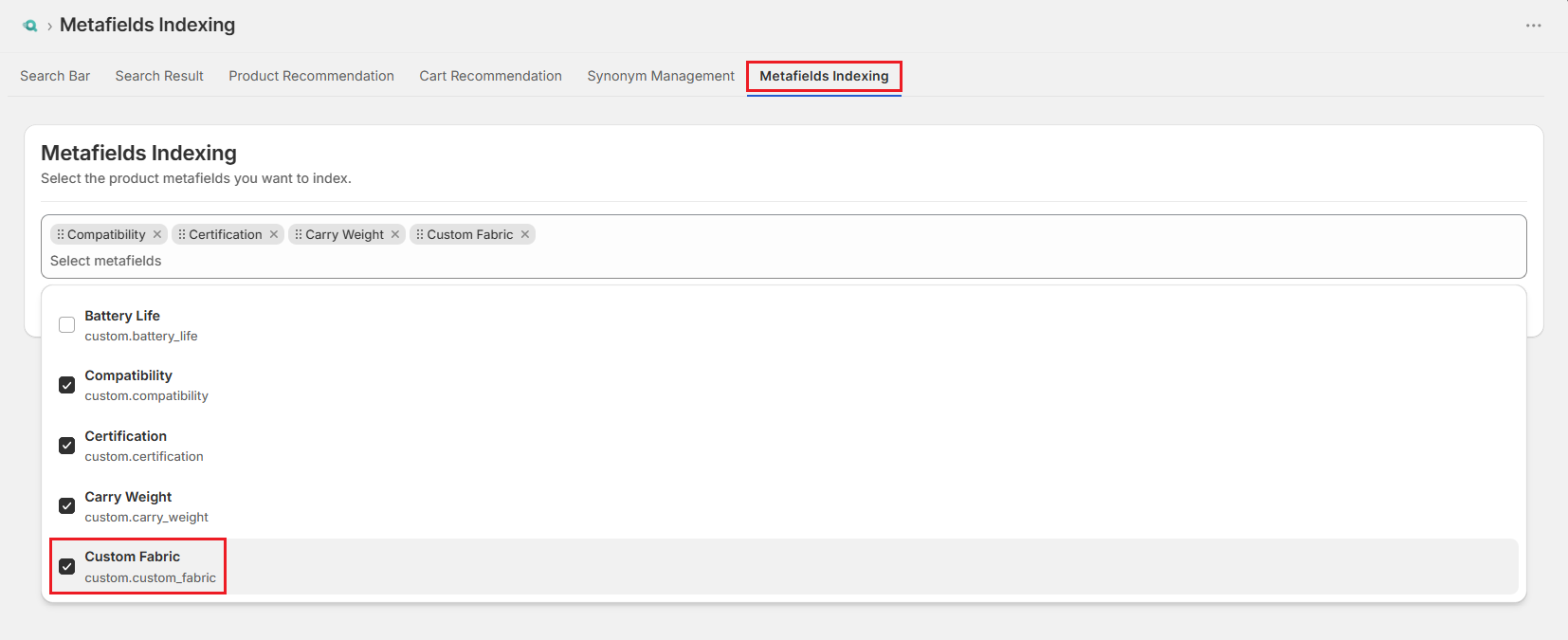
Step 3: Select the "Metafields Indexing" tab.
Step 4: Select the input field. A dropdown shows all metafield definitions Surge detects on your store.
Step 5: Select the metafield definition you want to index, for example, "Custom Fabric".
Step 6: Click "Save".
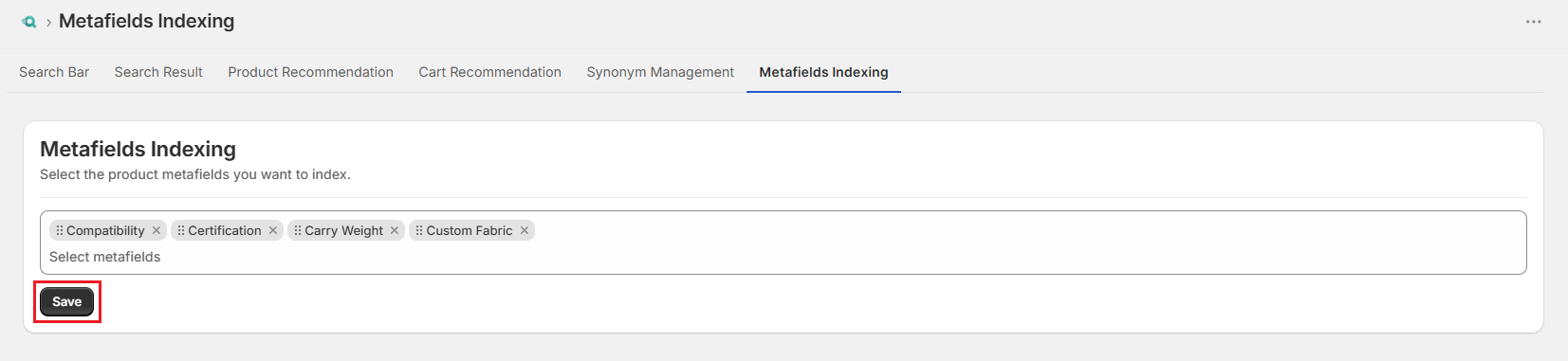
Step 7: Surge triggers a partial re-index after you add a new metafield and redirects to the Sync History. Wait for the sync to complete.
Adding the Metafield as a Filter#
Indexing a metafield makes its data available to Surge, but it will not automatically appear on your storefront. To make it visible to shoppers, you must add it to your search filters.
Step 1: Visit the Surge: AI Search dashboard and select "Search Settings".
Step 2: Select the "Search Result" tab.
Step 3: Under Configuration, go to the "Filter By" section.
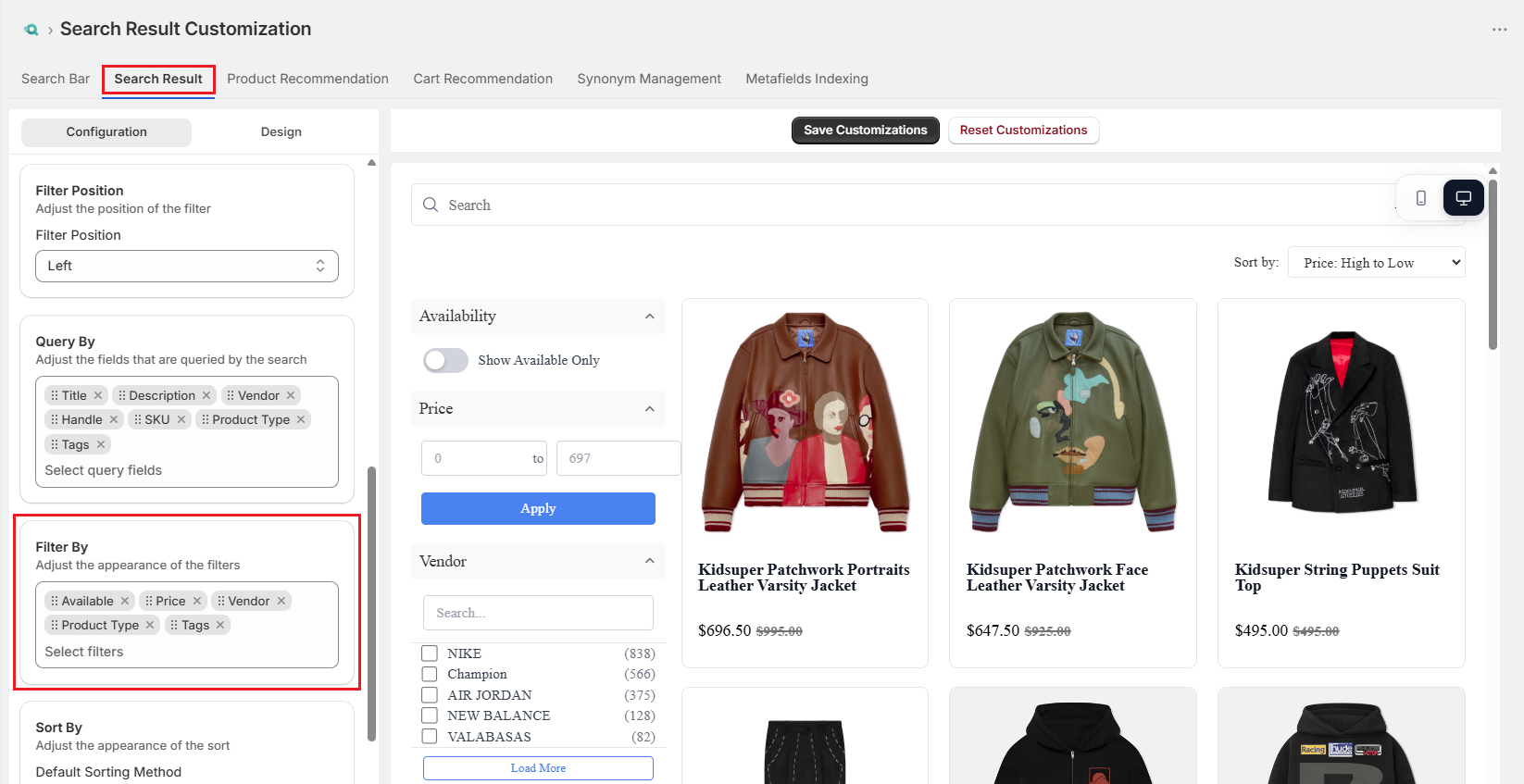
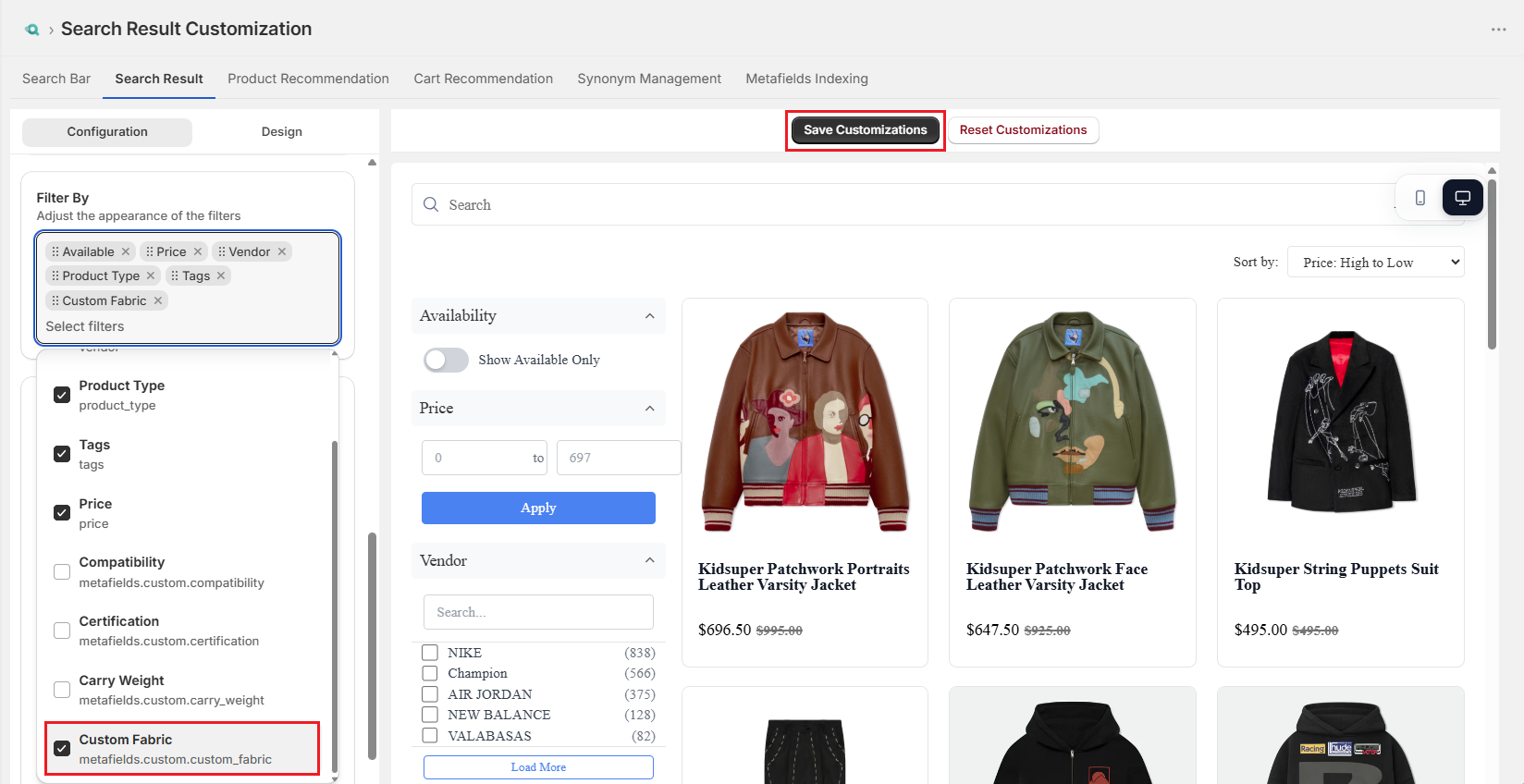
Step 4: Click the input field and select the indexed metafield to display as a filter.
Step 5: Click "Save Customizations".
Important Notes#
Data Consistency is Critical#
Surge indexes metafield values exactly as they are stored in Shopify. If the same attribute is entered differently across products, for example, "Cotton" on one product and "100% Cotton" on another, it is treated as separate filter values by Surge. Metafield values should be standardized before enabling filters to ensure a clean and consistent filtering experience.
Metafield Values Update in Real Time#
Changes to indexed metafield values are automatically synced through Surge's real-time synchronization process. Individual metafield edits do not require a manual re-index.
Filters Only Display Existing Values#
A metafield filter appears only when at least one product has a value for that metafield. If no products have assigned values, the filter will not be displayed on the storefront, even if it has been configured in Surge.
Re-indexing Doesn't Affect Storefront Search#
Re-indexing runs in the background and does not interrupt storefront search functionality. Customers can continue using search and filters normally while indexing is in progress.
Best Practices#
Start With High-Impact Metafields#
The most effective metafield filters are those that help customers make purchasing decisions. Attributes that frequently influence product selection, such as compatibility, material, certifications, or specifications, are typically the best candidates for indexing.
Keep Values Short & Customer-Friendly#
Metafield values are displayed directly to customers in filter menus. Short, clear values such as "Cotton," "Waterproof," or "Under 2 kg" are easier to understand and scan than technical or internal naming conventions.
Use Single-Line Text for Filter Values#
While Shopify supports many metafield types, Single-line text generally provides the most reliable filtering experience. When a metafield is intended primarily for filtering, a single-line text field is recommended wherever possible.
Populate Values Before Enabling Filters#
Filters are most useful when they cover a significant portion of the catalog. Before enabling a metafield as a storefront filter, ensure that relevant products have consistent values.
Index Customer-Facing Metafields Only#
Not every metafield needs to be indexed. Internal operational data, supplier references, or warehouse information typically provide little value to shoppers and can add unnecessary clutter to the filter panel. Only index attributes that improve product discovery.
Need Help?#
Not seeing a metafield in the indexing list or wondering why a filter isn't appearing on your storefront? Reach out to us through live chat in the app or by email at support@bevycommerce.com, and we'll help you verify your metafield setup and filter configuration.