Search Results
Customers see the search results pages after submitting a query in the search bar. In Surge, this page is powered by the Search Results App Block, which you add to your Shopify theme during the app setup. It replaces Shopify's default search results page with a fast, filterable, and fully customizable results experience.
Why Customize Search Results?#
Out-of-the-box search experiences rarely match a store's brand or catalog structure. Here is what good customization unlocks:
- Brand Consistency: Product cards, buttons, and pagination that match your store's colors and typography make the search page feel native rather than bolted-on.
- Better Discovery: Showing the right filters for your catalog, like vendor, product type, and custom metafields, helps shoppers zero in on what they want without scrolling through irrelevant results.
- Faster Decisions: Displaying key details like SKU, description, in-stock status, and compare-at price directly on the product card reduces the need to click into each product before making a decision.
How to Access Customization Options?#
There are two ways to reach the Search Results Customization page:
- From the dashboard: Visit the Surge: AI Search dashboard, then click "Search Settings" at the top-right.
- From the sidebar: Click "Customize" under Surge: AI Search in the sidebar of Shopify admin.
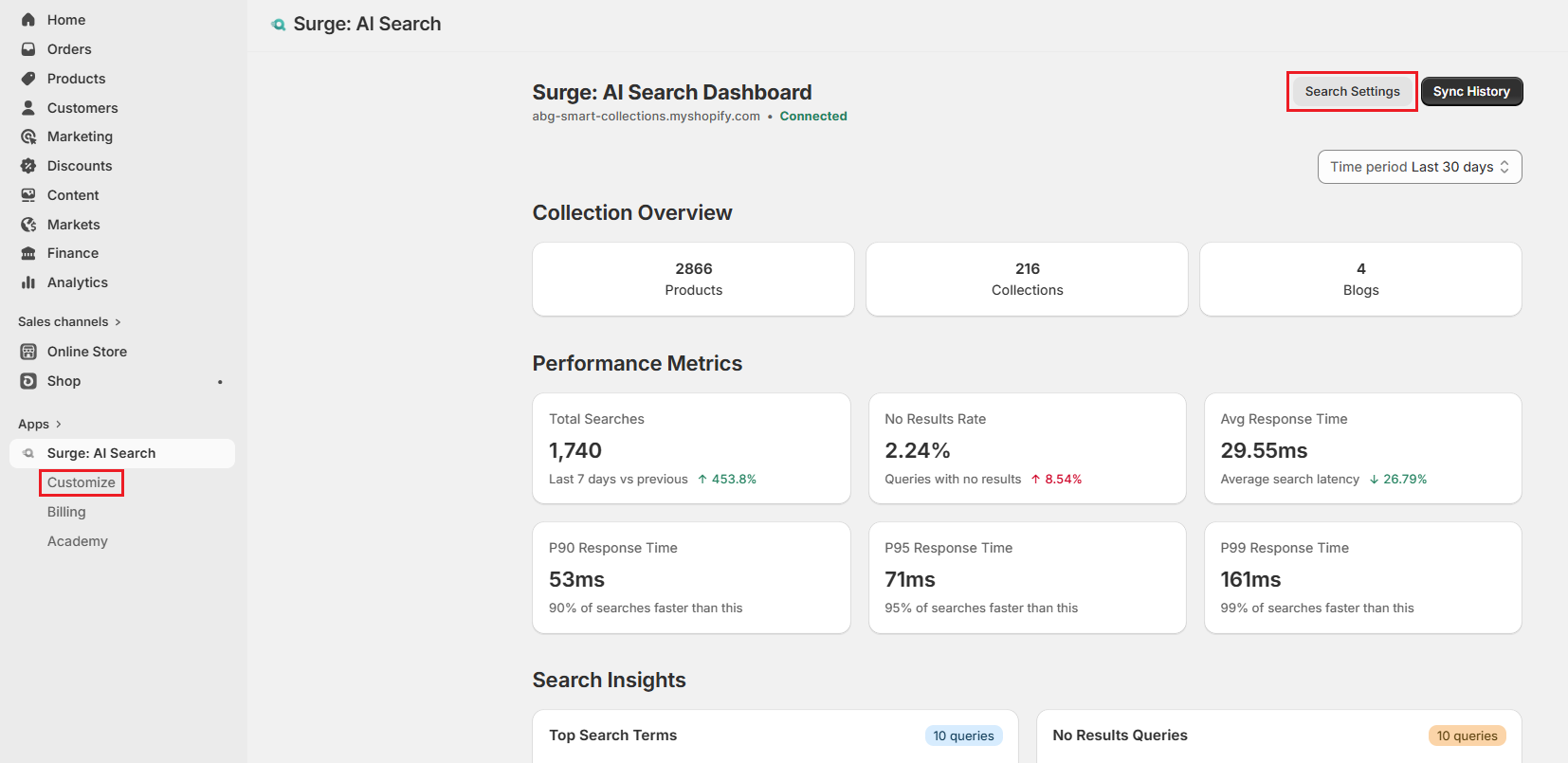
Both open the Search Bar Customization tab by default. Select "Search Result" to switch tabs.
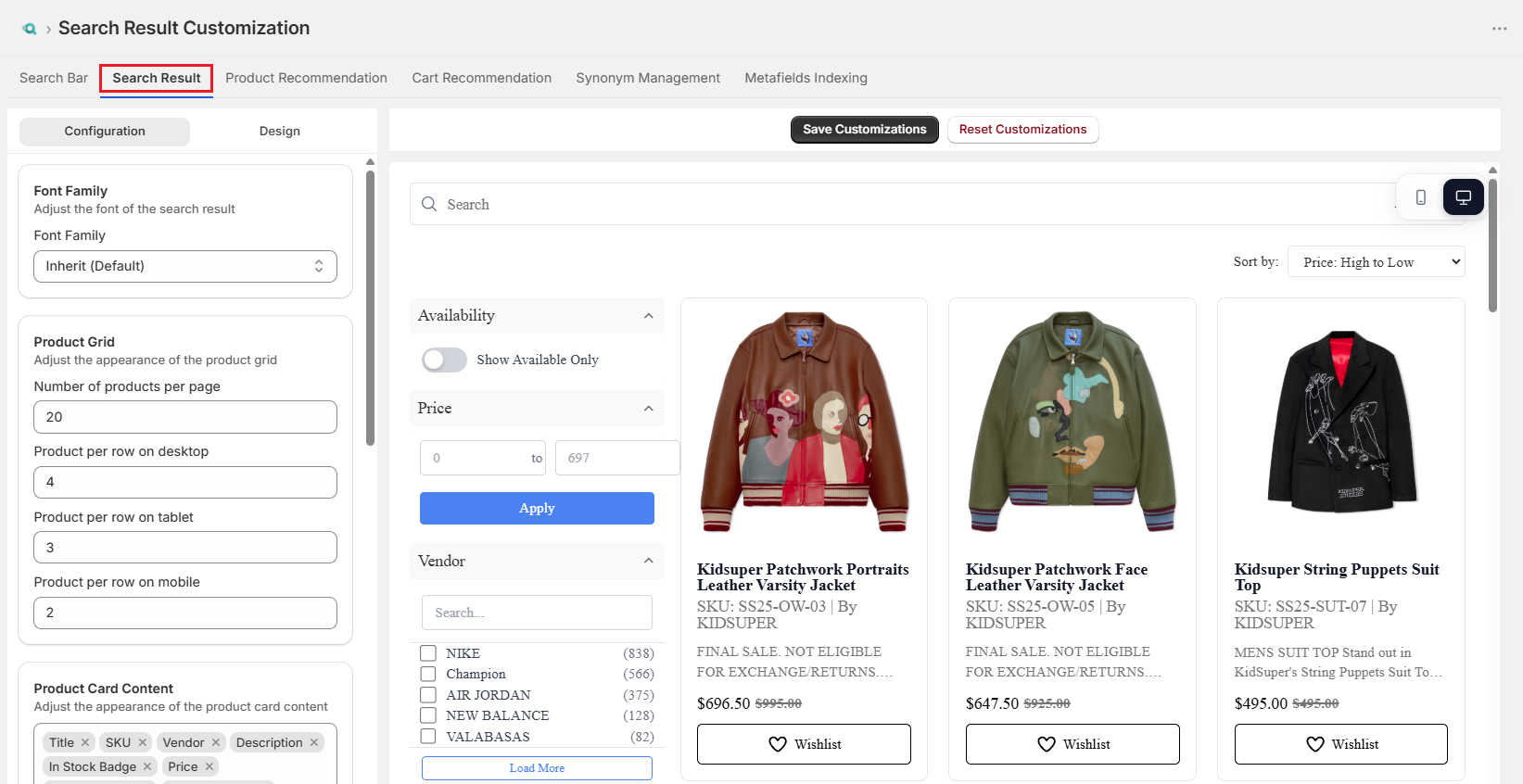
How to Customize Search Results?#
The Search Result Customization tab is split into two panels: Configuration and Design. Both panels share the live preview on the right side of the screen.
Configuration#
This panel controls the structural and functional behavior of the search result page, including what content appears, how many results are shown per page, what product information is displayed on each card, and so on.
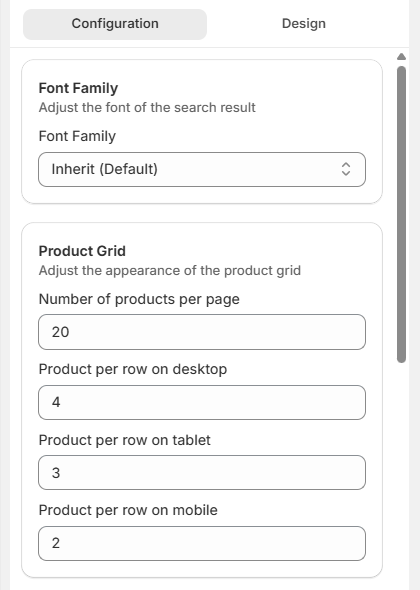
Font Family#
The Font Family setting controls the typeface used throughout the search results page. By default, it is set to Inherit, which automatically uses the font from the store's active Shopify theme. This helps maintain visual consistency across the storefront. You can select a different font for the search results page to match the rest of the store.
Product Grid#
The Product Grid section controls how products are displayed on the search results page, including the number of products shown and the layout across different screen sizes.
- Number of products per page: Defines how many products are displayed before pagination is applied.
- Products per row on desktop: Sets the number of product columns displayed on large screens.
- Products per row on tablet: Sets the number of product columns displayed on medium-sized screens.
- Products per row on mobile: Sets the number of product columns displayed on small screens.
Adjusting these settings allows you to balance product visibility with readability across devices.
Product Card Content#
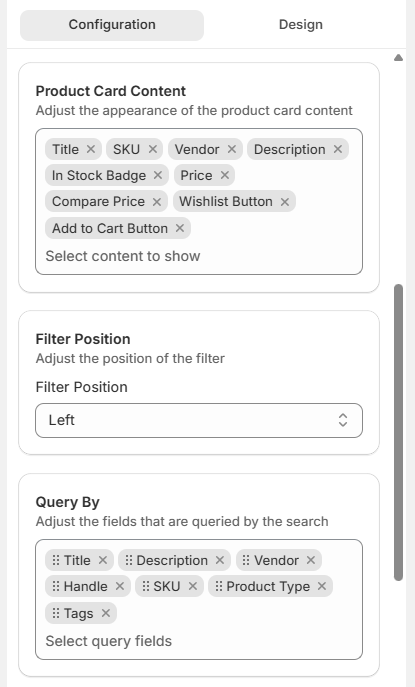
The Product Card Content section determines which product details are displayed within each product card on the search results page.
You can click the field to open a multi-select dropdown and choose which information should be visible. Selected items can be removed at any time by clicking the "X" next to the field name.
Available options include:
- Title
- SKU
- Vendor
- Description
- In Stock Badge
- Out of Stock Badge
- Price
- Compare-at Price
- Wishlist Button
- Add to Cart Button
Note: These settings only affect what is displayed on the product card. They do not determine which product fields are searchable. Searchable fields are configured separately in the Query By section.
Filter Position#
The Filter Position setting determines where the filter panel appears on the search results page.
Available options include:
- Left: Displays filters in a vertical sidebar beside the product grid.
- Top Bar: Displays filters horizontally above the product grid.
The sidebar layout is typically preferred for larger catalogs and desktop-focused storefronts. In contrast, the top bar layout can create a cleaner experience for stores with fewer filter options or limited sidebar space.
Query By#
The Query By section controls which product fields are searched when a shopper enters a query.
By default, Surge searches across:
- Title
- Description
- Vendor
- Handle
- SKU
- Product Type
- Tags
You can add, remove, or reorder fields to customize search behavior. Fields placed earlier in the list receive greater relevance weighting, meaning matches in those fields are prioritized when ranking results.
Note: Removing a field from Query By prevents Surge from searching that field entirely. For example, if a SKU is removed, shoppers searching by product code will no longer receive matching results.
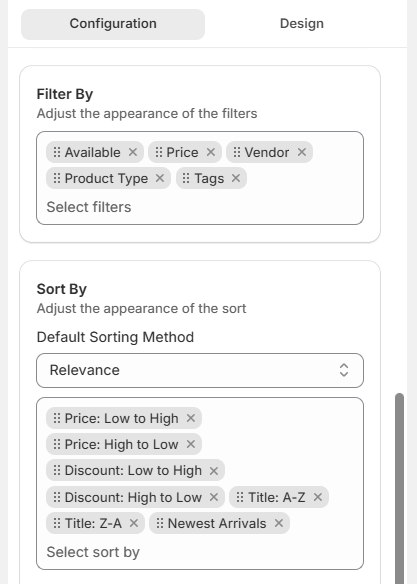
Filter By#
The Filter By section determines which filters are available to shoppers on the search results page. You can select filters from the available list based on your catalog structure and merchandising needs.
Built-in filters include:
- Availability
- Price
- Vendor
- Product Type
- Tags
If metafields have been indexed, eligible metafield-based filters will also appear in this list. See the Metafields Indexing article for details on making custom attributes available as filters.
Note: Filters should only be added when they provide meaningful ways for shoppers to narrow results. For example, if all products share the same vendor or product type, displaying those filters will add unnecessary clutter without improving the shopping experience.
Sort By#
The Sort By section controls both the default sorting method and the sorting options available to shoppers. You can choose a default sorting method and then add or remove individual sort options from the available list.
Available sorting methods include:
- Relevance
- Price: Low to High
- Price: High to Low
- Discount: Low to High
- Discount: High to Low
- Title: A - Z
- Title: Z - A
- Newest Arrivals
Note: Relevance is recommended as the default sorting method because it prioritizes products that most closely match the shopper's search query. Price-based sorting may be more appropriate for discount-focused stores where pricing is a primary purchasing factor.
Design#
The Design tab controls the visual appearance of the search results page. Settings are grouped by interface section, allowing you to customize the look and feel of the search experience without editing code.
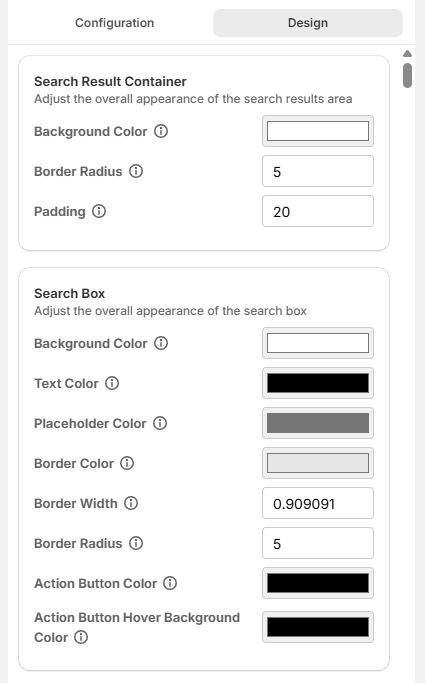
Search Result Container#
The Search Result Container section controls the overall appearance of the search results area.
- Background Color: Sets the background color of the search results container.
- Border Radius: Controls the roundness of container corners. Higher values create a softer, rounder appearance.
- Padding: Defines the amount of spacing between the container border and its contents.
Search Box#
The Search Box section controls the appearance of the search input displayed on the search results page.
- Background Color: Sets the background color of the search input.
- Text Color: Defines the color of text entered in the search field.
- Placeholder Color: Controls the color of the placeholder text displayed before a query is entered.
- Border Color: Sets the color of the search box border.
- Border Width: Controls the thickness of the search box border.
- Border Radius: Adjusts the roundness of search box corners.
Product Grid#
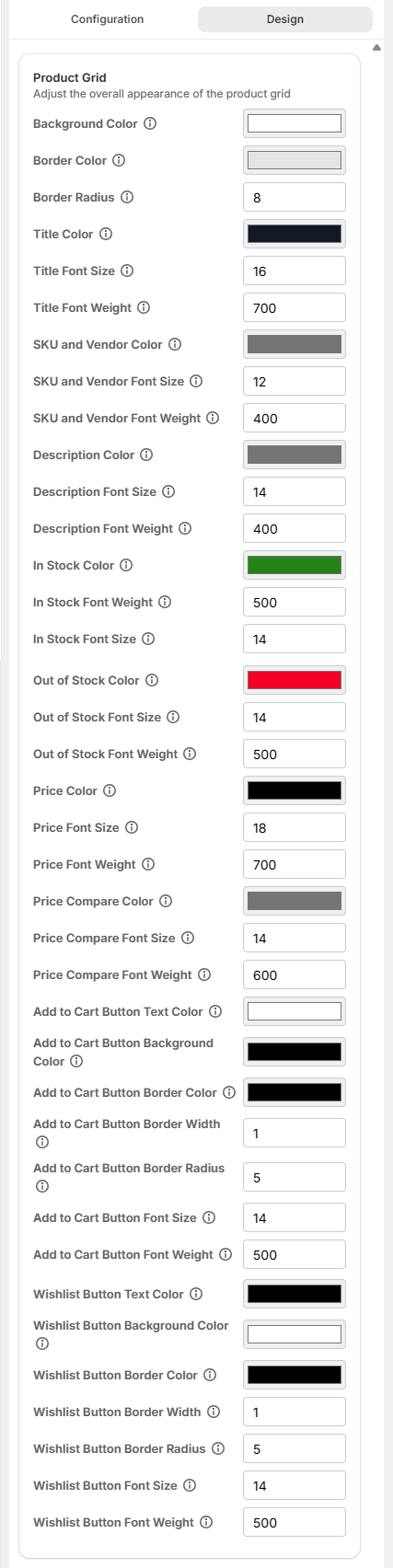
The Product Grid section controls the appearance of both the product grid container and the individual product cards displayed within it.
- Background Color: Sets the background color of the product grid.
- Border Color: Defines the color of the product grid border.
- Border Radius: Controls the roundness of product grid corners.
- Title Color: Defines the color of product titles.
- Title Font Size: Controls the size of product title text.
- Title Font Weight: Controls the weight of product title text.
- SKU and Vendor Color: Sets the text color for SKU and vendor information.
- SKU and Vendor Font Size: Controls the size of SKU and vendor text.
- SKU and Vendor Font Weight: Controls the weight of SKU and vendor text.
- Description Color: Defines the color of product descriptions.
- Description Font Size: Controls the size of description text.
- Description Font Weight: Controls the weight of description text.
- In Stock Color: Sets the color of the in-stock text.
- In Stock Font Size: Controls the size of the in-stock text.
- In Stock Font Weight: Controls the weight of the in-stock text.
- Out of Stock Color: Sets the color of the out-of-stock indicator.
- Out of Stock Font Size: Controls the size of the out-of-stock text.
- Out of Stock Font Weight: Controls the weight of the out-of-stock text.
- Price Color: Defines the product price color.
- Price Font Size: Controls the size of the product price.
- Price Font Weight: Controls the weight of the product price.
- Price Compare Color: Defines the color of the compare-at price.
- Price Compare Font Size: Controls the size of the compare-at price.
- Price Compare Font Weight: Controls the weight of the compare-at price.
- Add to Cart Button Text Color: Sets the color of the button text.
- Add to Cart Button Background Color: Sets the button background color.
- Add to Cart Button Border Color: Defines the button border color.
- Add to Cart Button Border Width: Controls the thickness of the button border.
- Add to Cart Button Border Radius: Controls the roundness of the button corners.
- Add to Cart Button Font Size: Defines the size of the button text.
- Add to Cart Button Font Weight: Defines the weight of the button text.
- Wishlist Button Text Color: Sets the color of the button text.
- Wishlist Button Background Color: Sets the button background color.
- Wishlist Button Border Color: Defines the button border color.
- Wishlist Button Border Width: Controls button border thickness.
- Wishlist Button Border Radius: Controls the roundness of button corners.
- Wishlist Button Font Size: Defines button text size.
- Wishlist Button Font Weight: Defines the weight of button text.
Pagination#
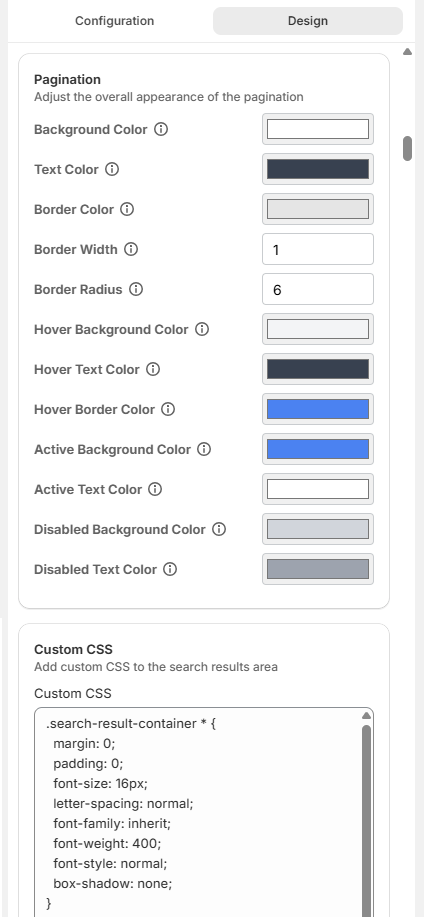
The Pagination section controls the appearance of the pagination displayed at the bottom of the search results page.
- Background Color: Sets the background color for pagination.
- Text Color: Defines the color of pagination text.
- Border Color: Sets the color of the pagination border.
- Border Width: Controls pagination border thickness.
- Border Radius: Controls the roundness of pagination elements.
- Hover Background Color: Defines the background color when a pagination item is hovered.
- Hover Text Color: Defines the text color when a pagination item is hovered.
- Hover Border Color: Defines the border color when a pagination item is hovered.
- Active Background Color: Sets the background color of the currently selected page.
- Active Text Color: Sets the text color of the currently selected page.
- Disabled Background Color: Defines the background color of disabled pagination controls.
- Disabled Text Color: Defines the text color of disabled pagination controls.
Custom CSS#
The Custom CSS field supports advanced styling capabilities beyond the available design controls. You can add custom CSS rules to target specific elements within the search results page and create highly customized layouts or visual styles.
How to Preview & Save Customization?#
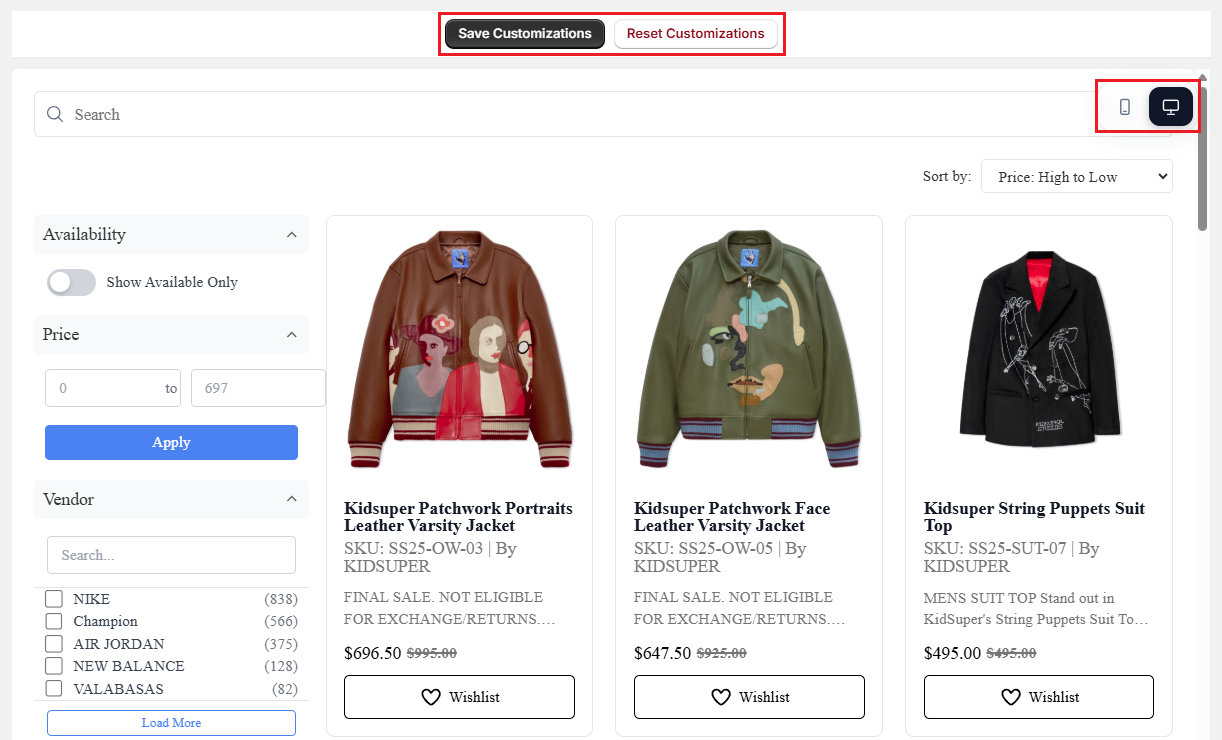
The right side of the Search Result Customization tab contains a live preview panel that updates in real time as settings are modified. Changes can be reviewed immediately without saving, making it easy to test different configurations before applying them to the storefront.
Previewing Changes#
The preview toolbar includes device view controls that simulate how the search results page appears on different screen sizes:
- Mobile View: Displays the search results page in a narrow mobile layout to verify product grids, filters, and text remain readable on smaller screens.
- Desktop View: Displays the search results page in its full-width desktop layout.
Note: Mobile preview should be checked regularly, particularly when adjusting product grid layouts, products-per-row settings, font sizes, or filter positioning. A layout that appears well-spaced on desktop may become crowded or difficult to use on mobile devices.
Saving Changes#
Once you verify the desired configuration in the preview panel, click "Save Customizations" to apply all changes to the live storefront immediately.
Resetting Changes#
Click "Reset Customizations" to discard the changes and restore the customization settings to their default state.
Important Notes & Tips#
-
The Search Result App Block from Surge: AI Search must be added to the Shopify theme. Search result customizations will not appear on the storefront unless the App Block is active.
-
Search functionality should be configured before visual styling. Filters, searchable fields, sorting options, and product card content have a greater impact on the shopper experience than colors or typography.
-
Metafield-based filters are only available after the corresponding metafields have been indexed in Surge. Adding a metafield to the Filter By configuration will have no effect unless indexing has already been completed.
-
Use Relevance as the default sorting method. It typically provides the best search experience by prioritizing products that most closely match the shopper's query. Alternative defaults, such as Price or Newest, may reduce the quality of results for broader searches.
-
Keep product cards focused and easy to scan. Displaying too many fields on product cards can create visual clutter. For most stores, the product image, title, price, and one additional detail, such as availability or vendor information, provide sufficient context.
-
Use filters strategically. Filters should help shoppers quickly narrow large result sets. Only filters that provide meaningful distinctions within the catalog should be displayed. For example, a vendor filter is valuable for multi-brand stores but adds little value when all products share the same vendor.
-
Review search performance regularly. After sufficient search activity has been collected, analytics should be used to evaluate search relevance, filter usage, and shopper behavior. Real data rather than assumptions should drive configuration changes.
Need Help?#
If your search results page isn't displaying as expected, filters are missing, or you're unsure which settings are best for your catalog, reach out to us through live chat in the app or email at support@bevycommerce.com. We'll help troubleshoot configuration issues and recommend search settings tailored to your store.