Filter Conditions
Price Rules comes with an advanced product targeting engine. Instead of manually picking products one by one, you set filters that automatically select items based on attributes, conditions, and values. This lets you create precise sales down to specific variants or high-priority segments.
Anatomy of a Rule#
The rule builder uses an intuitive filter system. Every individual rule you create consists of three core components:
- Attribute: What product or variant property are you checking? (e.g., Product Title).
- Condition: How should the system evaluate that property? (e.g., contains).
- Value: What is the specific target you're looking for? (e.g., Shirt).

Targeting Levels#
Because the Price Rules app modifies specific price points, it supports targeting at both the product and variant levels to fine-tune your promotions.
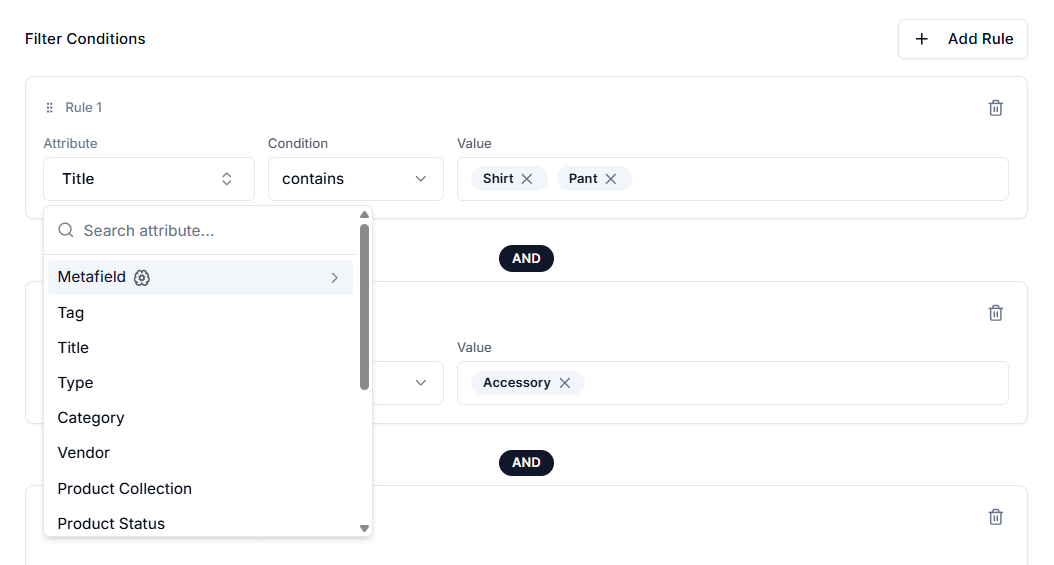
Product-Level Attributes#
These attributes apply to the entire product and all its underlying variants:
| Attribute | What It Checks |
|---|---|
| Metafield | Custom Shopify data fields. |
| Tag | Organizational or marketing tags. |
| Title | The name of the product. |
| Type | A custom label used to describe a product (e.g., "Pants", "Jackets"). |
| Category | A predefined classification based on Shopify’s Standard Product Taxonomy (e.g., "Apparel & Accessories"). |
| Vendor | The brand or manufacturer |
| Product Collection | A group of products organized together based on specific criteria (e.g., "Back to School"). |
| Product Status | Whether a product is visible and available for sale (e.g., "Active", "Draft", "Archived"). |
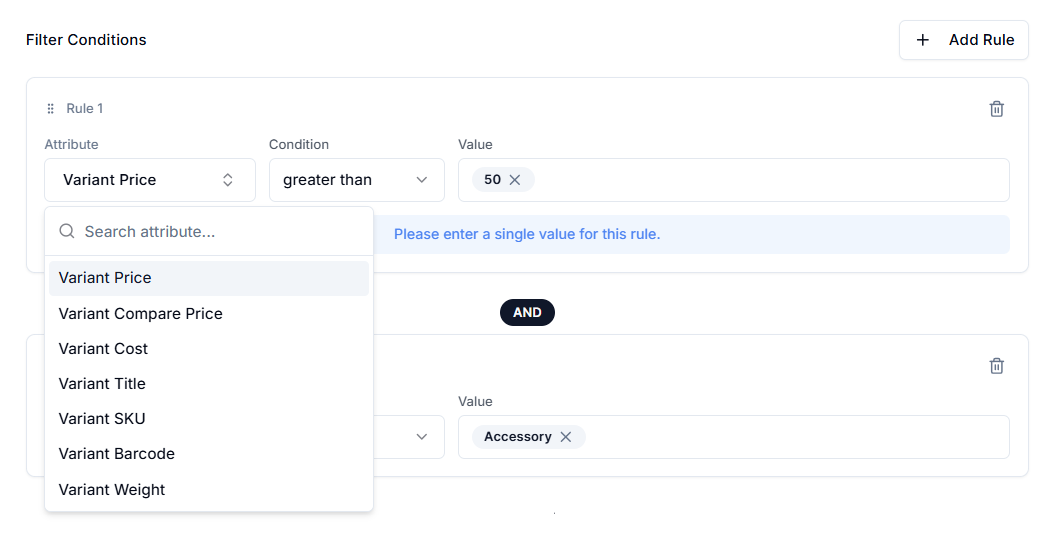
Variant-Level Attributes#
These attributes let you target specific versions of a product (e.g., discounting only the "XXL" size or the "Neon Green" color):
| Attribute | What It Checks |
|---|---|
| Variant Price | The actual selling price of the variant. |
| Variant Compare Price | The crossed-out price displayed for discount comparison. |
| Variant Cost | Cost of Goods (COGS) of the variant. |
| Variant Title | The name of the variant. |
| Variant SKU | Inventory identifier. |
| Variant Barcode | UPC number. |
| Variant Weight | The physical weight of the item. |
Condition Types#
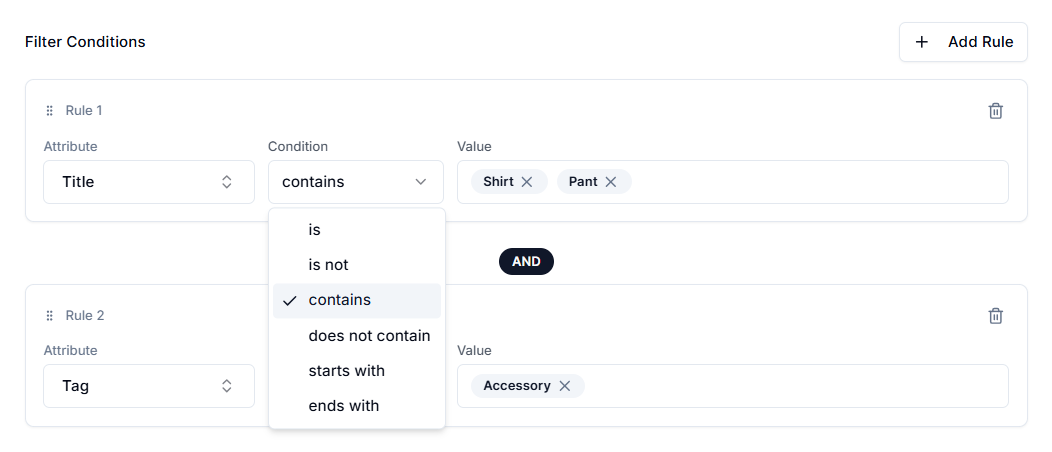
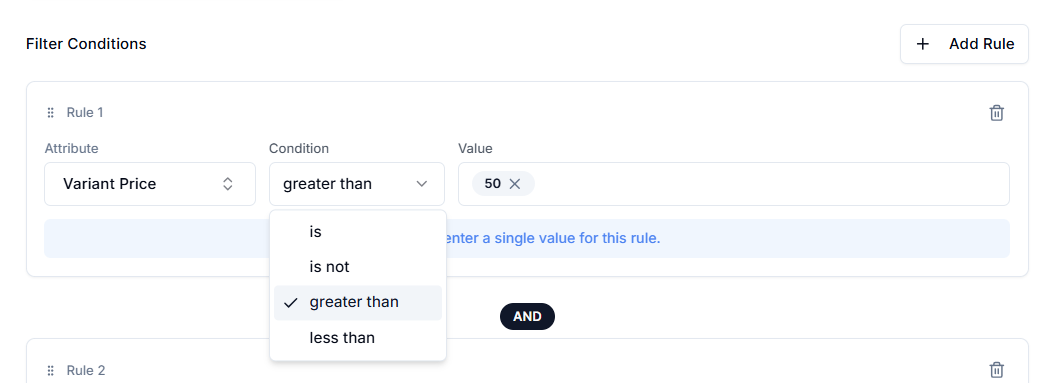
Conditions determine how the system compares the attribute to the value you enter. The available conditions change depending on whether your selected attribute is text-based or number-based.
Text-Based Conditions#
| Condition | What It Does | Ideal For |
|---|---|---|
| is | Includes items that exactly match the entered value. | Precise targeting, such as specific vendors or product types. |
| is not | Excludes items that exactly match the entered value. | Removing specific vendors, collections, or categories from a sale. |
| contains | Includes items if the value appears anywhere in the text. | Partial matches or keyword targeting (e.g., seasonal words like "Summer" or "Sale"). |
| Does not contain | Excludes items if the value appears anywhere in the text. | Avoiding specific keywords. |
| starts with | Includes items that begin with the entered value. | Targeting SKU prefixes or naming conventions. |
| ends with | Includes items that end with the entered value. | Targeting SKU suffixes or sizing patterns. |
Number-Based Conditions#
| Condition | What It Does | Ideal For |
|---|---|---|
| greater than | Includes items with a value higher than the entered number. | Setting minimum price thresholds, margin protection, or weight limits. |
| less than | Includes items with a value lower than the entered number. | Discounting lower-priced items, clearing lightweight inventory, or limiting by margin. |
Setting Values#
The Value is the target data you input into the rule builder for matching.
- Text Inputs: Used for Title, Type, and Tag (e.g., "Shirt", "Summer").
- Number Inputs: Used for prices, margins, and weights (e.g., 50, 25.00).
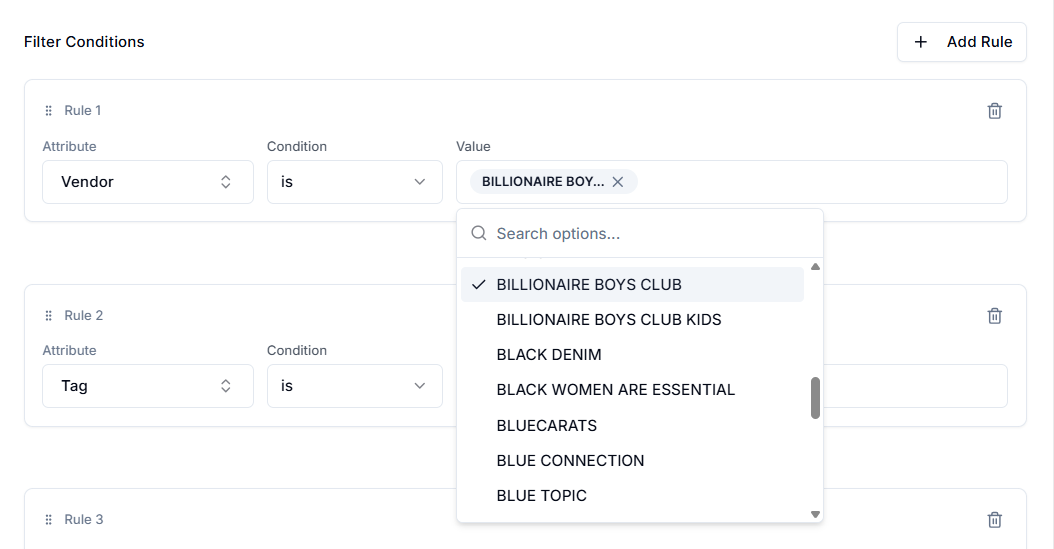
- Selectors: For certain attributes, such as Vendor, a dropdown selector may appear based on your existing Shopify data.
Example:#
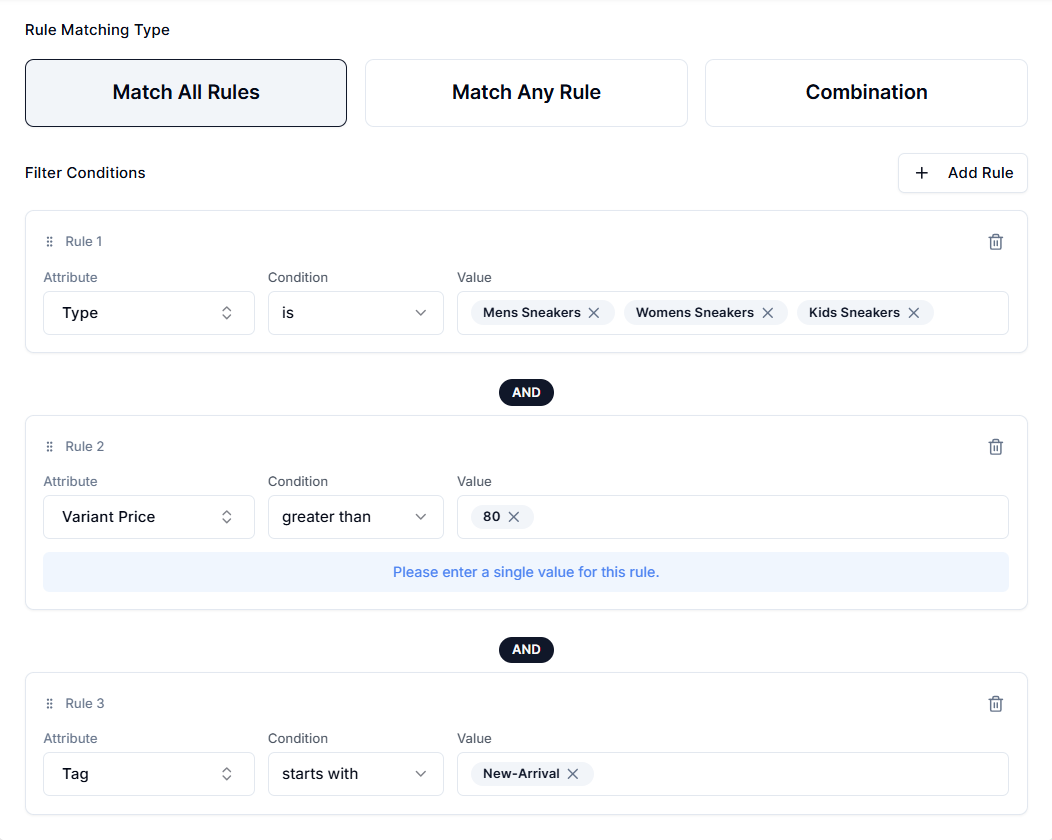
Let’s say you want to run a "High-Margin Sneaker Clearance." You want to discount sneakers, but only the ones where you have enough profit margin to afford a deep discount, and you want to exclude your newest arrivals.
You would build the following combination:
Rule 1: (Targets the Category)
Attribute → Type Condition → is Value → Mens Sneakers, Womens Sneakers, Kids Sneakers
Rule 2: (Protects Profitability)
Attribute → Variant Price Condition → greater than Value → 80
Rule 3: (Excludes Fresh Stock)
Attribute → Tag Condition → does not contain Value → New-Arrival
By setting the Rule Type to Match All Rules (AND), only variants that meet all three specific criteria will receive the price change.
Working With Metafields#
Metafields are custom data fields in Shopify and are the highest priority filtering method for complex catalogs. It lets you filter by highly specific merchandising data that standard Shopify fields can’t handle, such as "custom.fabric_material", "custom.release_season", or "custom.collaboration_brand".
How to Filter by Metafields#
Step 1: Select Metafield as your attribute. Step 2: Choose the specific metafield namespace and key from the dropdown. Step 3: Set your condition and value as usual.
Note: The app supports most standard metafield types (text, numbers, booleans, dates), but may not support complex JSON or specific reference types. Currently, the system prioritizes product-level metafields.
Best Practices#
Be Precise With "Contains"#
The "contains" condition matches any product where the value appears anywhere in the text. This can unintentionally include unrelated products. When accuracy matters, use "is", "starts with", or "ends with" for tighter control.
Maintain Clean Shopify Data#
Filters rely entirely on your store data. Inconsistent values (e.g., "Nike", "nike", "Nike Inc.") can cause rules to miss products. Standardize Vendors, Tags, and naming conventions for reliable targeting.
Start Broad, Then Refine#
When building complex rules, begin with a high-level filter (e.g., Category or Collection). Then layer on additional conditions, such as Price or Tags, to narrow the list.
Use Exclusion Strategically#
Sometimes it’s easier to remove what you don’t want than define everything you do. Use "is not" or "does not contain" to exclude flagship products or new arrivals from large promotions.
Choose the Right Targeting Level#
- Use Product-level filters when the entire product should be affected.
- Use Variant-level filters when only specific sizes, colors, or SKUs should change.
This prevents unintended price changes across all variants.
Need Help?#
If your filters aren’t selecting the products you expected, you’re unsure whether to use product-level or variant-level attributes, or need help targeting metafields, our support team can review your rule logic with you.
Email support@bevycommerce.com, so we can help you refine your filters.