Brands & Locations
OrderPilot pulls your store locations directly from Shopify. A location is required to create any custom order, so the app always knows which showroom, warehouse, or store is responsible for fulfilling it.
For stores with a single location, this is straightforward. For stores that operate multiple locations under different brand names, such as “Butterfly Living” and “Nordic Home” running side by side, the Brands tab lets you group and manage those locations.
The Brand Grouping Checkbox#
This checkbox controls two things at once:
- Whether the Brands tab appears in Settings (it only appears when Brand Grouping is on).
- Whether sales reps are asked to pick a brand or just a location during order creation.
How to Access the Checkbox?#
- Visit the OrderPilot dashboard (Home).
- Click “Settings” at the top-right corner.
- In the General tab, find the “Enable brand grouping” checkbox.

How Does the Checkbox Behave?#
When Checked#
The Brands tab appears under Settings instead of Locations. Your Shopify locations can be assigned to named brands by dragging and dropping them. When a sales rep creates an order, they first pick a brand, then a location (if there are multiple locations grouped under it).
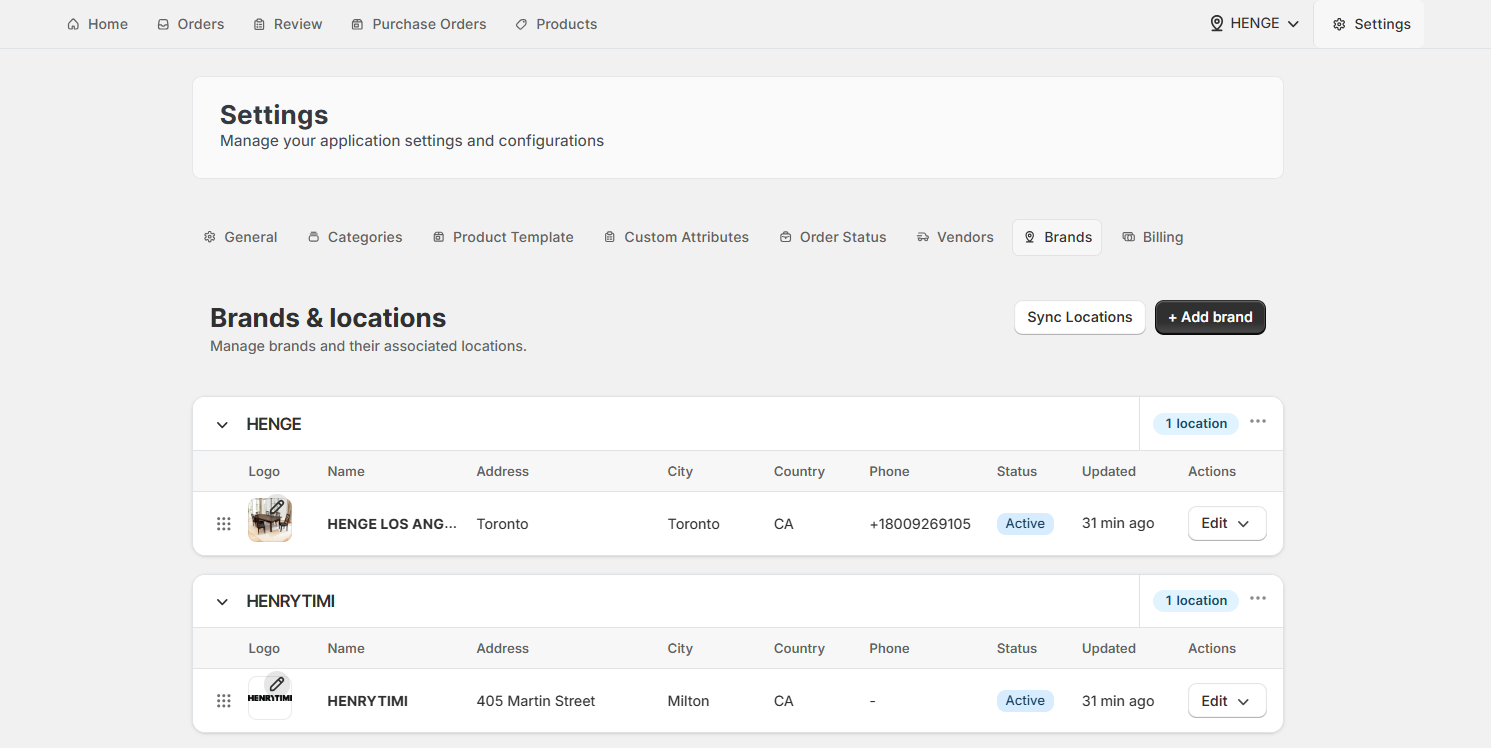
When Unchecked#
The Locations tab appears under Settings. The app shows a flat, unfiltered list of all your Shopify locations. When a sales rep creates an order, they pick a location directly from this list. There's no brand layer in between.
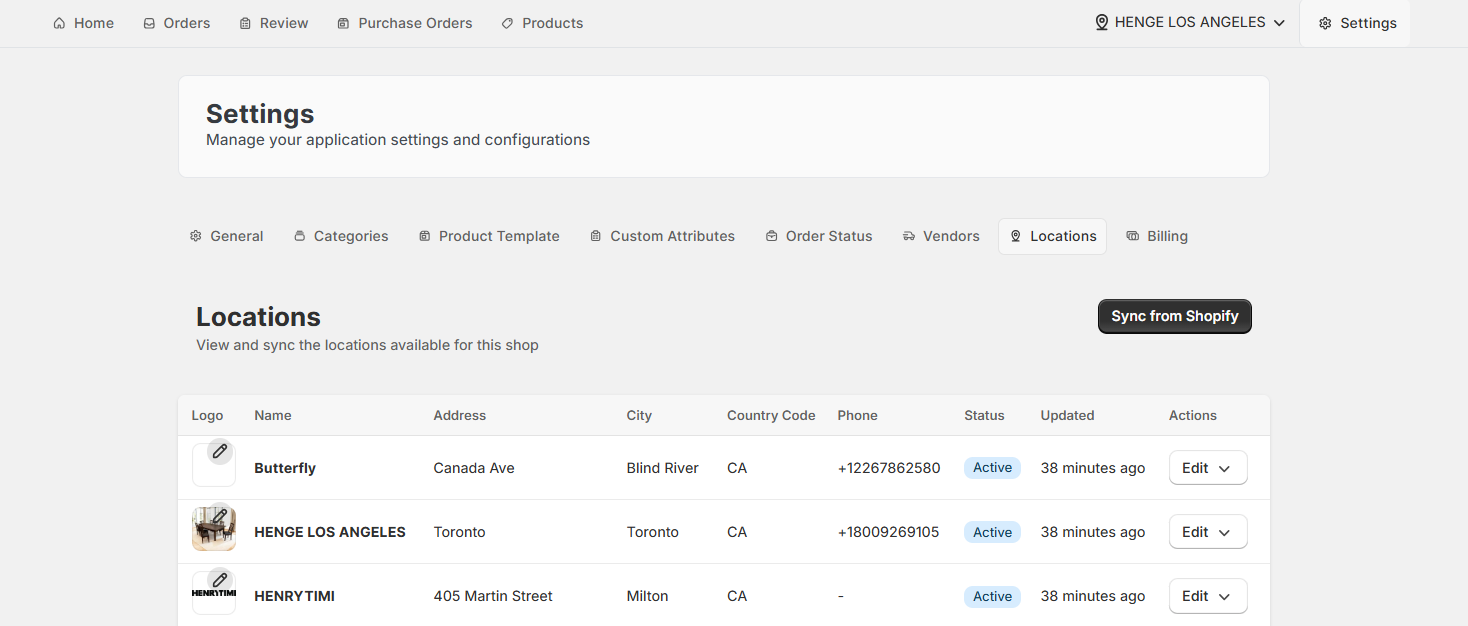
Brands Tab#
This is where you create brands, sync your Shopify locations, and organize locations by dragging them under the appropriate brand.
Step 1: Sync Your Locations From Shopify#
Before you can assign locations to brands, you need to pull them into OrderPilot. Click “Sync Locations” at the top right. This imports all active locations from your Shopify store. If you add a new location in Shopify later, come back here and sync again.
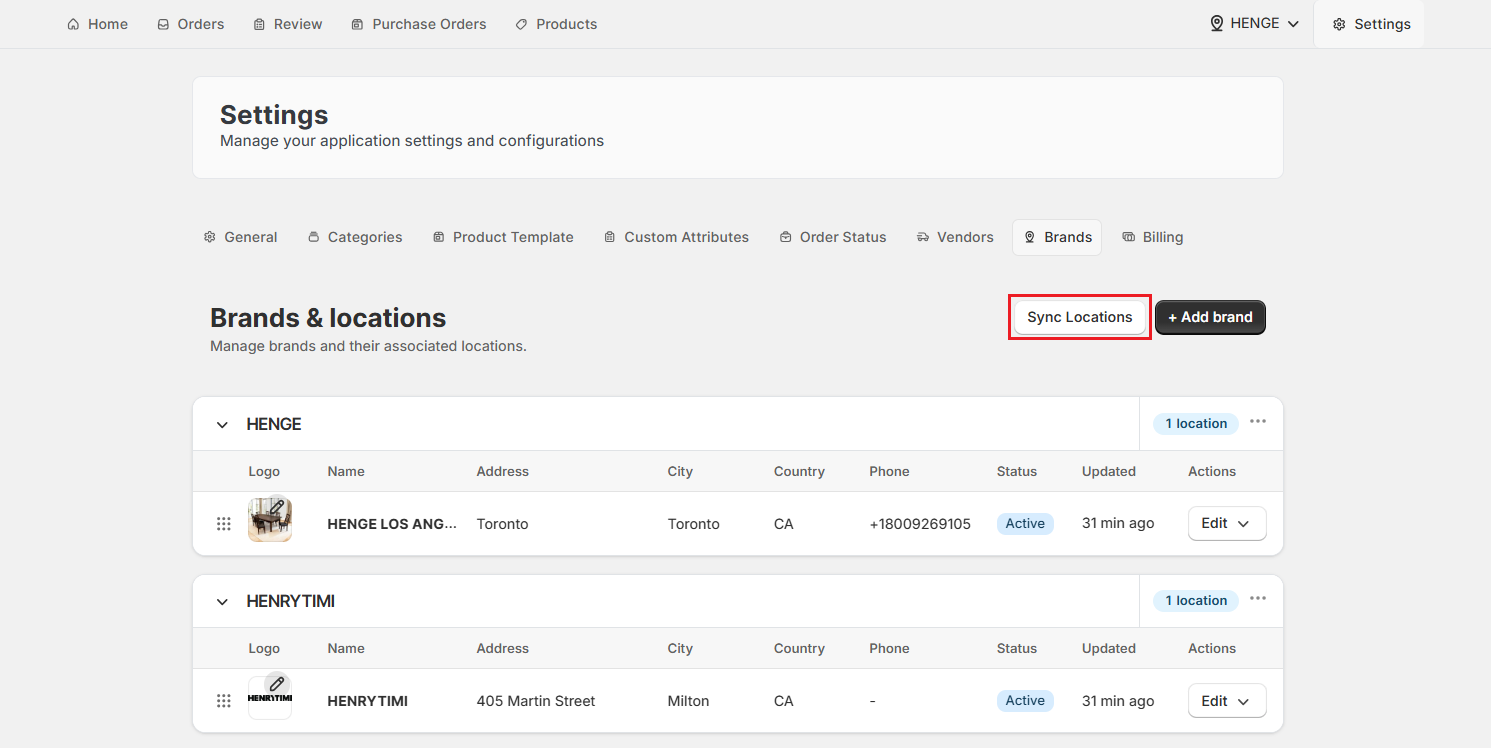
Sync First, Then Group#
Always sync before you start grouping locations. If you add a new Shopify location and don't sync, it won't appear in the Brands tab and won't be selectable during order creation.
Step 2: Add a Brand#
- Click “+ Add Brand”.
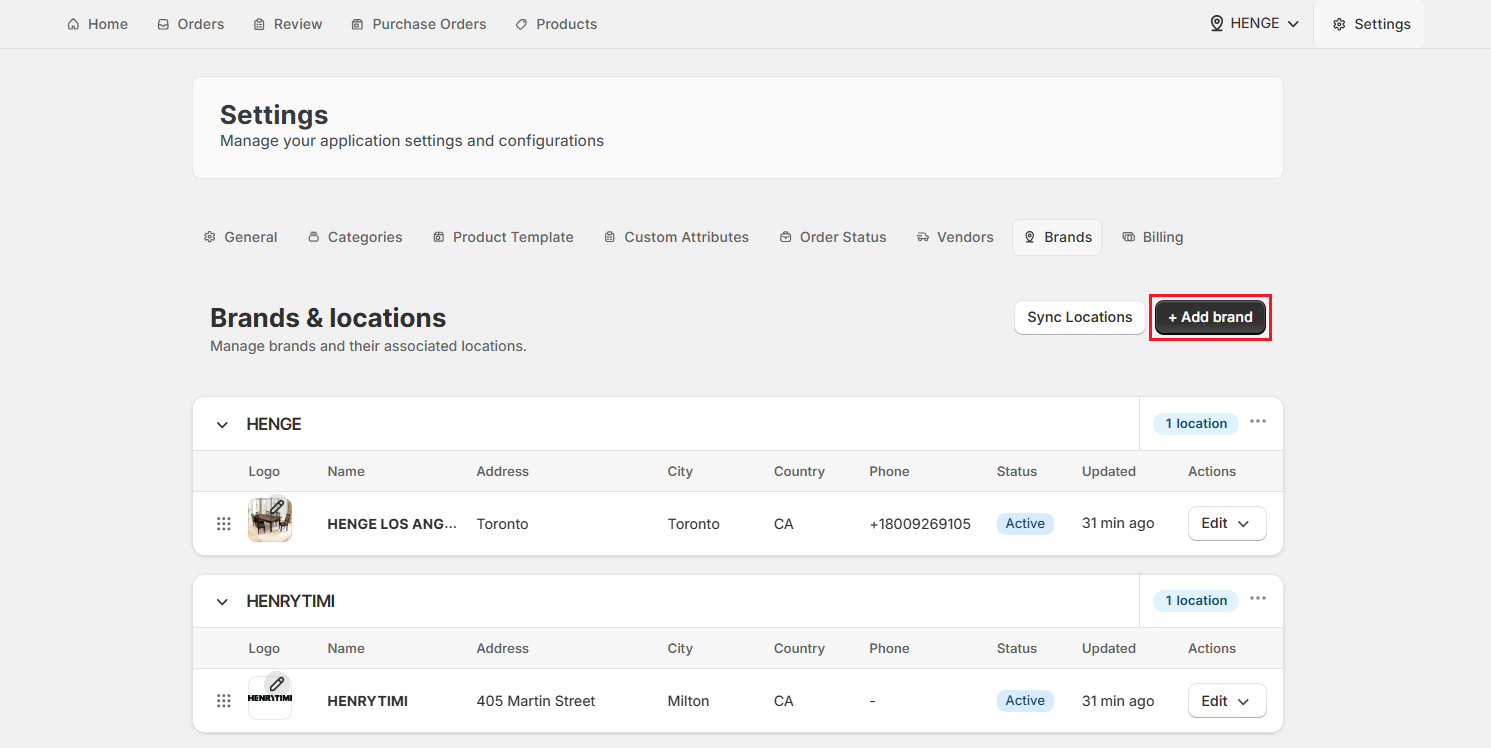
- Enter the brand Name, for example, “Velvet Oak Studio”.
- Upload a brand Image (logo).
- Click “Create brand” to save.
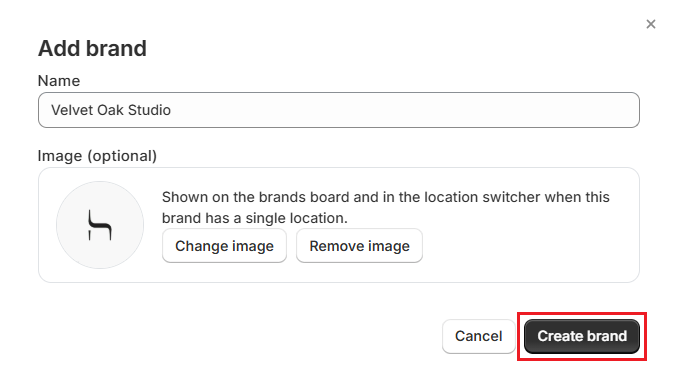
The new brand appears in the list. It starts with no locations assigned to it.
Step 3: Group Locations Under Brands#
Drag and drop each location from the list under the brand it belongs to. You can rearrange locations at any time by dragging them between brands.
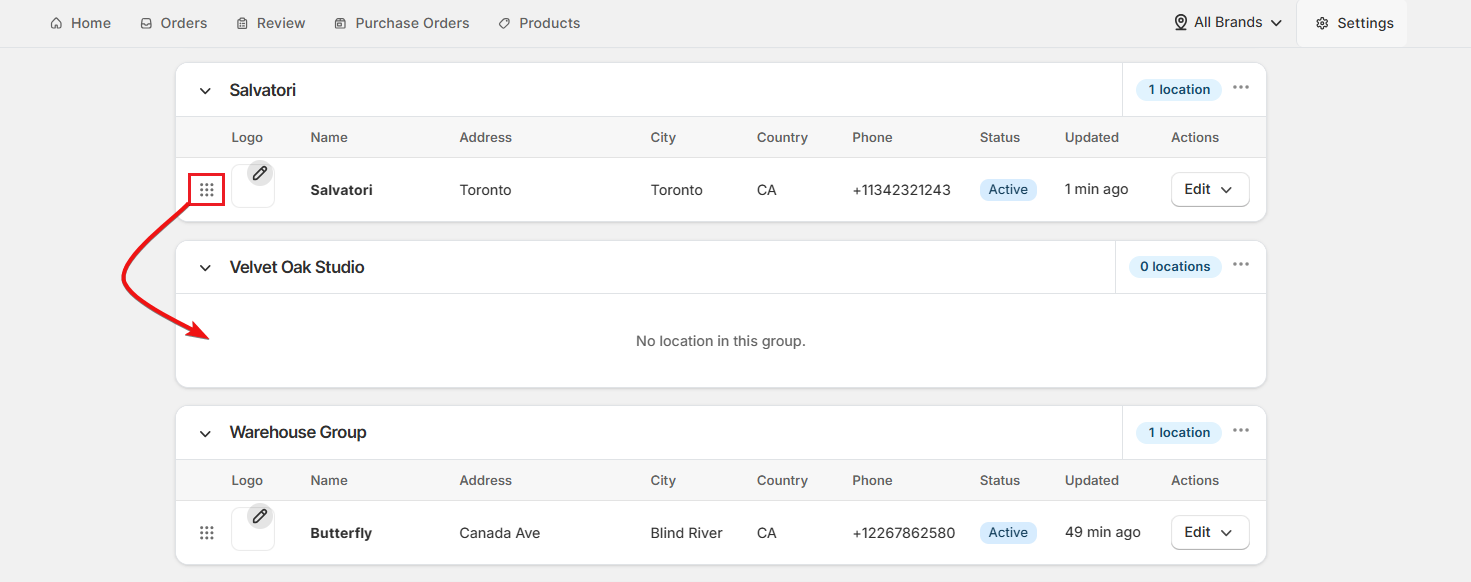
A Location Can Only Belong to One Brand#
Each Shopify location can only be assigned to one brand at a time. If you move a location to a different brand, it's automatically removed from the previous one.
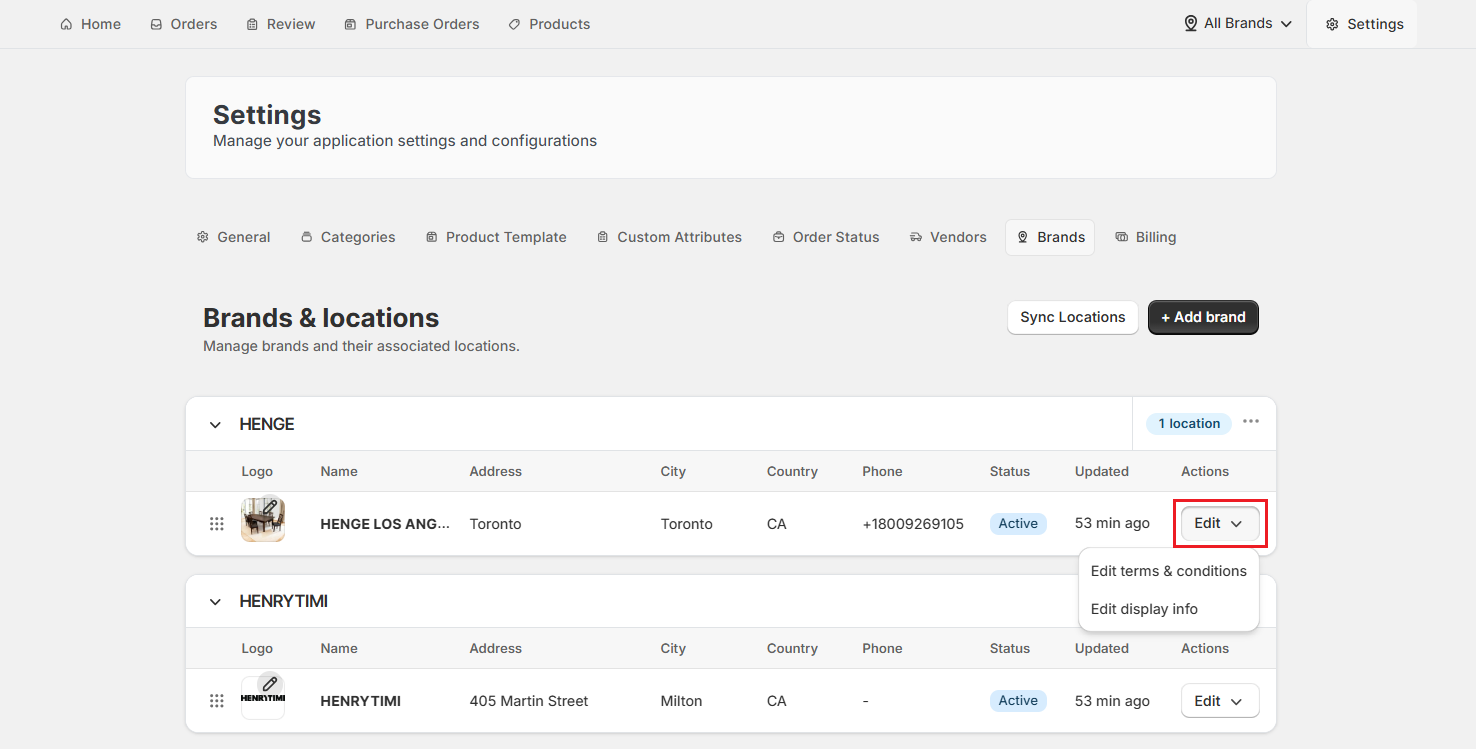
How to Edit a Brand?#
Click the “Edit” button next to a brand to update its terms and conditions and display information such as Brand name, Address, Phone, Email, and Domain.
Locations Tab#
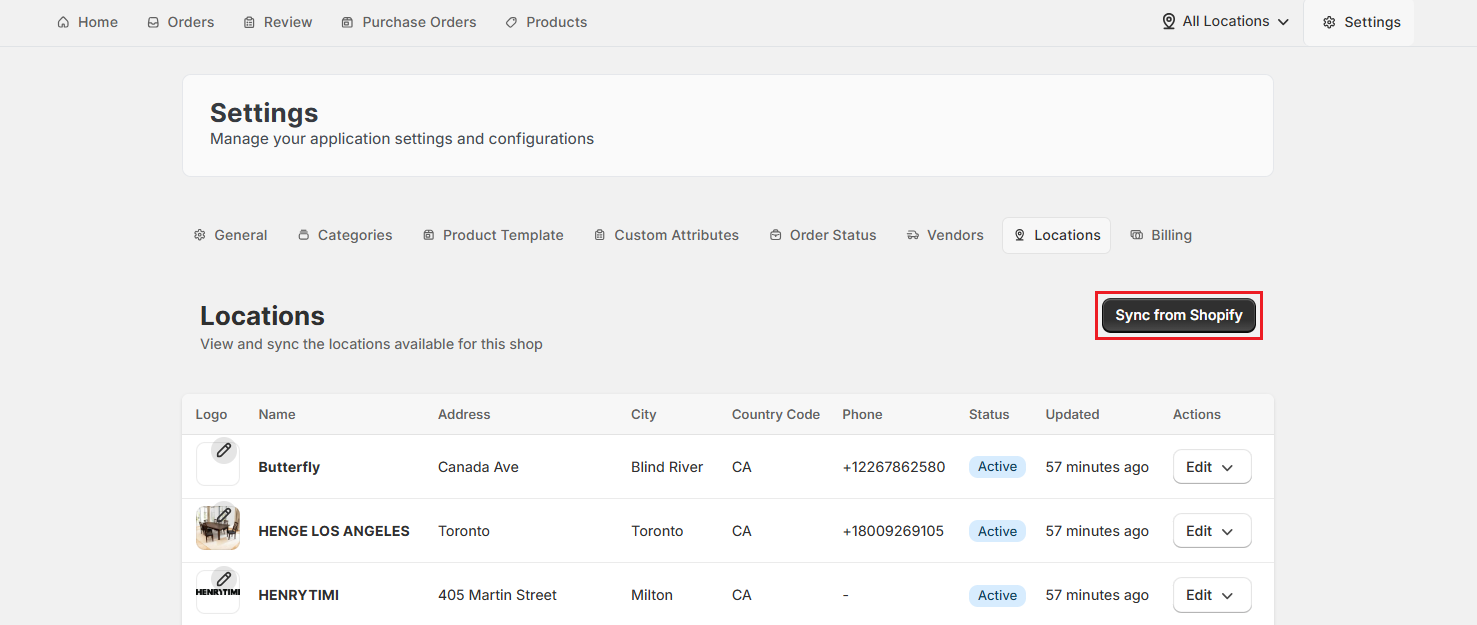
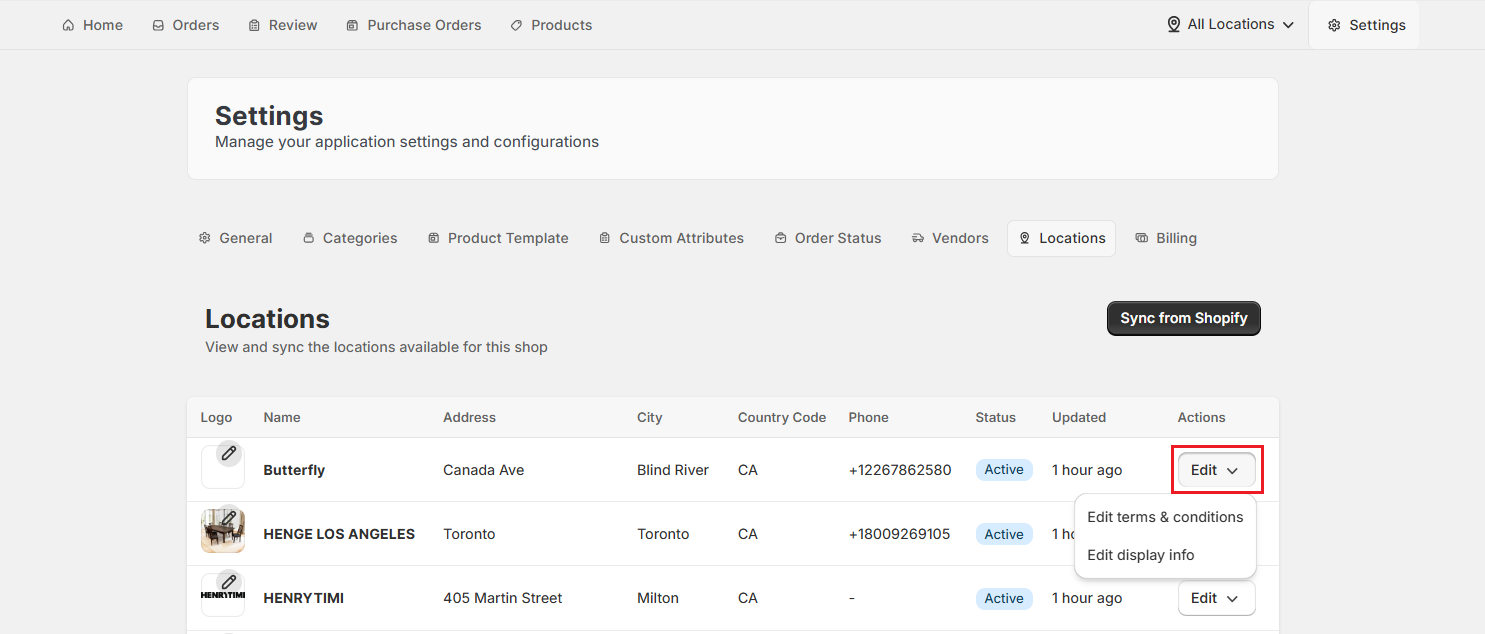
This tab shows all your Shopify locations as a simple flat list. There's no grouping, no drag-and-drop, and no brand hierarchy.
Use the Locations tab to confirm which locations are synced and visible within OrderPilot. If a new location doesn't appear, click “Sync from Shopify” to pull in the latest data.
How to Edit a Location?#
Click the “Edit” button next to a location to update its terms and conditions and display information such as Brand name, Address, Phone, Email, and Domain.
Quick Recap: Which Tab Shows When?#
Here's a quick reference for how the Brand Grouping affects what you see across the app.
| Setting | Tab visible in Settings | Quote/Order creation prompt | Filtering in the app |
|---|---|---|---|
| Brand Grouping - Unchecked | Locations tab | “Select a Location” | Filter by all locations, or individual location |
| Brand Grouping - Checked | Brands tab | “Select brand and location” | Filter by all brands, a specific brand, or an individual location within a brand |
Important Notes#
Decide on Your Structure Before You Start Taking Orders#
Changing from flat locations to brands (or vice versa) mid-operation can be confusing for your team. Decide early whether you need brand grouping, set it up, and brief your staff before they start creating orders.
Sync Locations After Any Shopify Changes#
Whenever you add, rename, or deactivate a location in Shopify, come back to the Brands or Locations tab in OrderPilot and sync locations. The app doesn't update automatically when your Shopify location list changes.
Unchecking Brand Grouping Doesn't Delete Your Brands#
If you turn off Brand Grouping, your brands and the location assignments you've made are preserved in the background. Re-enable it at any time, and everything will be exactly as you left it.
Draft Orders Don't Require a Location, but Confirmed Orders Do#
It's easy to forget this distinction. An order can be saved as a draft without selecting a location, which is useful when a sales rep needs to capture details quickly and confirm the location later. But the order cannot move through the workflow, go to review, or be confirmed without a location locked in.
Single-location Stores Don't Need to Configure Anything#
If you only have one Shopify location, OrderPilot selects it automatically during quote/order creation. You can leave Brand Grouping unchecked and move on to other setup tasks.
Need Help?#
Having trouble syncing Shopify locations or organizing them under brands? Contact us at support@bevycommerce.com, and we'll help you set up your location structure correctly.