Overview
OrderPilot works in two places: a full web app for back-office workflows and a Shopify POS extension built for your sales floor. This article covers how the POS extension works, who uses it, and how to set it up for your store.
How Does the POS Extension Work?#
OrderPilot gives your team two ways to manage custom orders. The full web app handles everything from order creation to purchase orders, while the POS extension is designed for a completely different context: a sales rep standing on the showroom floor, tablet in hand, with a customer in front of them.
The extension runs as a set of tiles embedded directly into the Shopify POS smart grid. Your sales rep doesn't leave the POS app, open a browser, or sign into a separate tool. They tap a tile, complete the quote or order, and they're done. All the data flows straight into OrderPilot in the background.
Web App (Admin Dashboard)#
- Full quote or order management workflow
- Review queue, purchase orders, and settings
- Analytics, activity feed, and billing
- Best for admins, production managers, and back-office teams
POS Extension#
- Streamlined for in-store, on-device use
- Create custom quotes or orders in just a few taps
- Collect full and partial payments
- Best for sales reps and floor staff
Same Data, Different Experience#
Quotes or orders created through the POS extension appear instantly in the web app. Your production manager sees them in the review queue, and the dashboard analytics update in real time. There's no sync delay and no duplicate data entry.
How to Configure the POS Extension?#
Before the extension is available on a device, a store admin needs to install OrderPilot and add its tiles to the POS smart grid. Once that's done, any sales rep who logs into Shopify POS at that location can use it.
Step 1: Install OrderPilot (Admin, one time)
- Log in to your Shopify admin on a desktop or laptop.
- Install OrderPilot from the Shopify App Store if you haven't already. See the full installation guide.
- Complete the initial setup in the OrderPilot web app (General settings, vendors, categories, custom attributes, and at least one product template).
Step 2: Add the OrderPilot tiles to the smart grid
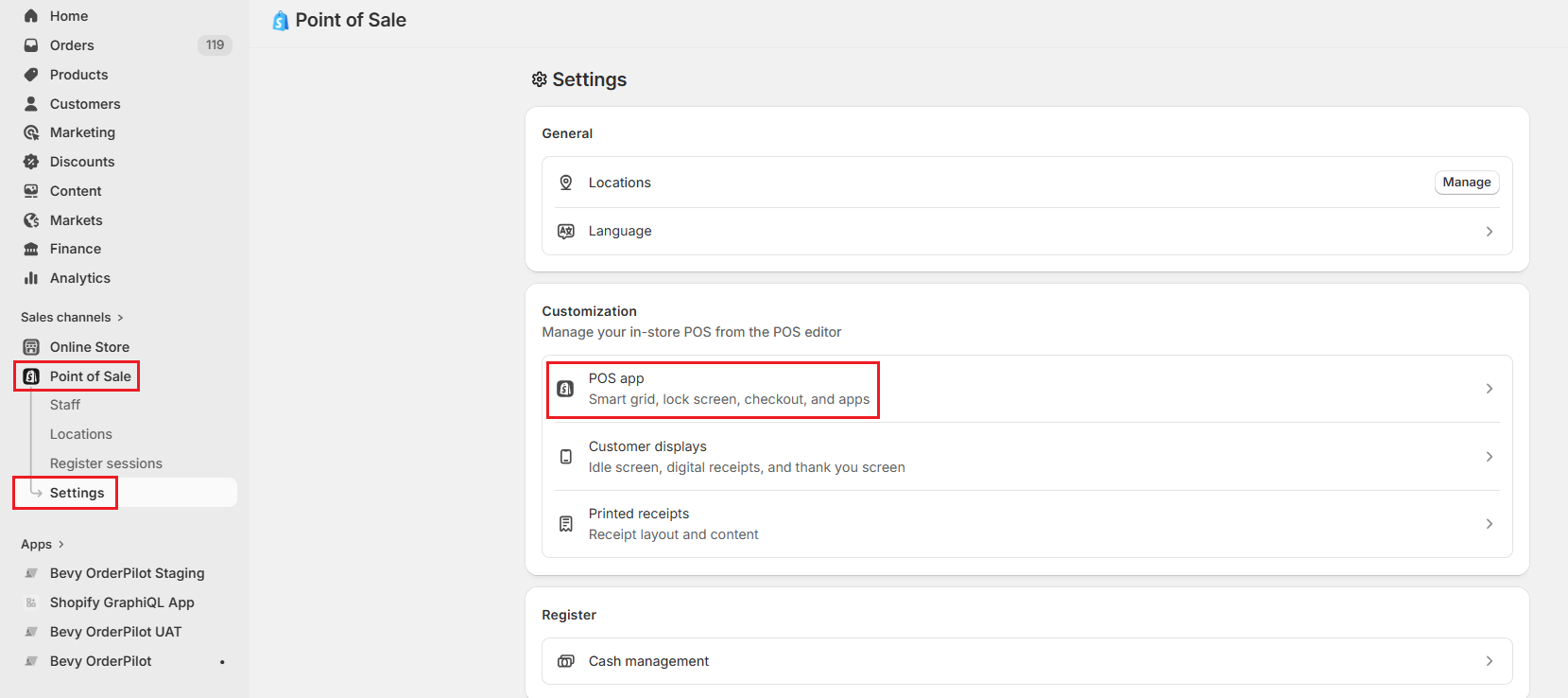
- In your Shopify admin, go to “Sales channels”, then “Point of Sale”.
- Click “Settings”, then under Customization, select “POS app”.
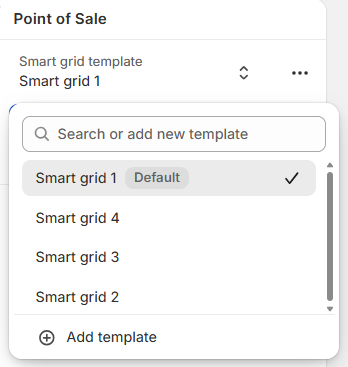
- Select the smart grid template you want to edit, or click “Add template” to create a new one.
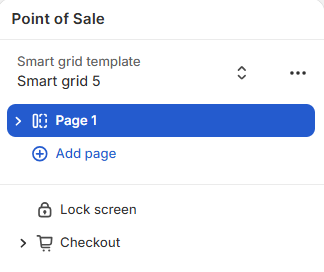
- Select the page where you want to add a tile. For example, “Page 1”, which is the app's home screen.
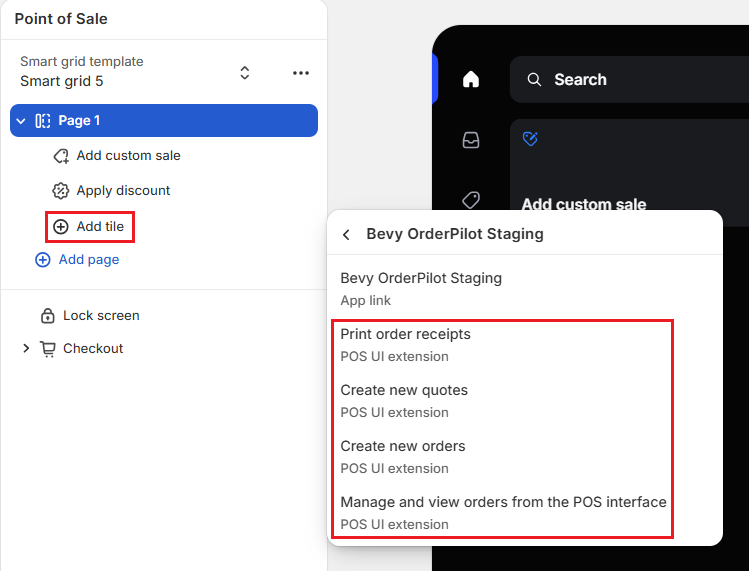
- Click “Add tile”, select “Embedded Apps”, then choose “OrderPilot” from the list.
- Add each tile you want available to your staff (Create new quotes, Create new orders, Manage and view orders, and Print order receipts).
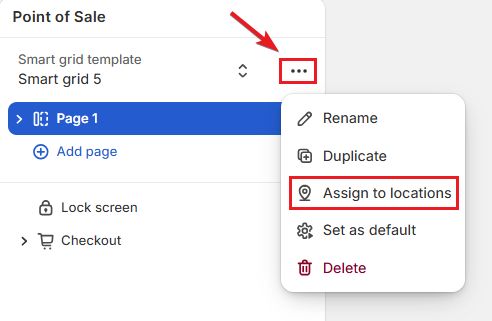
- Select the three dots beside the smart grid (...) and click “Assign to locations”.
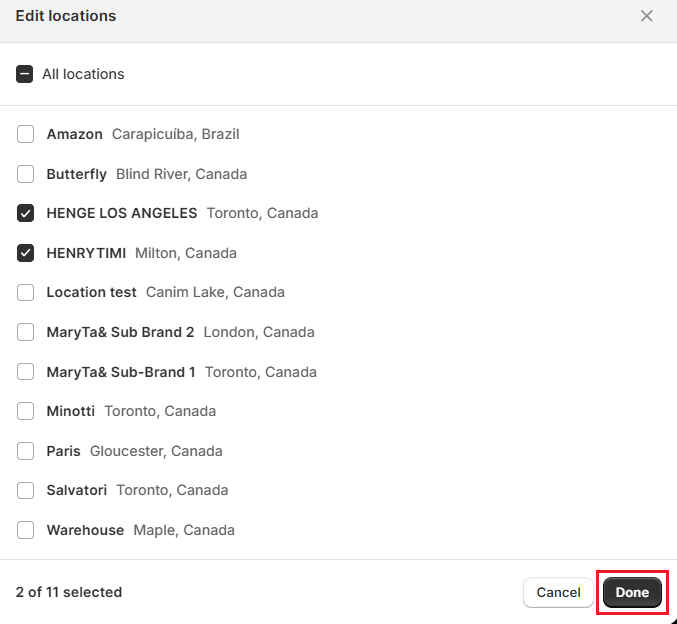
- Select the locations where you want to assign this template - All locations or specific locations. Click “Done”.
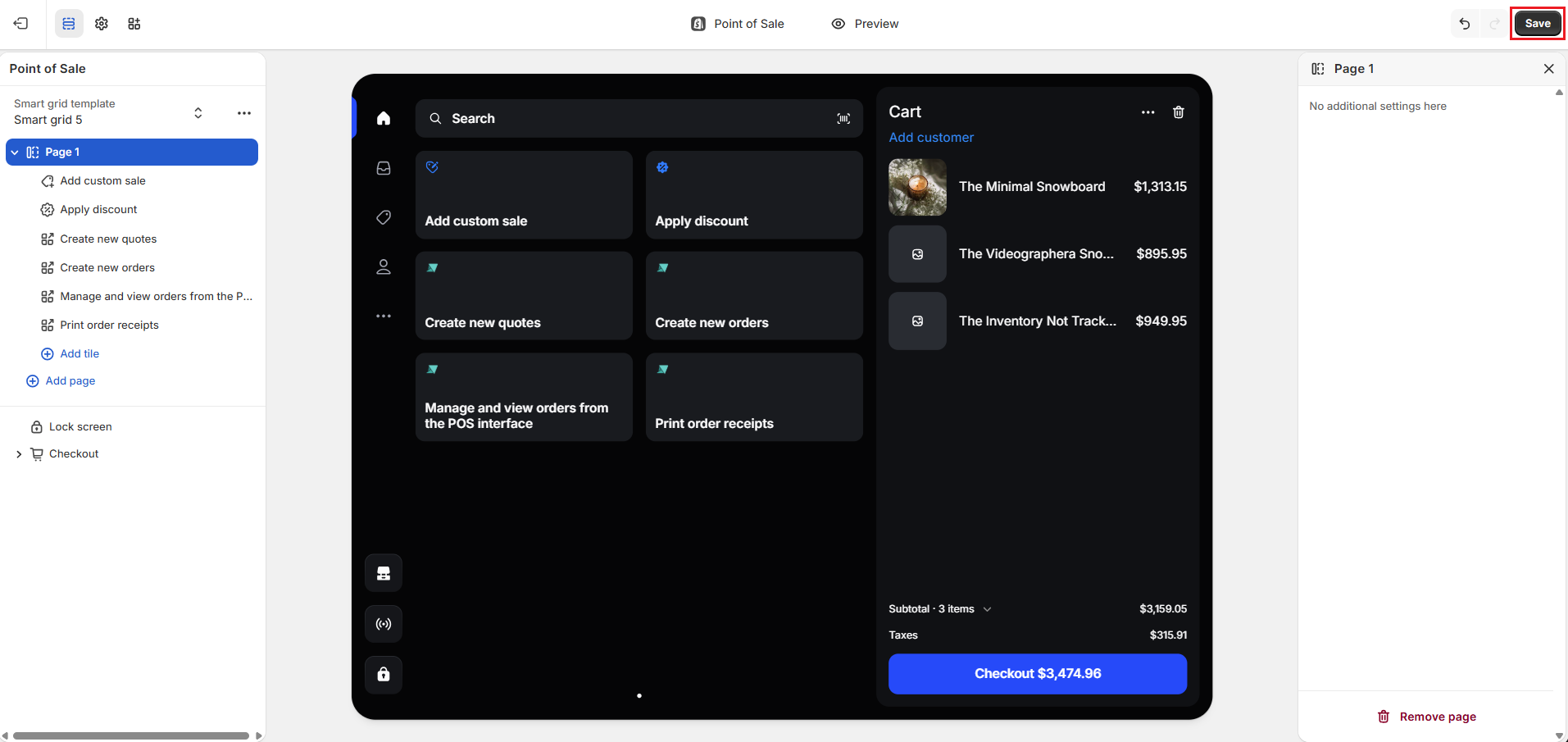
- Once done, you can preview how the tiles will look on your POS home screen. Click “Save” at the top right to confirm.
Step 3: Open the POS app (Sales rep, daily use)
- Open the Shopify POS app on a tablet or phone.
- Log in with your staff account credentials.
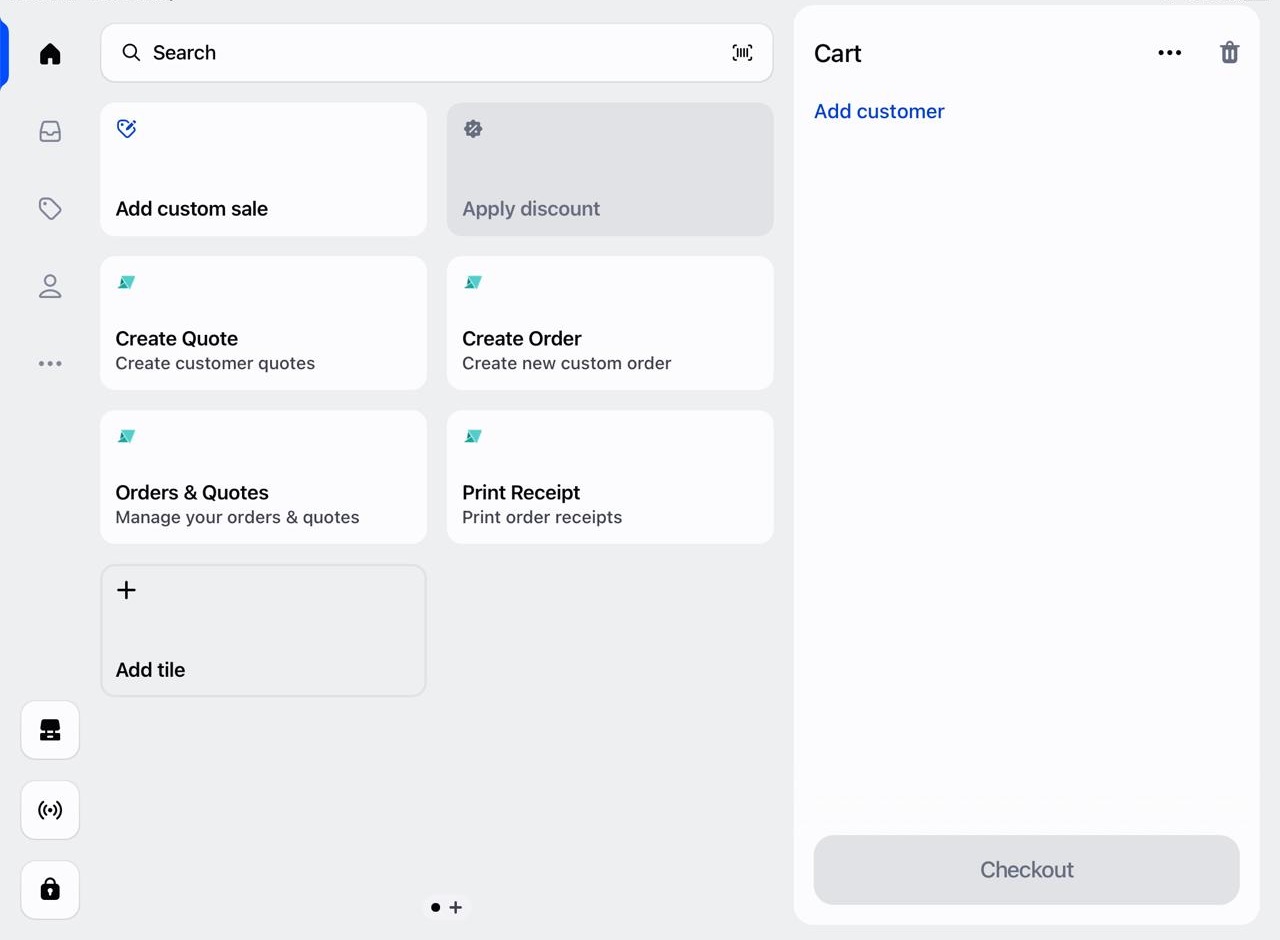
- The OrderPilot tiles appear on your smart grid home screen. Tap any tile to get started.
Available Tiles on POS#
OrderPilot adds four tiles to the Shopify POS smart grid. Each tile is a shortcut to a specific workflow.
Create Quote#
Opens the quote creation screen. Sales reps can select a customer, add product templates, configure custom attributes, and submit the quote for review. Quotes are typically used when the customer is still evaluating options or has not yet confirmed the purchase. Once submitted, the quote syncs to the OrderPilot web app, where it can be reviewed and approved by the production manager.
Create Order#
Opens the order creation screen. The process is similar to Create Quote, but the submission is treated as an order. Use this option when the customer has confirmed the purchase, and the order is ready to proceed to review and purchase order creation.
Orders & Quotes#
Displays a list of quotes and orders for the current location. Sales reps can check order status, look up a specific customer's record during a follow-up, take payment or a deposit against an approved quote, and see where things stand on any active order without leaving the POS app.
Print Receipt#
This lets staff print a receipt for an order or payment directly from the POS. Useful for customers who want a physical record at the time of purchase or deposit.
Which Tiles to Add to the Smart Grid?#
You don't need to add all four to every location. For a store where sales reps only take orders, adding "Create Quotes" and "Create Orders" is often enough. Add "Orders & Quotes" when staff also need to check status or collect payment from the floor, and "Print Receipt" where a physical receipt is expected at the Point of Sale.
What’s Next?#
Once your POS extension is set up, your team can start using it to handle real sales on the floor.
Start by learning how to build a customer-facing record directly from POS:
- Create Custom Quotes & Orders: Capture product selections, custom attributes, pricing, and customer details in a few taps right from the POS smart grid.
Then move on to closing the loop at checkout:
- Collect Payments through POS: Take partial deposits or full payments against approved quotes or orders and keep everything synced automatically with OrderPilot and Shopify.
Need Help?#
If you're setting this up for the first time or testing your first POS order, we're here to help. Contact support@bevycommerce.com, and we'll make sure your POS setup and workflow are working as expected.