Collect Payment
Once a customer is ready to pay, the Shopify POS extension makes it straightforward to collect a full or partial payment right on the showroom floor. This article covers every step, including different payment collection methods and how to handle split payments.
How to Collect Full Payment?#
Follow these steps to collect the full payment for an order or approved quote.
Step 1: From the Shopify POS home screen, tap the “Orders & Quotes” tile. A list of your orders and quotes for this location appears.
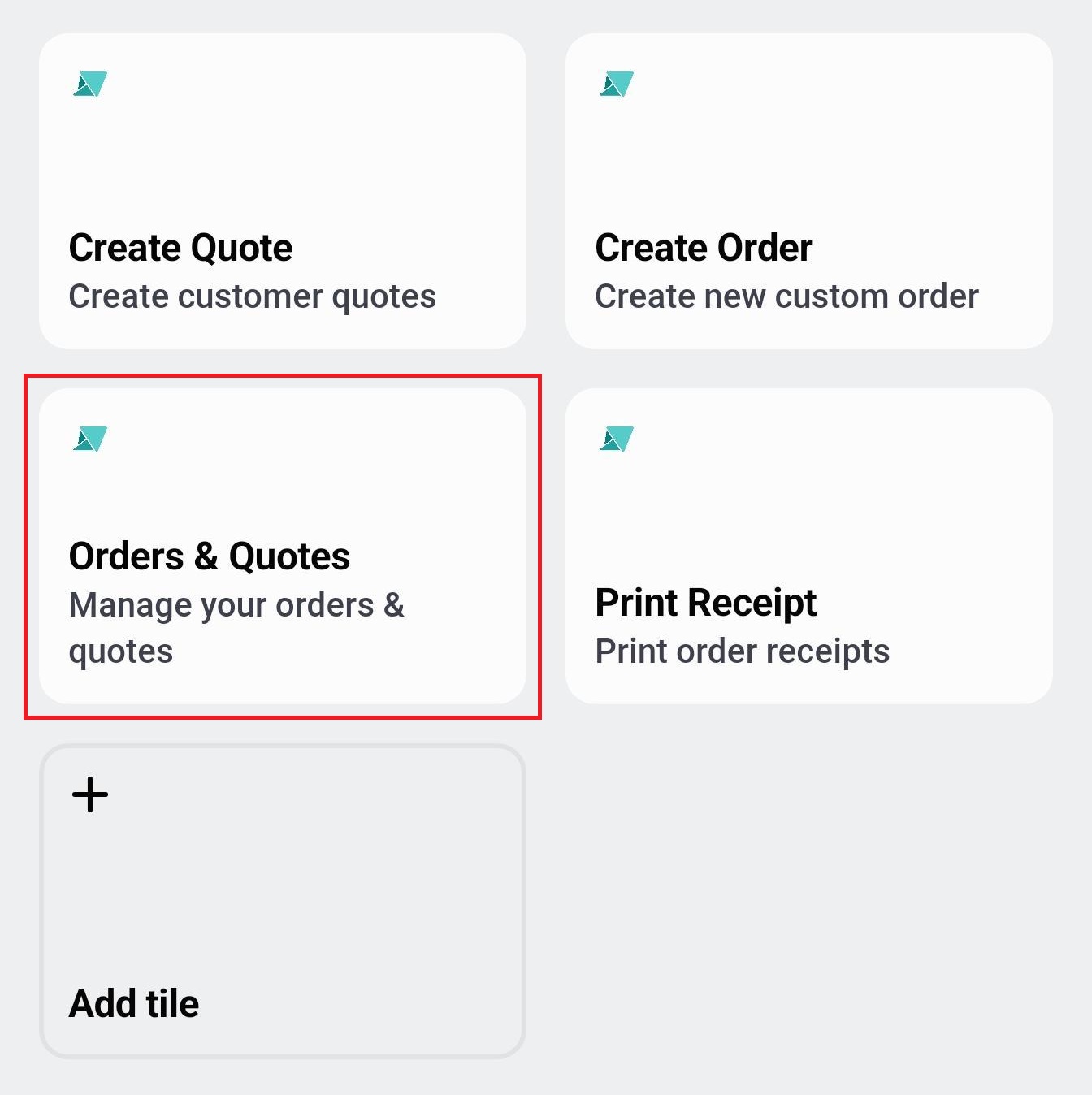
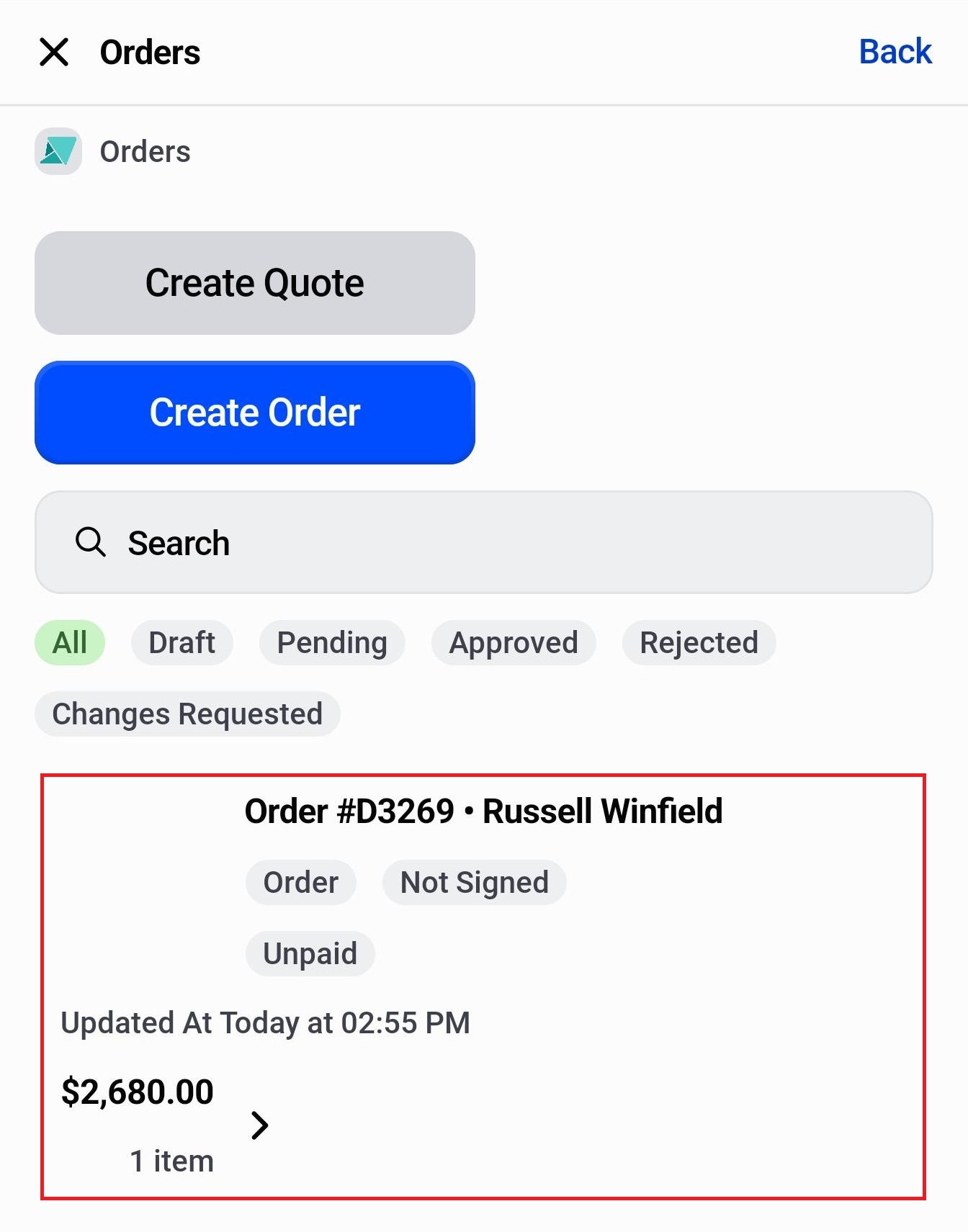
Step 2: Select the order for which you want to collect the full payment.
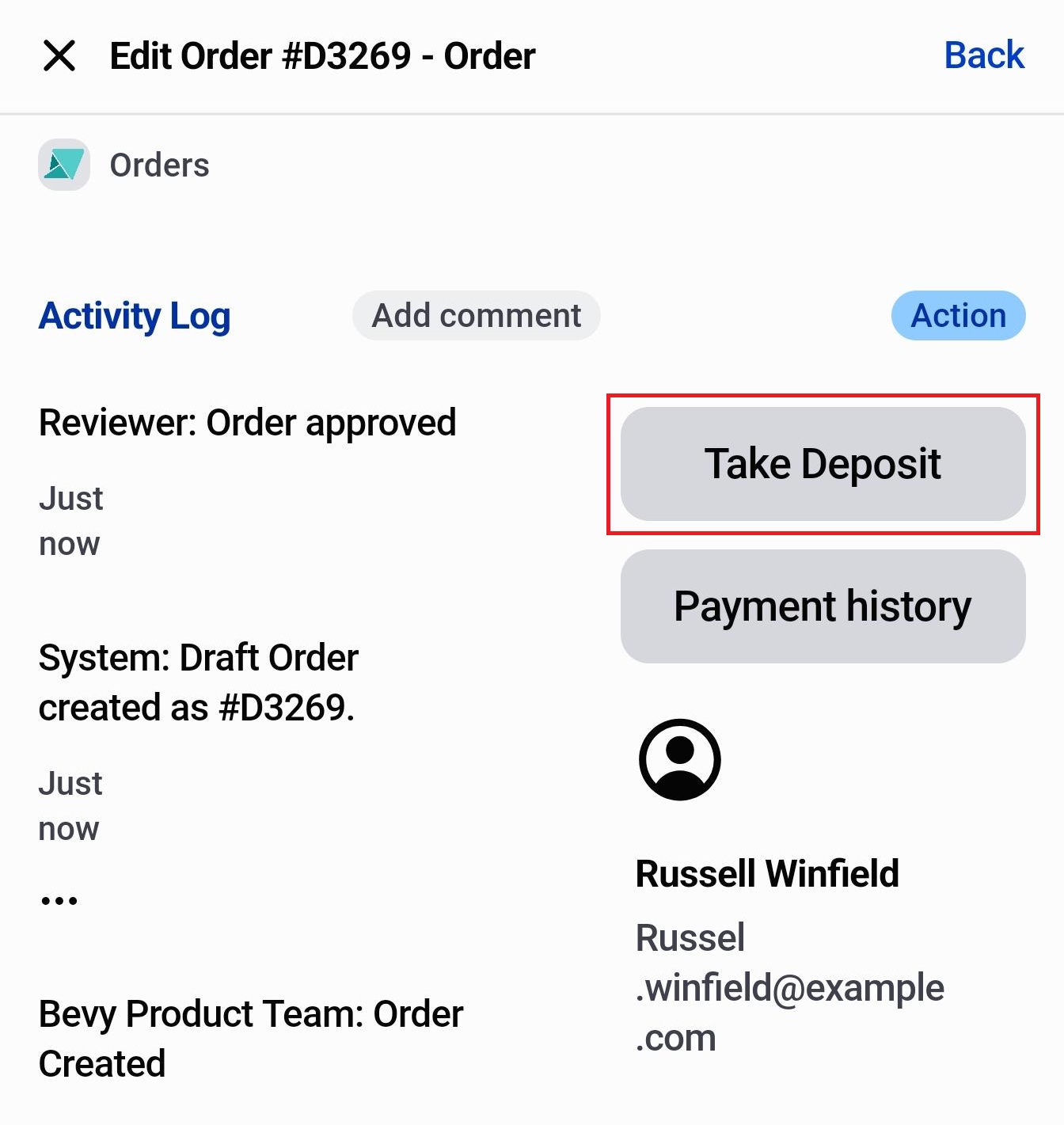
Step 3: Tap “Action” at the top right of the screen. In the menu that appears, tap “Take Deposit”.
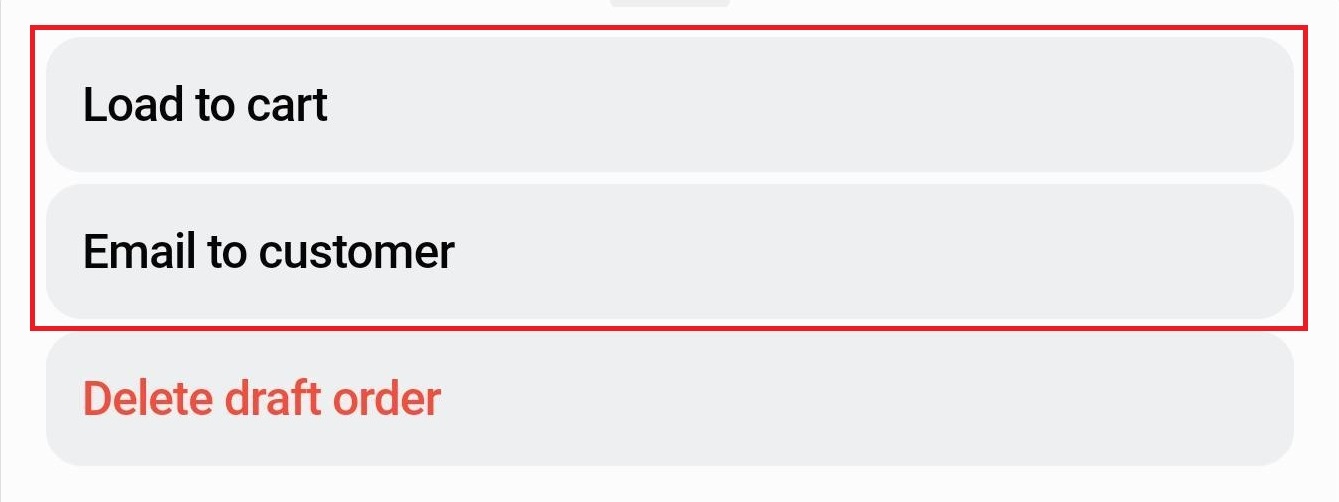
Step 4: Two options appear at the bottom: Load to Cart and Email to Customer. Choose your path.
Path A: Email to Customer#
Use this option when the customer is browsing and wants to think before paying, or when they've left the store.
A1: Tap “Email to Customer”.
A2: Enter a short Message for the customer if needed, then tap “Send”.
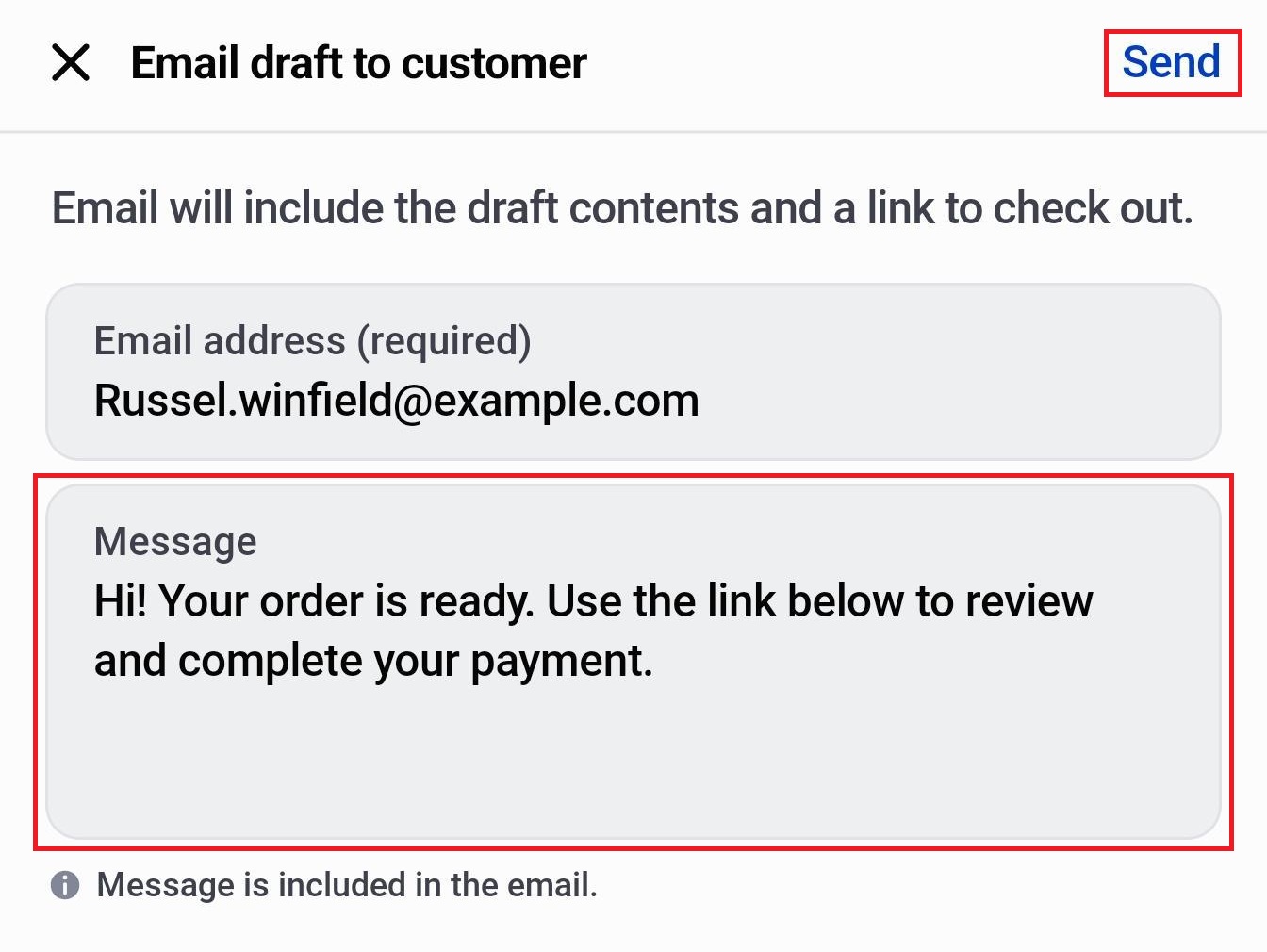
The customer receives an email with a checkout link. They tap “Continue to checkout” in the email and complete the payment themselves.
Wait for the Customer to Complete the Payment#
The order status updates automatically in OrderPilot once the customer pays. Your team can monitor this from the Orders tab in the web app. No further action is needed on the POS device.
Path B: Load to Cart#
Use this option when the customer is standing in front of you and ready to pay on the spot.
Clear the Cart Before Loading#
Before using Load to Cart, make sure the POS cart is empty. Any items already in the cart must be removed first. Loading an order into a cart that already contains products can cause checkout errors. Tap “Load to Cart” and follow the prompts to empty the cart.
B1: Tap “Load to Cart”. The order line items load into the POS cart.
B2: (Optional): Apply a custom discount to the order.
- Tap “...” at the top right of the screen. Tap “Apply discount”.
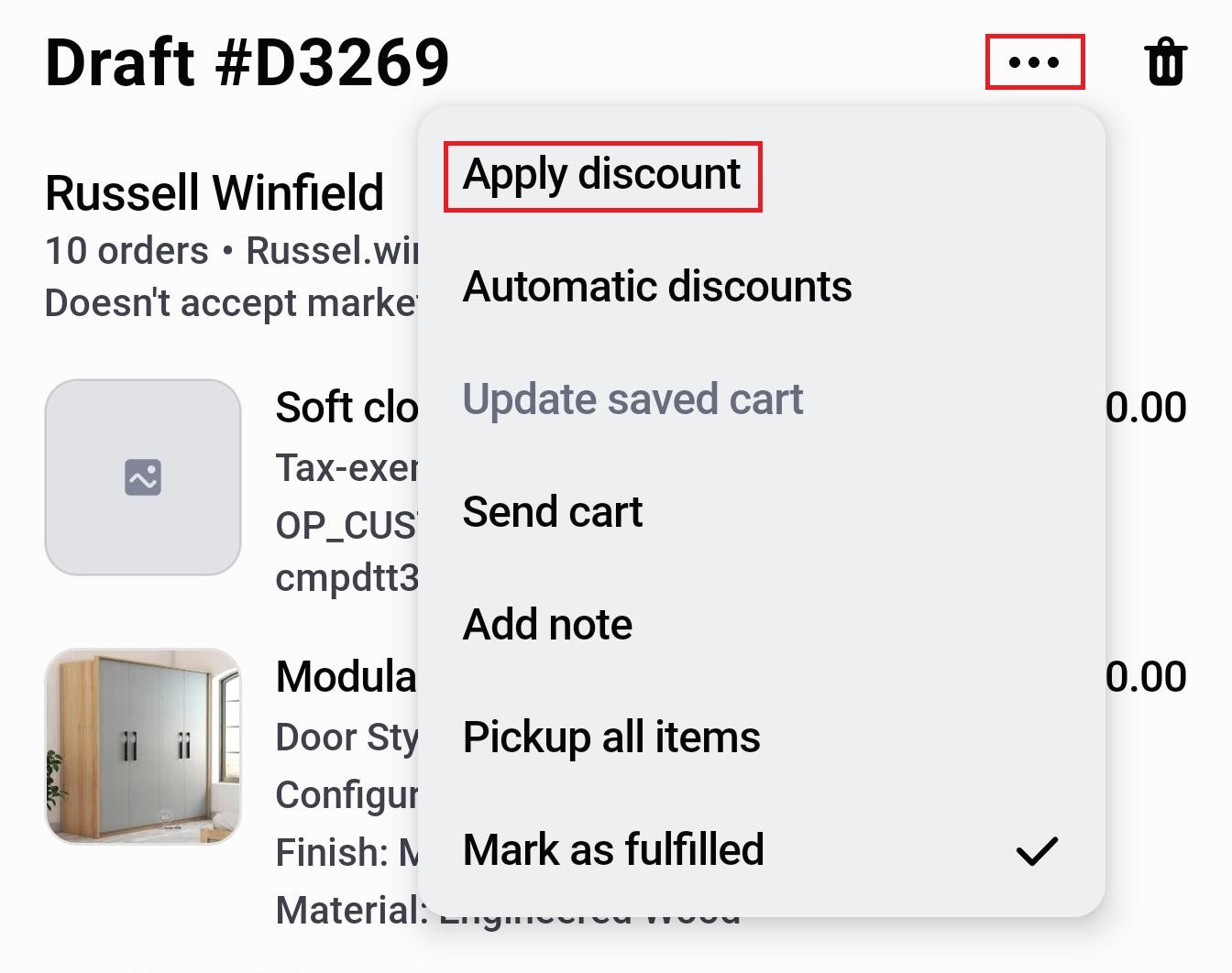
- Tap “Apply custom order discount”.
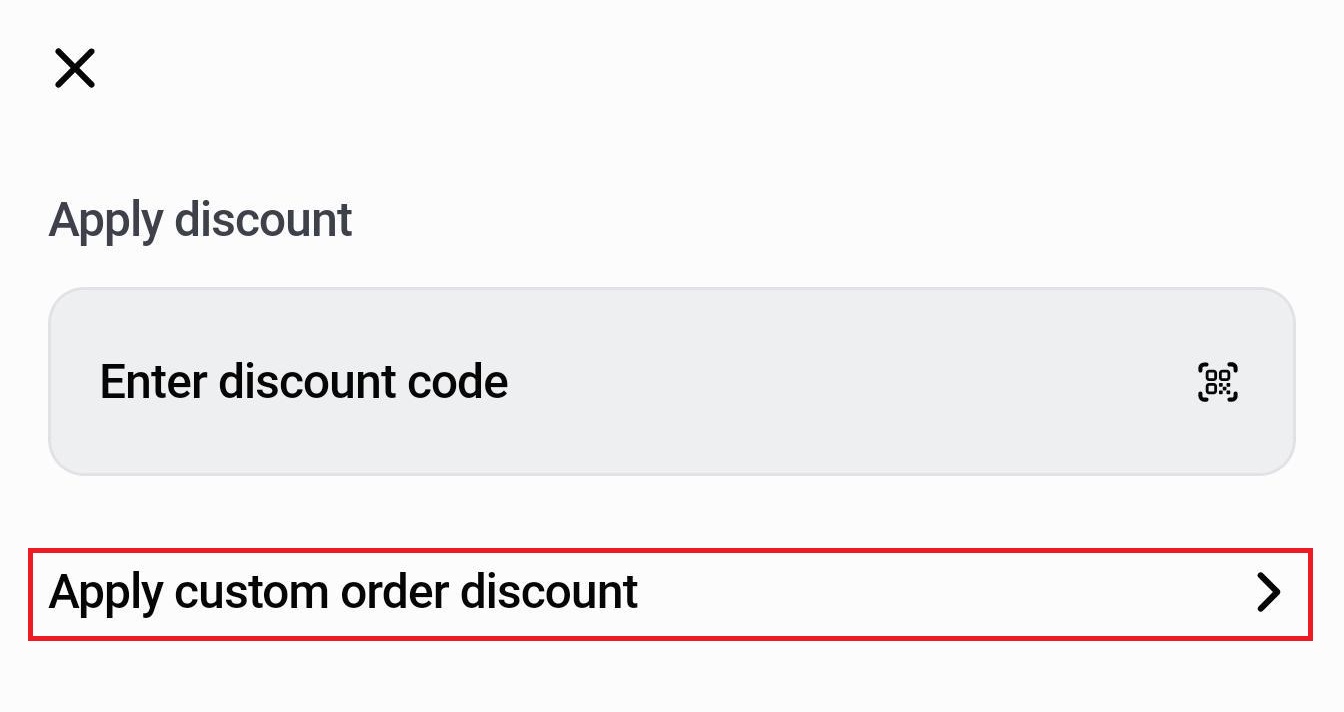
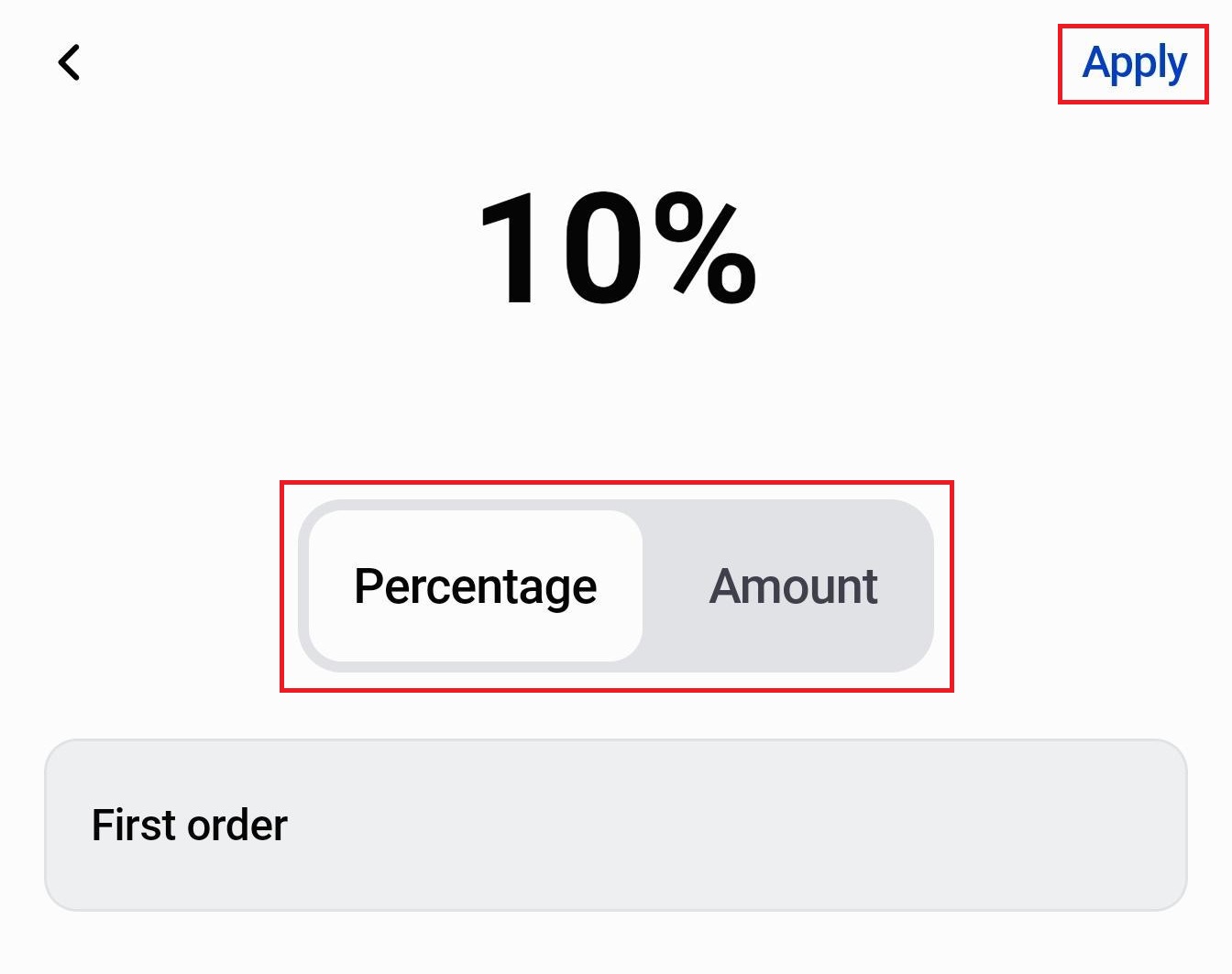
- Select either Percentage or Amount.
- Enter the discount value.
- Add a Reason for the discount.
- Tap “Apply” to confirm.
B3: Complete checkout.
- Tap “Checkout” to open the payment screen.
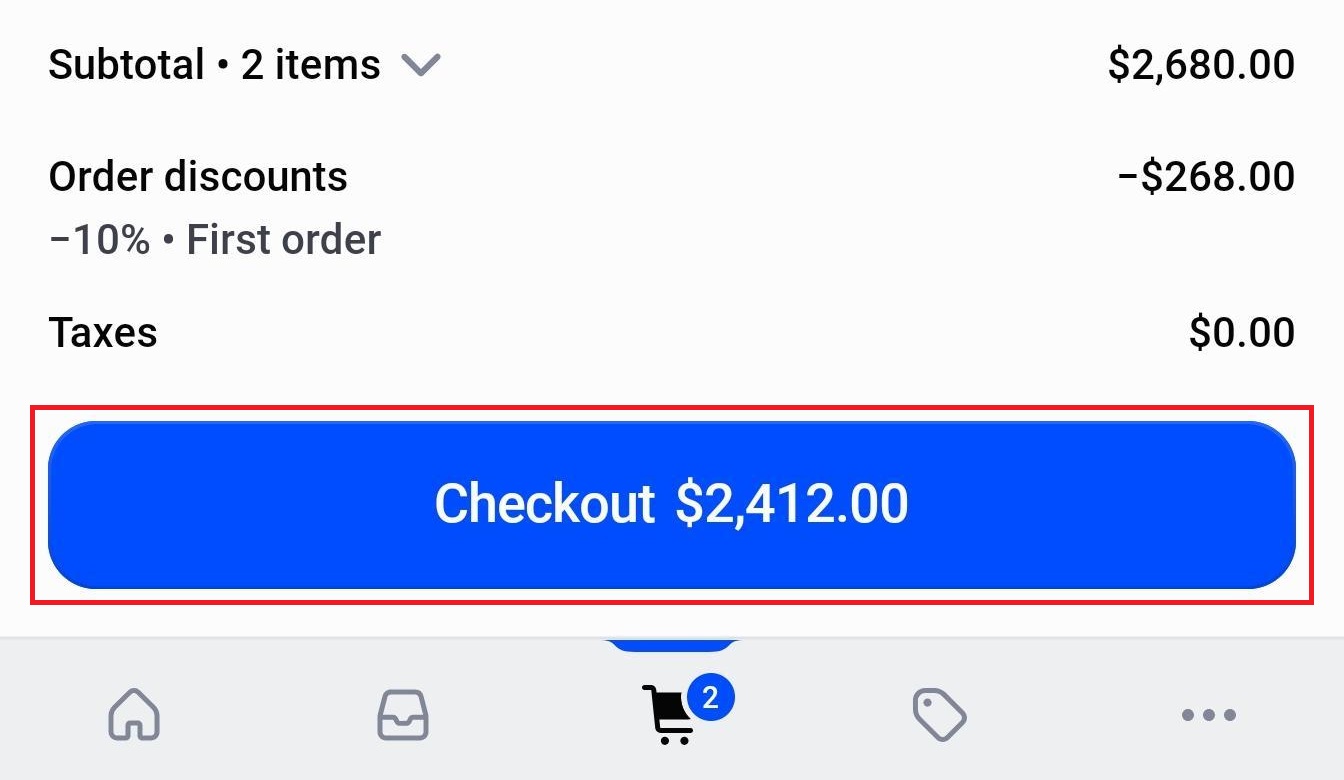
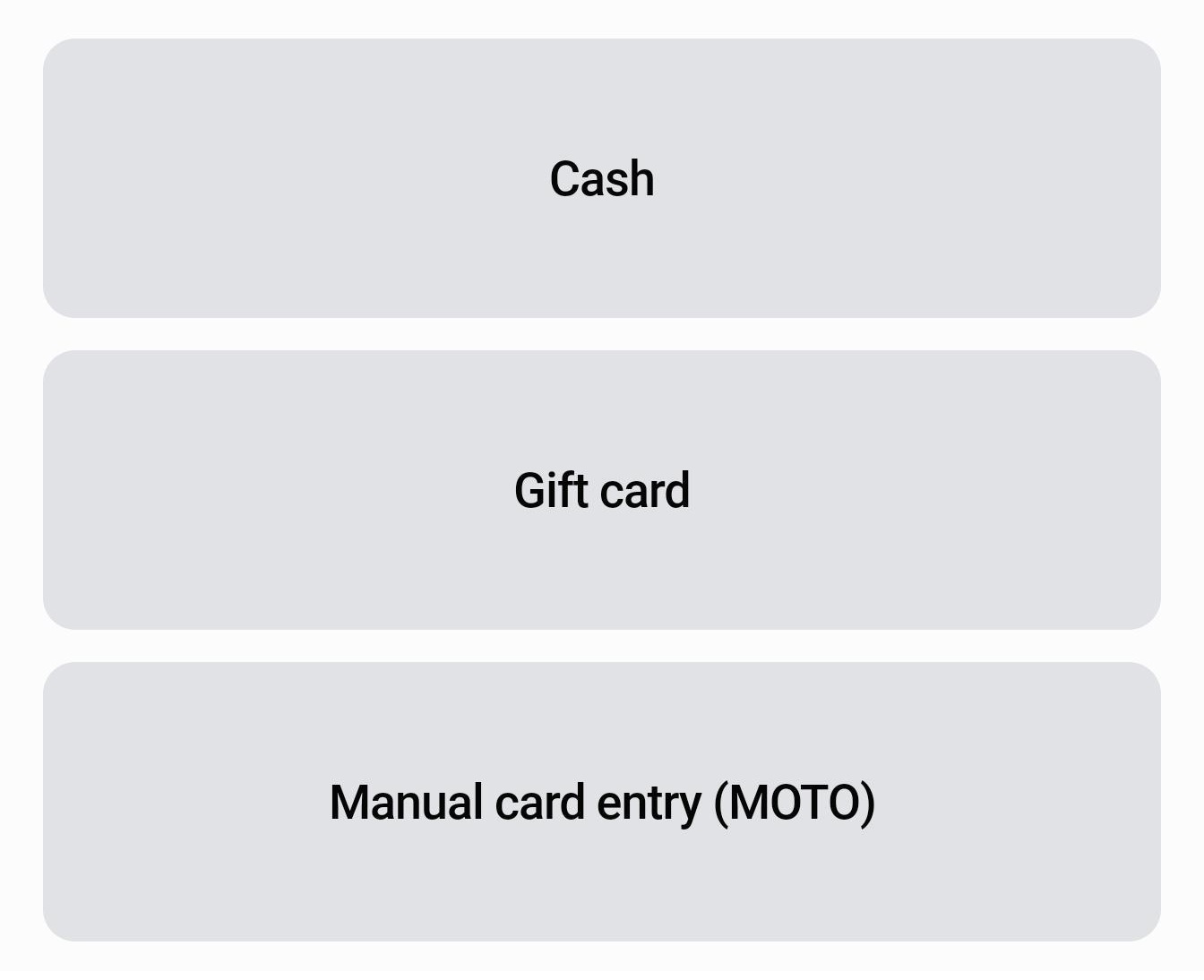
- Select a payment method, for example, Cash, Gift card, or Manual card entry.
Note:
- Gift card: You will have to either scan the card or enter the Gift card code manually to redeem it.
- Manual card entry: You will need to enter the Card number, Expiry Date, and CVV.
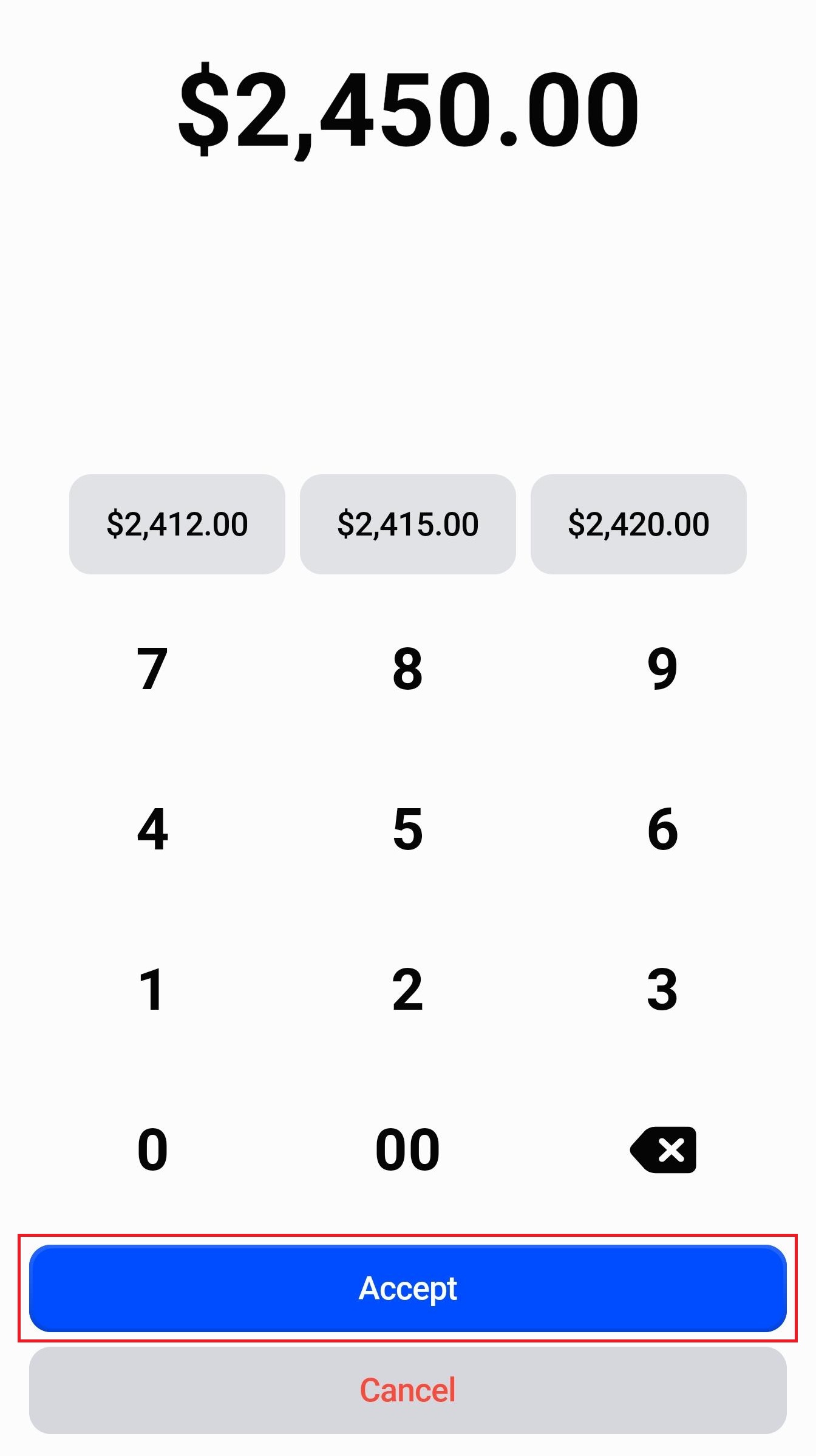
- Select one of the preset amounts or enter a custom amount.
- Tap “Accept” to process the payment (in case of a custom amount). If a preset amount is selected, payment is processed right away.
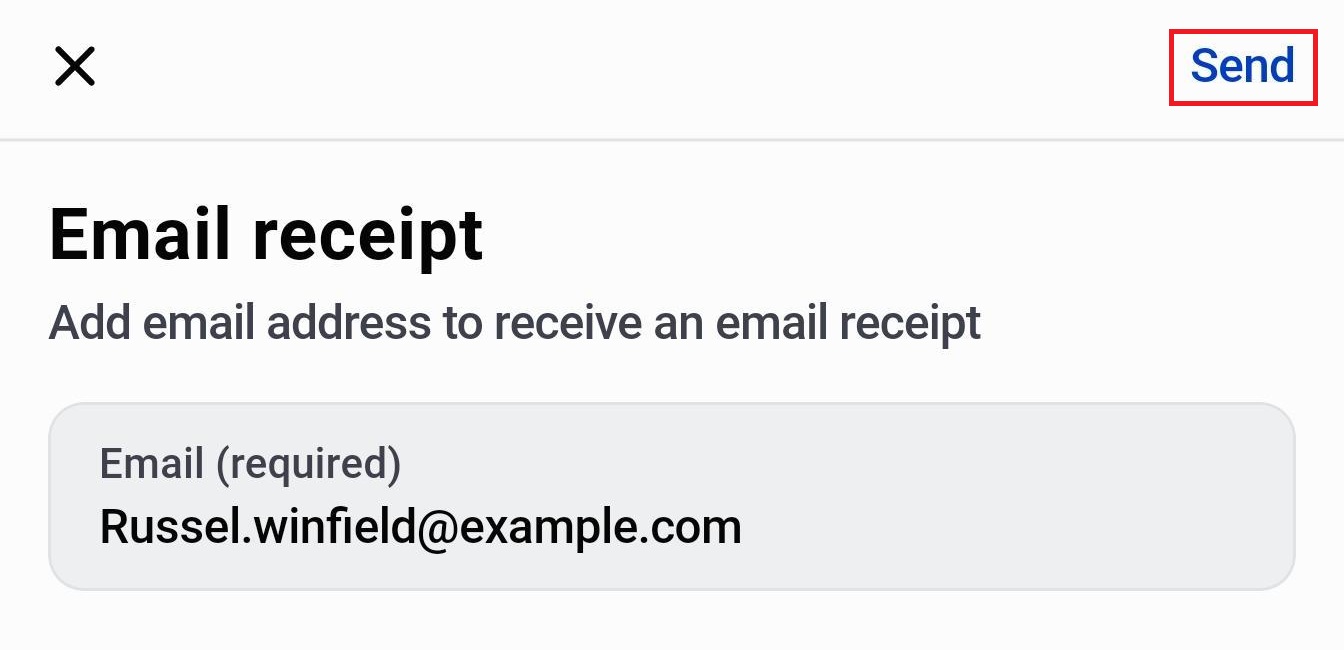
B4: Send the receipt.
- Once payment is accepted, tap “Email” or “Text” to send the customer a receipt.
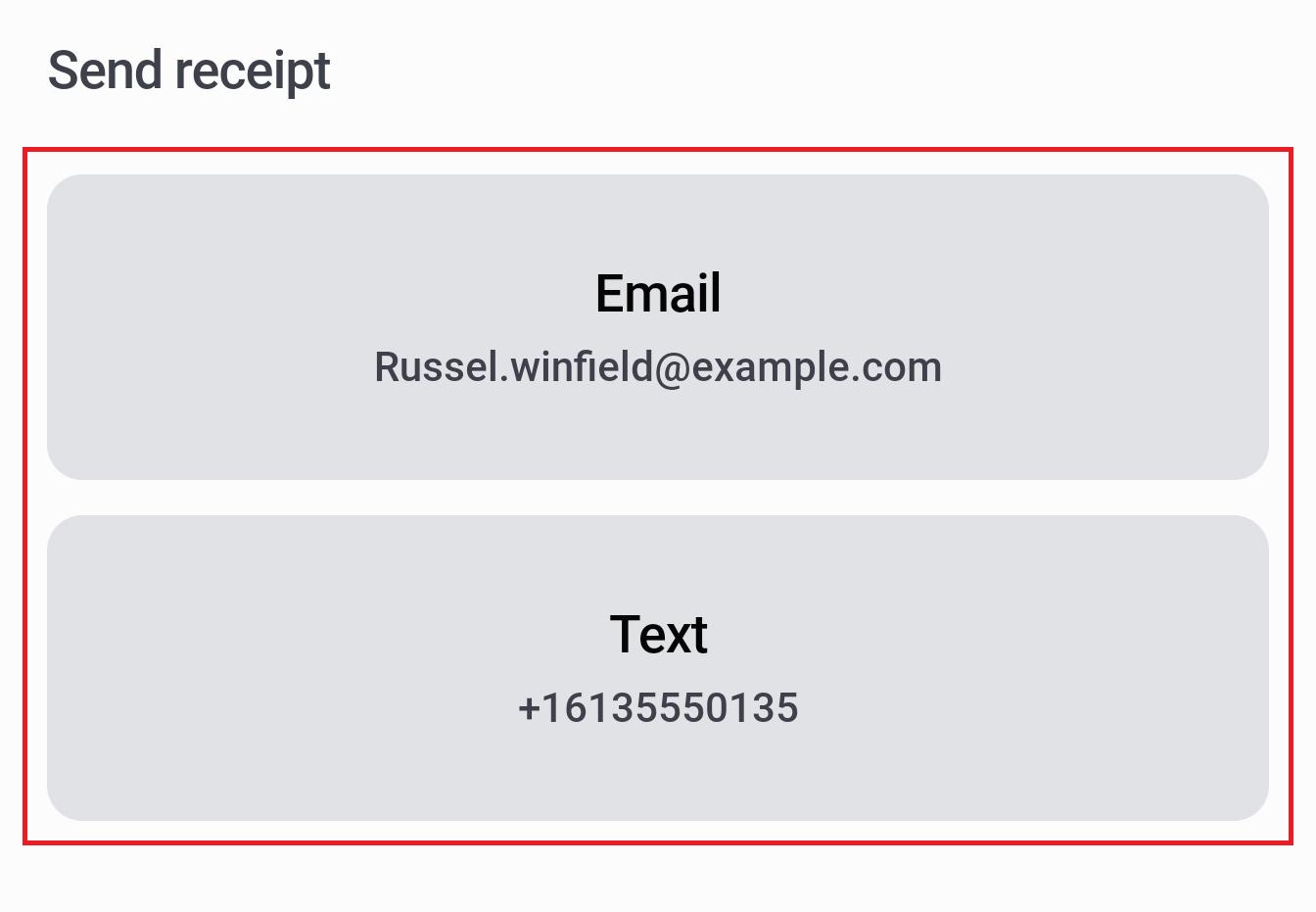
- The customer's email address and phone number are auto-populated if they're on the record. If not, enter manually and tap “Send”.
B5: Add an order note.
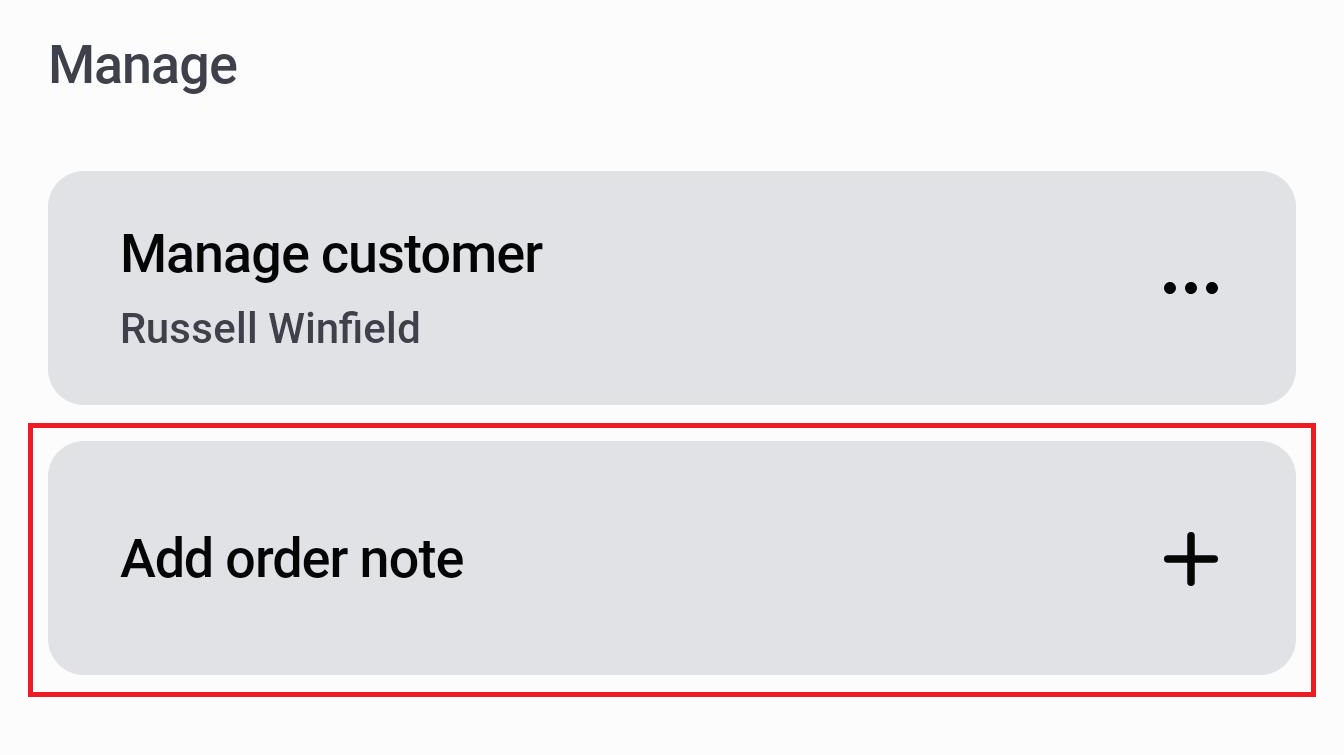
- Tap “Add order note” to attach a note to the transaction. (Optional)
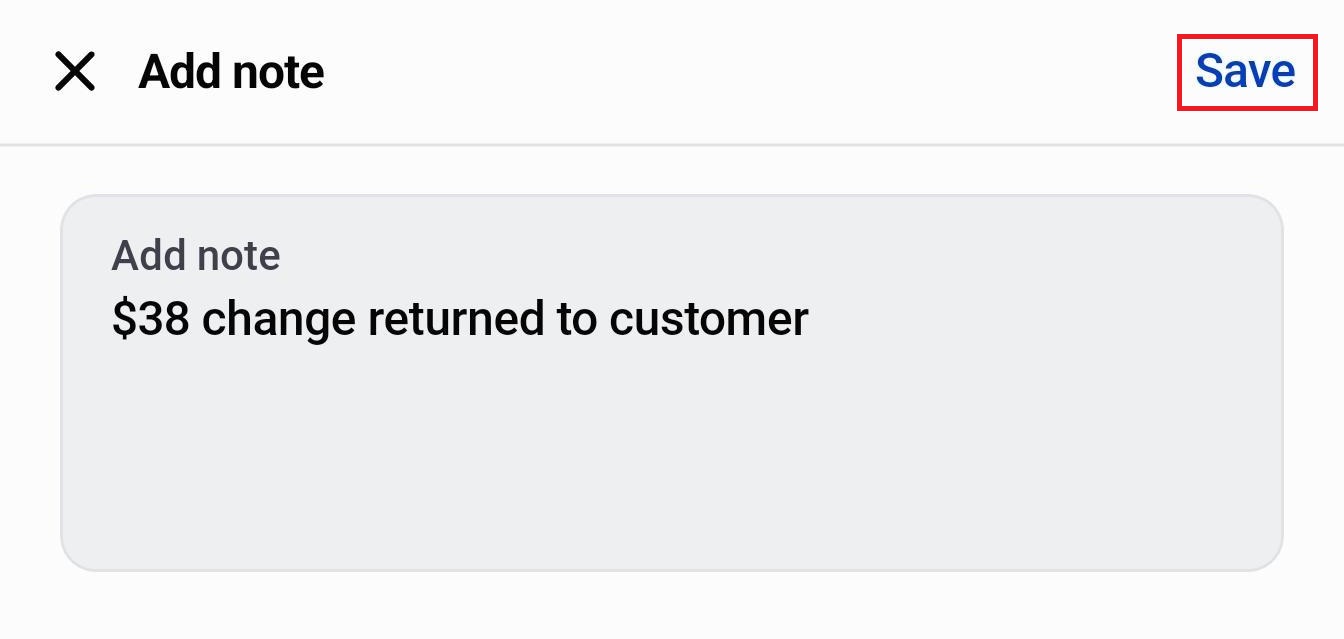
- Enter the note and tap “Save” to confirm.
- Tap “Done” to return to the home screen.
How to Collect a Partial Payment?#
A partial payment or deposit lets the customer secure their order by paying a portion upfront and settling the remaining balance later. This is a Shopify Plus feature and uses the Split Payment option in POS checkout. If this option doesn't appear on your checkout screen, your store isn't on the Shopify Plus plan.
Step 1: Tap the “Orders & Quotes” tile on the POS home screen.
Step 2: Tap the order you want to collect partial payment for.
Step 3: Tap “Action” at the top right of the screen. In the menu that appears, tap “Take Deposit”.
Step 4: Tap “Load to Cart”. Make sure the cart is clear before loading.
Step 5: Tap “Checkout”.
Step 6: Tap “Split payment”.
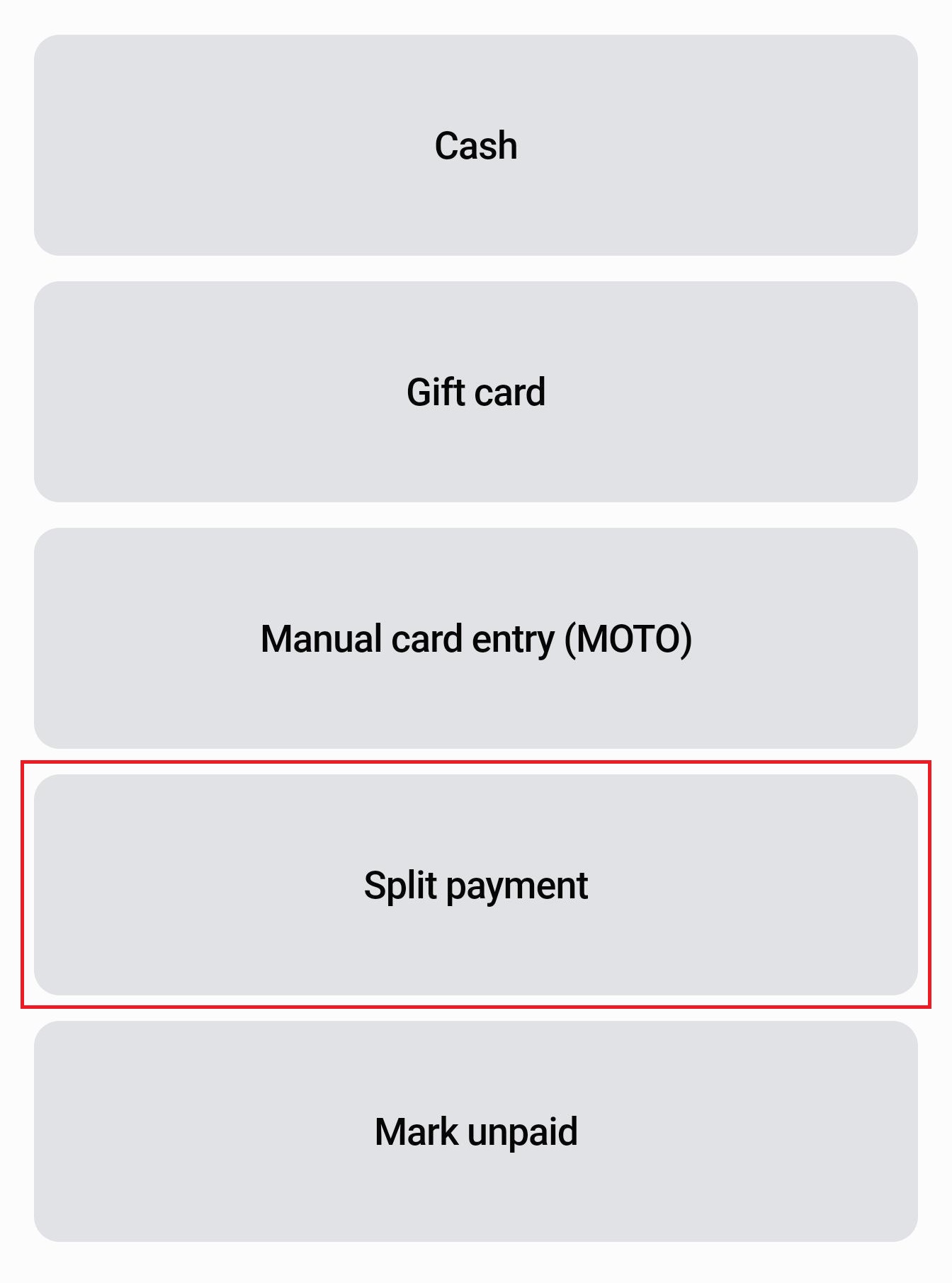
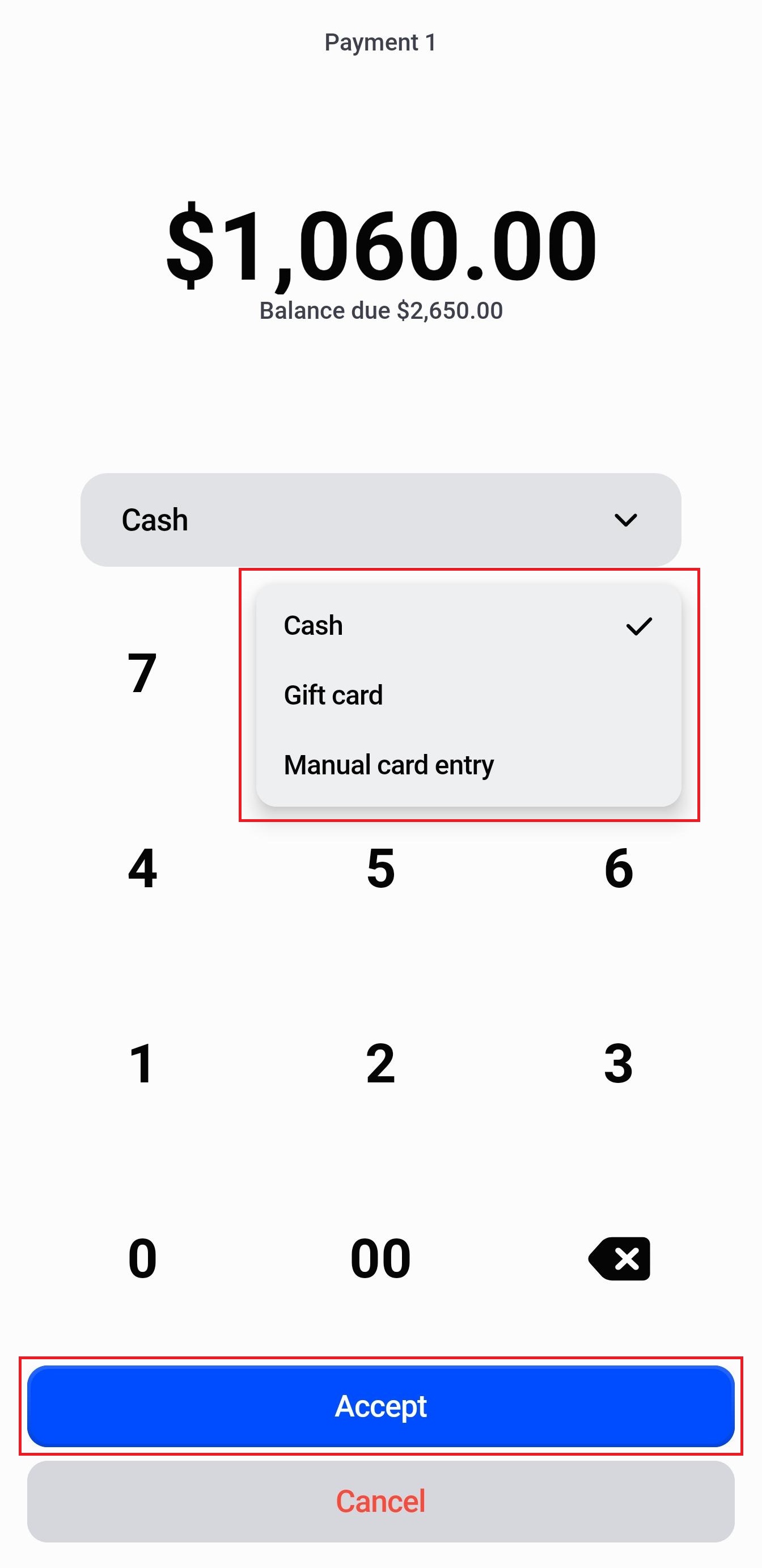
Step 7: Enter the amount the customer is paying now as Payment 1.
Note: This must be less than or equal to the total balance due. For example, if the order total is $2,650 and the customer is paying a 40% deposit, enter $1060.
Step 8: Select how the customer is paying the deposit: Cash, Gift card, or Manual card entry.
Heads-Up:
- Gift card: You will have to either scan the card or enter the Gift card code manually to redeem it.
- Manual card entry: You will need to enter the Card number, Expiry Date, and CVV.
Step 9: Tap “Accept” to process the deposit. The remaining balance is recorded on the order.
Example: Collecting a Deposit for a Linear Suspension Light#
A customer visited the lighting showroom last week and received a quote for a custom-length brushed-brass linear suspension light priced at $2,400. They are back today to confirm the order and leave a deposit before the production run starts. The store is on Shopify Plus, so the sales associate can take a partial payment directly from the POS.
- The associate taps the “Orders & Quotes” tile from the POS home screen.
- They find the customer's quote by searching their name. The quote shows a total of $2,400 and is in “Approved” status.
- They select the quote.
- They tap “Action” then “Take Deposit”.
- They tap “Load to cart”. The cart was already empty, so the order loaded cleanly.
- They tap “Checkout”.
- They tap “Split payment”.
- They enter “$960” as the deposit amount (40% of $2,400). The customer is paying by card, so the associate selects the “Manual card entry” option.
- They tap “Accept”.
- They enter the card details (Card number, Expiry, and CVV) and tap “Charge”.
Best Practices#
Clear the Cart Before Loading an Order#
This is the most common mistake in the Load to Cart flow. Before tapping Load to Cart, check that no other products are in the cart. Items left over from a previous transaction can cause incorrect totals or checkout errors.
Agree on the Deposit Amount Beforehand#
Confirm the deposit percentage or amount with the customer verbally before starting the checkout. Changing the amount mid-checkout is clunky and can create confusion about what’s been charged.
Use “Email to Customer” for Undecided Customers#
If the customer isn’t present in the store or wants to review the order before paying, the Email to Customer option is cleaner than asking them to wait while you load items into the cart. It lets them pay on their own schedule.
Always Print & Share Receipts with Customers#
A receipt creates a paper trail for both the customer and your store. For deposit payments in particular, a written record of the amount paid protects both parties if there's any later disagreement about what was agreed. To print a receipt, tap the “Print Receipt” tile on the home screen and follow the prompts.
Need Help?#
Need a hand collecting a deposit, sending a checkout link, or using the Load to Cart flow on POS? Reach out to us at support@bevycommerce.com, and we'll help you and your team navigate the payment flow smoothly.