Dashboard Overview
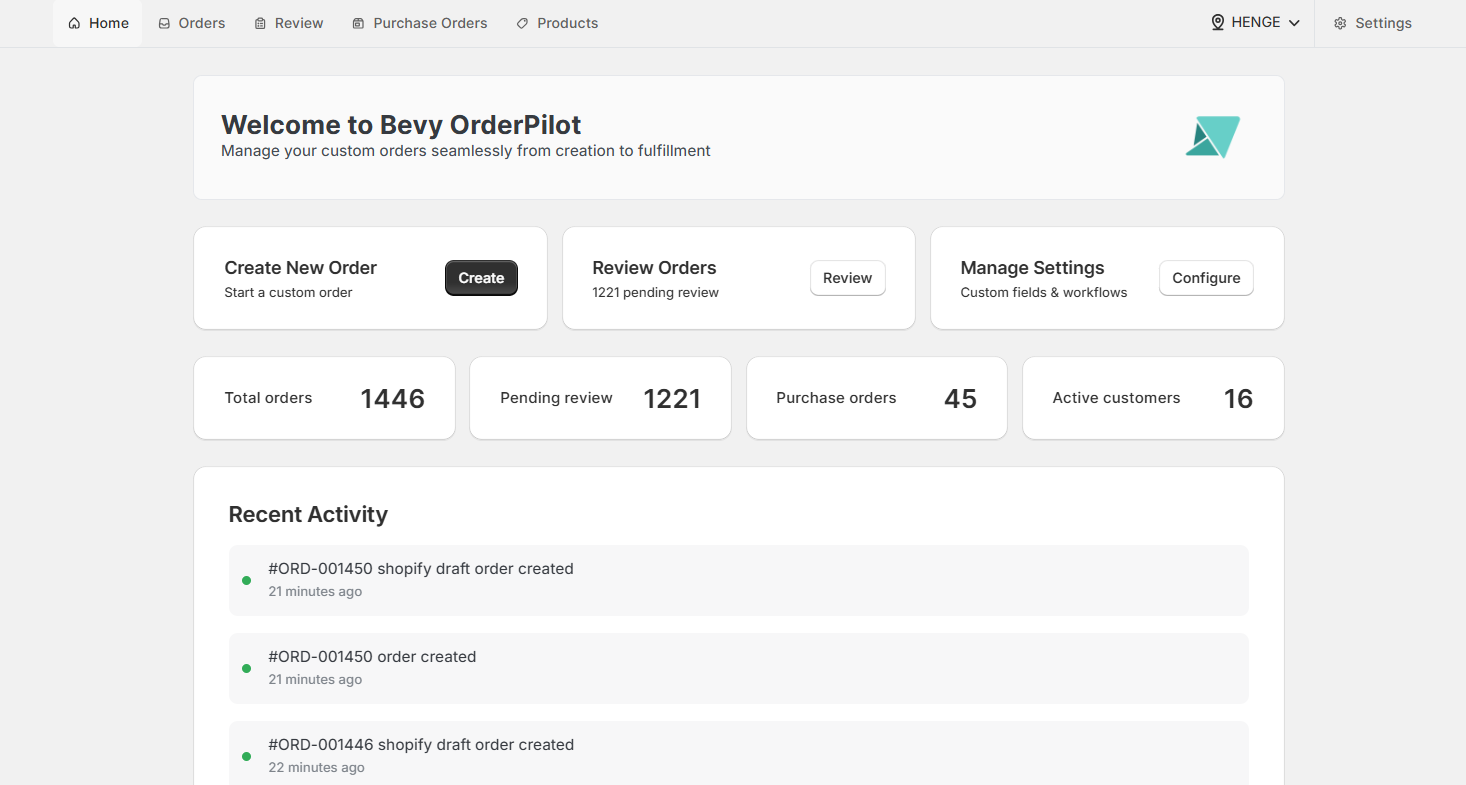
Dashboard (Home) is the first thing you see when you open OrderPilot. It gives you a real-time snapshot of what's happening in your store, so you can act fast and stay organized without digging through menus.
New to OrderPilot?#
If this is your first time opening the app, you'll also see an onboarding checklist that walks you through initial setup.
Dashboard Sections#
The dashboard is divided into three main areas. Each one is designed to surface the information most relevant to the people who actually use it every day.
Order Management#
The order management section sits at the top of your dashboard. It’s a set of three action tiles that take you directly to the most common tasks in the app.

Create New Order#
Click “Create” to start a new custom order from Shopify Admin. This opens a draft order screen where a sales rep can select a customer, add a product, and capture all the custom specifications using the OrderPilot form block.
This is the most common starting point for furniture stores. A sales associate, for example, might use this while working with a customer to record fabric choices, dimensions, and any special requests on the spot.
Review Orders#
Click “Review” to go directly to the order Review Queue. It shows how many orders are currently pending review in a table, so production managers can see at a glance whether anything needs their attention.
From the review queue, managers can approve, request changes to, or reject orders. Each action automatically moves the order to the next step in your workflow.
Note: Review is on by default. All new orders are flagged for review unless the merchant or admin has changed this in Settings.
Heads-up for Production Managers#
Keep an eye on Pending Review. A high number here can slow down the rest of the workflow since purchase orders can't be created for orders that haven't been approved yet.
Manage Settings#
Click “Configure” to access your app settings. This is where you set up categories, product templates, custom attributes, order status, vendors, company profile details, brand and location settings, and purchase order preferences. Think of this as the control center for how OrderPilot behaves across your whole store.
Analytics#
The analytics section shows four key numbers that update in real time. You don’t need to run a report or export a file. Just open the dashboard, and you’ll know where things stand.

What Each Number Means?#
- Total orders: Every order that has passed through OrderPilot, regardless of status. A good indicator of overall volume over time.
- Pending review: Orders awaiting a manager’s approval, rejection, or request for changes. If this number keeps climbing, it usually means the review queue needs attention.
- Purchase orders: The number of purchase orders that are currently open or awaiting completion. This helps your procurement team track what’s been sent to suppliers and what’s still outstanding.
- Active customers: Customers who have at least one order in progress. This is useful for understanding how many open relationships your team is managing at any given time.
Recent Activity#
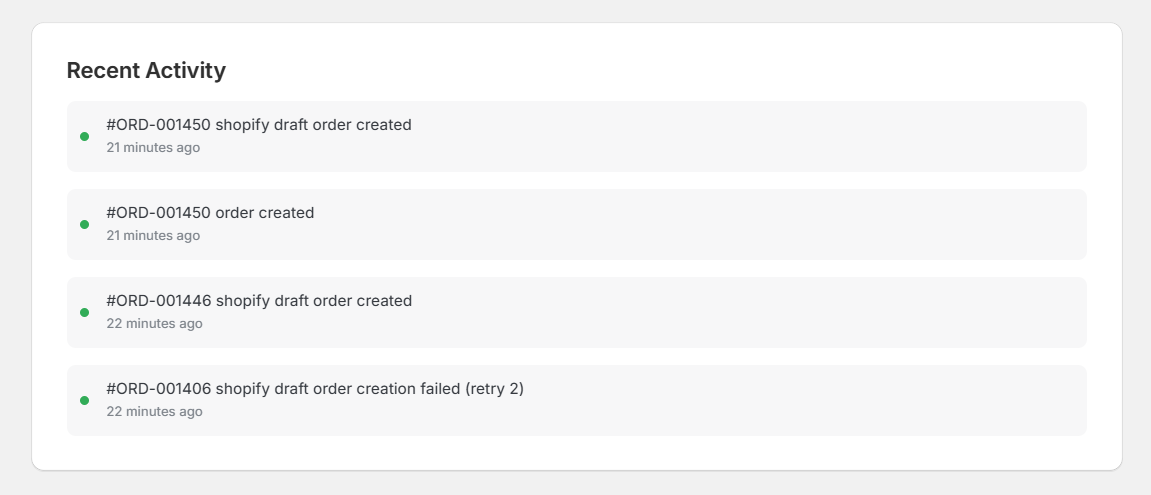
The Recent Activity feed shows a real-time log of meaningful events happening across your store. Admins and merchants use this to stay on top of changes without having to check each order individually.
Note: Activity is read-only. You can’t edit or delete items from the Recent Activity feed. It serves as an audit trail of events in your store. If something looks unexpected, you can click through the activity item to view the source order, quote, or purchase order in detail.
Who Uses Which Section of Dashboard?#
Different people on your team will interact with the dashboard in different ways. Here’s a quick reference so everyone knows where to focus.
| Role | Primary Dashboard Actions |
|---|---|
| Sales Representative | Create new quotes and orders. |
| Production Manager | Review and act on the pending quotes or orders in the review queue. |
| Merchant / Admin | Monitor all analytics, watch the activity feed, and configure settings. |
| Back-office / Procurement | Track open purchase orders and supplier activity. |
What’s Next?#
Now that you're familiar with the dashboard, here are the most common next steps depending on your role.
- Create Orders from Admin: Learn how to build a custom order step by step from the Shopify Admin.
- Review Orders: See how the review queue works and how to approve, reject, or request changes.
- Purchase Orders: Create and send purchase orders to your suppliers in just a few clicks.
- Settings: Set up custom attributes, product templates, and your team’s default preferences.
- Workflow Editor: Build an order flow that mirrors exactly how your business operates.
Need Help?#
If something on the dashboard isn’t behaving as expected, or you'd like guidance on which section to use for a specific task, we're happy to help.
Reach out to us at support@bevycommerce.com, and we'll get you on track.