Review Quotes/Orders
Some quotes and orders need a second pair of eyes before they go any further, for example a custom piece with tricky specifications or an unusual price. OrderPilot sends these to a review queue, where a manager can approve them, send them back for changes, or reject them.
This article explains how records reach the review queue, how to review them, why the Approve button can be greyed out, and how a salesperson responds when changes are requested, either by a reviewer or by the customer.
Before You Start#
Consider the following questions before getting started:
How does a record reach the review queue?#
| What happens | Result |
|---|---|
| A product template with Manual Review turned on is added to a quote or order. | When the record is created, its status is Pending Quote (or Pending Order) and it waits in the Pending tab. |
| Default review flag is on in “Settings”, then “Review rules” (in the Orders and quotes group), or someone turns on Requires Review on the record's page. | The record is flagged Requires Review but keeps its Quote or Order status. You can find and approve it from the All or Quote tab. Approving it clears the flag. |
| Require review for all orders is on in Review rules, and the customer signs a quote. | The quote goes to Pending Quote instead of becoming an order, and waits in the Pending tab. |
| A salesperson clicks “Mark resolved” after making requested changes. | The record goes back to Pending Quote (or Pending Order). |
To mark a template for review, turn on Manual Review on the template. See Create Product Templates.
Is there still an "Approved" status?#
No. Approving a quote sets its status to Quote. Approving an order sets its status to Order. Both statuses can be used for purchase orders by default.
The Review Queue#
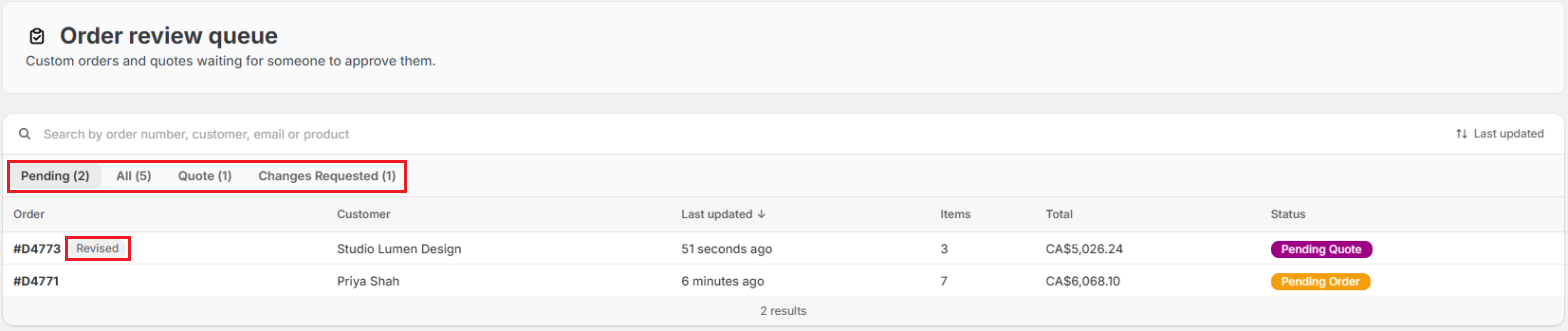
From the OrderPilot dashboard, go to “Review”. The Order review queue lists custom orders and quotes waiting for someone to approve them.
| Tab | What it shows |
|---|---|
| Pending (default) | Records waiting for review, shown as Pending Quote or Pending Order. |
| All | Everything in the review statuses: pending, approved quotes and orders, rejected, and changes requested. |
| Quote | Approved quotes. |
| Rejected | Rejected quotes and orders. |
| Changes Requested | Records sent back to the salesperson or with open customer change requests. |
Use the search field to find a record by number, customer, email, or product, and the sort button to order the list. The queue follows the location picker at the top of the app. When nothing is waiting, the queue says All caught up.
Markers next to the number work as in the Quotes and Orders lists: Revised means changes were requested on the record before, a warning icon means a line has no vendor, and an error icon means the record could not be created in Shopify.
How to Review a Quote or Order?#
Step 1: From the OrderPilot dashboard, go to “Review”.
Step 2: On the Pending tab, click the row you want to review. The review window opens.
Step 3: Check the details. The window shows each line under Quote Items (or Order Items) with its options, vendor, quantity, price, and total, followed by the Subtotal, discounts, Shipping, Tax, and Quote Total.
Step 4 (Optional): Click “Add Comment”, type your note, and click “Post Comment”. Comments are internal. Only staff can see them.
Step 5: Choose an action at the bottom of the window:
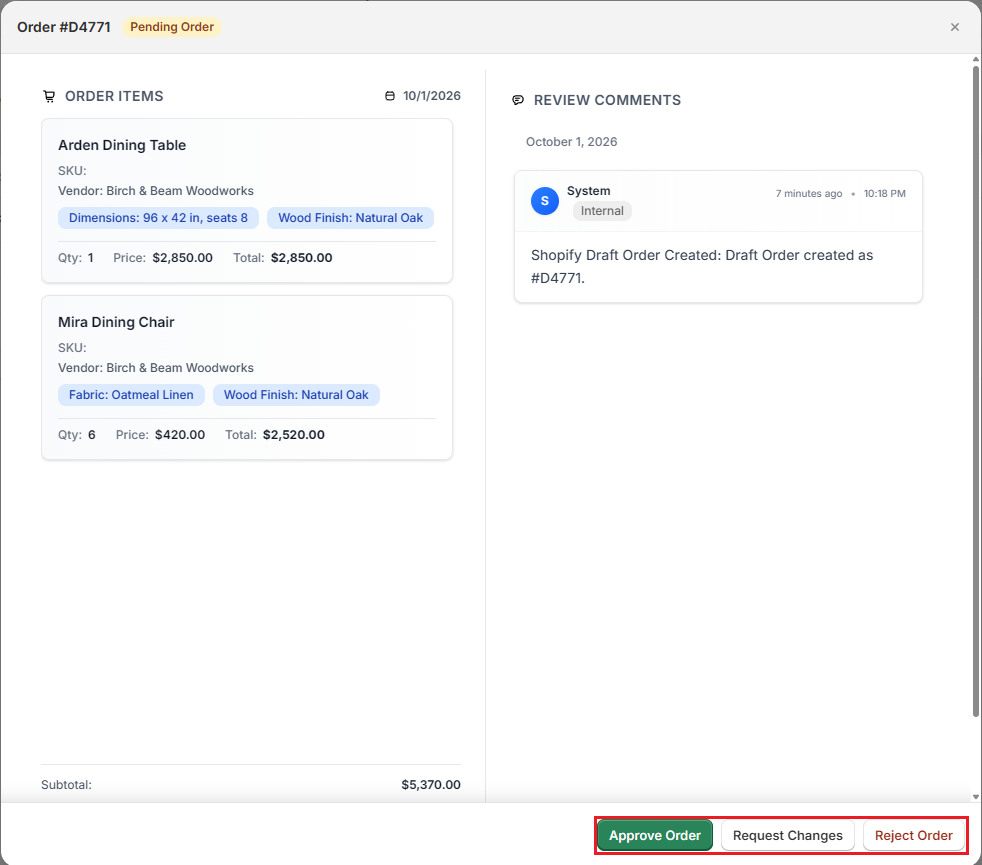
Option A: Approve. Click “Approve Quote” (or “Approve Order”). A pending record changes to Quote (or Order) and leaves the Pending tab. A record that was already in Quote or Order with Requires Review keeps its status, and approving it only clears the flag.
Option B: Request changes. Click “Request Changes”. In Changes needed, describe exactly what to fix, for example "Use Smoked Walnut, not Natural Oak, for the Arden table base". Click “Submit Request”. The status changes to Changes Requested.
Option C: Reject. Click “Reject Quote” (or “Reject Order”). Enter a Reason for rejection and click “Submit Rejection”. The status changes to Rejected.
Note: A reason is required for both Request Changes and Reject. The submit button stays greyed out until you type one.
Why Is Approve Greyed Out?#
Hover over the button to see the reason. The most common ones:
| Reason shown | What to do |
|---|---|
| Assign vendors to all line items in the quote to enable approval. | One or more lines have no vendor (the window shows Vendor is not selected on them). Open the record, choose a vendor for each line, and save. |
| Creating this quote in Shopify failed. Fix the error before approving. | The record never reached Shopify. Open it, fix the problem shown, and use “Retry Shopify Sync”. See Edit Quotes/Orders. |
| This quote is already approved. | It is already in Quote (or Order) status and not flagged for review. Nothing to do. |
Similarly, Request Changes is greyed out when changes are already requested, and Reject is greyed out when the record is already rejected.
Note: "Vendor" follows your shop's terminology setting, so these messages may say "supplier" or another word you chose.
What Happens After a Decision?#
After approval#
The record is in Quote or Order status and moves on: the salesperson can request a signature or payment, and a purchase order can be created. See Request Signature & Payment.
After changes are requested#
The record waits in Changes Requested until the salesperson updates it and clicks “Mark resolved” (see below). It then returns to Pending for another look, with a Revised marker.
After rejection#
The record stays in Rejected. Its sign link stops working, and the customer can no longer change it from your online store. A rejected record can still be approved later from the Rejected tab if the decision changes.
How to Respond to Requested Changes?#
This is for the salesperson who owns the quote.
Step 1: Open the record. You can find it in the Changes Requested tab of the Quotes or Orders list.
Step 2: Read the Changes Requested banner at the top of the page. It shows the reviewer's note.
Step 3: Make the changes, then click “Save” in the save bar.
Step 4: Click “Mark resolved” in the banner. The record returns to Pending Quote (or Pending Order) for review and is synced to Shopify again.

Pro Tip: Before clicking Mark resolved, add a comment in the Activity card saying what you changed, for example "Base finish changed to Smoked Walnut (+$200) as requested". The reviewer sees it straight away.
Customer Change Requests#
Customers can also ask for changes from their order page on your online store. See My Orders & Tracking.
When a customer submits a change request:
- The record moves to Changes Requested and the banner title reads Customer requested changes.
- The request appears in the Change requests card on the record's page, with an open count. Customer messages appear in the Messages card, where you can reply.
Step 1: Read the request in the Change requests card.
Step 2: Edit the quote yourself to make the change, and save. Nothing in the request changes the quote or Shopify automatically.
Step 3: Click “Mark complete” on the request, or “Decline” if you are not making the change.
Step 4: Click “Mark resolved” in the banner to move the record out of Changes Requested.
Note: Marking requests complete or declined does not change the status on its own. Mark resolved is what moves the record back to Pending Quote (or Pending Order).
Example: Reviewing a Dining Table Order#
Priya Shah ordered an Arden Dining Table with six Mira Dining Chairs. The Arden template has Manual Review on, so the order arrives as Pending Order.
- The production manager goes to “Review” and clicks Priya's order on the Pending tab.
- They see the table's Wood Finish is Natural Oak, but Priya's notes say she wanted Smoked Walnut.
- They click “Request Changes”, type "Change Wood Finish to Smoked Walnut (+$200) per the customer's notes", and click “Submit Request”.
- The salesperson opens the order, sees the note in the Changes Requested banner, changes the finish, saves, adds a comment, and clicks “Mark resolved”.
- The order is back on the Pending tab with a Revised marker. The manager opens it again and clicks “Approve Order”. The status is now Order.
Important Notes & Tips#
Prefer Request Changes over Reject#
If the salesperson can fix the problem, request changes. Reject only records that cannot go ahead, such as duplicates or specifications your vendors cannot make.
Keep the Pending tab short#
Records in Pending cannot be put on a purchase order until someone approves them. Check the queue at least once a day.
Vendors first#
Most greyed-out Approve buttons are missing vendors. Ask salespeople to choose a vendor on every line before the record reaches review.
Need Help?#
Not sure why a quote is in the review queue, or why you cannot approve it? Reach out to us at support@bevycommerce.com, and we'll help you sort out your review process.