Warranty & Serial Numbers
Furniture customers often ask how long their piece is covered, and your team needs a clear answer every time. OrderPilot works out the warranty for each product from rules you set once, shows it on the order and on customer documents, and lets you sell extended warranty plans on top. For items that need to be tracked individually, you can record a serial number for each unit you deliver.
This article explains how warranty cover is decided, how to set it up, how to sell an extended plan, how to record serial numbers, and how to look up what a customer is covered for.
Before You Start#
How Is a Warranty Term Chosen?#
OrderPilot walks a list of rules from the most general to the most specific. The most specific rule that has a term wins:
- Default store policy: what every product gets unless something more specific applies.
- Default vendor policy: a term based on who supplies the product. It overrides the store default.
- Product policy: a term for a category, either for any vendor or for one vendor. A rule for a category and a vendor beats a rule for the category alone.
A term set on a product template, or changed on a single order line, is more specific still.
A blank rule is skipped. A term of 0 months is a deliberate decision and reads as Excluded, which is different from leaving it blank. If nothing applies, the product reads Not covered.
Note: The vendor label follows your shop's terminology setting. If you call vendors "Suppliers", the vendor policy reads Default supplier policy.
When Does Cover Start?#
Cover starts when the item is delivered, not when it's ordered or shipped.
How to Set Up Warranty Cover?#
Step 1: From the OrderPilot dashboard, go to “Settings”, then select “Warranty settings” in the Shop group.
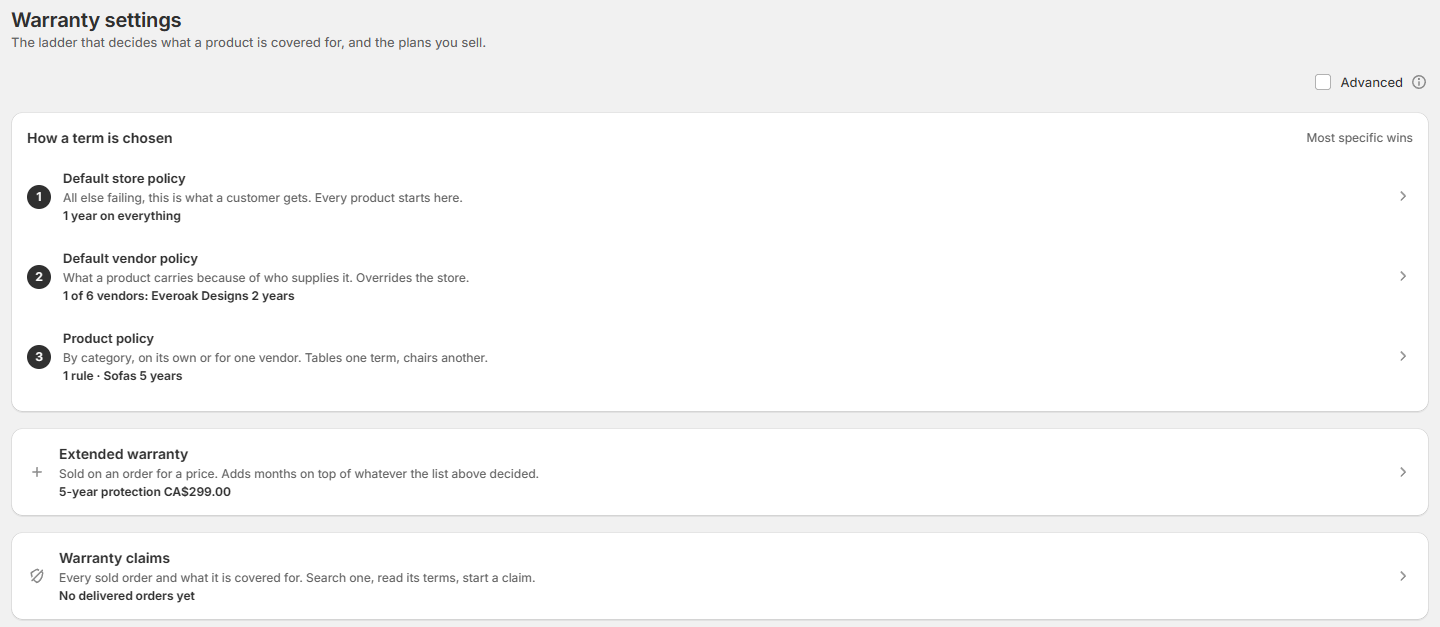
Step 2: Under How a term is chosen, click “Default store policy”. Enter the Default warranty in months. Enter 0 if you offer no warranty at all. Changes save as you go.
Step 3: Go back to Warranty, then click “Default vendor policy”. Click “Set a term” next to any vendor whose products carry a different warranty, and enter the months. Leave a vendor blank to follow the store default. From a vendor's ⋯ menu, you can also choose No warranty from this vendor or Follow the store default.
Step 4: Go back, then click “Product policy”. Click “Add a rule”, choose a Category, optionally a vendor, and enter the Warranty term. Click “Add rule”.
Pro Tip: Terms are entered in months. Whole years display as years, so 60 months shows as 5 years.
Option Exceptions (Advanced)#
If one part of a product is covered differently from the rest, for example a fabric covered for less time than a frame, select the Advanced checkbox on Warranty settings. A fourth step, Option exceptions, appears. Click “Add an exception” and choose the option and its term. Most stores never need this.
How to Set Warranty on a Product Template?#
Step 1: Click “Products” in the navigation bar and open a template.
Step 2: Find the Warranty card on the right. It shows the term a new order would get today and where it comes from, for example Category rule.
Step 3: Click “Review warranty” to set a term for this template only, or to add option exceptions. Click “Save”.
Step 4: Select Require a serial number if each unit of this product needs a serial number when it's fulfilled. This applies to orders placed from now on.
How to Create an Extended Warranty Plan?#
Extended warranty plans are sold on an order line for a price. They add months on top of the product's normal cover.
Step 1: Go to “Settings”, then “Warranty settings”, and click the Extended warranty card.
Step 2: Click “New plan”.
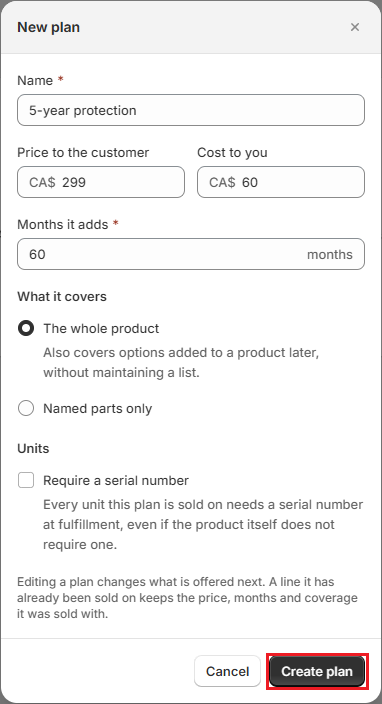
Step 3: Fill in the plan:
- Name: what staff and customers see, for example “5-year protection”.
- Price to the customer: the plan's price for one unit.
- Cost to you: your cost, for your own records. Customers never see it.
- Months it adds: how many months the plan adds to the product's cover.
- What it covers: The whole product, or Named parts only to choose specific options.
- Require a serial number: select this if every unit sold with the plan needs a serial number at fulfillment.
Step 4: Click “Create plan”.
To change a plan later, use Edit from its menu. Edits apply only to future sales. To stop offering a plan, choose Archive. Lines that already carry it keep it, and you can Restore it at any time. A plan that has never been sold can be deleted.
How to Sell an Extended Warranty on an Order?#
Step 1: Open the quote or order in the Shopify admin.
Step 2: On the product line, open the ⋯ menu and select “Review warranty”.
Step 3: In the Extended warranty section, click “Add a plan”.
Step 4: The Add a plan window lists your active plans with their term and price. Click “Add” next to the plan you want.
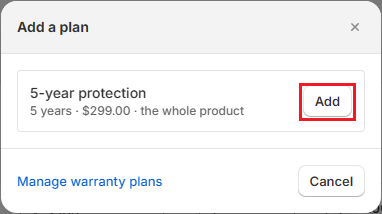
The plan becomes its own line on the order, priced at the plan price times the line quantity. Each product line can carry one plan. To take it off, click “Remove” in the same window.
Note: Warranty plans are never discounted, even when an order discount applies to products and fees. Plans can only be added in the Shopify admin. Shopify POS shows plans already on an order but can't add them.
How to Record Serial Numbers?#
Serial numbers are entered on the order once Shopify has fulfilled the units.
Step 1: Open the order. A line that needs serials shows a chip such as Serials 2 of 2 missing.
Step 2: Click the chip, or open the line's ⋯ menu and select “Serial numbers”. If serials are optional for the line, the menu item reads Add serial numbers.
Step 3: Enter a serial number for each fulfilled Unit. Units that aren't fulfilled yet stay greyed out until Shopify fulfills them.
Step 4: Click “Save”.
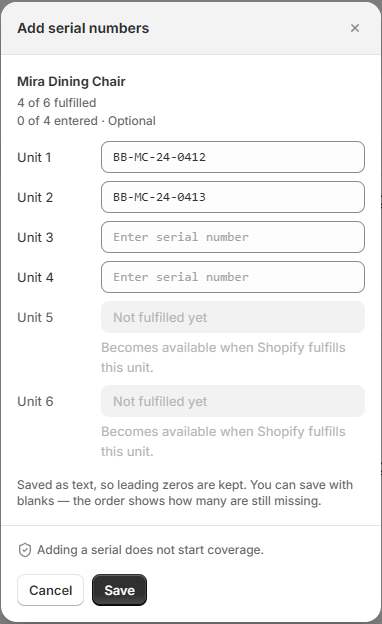
You can save with some fields blank. The order keeps showing how many serial numbers are still missing. A serial number already used on another unit can't be saved twice.
Note: Adding a serial number doesn't start warranty cover. Cover starts on delivery. On Shopify POS, the order's Fulfillment details show serial numbers, but you can't enter them there.
How to Look Up What a Customer Is Covered For?#
Step 1: Go to “Settings”, then “Warranty settings”, and click the Warranty claims card.
Step 2: Search by order number, customer name, product, or serial number.
Step 3: Each delivered line shows its options, their terms, the reason for each term, and the balance of cover left, such as 14 months left or Expired 2 months ago. Purchased plans are listed with a Paid for badge.
Only delivered orders appear here, because cover hasn't started on anything else. If a unit was delivered but isn't marked as delivered, click “Mark this unit delivered”, choose the Delivered on date, and click “Start cover”.
On an open order, you can also click “Coverage” on the products card to see the same details for that order or for everything the customer has bought.
What Customers See#
Quote and invoice PDFs, and the page where customers sign, show the warranty for each line, for example “Warranty: Product (60 months)”. A sold plan prints as its own line under its product. Your cost and the internal reason for each term are never shown to customers.
Example: Warranty at Harlow & Finch Interiors#
Harlow & Finch Interiors sets up warranty like this:
| Rule | Applies to | Term |
|---|---|---|
| Default store policy | Everything | 12 months |
| Default vendor policy | Everoak Designs | 24 months |
| Product policy | Living Room > Sofas, from Atelier Homeworks | 60 months |
A Halsey Platform Bed from Everoak Designs gets 24 months, from the vendor policy. A Linden Sofa from Atelier Homeworks gets 60 months, because the category rule for that vendor is the most specific. A Mira Dining Chair from Birch & Beam Woodworks gets the store default of 12 months.
When Marcus Reed buys a Linden Sofa, his sales rep adds a “5-year protection” plan that adds 60 months, giving him 120 months of cover from the day the sofa is delivered.
Important Notes & Tips#
Set a Store Default First#
If no store default is set, any product without a vendor term or category rule reads Not covered. If that's intended, enter 0 so your team can tell a decision from an oversight.
Template and Plan Changes Don't Rewrite Past Orders#
Changing a rule, a template, or a plan applies to new orders. Lines already sold keep the terms, price, and cover they were sold with.
Need Help?#
Need help setting up warranty rules or plans? Reach out to us at support@bevycommerce.com, and we'll help you get your cover set up correctly.