Analytics
Analytics gives you a quick read on how your store is doing: how much you've quoted, how much you've booked as orders, and how much work is waiting in your queues. You don't need to run a report or export a file. Open the page and the numbers are there.
This article explains how to open Analytics, how to change the date range, and what each number means.
How to Open Analytics?#
Step 1: In your Shopify admin, find OrderPilot under Apps in the left sidebar.
Step 2: Click “Analytics” in the list of OrderPilot pages under the app name.
Note: Analytics is listed in the Shopify admin sidebar, not in OrderPilot's own navigation bar. The same figures also appear on Home, under How you are tracking.
How to Change the Date Range?#
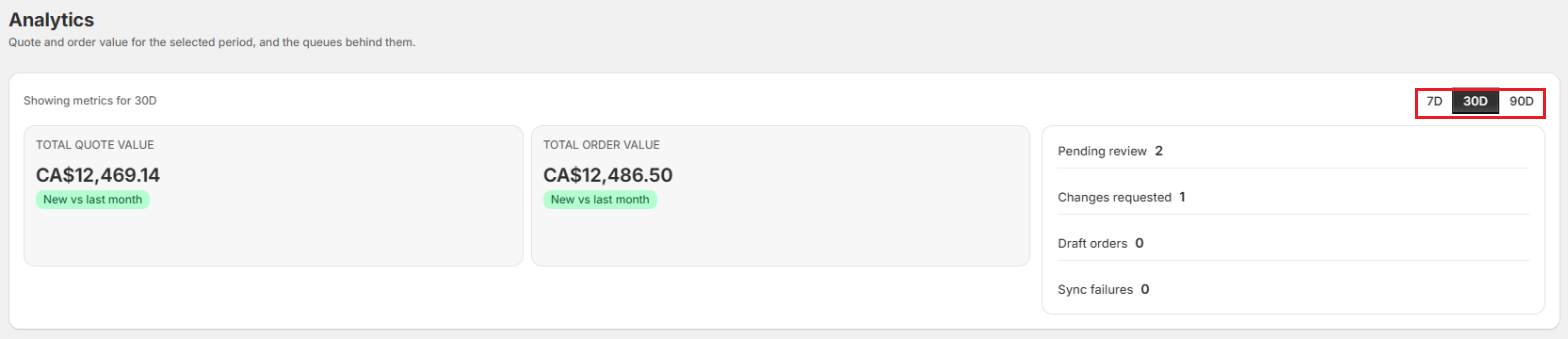
Click “7D”, “30D”, or “90D” at the top of the card to show the last 7, 30, or 90 days. The page opens on 30D. The line on the left, for example Showing metrics for 30D, confirms the range you're viewing.
The date range changes the two value tiles only. The four counts on the right always show what's waiting right now.
What Each Number Means#
Value Tiles#
| Tile | What it shows |
|---|---|
| Total quote value | The combined total of quotes updated during the selected period. |
| Total order value | The combined total of orders updated during the selected period. |
Under each value, a badge compares it with the period before, for example “↑ 12.0% vs last month”. The badge reads vs last week for 7D, vs last month for 30D, and vs last 90 days for 90D. It shows New when the earlier period had nothing, and No change when the value is the same. The badge is green when the value went up and red when it went down.
Queue Counts#
| Count | What it shows | Click it to open |
|---|---|---|
| Pending review | Quotes and orders waiting in the review queue. | The Review queue |
| Changes requested | Quotes and orders a reviewer sent back for changes. | The Orders list, filtered to Changes Requested |
| Draft orders | Orders still in the Draft status. | The Orders list, filtered to Draft |
| Sync failures | Quotes and orders that failed to reach Shopify. | The Orders list, filtered to failed records |
Click a value tile to open the Quotes or Orders list.
Example: Reading a Month at Harlow & Finch Interiors#
Harlow & Finch Interiors opens Analytics on the default 30D range and sees:
| Number | Value | What it tells them |
|---|---|---|
| Total quote value | $48,600, ↑ 18.0% vs last month | The team quoted more Linden Sofas and Arden Dining Tables than last month. |
| Total order value | $21,250, ↓ 6.0% vs last month | Less order value than last month. Worth checking which open quotes the team can follow up on. |
| Pending review | 4 | Four records are waiting for the production manager. |
| Changes requested | 1 | One quote needs the sales rep's attention. |
Important Notes & Tips#
Figures Cover Your Whole Store#
Analytics always shows figures for every location and every salesperson. The location filter in the navigation bar doesn't change these numbers.
Values Are Based on When a Record Was Last Updated#
A quote or order counts toward a period if it was updated during that period, whatever its status. Values are the record totals before any refunds.
Lists Opened From a Value Tile Start on Your Own Records#
The Quotes and Orders lists start filtered to your own records as a salesperson. If a list looks shorter than the total on the tile, clear the Salesperson filter. See Find Quotes & Orders.
Need Help?#
Have a question about a number on Analytics? Reach out to us at support@bevycommerce.com, and we'll help you read your figures.