Find Quotes/Orders
OrderPilot keeps quotes and orders in two separate lists: Quotes and Orders, each with its own item in the top navigation. Both lists work the same way. You can search, filter by salesperson, payment, signature, sync, and tags, switch between statuses, sort, and update several records at once.
The most common surprise is that each list opens filtered to your own records. If a colleague's quote seems to be missing, it is almost always this filter. This article explains how the lists work and how to find any record quickly.
Before You Start#
Which list should you open?#
| List | What it shows |
|---|---|
| Quotes | Every record that is still a quote, including draft quotes and quotes waiting for review. |
| Orders | Every record that is an order, including draft orders, orders waiting for review, and orders in production or shipping. |
When a quote becomes an order, it moves from the Quotes list to the Orders list. See Create Quotes/Orders.
Which location are you looking at?#
Both lists follow the location picker at the top of the app. If a location is selected there, you only see that location's records. Choose All locations to see everything.
How to Find a Quote or Order?#
Step 1: From the OrderPilot dashboard, go to “Quotes” or “Orders”.
Step 2: Check the Salesperson chip under the search field. It starts as Salesperson: your name, so the list only shows records where you are a salesperson.
Step 3: To see everyone's records, click the x on the Salesperson chip, or click “Clear all” at the right of the chip row. The chip goes back to Salesperson with no name, and the list shows every salesperson.
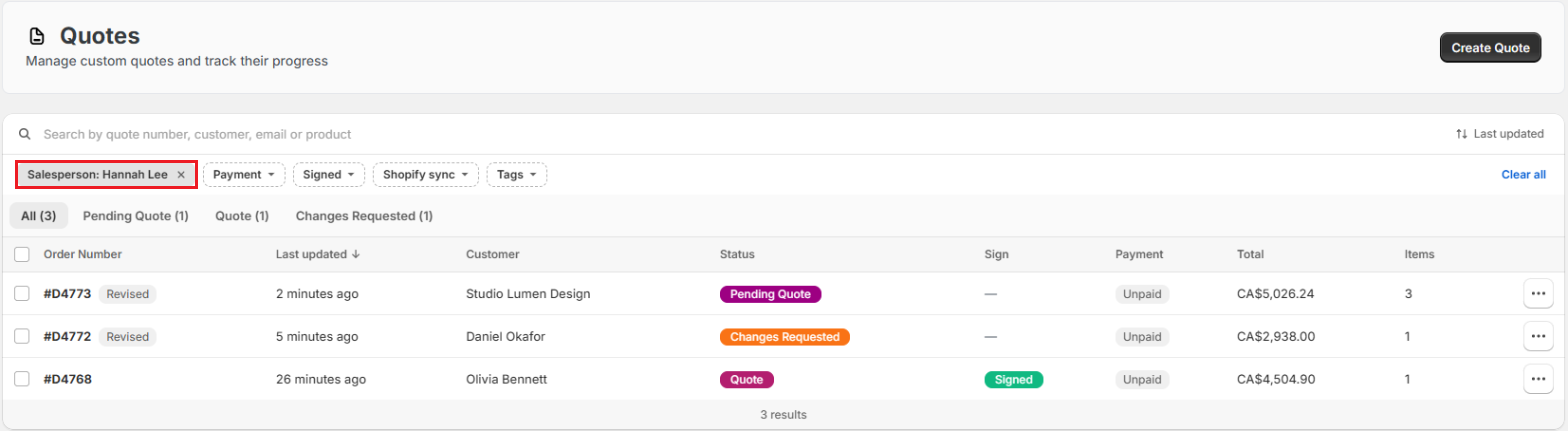
Step 4: Type in the search field. You can search by quote or order number, customer name, customer email, or product.
Step 5: Click a row to open the record.
Note: The Salesperson filter looks at sales credit, not at who created the record. A quote shared between two salespeople shows up for both of them. Each time you open the list fresh, it starts filtered to you again.
Filter Chips#
The chips under the search field narrow the list. You can pick more than one value in a chip (for example Paid and Partial), and the list shows records that match any of them. When you use several chips, a record must match all of them.
| Chip | Values |
|---|---|
| Salesperson | Any staff member. Type to search for a name. |
| Payment | Paid, Unpaid, Partial |
| Signed | Signed, Not signed |
| Shopify sync | Failed to sync: records that could not be sent to Shopify. |
| Tags | Any tag used on your quotes or orders. |
A Fulfillment chip with Unfulfilled also appears when you arrive from a link on the Home page that filters by it.
Pro Tip: Use Shopify sync: Failed to sync once a day to catch records that need a “Retry Shopify Sync”. See Edit Quotes/Orders.
Status Tabs#
Below the chips is a row of tabs: All, then one tab for each status in your workflow, each with a count. Click a tab to show only that status.
- In the Quotes list, Pending Review shows as Pending Quote and Draft as Draft Quote.
- In the Orders list, they show as Pending Order and Draft Order.
- The counts follow your search and chips, so they always describe the rows underneath.
Your statuses and their names are set in “Settings”, then “Order status”. See Create Order Statuses.
Sorting#
Click the sort button at the right of the search field and choose what to sort by:
| Sort by | Directions |
|---|---|
| Order number | Lowest first, Highest first |
| Last updated | Oldest first, Newest first (the default) |
| Customer | A to Z, Z to A |
| Total | Lowest first, Highest first |
Reading the List#
Each row shows the Order Number, Last updated, Customer, Status, Sign, Payment, Total, and number of Items. Click the customer's name to open their profile in Shopify.
Small markers next to the number tell you more:
| Marker | What it means |
|---|---|
| Revised | Changes were requested on this record at some point. |
| Storefront | The customer requested this quote from your online store. |
| Deleted | The draft order was deleted in Shopify. Open the record and use “Retry Shopify Sync” to recreate it. |
| Warning icon | One or more lines have no vendor. The record cannot be approved until vendors are assigned. |
| Error icon | The record could not be created in Shopify. Hover for the reason. |
The Sign column shows Signed, Re-Sign (the customer signed, but the record changed and must be signed again), or a dash when it has not been signed. The Payment column shows Paid, Partially Paid, Unpaid, Refunded, Partially Refunded, Authorized, or Voided.
The ••• button at the end of each row opens the same options menu as on the record itself. See Order Actions & Documents.
Bulk Actions#
Step 1: Tick the checkbox on each row you want to change, or tick the header checkbox to select the whole page.
Step 2: Choose an action from the bar that appears:
- “Add tags”: Choose or create tags, then click “Save”.
- “Remove tags”: Choose the tags to take off, then click “Save”.
- “Change status”: Choose the new status from the list.
Step 3: For a status change, confirm in the Change order status window by clicking “Confirm”.
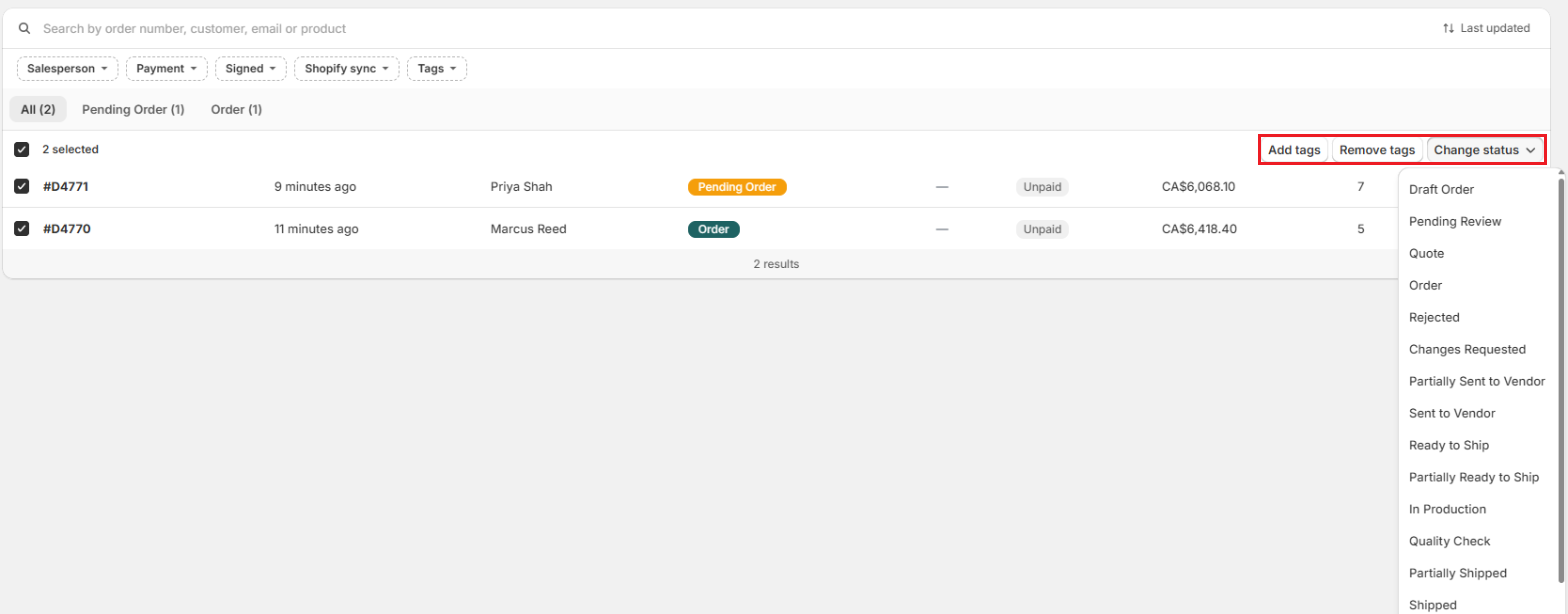
Note: A bulk status change is refused if any selected record is in a status that locks editing (open that record and use Force Edit instead), or if you are moving records to a purchase-order status while some lines have no vendor. If the new status is set to notify customers, each customer gets their notification.
Example: Finding a Colleague's Quote#
Marcus Reed calls the showroom asking about his dining table quote. The designer who answers did not create it.
- They go to “Quotes”. The list shows Salesperson: their own name, and Marcus is not there.
- They click “Clear all”. The list now shows every salesperson's quotes.
- They type "Marcus" in the search field. His Arden Dining Table quote appears, with Signed showing a dash and Payment showing Unpaid.
- They click the row to open it and answer his question.
Important Notes & Tips#
Records seem to be missing#
Check three things in this order: the Salesperson chip, the location picker at the top of the app, and the status tab. Then check whether you are in Quotes when the record is now an order (or the other way round).
No quotes found#
No quotes found (or No orders found) means nothing matches your search or filters. Click “Clear all” and try again.
Deleting from the list#
In the Quotes list, the ••• menu offers “Delete Quote” for quotes that have no Shopify order and no payments. Orders cannot be deleted from OrderPilot. See Order Actions & Documents.
Need Help?#
Can't find a quote or order, or not sure why a filter shows nothing? Reach out to us at support@bevycommerce.com, and we'll help you track it down.