Purchase Orders from an Order
You do not have to start from the PO Workbench to buy for an order. From any quote or order, you can raise a purchase order for that one record, attach a line to a PO that is already open with the vendor, or keep a line off purchase orders altogether. Each line also shows which POs it is on, so your team can see at a glance what has been ordered and what has arrived.
This article explains how to create a PO from an order, how to manage purchase orders line by line, how to split one line across several POs, and how PO-linked lines are protected from accidental edits.
Note: Your shop can rename "Vendor" (for example, to "Supplier"). Labels in the app follow your shop's terminology setting, so you may see your own word wherever this article says "vendor".
Before You Start#
Consider the following questions before getting started:
Is the order in a PO-eligible status?#
“Create PO” works only while the order's status has Eligible for Purchase Orders switched on. By default, that is Quote, Order, and Partially Sent to Vendor. See Create Order Statuses.
Has the order been saved?#
A PO links to saved order lines. On a new quote or order, the PO options stay greyed out until it is saved for the first time. On a saved record with unsaved changes, OrderPilot asks you to save or discard them before it opens the PO Workbench.
Does every line have a vendor?#
Each line needs a real vendor before it can go on a PO. If your team often skips the vendor while quoting, consider turning on Require vendor selection: go to “Settings”, select “Order defaults” in the Orders and quotes group, and tick it in the Vendor settings card. With it on, orders and quotes created in the admin or on POS no longer offer Skip vendor, and a final save needs a real vendor. Draft saves are still allowed.
How to Create a Purchase Order from an Order?#
Step 1: Open the quote or order from “Quotes” or “Orders”.
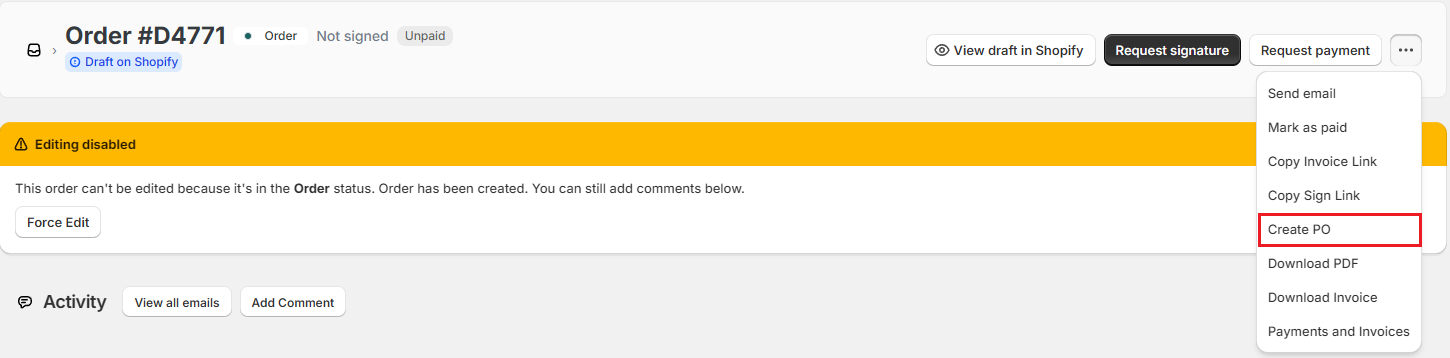
Step 2: Click the ••• menu at the top of the page and choose “Create PO”.
Step 3: The PO Workbench opens with this order already chosen in the Selected Order card. You cannot add other orders from here. To combine several orders, start from “Create PO” on the Purchase Orders page instead.
Step 4: Check the vendor cards, click “Edit” on a card to change quantities, costs, notes, or the delivery date, then tick the cards you want and click “Process Selected (X)”. Confirm with “Create X POs”. See Create Purchase Orders for each field.
Note: “Create PO” is also in the ••• menu on each row of the Orders list.
Why is Create PO greyed out?#
Hover over “Create PO” to see the reason. The most common ones are:
| Reason | What to do |
|---|---|
| The status is not eligible for purchase orders | Move the order to a status marked Eligible for Purchase Orders, or switch that setting on for the current status. |
| All PO-able line items are already in a purchase order or excluded | Nothing is left to order. Use “Manage PO” on a line to include an excluded item again. |
| The remaining lines are assigned to the skipped vendor, or have no vendor | Assign a vendor to those lines and save the order. |
How to Manage Purchase Orders for One Line?#
Each line has its own PO controls, which is useful when a line needs a different vendor, is already in stock, or should be added to a PO you have already started.
Step 1: Click the ••• menu at the end of the line and choose “Manage PO”. The Purchase orders window opens.
Step 2: Review the table. It lists the line's main product and each of its options that can be bought separately, with:
- Indicator: On PO, Not on PO, or Excluded.
- Purchase order and Status: the PO it is on, and that PO's status.
- ETA: the PO's requested delivery date.
- “Open PO”: opens that purchase order.
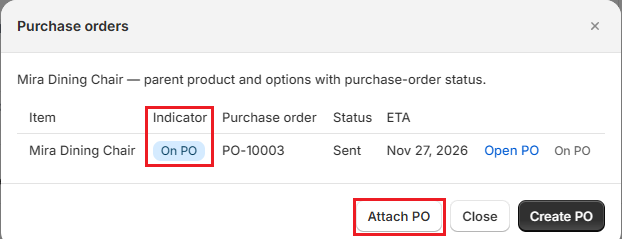
Step 3: Choose what to do:
| Action | What it does |
|---|---|
| Create PO | Opens the PO Workbench for this order so you can raise a new PO. |
| Attach PO | Lists the open purchase orders for this line's vendor (Draft, Sent, Partially received, or Received, some rejected). Pick one in Purchase order and click “Attach”. The workbench opens on that PO so you can add this line to it. A Sent PO stays Sent, so send the updated PO to the vendor again from its page. |
| Exclude | Keeps that item off purchase orders, for example because you already have it in stock. The item stays on the customer's order. |
| Include | Puts an excluded item back, so it can go on a PO again. |
When you exclude the main product on a line that has options, OrderPilot asks Exclude parent from purchase orders? Choose “Parent and options” to exclude everything on the line, or “Parent only” to keep the options available for purchase orders.
Note: Attach PO needs a vendor on the line. If it is greyed out, choose a vendor for the line and save first.
Splitting One Line Across Several Purchase Orders#
A single order line can be bought in portions, from one vendor or from several, across more than one PO. For example, you might order four of six dining chairs now and the rest next month.
- In the workbench, set the Quantity on the vendor card to the portion you want on this PO. The rest of the line stays available for another PO.
- Each PO has its own received and rejected counts for its portion.
- Rejected units become available to order again. Received units stay linked to the PO they arrived on.
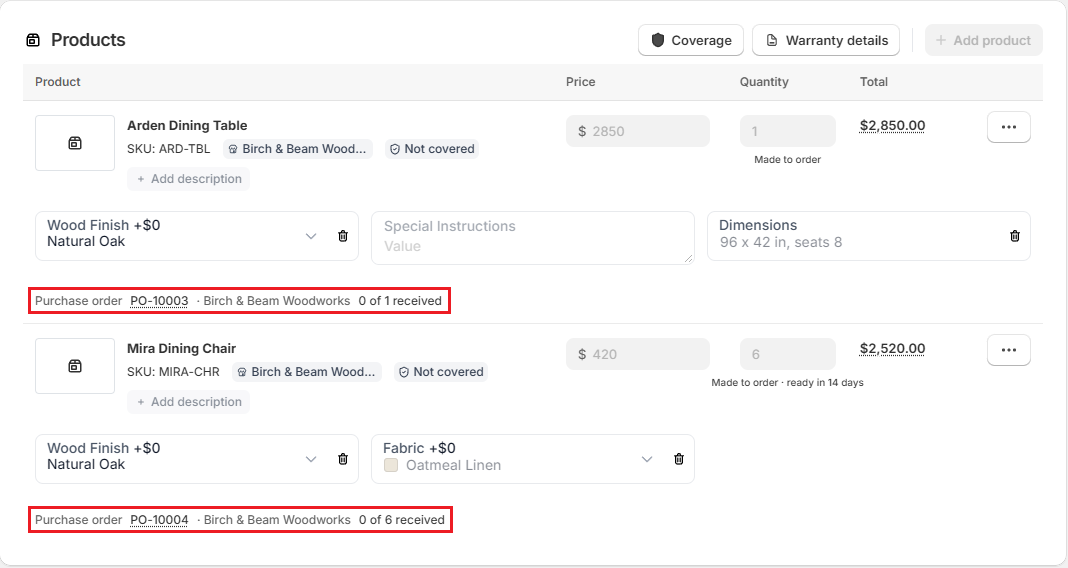
On the order, a Purchase order row under each line shows the PO number, the vendor, and how many units have arrived out of the units ordered, for example "0 of 6 received". When a line is split, the row names the most recent PO and counts the units on all of its POs. Click the PO number to open it.
To see every PO behind a split line, open the PO Workbench and click the eye icon next to the order in Order Selection. In the PO Summary window, a line on more than one PO shows a Multiple PO badge. Click it to list the linked POs, grouped by PO status, and click a PO number to open it.
How PO-Linked Lines Are Protected#
Once a line is on a purchase order, changing it on the order could leave the PO out of step with what the vendor is making. OrderPilot locks PO-linked lines to prevent that. Hover over a locked field to see which PO it is locked by.
There are two levels of lock:
| What is locked | What unlocks it |
|---|---|
| The line's structure: removing the line, or changing its variant, vendor, or options. | Enable Edit on that line. |
| The line's values: quantity, price, discount, and description. | Enable Edit on that line, or the order-level Force Edit. |
To unlock one line#
Step 1: Click the ••• menu on the line and choose “Enable Edit”.
Step 2: Read the Edit PO-linked item? message, which names the linked POs, and click “Yes, enable editing”.
Step 3: Make your change and save the order. To lock the line again without saving changes, choose “Lock” from the same menu.
Note: An option that is already on a PO stays locked even after you choose Enable Edit, so the PO row cannot drift away from what the vendor is making.
Using Force Edit on a locked order#
Orders in statuses such as Sent to Vendor cannot be edited. The order page shows an Editing disabled banner. Clicking “Force Edit” and confirming with “Enable Force Edit” opens the order for this session.
Under Force Edit, PO-linked lines take quantity and price changes, but their PO quantities and costs are not changed for you, so update the PO too if needed. You cannot lower a line's quantity below the units already on purchase orders. Removing a PO-linked line or changing its options still needs that line's own Enable Edit. See Edit Quotes and Orders for more on Force Edit.
Example: Splitting a Chair Order Across Two Purchase Orders#
Priya Shah orders an Arden Dining Table and six Mira Dining Chairs, both from Birch & Beam Woodworks. She wants the table and four chairs as soon as possible, and the last two chairs can follow later.
- Open Priya's order, click the ••• menu at the top of the page, and choose “Create PO”.
- On the Birch & Beam Woodworks card, click “Edit” and set the chair Quantity to 4. Leave the table at 1. Click “Save”.
- Click “Process Selected (1)”, then “Create 1 PO”. Open the new PO (PO-10003 in this example) and send it to the vendor.
- Back on the order, the status moves to Partially Sent to Vendor. Choose “Create PO” again. Only the two remaining chairs are offered, so process them into a second PO (PO-10004).
- The table line now shows "PO-10003 · 0 of 1 received". The chair line shows its latest PO and "0 of 6 received", the total across both POs.
Important Notes & Tips#
Save before creating or attaching#
On a new record, the PO buttons are greyed out until it is saved for the first time. On a saved record with unsaved changes, OrderPilot asks you to save or discard them first.
Exclude rather than delete#
If a line does not need ordering, exclude it from purchase orders instead of removing it from the order. The customer's order stays complete and the PO Workbench stays clean.
Unlock deliberately#
Use Enable Edit only when the vendor has agreed to the change. After saving, open the linked PO and check that its quantities and costs still match.
Need Help?#
Not sure why “Create PO” is greyed out, or need help splitting a line across vendors? Reach out to us at support@bevycommerce.com, and we'll help you sort it out.