PO Costs & Landed Cost
The vendor's price is rarely the whole cost of a piece. Freight, duty, brokerage, and handling can add a large share on top, and if you leave them out, every margin you look at is too high. OrderPilot lets you record those charges on a purchase order (PO), spreads them over the goods they cover, and works out a landed cost per unit: the vendor cost plus its share of the charges.
Costs are kept at each stage. The template holds what a piece should cost, the PO holds the planned cost, each receipt freezes what the delivery actually cost, and that figure follows the units into stock and onto the orders they fill.
This article explains how to enter vendor costs, add charges and choose how they are split, read landed cost, finalize a PO, correct costs after goods arrive, and set up costing for your shop.
Note: Your shop can rename "Vendor" (for example, to "Supplier"). Labels in the app follow your shop's terminology setting, so you may see your own word wherever this article says "vendor".
Before You Start#
Consider the following questions before getting started:
Are your template and option costs set?#
OrderPilot prefills a PO's unit costs from the template's Base cost (in the Template details card) and each option value's Cost. With these set, most PO lines arrive with a cost already filled in. See Create Product Templates and Create Options.
Is Hide Pricing on?#
New POs start with pricing hidden by default, which also hides the Unit Cost field in the PO Workbench. Untick Hide Pricing on a vendor card to enter costs there. On a saved PO, use the Show prices on vendor PDF switch to choose whether prices print for the vendor. Hiding prices from the vendor does not stop OrderPilot tracking your costs.
Have you chosen a costing method?#
Pick how stock draws its cost in “Settings” > “Costing” before you receive goods into stock. See Costing Settings below.
Vendor Costs on a Purchase Order#
- Unit Cost: set on the vendor card in the PO Workbench, or with “Edit items” on a draft PO. On the PO page, each line shows Cost / unit, broken down into the base item and each chosen option, then the charges the line carries, ending in Landed / unit.
- Cost badges on a line: Final, Estimated, or Cost not set.
- Tax $ and Ship $: set on the vendor card. They are added to the PO total and appear in the Estimated landed cost before anything is received. To spread freight into each unit's landed cost, add it as a charge instead.
- At receiving: the Vendor cost on the receive screen is prefilled from the PO. Change it if the invoice differs, per unit or as a total. See Receive PO and Fulfill Orders.
How to Add a Charge to a Purchase Order?#
Use a PO charge for a cost that covers the whole order or several deliveries, such as an ocean freight bill or customs duty.
Step 1: From the OrderPilot dashboard, go to “Purchase Orders” and click the PO's row.
Step 2: In the Charges card, click “Add charge”.
Step 3: Fill in the charge:
| Field | What to enter |
|---|---|
| Type | Inbound shipping, Duty/import charge, Brokerage, Insurance, Handling, Tariff, or Other charge. |
| Amount | The charge in your shop's currency. |
| This amount is | Estimated while you wait for the real bill, or Final once it is confirmed. |
| Description | Optional. Shown in place of the type name. |
| Reference | Optional. An invoice or waybill number. |
| Applies to | Whole purchase order, or Specific items or options to pick the lines (or a single option on a line) that carry it. |
| Split | By value (by purchase value), By quantity, or Manual. By weight is not available yet, because purchase orders do not record unit weights. |
Step 4: Check the preview table. It shows each line's Units, Allocated amount, and resulting Landed / unit.
Step 5: Click “Add $X charge”. For a Manual split, enter each line's amount so they add up to the charge, click “Review manual split”, then confirm.
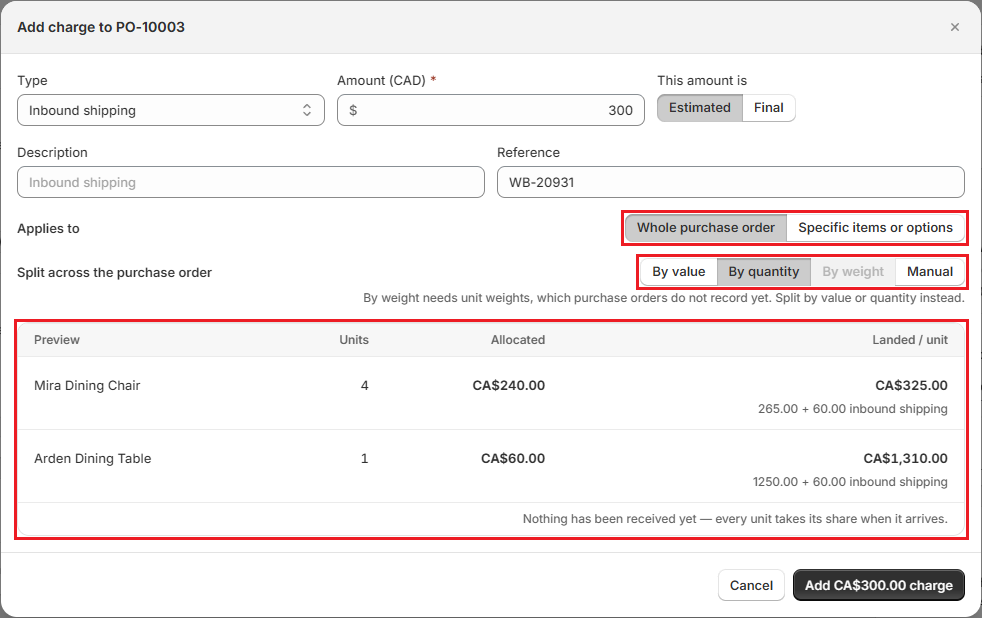
To change or confirm a charge later, for example when the final freight bill arrives, click “Edit” on the charge, update it, switch it to Final, and click “Save charge”. To delete it, click “Remove charge” in the same dialog and confirm.
Charges on a single delivery#
When a charge belongs to one delivery, add it on the receive screen instead, under Additional charges on this receipt. Choose the Charge type, an optional Reference, what it Applies to (all lines in the receipt, one line, or one option on a line), the Amount, and Est. or Final.
How Charges Are Allocated#
OrderPilot follows a few simple rules when it spreads a charge:
- Shares are worked out over every line the charge covers, even lines that have not arrived yet. When only part of the order has arrived, the arrived units take their own share, and the rest waits for the later deliveries. It is never piled onto whichever units came first.
- Shares always add up to the charge exactly. Any leftover cent goes to the first line.
- Lines left out of a targeted charge take no part of it. A charge on one option is split by that option's cost, not by the whole line.
- Adding or changing a whole-PO charge after goods have arrived posts the received units' share to the receipts they came in on. The dialog tells you how much posts now and how much waits.
Reading Landed Cost#
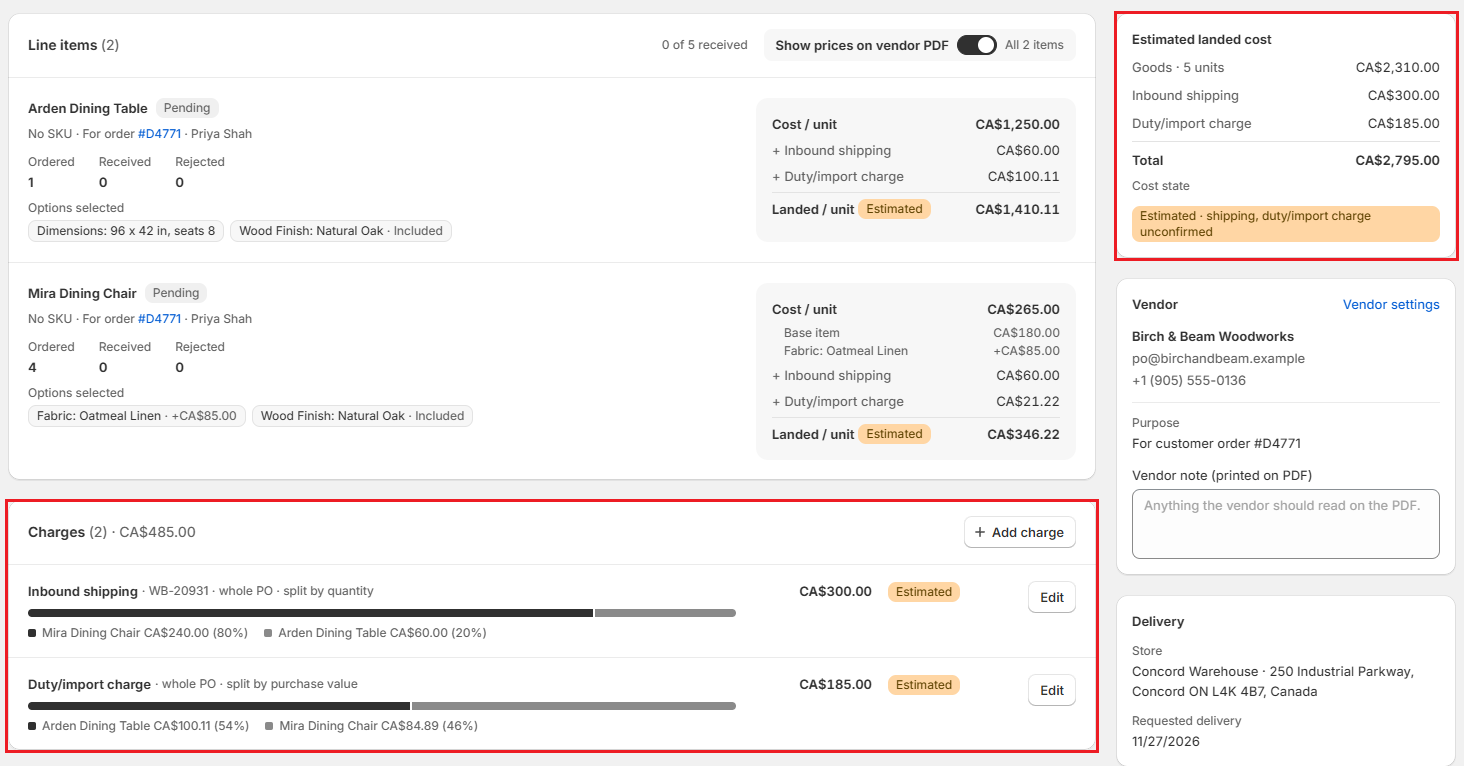
The landed cost card on the PO page changes as goods arrive:
| Title | When you see it |
|---|---|
| Estimated landed cost | Nothing has been received. Shows planned goods, charges by type, and any tax or vendor shipping. |
| Received landed cost to date | Some units have been received. Shows the received goods and the charges allocated at receipt. |
| Received landed cost | Every unit is in. |
A Cost state badge sums up where costs stand, such as Final, Estimated, or Cost missing on a line. If the PO's charges and the charges recorded on receipts differ, a PO and receipt charges differ note explains the gap, with “Review receiving history” to check it.
Each receipt freezes the landed cost of the units it brought in. After that, a cost changes only through a receipt correction or Force edit costs, and each change is recorded with a reason.
Cost Status on the Purchase Orders List#
The Costs column on the Purchase Orders list shows each PO's cost status, with a short reason underneath:
| Status | What it means |
|---|---|
| Planned | Nothing has been received yet. |
| Estimated | Received, but at least one charge is still an estimate (for example, "freight invoice outstanding"). |
| Final | Received, with every cost confirmed. |
| Missing | At least one item has no vendor cost (for example, "no cost on 2 items"). |
POs that are Missing, Estimated, or failed to publish their cost to Shopify appear under the Needs cost review tab. Use the chips under the tab to narrow the list: All, Missing costs, Provisional costs, or Cost sync failed. When a cost failed to publish, click “Retry now” in the Costs column.

Finalizing and Reopening a Purchase Order#
Finalizing tells OrderPilot that a PO's costs are settled.
Step 1: Open the PO once goods have been received.
Step 2: Click “Finalize”. If units are still due or a charge is still an estimate, OrderPilot says so and asks you to confirm with “Finalize anyway”.
A finalized PO shows This purchase order is finalized. Its charges, receipts, and line items cannot change, and it takes no more deliveries.
To change it again, click “Reopen to edit” on the banner (or choose “Reopen” from the ••• menu), enter a Reason, and click “Reopen”. The reason is saved in the PO's activity.
How to Correct Costs After Goods Arrive?#
Step 1: Open the PO, click the ••• menu, and choose “Force edit costs”.
Step 2: Choose what to change:
| Option | What it does |
|---|---|
| Only what is still to come | Updates the planned cost for units not yet received. Every receipt keeps the cost it froze. Click “Update planned costs” to open the PO's edit page. |
| Also correct what was received | Posts an adjustment against the received units, with a reason. Stock cost, linked orders, and the Shopify cost all follow. Click “Continue” to open the receiving history and edit the receipt. |
Corrections to a receipt need a Reason for change, such as a vendor credit note. See Receive PO and Fulfill Orders.
Costing Settings#
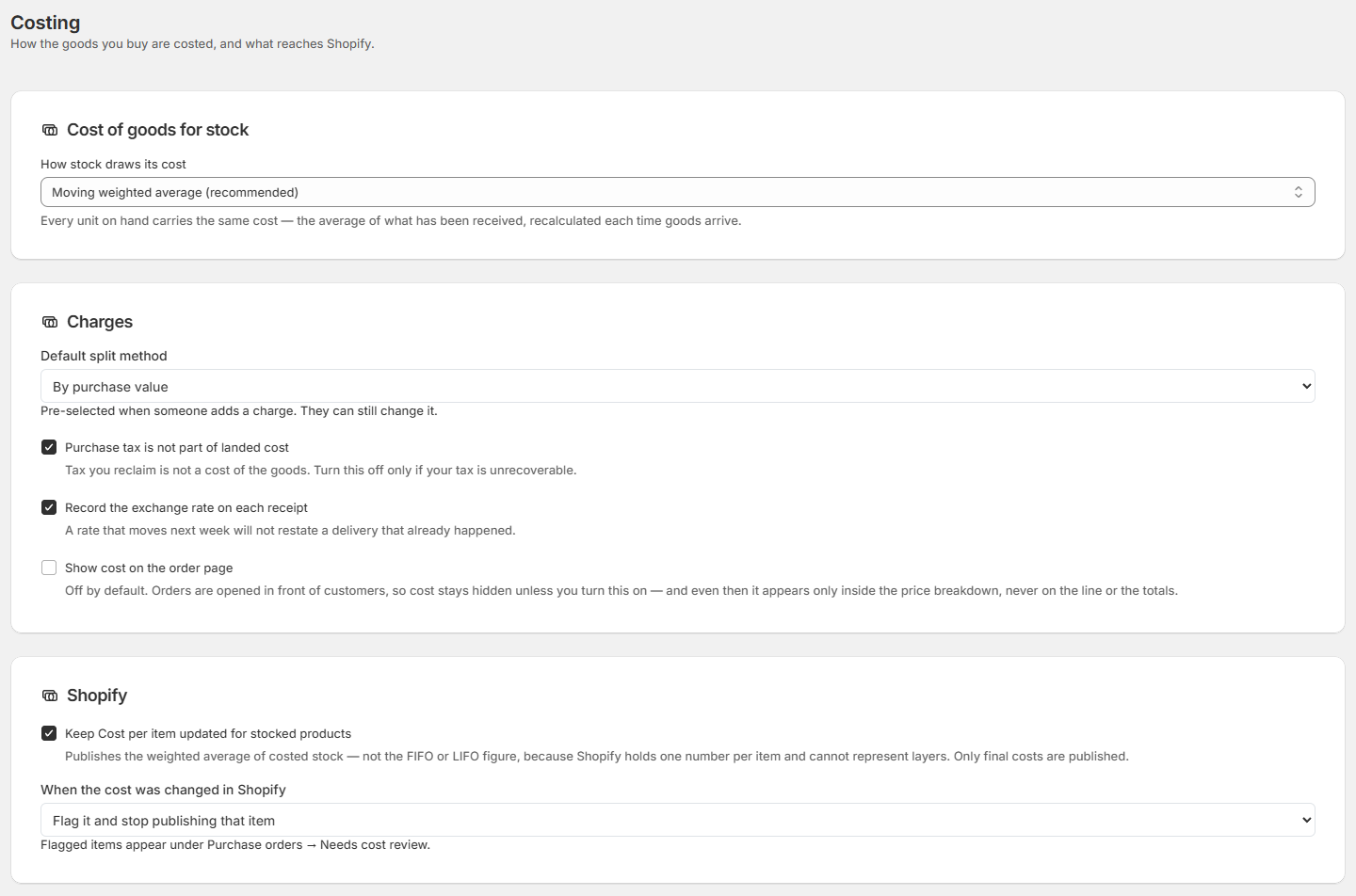
Go to “Settings”, then select “Costing” in the Purchasing group.
Cost of goods for stock#
How stock draws its cost decides the cost given to a unit when it is sold from stock:
| Method | How it works |
|---|---|
| Moving weighted average (recommended) | Every unit on hand carries the same cost: the average of what has been received, recalculated each time goods arrive. |
| FIFO (first in, first out) | A sale draws from the oldest batch still in stock, at the price that batch was received for. |
| LIFO (last in, first out) | A sale draws from the newest batch first. Costs follow the most recent prices paid. |
Note: Moving weighted average does not keep batches. If you switch from it to FIFO or LIFO, the new method starts from the next delivery, and stock already on hand keeps the average it was given.
Charges#
| Setting | What it does |
|---|---|
| Default split method | Offers By purchase value, By quantity, By weight, and Manual. The Add charge window currently starts on By value whatever is chosen here, and By weight can't be used yet because purchase orders don't record unit weights. Choose the split on each charge. |
| Purchase tax is not part of landed cost | On by default. Tax you reclaim is not a cost of the goods. Turn this off only if your purchase tax cannot be recovered. |
| Record the exchange rate on each receipt | On by default. A rate that moves later will not restate a delivery that already happened. |
| Show cost on the order page | Off by default. When on, cost appears only inside a line's price breakdown on the order page, never on the line itself or the order totals. |
Shopify#
| Setting | What it does |
|---|---|
| Keep Cost per item updated for stocked products | Publishes the weighted average cost of your costed stock to each product's Cost per item in Shopify. Only final costs are published. Shopify holds one cost per item, so the average is published even if you use FIFO or LIFO. |
| When the cost was changed in Shopify | Shown when publishing is on. Flag it and stop publishing that item leaves your Shopify edit alone and lists the PO under Needs cost review. Overwrite it with the OrderPilot figure replaces it. |
How Costs Reach Your Orders#
- Units bought for a specific order carry the landed cost of the receipt they arrived on.
- Units sold from stock take their cost from your costing method when they ship.
- To see a line's cost on the order page, turn on Show cost on the order page, then click the line's total (or choose “Pricing” from the line's ••• menu) to open its price breakdown.
A template's page also shows its Current cost, its Shopify cost, and a Received cost history of what each configuration actually cost when bought.
Example: Freight and Duty on a Dining Set#
Harlow & Finch Interiors sends PO-10003 to Birch & Beam Woodworks for Priya Shah's dining set: one Arden Dining Table at $1,250 and four Mira Dining Chairs at $265 each. The freight company quotes $300 for shipping, and customs duty will be about $185.
- On PO-10003, click “Add charge”. Choose Inbound shipping, enter 300, add the waybill number WB-20931 as the Reference, keep it Estimated, apply it to the Whole purchase order, and split By quantity. Each of the five pieces carries $60.
- Add a second charge: Duty/import charge, 185, Estimated, By value. The table carries $100.11 and the four chairs $84.89 between them (about $21.22 each), in proportion to their cost.
- The table's Landed / unit now shows $1,410.11 ($1,250 + $60 + $100.11), each chair shows $346.22, and the Estimated landed cost card totals the PO at $2,795.
- The whole set arrives in one delivery. Click “Receive all remaining” and post the receipt. Because this is the final receipt, OrderPilot first asks you to review the PO charges. Click “Keep charges and post receipt”.
- The PO now shows Estimated with "freight invoice outstanding" on the Purchase Orders list, under Needs cost review.
- When the final freight and duty bills arrive, click “Edit” on each charge, enter the confirmed amount, switch it to Final, and click “Save charge”. Then click “Finalize”.
Important Notes & Tips#
Mark charges as estimates until the bill arrives#
An estimated charge keeps the PO under Needs cost review, so nobody forgets to confirm it. Switch it to Final when the real invoice comes in.
Use charges, not Ship $, for freight you want in landed cost#
Ship $ on the vendor card adds to the PO total. A charge is what spreads freight into each unit's landed cost.
Finalize when the paperwork is done#
Finalizing closes the PO's costs and keeps them from drifting. You can always reopen it with a reason.
Keep costs off the customer's screen#
Leave Show cost on the order page off if staff open orders in front of customers.
Need Help?#
Questions about landed cost, charge splits, or publishing costs to Shopify? Reach out to us at support@bevycommerce.com, and we'll help you review your costing setup.