Email Settings & Notifications
OrderPilot can email your customers their quotes, invoices, signature requests, and payment requests, and send them automatic updates as their order moves through your workflow. Emails come from your own domain, use your own designs, and copy in the salespeople on the order so nobody loses track of a conversation.
This article explains how to set up email sending, how email groups and templates work, how to turn on automatic notifications, and where to check what was sent.
Before You Start#
Can You Edit Your Domain's DNS Settings?#
To send from your own address, such as orders@harlowfinch.example, you add a few DNS records at the company that manages your domain. If someone else manages your domain, ask them to add the records for you.
Have You Added Your Business Details and Logo?#
Emails use your company details and logo. Add them first under “Settings” > “Business details” in the Shop group.
Where to Find Email Settings#
Go to “Settings”, then select “Email settings” in the Shop group. If you don't see Email settings in the menu, contact support.
How to Set Up Email Sending?#
Until sending is set up, a Set up email sending checklist appears at the top of Email settings. It has four steps.
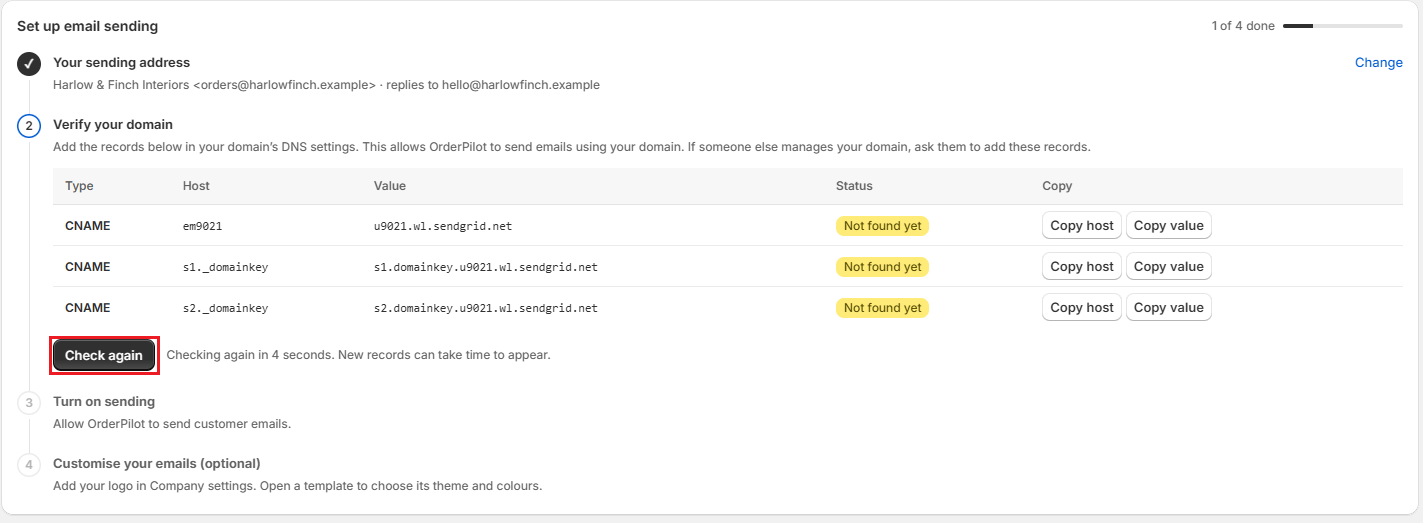
Step 1: Your sending address. Enter Your website domain, a Sender name (the name customers see in their inbox, such as “Harlow & Finch Interiors”), a Sender email address, and an optional Reply-to address (optional) where customer replies should go. Click “Save and continue”.
Step 2: Verify your domain. OrderPilot shows a table of DNS records with Type, Host, and Value. Use “Copy host” and “Copy value” to add each record at your domain provider, then click “Check again”. Each record shows Found once it's detected. New records can take a while to appear, and OrderPilot keeps checking automatically.
Step 3: Turn on sending. Click “Turn on” to let OrderPilot send customer emails.
Step 4: Customise your emails (optional). Add your logo, then open a template on the Emails tab to choose its theme and colors.
Once your domain is verified and sending is on, the checklist disappears. The top of Email settings then shows the address you're sending from, with a Sending on badge.
Note: OrderPilot checks your DNS records daily. If a record disappears, for example after you move your website to a new host, sending pauses and you get an email about it.
The Email Settings Tabs#
Email settings has five tabs:
| Tab | What it's for |
|---|---|
| Emails | Your email groups and templates, and the order statuses that send them. |
| Sender | The sender name, reply-to address, and your sending domain. |
| Notifications | Turning customer emails on or off, order-created emails, quote reminders, and extra copies. |
| Default CC | Addresses copied in when staff email a Purchase Order or Sales Order. |
| Activity | Delivery results and a list of recent emails. |
Emails Tab: Groups and Templates#
Templates are organized into email groups. A group is one kind of customer email, such as a quote or an invoice. For each group, you choose the order statuses that send its email automatically.
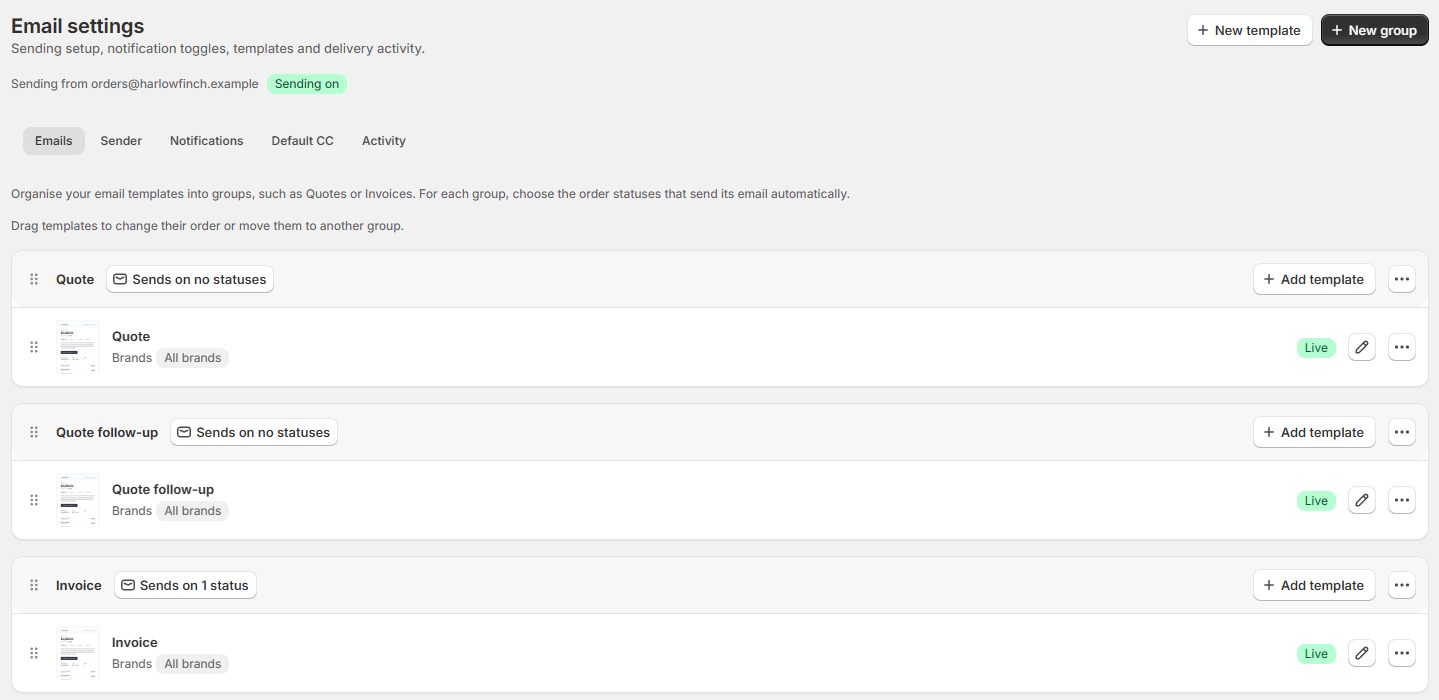
OrderPilot comes with five built-in groups, each with a ready-made template of the same name:
- Quote
- Quote follow-up
- Invoice
- Request signature
- Request payment
Each group card shows how many statuses send it, for example Sends on 2 statuses. Hover over it to see which ones.
How to Choose When a Group Sends?#
Step 1: On the Emails tab, click the ⋯ button on the group card.
Step 2: Select “Choose when to send…”.
Step 3: Under Sends when an order reaches, select the order statuses that should send this group's email.
Step 4: Click “Save”.
Note: Each order status can belong to only one email group. Moving an order to Draft never sends an email.
How to Create a Group?#
Click “New group”, enter a Name (for example “Delivery scheduled”), choose the statuses under Sends when an order reaches, and click “Create group”. Then add a template to it with “Add template”. A group sends nothing until it has a published template.
How to Create a Template?#
Step 1: Click “New template”.
Step 2: Enter a Name and choose the Group it belongs to.
Step 3: Choose “Start from a theme” and pick a theme, or choose “Copy a template” and select one under Copy the design of.
Step 4: Click “Create template”. The template opens in the editor as a draft.
The themes are Ledger, Gallery, Summary card, Paper, Statement, and Minimal.
How to Edit a Template?#
Click the pencil icon on a template to open the editor.
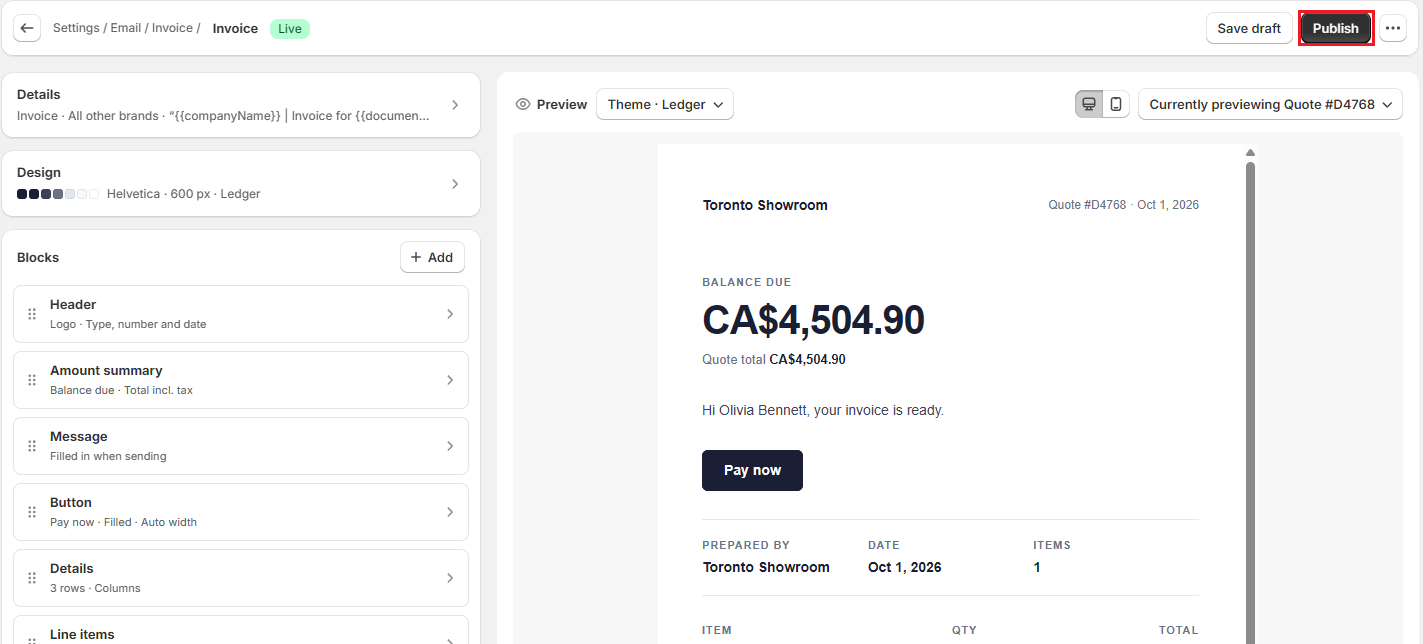
The editor has three cards on the left and a live preview on the right:
- Details: the template Name, Group, and Subject line. Use “Insert detail” to add order details, such as the document number, to the subject.
- Design: colors, Body font, and Width. Click “Reset to shop colours” to start again from your shop's colors.
- Blocks: the building blocks of the email, such as Header, Message, Line items, Totals, Button, and Footer. Click “Add” to add a block, and drag blocks to reorder them.
Every template needs exactly one Message block. It holds the message staff type when they send the email, or a Default message when they don't.
In the preview, switch between Desktop and Mobile, and choose a sample or real order to preview with. Click “Theme · …” to switch to a different theme.
Your changes save as a draft as you work. When you're happy with the design, click “Publish”. Customers receive only the published version.
Template Actions#
From the ⋯ menu on a template, you can:
- “Duplicate” the template.
- “Rename” it.
- “Move to group…” to move it to another group.
- “Send test email” to send a test to any address, using sample order details.
- “Make it the default” for the group.
- “Delete” it. Built-in templates can't be deleted, but you can duplicate them.
In the editor, the ⋯ menu also has “Version history”. Each time you publish, a version is saved. Select a version to compare it with your draft, then click “Restore” to copy it into your draft. Restoring doesn't change the published email until you publish again.
Templates for Different Brands#
If brand grouping is on, each group can send a different template for each brand. The group's default template is used for any brand without its own published template. Use “Brands…” in a template's ⋯ menu to choose which brands receive it.
Sender Tab#
The Sender tab controls what customers see and where your domain stands.
- Sender name: the name customers see when they receive your emails.
- Reply-to address: optional. Customer replies go to this address.
- Domain: shows Verified or Not verified, and when it was last checked. Click “Check again” to recheck now, or “Change domain” to switch to a different domain.
- Remove setup: “Remove email setup” disconnects your domain and stops customer emails.
Note: Changing your sending domain cancels any customer emails waiting to be sent, including scheduled ones. Sending stays off until the new domain is verified.
Notifications Tab#
The Notifications tab controls which emails go out automatically.
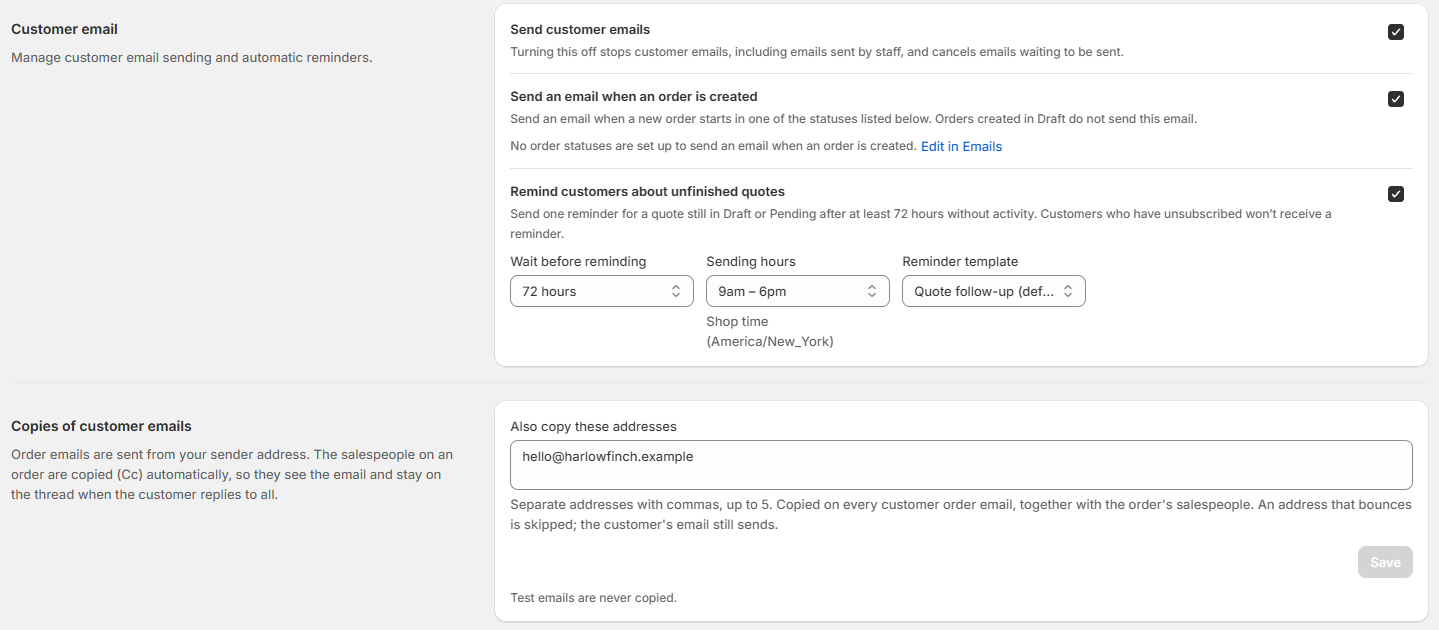
Customer Email#
| Setting | What it does |
|---|---|
| Send customer emails | The main switch. Turning it off stops all customer emails, including emails sent by staff, and cancels emails waiting to be sent. |
| Send an email when an order is created | Sends an email when a new order starts in one of the statuses listed under Sends on. Orders created in Draft don't send this email. Click “Edit in Emails” to change the list. |
| Remind customers about unfinished quotes | Sends one reminder for a quote still in Draft or Pending after a period with no activity. Customers who have unsubscribed don't receive it. This is off by default. |
When quote reminders are on, you can set:
- Wait before reminding: 24 hours, 48 hours, 72 hours, or 1 week.
- Sending hours: Any time, or a set window, such as 9am to 6pm, in your shop's time zone.
- Reminder template: the template to send. Quote follow-up (default) is used unless you choose another.
Copies of Customer Emails#
The salespeople on an order are copied (Cc) automatically on its customer emails, so they see the email and stay on the thread when the customer replies to all. To copy more people on every customer order email, enter their addresses in Also copy these addresses, separated by commas, and click “Save”. Test emails are never copied.
Default CC Tab#
The Default CC tab sets the addresses copied in when staff compose a Purchase Orders or Sales Orders email. Staff can still edit or remove them before sending.
- Default CC and BCC: enter CC and BCC addresses for each email type, separated by commas. Changes save when you leave the field.
- Per brand: select Use different recipients for a specific brand, choose the Brand, and enter its addresses.
- Per location: select Use different recipients for a specific location, choose the Location, and enter its addresses.
The most specific setting wins: a location's addresses are used ahead of its brand's, and a brand's ahead of the store-wide list. Anything left empty falls back to the next level.
Activity Tab#
The Activity tab shows what happened to the emails you sent.
- Email results: last 30 days shows the share of emails Delivered, Opened, Clicked, and Bounced. Open counts are estimates.
- Recent emails lists each email with its Date, Recipient / order, Template, and Status. Filter by group or status, or search by customer or order. Click “View” to see the recipients and the message text.
Email statuses include Scheduled, Sending…, Sent, Delivered, Opened, Clicked, Bounced, Failed, and Cancelled.
Status-Triggered Emails#
Order statuses are what make OrderPilot send updates automatically. When an order reaches a status that belongs to an email group, the customer gets that group's email.
To check or change what a status sends:
Step 1: Go to “Settings”, then select “Order status” in the Orders and quotes group.
Step 2: Click the pencil icon on a status to open Edit status.
Step 3: In the Email panel, read which email the status sends, for example Sends Invoice (Invoice) when an order reaches this status. Click “Edit in Emails” to change it.
Step 4: Turn on Also send when created on this status if the email should also go out when a quote or order is created directly in this status. When it's off, only a later change to this status sends the email.
Step 5: Click “Update status”.
For more on statuses, see Create Order Statuses.
Email Settings in Order Defaults#
Under “Settings” > “Order defaults”, the Notifications card points you to Email settings, where customer emails are turned on.
Example: Setting Up Emails for Harlow & Finch Interiors#
Harlow & Finch Interiors wants customers to get their invoice automatically once an order is confirmed, and a reminder when a quote goes quiet.
| Where | Setting | Value |
|---|---|---|
| Setup checklist | Sender name | Harlow & Finch Interiors |
| Setup checklist | Sender email address | orders@harlowfinch.example |
| Setup checklist | Reply-to address | hello@harlowfinch.example |
| Emails tab | Invoice group, Choose when to send | Their confirmed order status |
| Notifications tab | Remind customers about unfinished quotes | On, 72 hours, sending between 9am and 6pm |
| Notifications tab | Also copy these addresses | hello@harlowfinch.example |
Now, when Olivia Bennett's Linden Sofa order reaches the confirmed status, she receives the Invoice email, and her salesperson is copied in.
Important Notes & Tips#
Publish Before You Rely on a Template#
A new or edited template is a draft until you click “Publish”. A group with no published template sends nothing.
Turning Off Customer Emails Cancels Queued Emails#
Switching off Send customer emails stops everything, including scheduled emails. To stop only automatic emails for a status, remove the status from its group instead.
Send a Test First#
Use “Send test email” after any design change. Tests use sample order details and are never copied to other addresses.
Sending Was Paused?#
If you see Sending is paused for safety, OrderPilot paused email because of delivery problems, such as bounces or spam reports. Contact support to review and turn sending back on.
Need Help?#
Having trouble verifying your domain or setting up automatic emails? Reach out to us at support@bevycommerce.com, and we'll help you get your customer emails working.