Create Quotes/Orders
Quotes and orders are built on the same screen in OrderPilot. A quote is a price you send the customer to review and sign. An order is a sale the customer has already agreed to. You add products from your templates or your Shopify catalog, choose options, add fees, shipping, and discounts, and pick the customer and location before anything goes to Shopify.
This article explains how to create a quote or an order, what each card on the create screen does, what you need before you can click Create, and what happens once you do.
Before You Start#
Consider the following questions before getting started:
Is your catalog set up?#
You can add two kinds of products to a quote or order:
- Templates: Made-to-order products you configure in OrderPilot, with options such as Fabric or Wood Finish. See Create Product Templates and Create Options.
- Shopify products: Ready-made products already in your Shopify catalog. These need no setup in OrderPilot.
Are your locations and fees ready?#
Every quote or order belongs to one of your Shopify locations, such as your showroom. If you charge the same fees often, such as White Glove Delivery, set them up once as predefined fees. See Brands & Locations and Custom Fees.
Quote or order?#
| Create a... | When |
|---|---|
| Quote | The customer wants to review the price, sign, or get approval from someone else (a partner, or a trade client such as Studio Lumen Design) before committing. |
| Order | The customer has agreed to buy and you are ready to take payment or schedule production. |
If you are unsure, start with a quote. A quote can become an order later without re-entering anything (see How Does a Quote Become an Order? below).
How to Create a Quote or Order?#
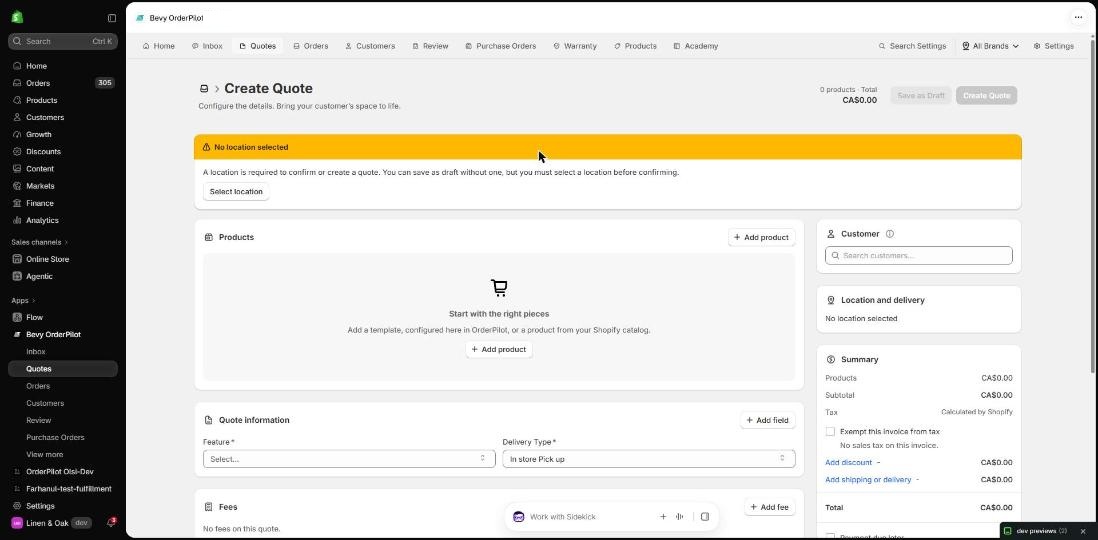
Step 1: From the OrderPilot dashboard, go to "Quotes" and click "Create Quote". To create an order instead, go to "Orders" and click "Create Order".
Step 2: If no location is selected in the app, a location window opens. Choose your showroom location and click "Confirm". If brand grouping is on, pick the Brand first, then the Location.
Note: You can click "Skip" and choose a location later, but you cannot create the quote or order until a location is selected. A No location selected banner with a "Select location" button stays at the top of the page as a reminder. Your shop can rename "location", so this label may read differently in your app.
Step 3: In the Customer & location card, click the Search customers... field and type the customer's name or email, for example "Olivia Bennett". Select the customer from the list. Their name, email, phone, shipping address, and billing address appear in the card.
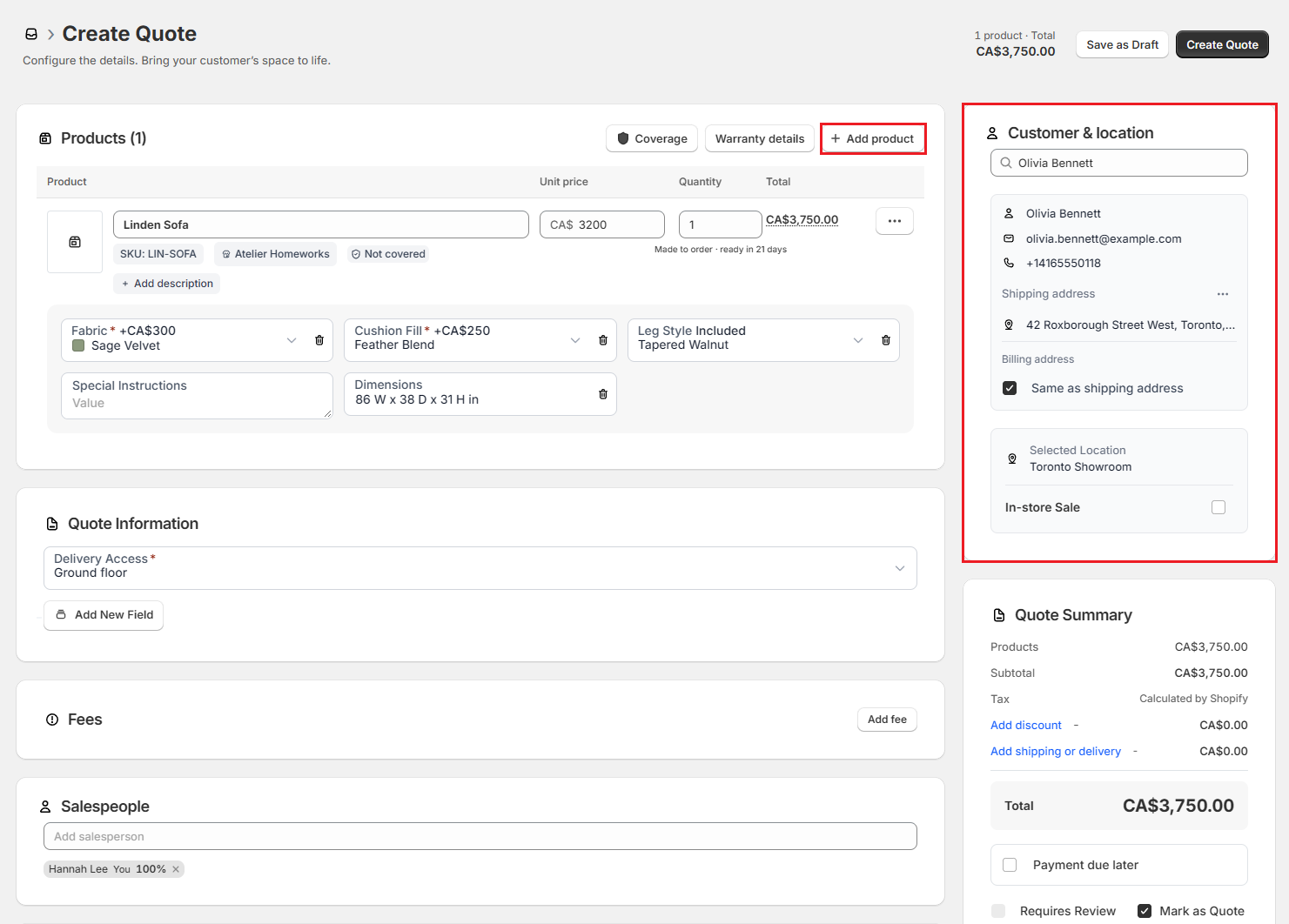
Step 4: In the Products card, click "Add product". The Add product window opens. Find the product (see Adding Products below) and click it to add it as a line.
Step 5: On each template line, choose the options the customer wants, for example Fabric: Sage Velvet and Cushion Fill: Feather Blend. Options that change the price update the line total as you pick them. Set the Quantity for each line.
Step 6 (Optional): Add fees, a discount, shipping, payment terms, salespeople, tags, and notes. Each is explained in the sections below.
Step 7: Check the Quote Summary (or Order Summary) card, then click "Create Quote" (or "Create Order") in the top right corner. To finish later instead, click "Save as Draft".
Adding Products#
The Add product window is a single faceted list that combines your templates, Shopify products, and option products. There is no separate toggle between product types — everything is in one place.
- Search: Type in the search field to find products by name, SKU, vendor, or category.
- Type filter: Click the Type chip to limit results to Templates, Shopify products, or option products. Selections within a type are combined with OR logic; selections across different types are combined with AND logic.
- Other filters: Use the Category, Collection, Vendor, and Tag chip filters to narrow the list further. Click "Clear all" to reset all active filters.
- Create template: Click "Create template" to build a new template without leaving the quote. The new template is active right away and you can add it immediately.
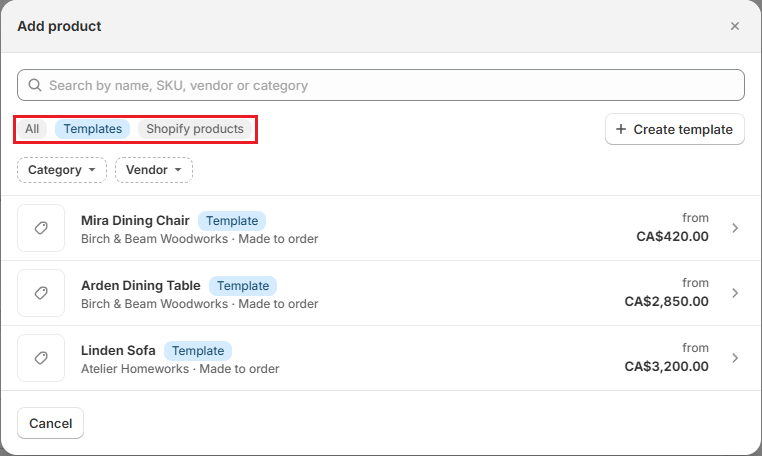
Each row is tagged by type so you can tell them apart:
| Row type | What you see | What happens when you click it |
|---|---|---|
| Template | The vendor, Made to order, and the base price (or No base price). | The template is added as a line. If the template has more than one vendor, OrderPilot asks Which vendor is this line bought from? Choose one, or click "Skip" to decide later. "Back to products" returns to the list. |
| Shopify product | The product's vendor and how many units are available at the quote's location. | The row opens to show its variants, each with its stock (for example "12 available" or "Not stocked here") and price. Click a variant to add it. |
Note: A variant that is already on the quote shows Already on this order and cannot be added twice. Change the quantity on the existing line instead.
Pro Tip: "Vendor" follows your shop's terminology setting. If your shop calls vendors "Suppliers", every vendor label on this screen says "Supplier" instead.
Working With Product Lines#
Each line in the Products card shows the product, its Unit price, Quantity, and Total.
- Vendor: The line's vendor appears next to the SKU. A yellow Vendor required chip means the line has no vendor yet. Click it to choose one. If your shop requires a vendor, you cannot click Create until every line has one, though you can still save a draft.
- Options: Template options appear on the line. Required options must be filled in before you create the quote. Use "Add field" to add an optional option that is not on the line yet.
- Description: Click "Add description" to add a note that belongs to this line only.
- Stock: Under the quantity, a made-to-order line shows its lead time, for example "Made to order · ready in 42 days". A Shopify product shows how many are available at the location.
- Price breakdown: On a template line, click the line total to see how the price was reached (the base price plus each option's surcharge).
Two badges can appear next to a line's price:
| Badge | What it means |
|---|---|
| ! Set price | The line has no valid price yet, usually because the template has no base price. Enter a price before you create the quote. |
| Manually priced | Someone typed a price over the template's price. The line keeps that price and will not follow later template price changes. Click "Reset" to go back to the template's price. |
Delivery method per line#
Each line can be set to Store pickup or Delivering independently, so a single order can contain a mix of both.
- How to set it: Click the delivery method chip on the line, or open the line's ••• menu and choose the delivery method.
- Mixed orders: When an order has lines with different methods, a summary chip in the Products card shows the breakdown, for example 1 delivering · 2 store pickup.
- Split at conversion: If an order has both pickup and delivery lines, OrderPilot may split it into two separate Shopify orders when it is converted — one for the pickup lines and one for the delivery lines. You will see a confirmation step before the split happens.
Line-item discount#
To discount a single line rather than the whole order, open the line's ••• menu and choose "Add discount".
- Discount type: Choose Amount (flat $ off per unit) or Percentage (% off the unit price).
- Discount value: Enter the amount or percentage to deduct.
- Reason for discount: A reason is required. It is stored with the line and is visible to staff.
- Visible to customer: Tick this to show the discount on customer-facing documents.
The discounted price appears inline on the line. To change or remove it, open the ••• menu and choose "Edit discount".
The line ••• menu#
Click the ••• (More options) button at the end of a line to see the actions available for it. Only the actions that apply to that line appear.
| Menu item | What it does |
|---|---|
| Add discount / Edit discount | Discount this line only (see Line-item discount above). |
| Set delivery method | Set this line to Store pickup or Delivering. |
| Manage PO | Choose how this line is handled on purchase orders. See Purchase Orders From an Order. |
| Enable Backorder / Disable Backorder | Allow a Shopify product to be sold beyond the stock on hand, or stop it. |
| Manage Custom Attributes | Open the list of custom attribute fields you can add to lines. |
| Review warranty / Add serial numbers | Review the warranty on the line, or record serial numbers. See Warranty & Serial Numbers. |
| Pricing | Open the template line's pricing details. |
| View template / View Shopify Product | Open the template in OrderPilot, or the product in Shopify. |
| Remove Item | Remove the line from the quote. |
Adding Fees#
Fees are charges that are not products, such as delivery, installation, or a surcharge. They have their own Fees card below the products.
Step 1: In the Fees card, click "Add fee".
Step 2: In the Add fee window, either choose a saved fee from Predefined fee, for example "White Glove Delivery", or leave it on Select one and enter your own:
- Fee name: What the customer sees, for example "Installation".
- Fee type: Fixed amount, % of subtotal (calculated from the products only), or % of total (calculated from the products plus other fees, not counting shipping, tax, or discounts).
- Amount or Percent: The value of the fee. For a percentage fee, the window shows a Preview amount.
- Fee is taxable: Tick this if tax applies to the fee.
- Fee is a physical product: Tick this if the fee needs fulfillment, such as an extra item.
Step 3: Click "Add fee". The fee appears in the Fees card, where you can still change its Name, Type, amount, Taxable, and Physical settings.
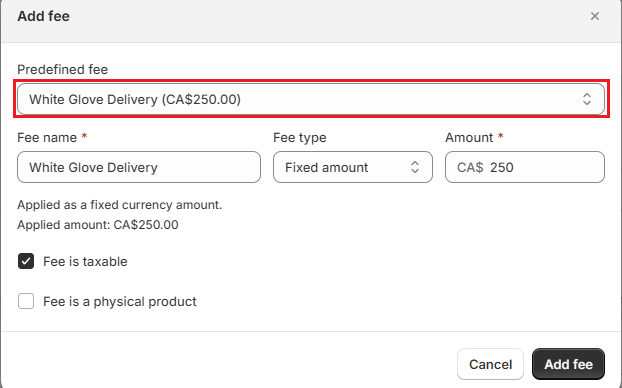
Note: The fees OrderPilot ships with (Tariff Surcharge, Freight, and Installation) can be added once per quote. Once one is on the quote, it shows as already added in the Predefined fee list. To discount a fee or remove it, click the ••• button on the fee row and choose "Add discount" or "Remove fee".
Adding a Discount, Shipping, and Payment Terms#
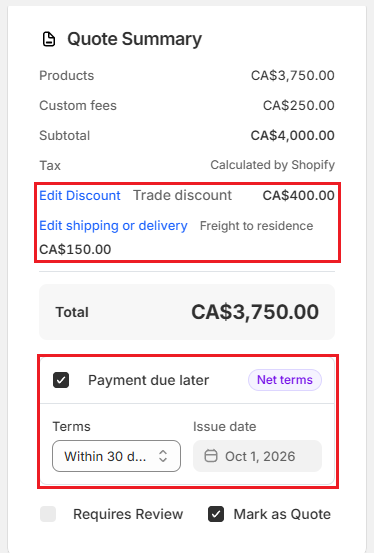
These all live in the Quote Summary card.
Order discount#
The order discount applies across the whole order and appears as a line in the totals.
Step 1: Click "Add discount".
Step 2: Choose the Discount type (Amount for a flat $ amount, or Percentage for a %) and enter the Value.
Step 3: Under Applies to, choose Products only or Products and fees. The window previews what the discount takes off.
Step 4: Enter a Reason for discount, for example "Trade discount". The reason is required.
Step 5: Click "Done". To change or remove it later, click "Edit Discount", then "Remove discount".
Note: The starting choice for Applies to comes from Default order discount applies to in "Settings", then "Order defaults" in the Orders and quotes group. Warranty plans are never discounted.
Shipping and delivery#
Step 1: Click "Add shipping or delivery". The Shipping and delivery options window opens.
Step 2: Under Custom shipping, enter a Name, for example "Freight to residence", and a Price.
Step 3: Click "Done". To change or remove it, click "Edit shipping or delivery", then "Remove shipping".
Payment due later and payment terms#
Turn on Payment due later when the customer will pay after the order is placed. This switch only appears when your Shopify store has payment terms available.
Step 1: Turn on Payment due later.
Step 2: Choose the Terms. Depending on the terms, payment is due on receipt, due on fulfillment, due after a number of days (net terms, for example Net 30), or due on a fixed date. Net terms ask for an Issue date. Fixed date terms ask for a Due date.
Step 3 (Shopify Plus only): To ask for part of the total up front, click "+ Require deposit" and enter the Deposit required percentage, for example 50%. Click the trash icon to remove it.
Note: Deposits require a Shopify Plus plan. On other plans the + Require deposit option does not appear. Payment terms and deposits can only be changed while the record is still a draft in Shopify. Once payment is collected and it becomes a Shopify order, they are locked.
Customer Details, Addresses, and In-store Sales#
Creating a new customer#
If the customer is not in Shopify yet, click the Search customers... field and choose "Create new customer". Fill in First Name, Last Name, and Email Address (all required), and optionally Phone Number and the shipping and billing address. Click "Create Customer". The customer is created in Shopify and selected on the quote.
Choosing addresses#
Once a customer is selected, the card shows their Shipping address and Billing address.
- To use a different saved address, or to add, edit, or delete one, click the ••• button next to Shipping address and choose "Manage addresses". In the Manage addresses window, the address the quote uses is marked Selected and the customer's default is marked Default. Use "Add new address", or the ••• on an address for "Edit", "Set as default", and "Delete".
- To bill a different address, untick Same as shipping address and choose the billing address the same way.
Note: Address changes made here are saved to the customer in Shopify. Deleting an address also deletes it in Shopify.
In-store Sale#
Turn on In-store Sale when the customer will collect the order from your location. The order then uses the store as its ship-to address, and the customer's own address book is left as it is.
The switch only appears when Shopify local pickup is turned on for the selected location. If it is off, the card says In-store sales are not enabled for this location with a link to Shopify pickup settings.
Salespeople, Tags, and Notes#
- Salespeople: You are added as the salesperson automatically. Click the field to add more people (up to 10). Each person is shown with their share of the sale credit, for example 50% each for two people. If you see a lock icon, you do not have permission to change sales credit. See Salespeople & Staff Permissions.
- Quote Tags: Type in Add or select tags to pick an existing tag or create a new one. Tags help you find records later.
- Quote Notes: Internal notes such as room placement, delivery access, or installation details.
- Quote Information: Appears when your shop has order attributes, such as a project name or designer. Use "Add New Field" to add optional ones. See Order Attributes.
Requires Review, Signature Rules, Deposit Rules, and Mark as Quote#
At the bottom of the summary card are two switches and, when applicable, requirement badges:
| Switch / indicator | What it does |
|---|---|
| Requires Review | Set for you and greyed out on this screen. It turns on when Default review flag is on in "Review rules", or when a template on the quote is marked for manual review. A quote with such a template goes to Pending Quote (or Pending Order) and waits in the review queue. You can change the flag later on the quote's own page. See Review Quotes/Orders. |
| Mark as Quote | On for a quote, off for an order. Switching it changes the screen title and the Create button between quote and order. |
Signature required#
If any product template or category on the quote is configured with a Requires signature before order rule, the quote will require a customer signature before it can be converted to an order. A Signature required indicator appears in the summary card. The requirement comes from the template or category settings and cannot be overridden on the quote itself.
When a signature is required, the "Convert to order" action on the quote's page is blocked until the customer has signed. You can still save the quote and send it for signature in the normal way.
Minimum deposit required#
If any product template or category on the quote carries a minimum deposit percentage, the quote enforces the highest deposit requirement across all lines. For example, if one line requires 30% and another requires 50%, the quote requires at least 50% before conversion.
A Deposit required indicator appears in the summary card showing the enforced percentage. The deposit can be collected through the normal payment flow. See Request Signature & Payment.
What Create and Save as Draft Need#
Hover over a greyed-out button to see what is missing.
| Button | What it needs |
|---|---|
| Create Quote / Create Order | At least one product, a customer, a selected location, a price on every line, every required option filled in, and a vendor on every line if your shop requires vendors. |
| Save as Draft | At least one product. A customer and location are optional, except that an in-store sale draft needs a location. |
Note: If you leave the screen with unsaved products, fees, or notes, OrderPilot asks Leave without saving this quote? Click "Stay on this page" to keep working, or "Discard and leave" to throw the work away.
What Happens After You Click Create?#
- You land on the new quote's or order's page, where you can keep editing, request a signature, or request payment. See Edit Quotes/Orders.
- The status is set to Quote (or Order). If a template on it needs manual review, the status is Pending Quote (or Pending Order) instead.
- OrderPilot creates a matching draft order in Shopify in the background. A Syncing with Shopify badge shows under the title until it is done. The draft becomes a real Shopify order when payment is collected.
- No new products are created in Shopify. Template lines use the template's own Shopify product, and the chosen options travel with the line.
If you clicked Save as Draft, the record is saved as a Draft Quote (or Draft Order) in OrderPilot only, and no Shopify draft order is created until you open it and click "Create Quote" (or "Create Order") on its page. A new customer or address changes you made while filling it in are still saved to Shopify.
How Does a Quote Become an Order?#
A quote stays a quote until one of these happens:
- You change its status. On the quote's page, set Quote Status to Order in the Quote Settings card and save.
- The customer signs and pays. When a quote has been signed and has a payment (in full or a deposit), OrderPilot moves it to Order automatically.
- It is fulfilled in Shopify. Shipping or delivery updates from Shopify move it to the matching shipping status as an order.
The record keeps its number, lines, salespeople, and history. It simply moves from the Quotes list to the Orders list.
Note: By default the Order status locks editing. If you need to change an order after converting it, see Edit Quotes/Orders.
Customer Change Requests#
After a quote or order has been sent to the customer for signature, the customer can submit a change request from the sign page — for example, to ask for a different fabric, quantity, or delivery arrangement.
How staff see a change request#
When the customer submits a change request, a banner appears at the top of the quote or order page in OrderPilot:
Customer requested changes — followed by the customer's message.
Staff can then take one of three actions:
| Action | What it does |
|---|---|
| Complete | Apply the requested changes to the quote or order. Use this when you have edited the record to reflect what the customer asked for. |
| Decline | Reject the change request without altering the quote or order. The customer is notified that their request was not accepted. |
| Mark resolved | Dismiss the banner without applying or declining the changes formally. Use this when the matter was handled outside the app, for example by phone. |
Until one of these actions is taken, the change request banner stays on the page as a reminder.
Example: Creating a Sofa Quote for Olivia Bennett#
Olivia Bennett visits Harlow & Finch Interiors looking for a sofa. She likes the Linden Sofa in Sage Velvet with Feather Blend cushions, wants white glove delivery, and wants to think it over at home.
- The designer goes to "Quotes" and clicks "Create Quote", then confirms the showroom location.
- In Customer & location, they search "Olivia" and select Olivia Bennett.
- They click "Add product", filter by Category: Sofas, and click Linden Sofa ($3,200). The template has one vendor, Atelier Homeworks, so the line is added straight away.
- On the line they choose Fabric: Sage Velvet (+$350) and Cushion Fill: Feather Blend (+$250). The line total updates to $3,800.
- They set the line's delivery method to Delivering using the delivery chip on the line.
- In the Fees card they click "Add fee", choose White Glove Delivery ($250) from Predefined fee, and click "Add fee".
- They check the Quote Summary, leave Mark as Quote on, and click "Create Quote".
The quote opens on its own page with the status Quote. The designer can now click "Request signature" to email it to Olivia. See Request Signature & Payment.
Important Notes & Tips#
Templates vs Shopify products#
Use a template for anything made to order with options. Use a Shopify product for stock items you sell as they are. You can mix both on one quote.
Fees belong in the Fees card#
Add delivery, installation, and surcharges as fees, not as products. Fees keep product totals clean for purchase orders and can be taxed or untaxed on their own.
Drafts are private until you create them#
A saved draft is not in Shopify and cannot be emailed, signed, or paid. Open it and click Create when it is ready.
Tax is calculated by Shopify#
The summary shows Tax as Calculated by Shopify. The final tax appears once the Shopify draft is created.
Mixed-method orders may split at conversion#
If an order contains both Store pickup and Delivering lines, it may be split into two Shopify orders when converted — one per method. Review the delivery method chip on each line before converting.
Signature and deposit rules come from the catalog#
The signature and deposit requirements on a quote are inherited from the templates and categories on its lines. To change the default requirement, update the template or category, not the individual quote.
Need Help?#
Having trouble adding a product, finding a customer, or getting the Create button to turn on? Contact us at support@bevycommerce.com, and we'll help you review your setup.