PO Inventory & Stock
Shopify is where your stock is counted. When you receive a purchase order (PO) in OrderPilot, some lines add stock in Shopify and others simply move the customer's order forward. Which one happens depends on the kind of line and on the stock choice made for it.
Getting this right keeps your Shopify counts honest. A one-off sofa built for a single customer usually should not appear as available stock, while a fabric roll or a spare chair you bought for the showroom should.
This article explains the stock choice, what receiving changes in Shopify for each kind of line, how to buy extra units for stock, how to sell a finished unit from stock, and what to do with goods for an order that was cancelled.
Note: Your shop can rename "Vendor" (for example, to "Supplier"). Labels in the app follow your shop's terminology setting, so you may see your own word wherever this article says "vendor".
Before You Start#
Consider the following questions before getting started:
Which options track stock?#
An option value can carry its own Shopify stock when Track inventory for this option is ticked in the option's Settings card. Each tracked option gets its own row on purchase orders and its own add-on product in Shopify. See Create Options and Products and Shopify Sync.
Where should received stock land?#
Stock is added at the PO's Fulfillment Location, which you choose in the Filters card of the PO Workbench. It is shown on the PO page in the Delivery details. Pick the location where the goods will physically arrive.
Do you want finished configurations kept as stock?#
Decide, per template, whether units your vendor builds should become stock or only fill orders. You set this with the stock choice below.
The Stock Choice: Create Stock or Do Not Create Stock#
Every product template line on a PO has a stock choice:
| Choice | What it means |
|---|---|
| Do not create stock | No inventory is created. Received units only move the customer's order forward. This is the default. |
| Create stock | Received units become stock of that exact configuration (for example, a Linden Sofa in Sage Velvet with Feather Blend cushions), with its own product in Shopify. |
How to set the default for a template#
Step 1: From the OrderPilot dashboard, go to “Products” and open the template.
Step 2: In the Template details card, choose Do not create stock or Create stock under Purchase orders. The change saves straight away.
An option can override the template. In the option editor, the Purchase orders field offers Use the template's default, Do not create stock, or Create stock. When an order line picks options with different choices, the first option with a choice wins over the template.
How to change it on a purchase order#
Step 1: In the PO Workbench, expand the vendor card and click “Edit”. On a draft PO, you can also click “Edit items”.
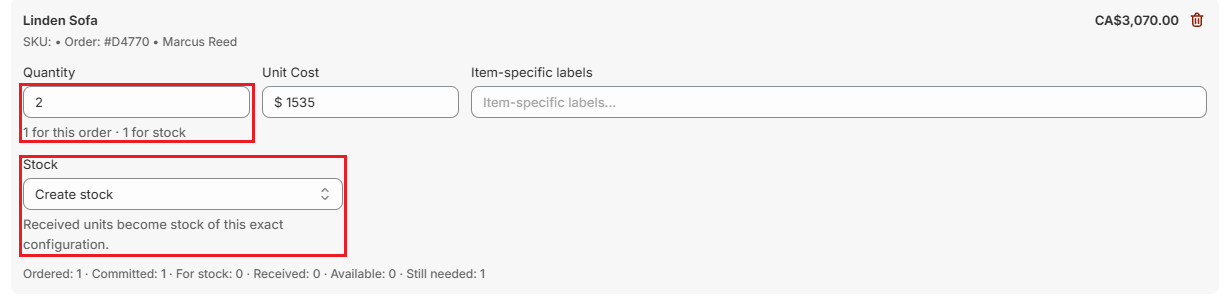
Step 2: On the template line, choose an option in the Stock field: Default for this template, Create stock, or Do not create stock.
Step 3: Click “Save”.
What Receiving Changes in Shopify#
| Kind of line | What happens when you receive it |
|---|---|
| Shopify catalog product (a product from your Shopify catalog, on an order or a standalone PO) | The received units are added to that variant's stock at the PO's Fulfillment Location. |
| Stock-tracked option (its own row on the PO) | The received units are added to the option's stock at the PO's Fulfillment Location. The customer's order already reserved the option in Shopify when it was placed, so nothing is held twice. |
| Product template line set to Do not create stock | Shopify inventory is not changed. The units move the linked order toward Ready to Ship. |
| Product template line set to Create stock | On the first receipt, OrderPilot creates a Shopify product for that exact configuration. Every received unit is added to it, and the units ordered for the customer are held for that order. |
For Create stock lines, the held units then follow the order:
- When the line ships, the held units are released.
- If the shipment is cancelled, they are held again.
- If the customer's order is cancelled, they go back to available stock for anyone to buy.
The product OrderPilot creates for a stock configuration is available on your Point of Sale channel only, so it does not appear on your online store unasked.
Note: A line received with Create stock cannot have its received count changed by editing the receipt, because those units are already stock in Shopify. Correct the count in Shopify instead. You can still correct its cost and rejected units.
When a Stock Update Fails#
OrderPilot retries every stock change several times. If one still fails, the PO shows a Stock not updated in Shopify banner. It lists each item and what did not go through, such as "add to stock", "hold for the order", or "release after shipping". Until it is fixed, Shopify's count for those items is wrong.
Step 1: Open the PO from “Purchase Orders”.
Step 2: Read the banner to see which items are affected and why.
Step 3: Fix the cause if one is named (for example, a product that was archived in Shopify), then click “Retry”.
Buying for Stock#
You can buy more than a customer ordered and keep the extra.
- On an order-based PO: raise the Quantity on the vendor card above what the line needs. The field shows the split, for example "1 for this order · 2 for stock". On a product template line, set Stock to Create stock. With Do not create stock, extra units would not be counted anywhere, so OrderPilot asks you to lower the quantity or choose Create stock.
- On a standalone PO: add Shopify catalog products to a vendor with no customer order at all. See Create Purchase Orders.
When the units arrive, everything bought for stock is added at the PO's Fulfillment Location.
Using a Stock Unit on an Order#
When a finished configuration is in stock, OrderPilot offers it on any made-to-order line that matches it exactly, as long as there are enough units to cover the whole line.
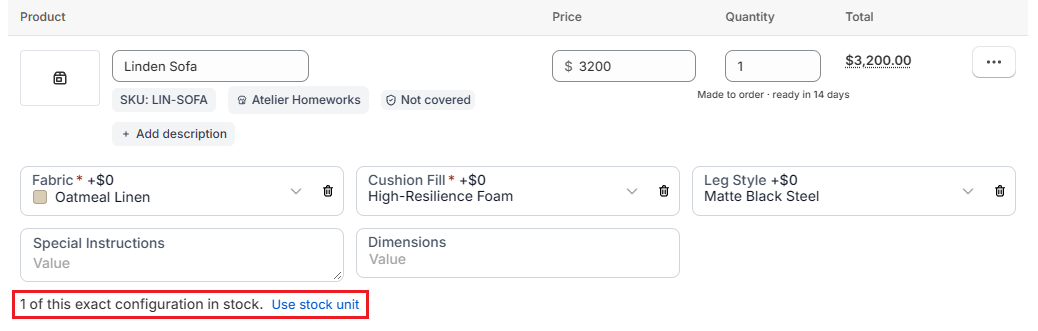
Step 1: Open the quote or order. Under a matching template line, you see a message such as "1 of this exact configuration in stock." The message appears only on saved lines, and it hides while the page has unsaved changes, so save first if you have just added the line or changed its options.
Step 2: Click “Use stock unit”, then save the order.
The line now sells the finished unit, so Shopify reserves it and no new PO is needed for it. Its options become read-only, and the line notes that this configuration is a finished unit in stock.
To go back to made to order (for example, because the customer wants a different fabric), click “Modify”. The options become editable again and the stock unit is released.
On Shopify POS, picking a stock configuration's product adds it to the order as that configuration.
Goods for a Cancelled Order#
If a customer's order is cancelled after its goods were bought, what happens depends on the stock choice:
- Create stock: the units held for the order go back to available stock automatically.
- Do not create stock: no stock exists for those units, so OrderPilot asks you to decide. The PO shows a banner such as "Order #1012 was cancelled after 1 × Linden Sofa arrived." This also appears when units arrive on a PO after their order was cancelled.
For Do not create stock units, choose one:
| Action | What it does |
|---|---|
| Add to stock | Creates the configuration's product in Shopify, if needed, and adds the units to stock at the PO's location. Their cost moves into your stock cost. |
| Write off | Records your decision. No stock is created. |
Example: A Showroom Sofa from a Customer Order#
Marcus Reed's Linden Sofa (Oatmeal Linen, High-Resilience Foam, Matte Black Steel legs) arrived with a torn arm and was rejected. Harlow & Finch Interiors reorders it and decides to buy a second one for the showroom floor.
- In the PO Workbench, select Marcus's order. His rejected sofa is offered again.
- On the Atelier Homeworks card, click “Edit”, set the sofa Quantity to 2 (it shows "1 for this order · 1 for stock"), and set Stock to Create stock. Click “Save”.
- Process and send the PO.
- When both sofas arrive, post the receipt. OrderPilot creates a Shopify product for this exact configuration, adds 2 units, and holds 1 for Marcus's order.
- Later, Studio Lumen Design quotes the same sofa in the same fabric, fill, and legs. Once the quote is saved, the line shows "1 of this exact configuration in stock." Click “Use stock unit” and save, and the showroom sofa is reserved for them.
Important Notes & Tips#
Leave one-off pieces on Do not create stock#
Truly custom pieces are rarely resold. Keeping them on Do not create stock stops one-off configurations from cluttering your Shopify catalog.
Choose the fulfillment location carefully#
Stock lands where the PO says, not where the order was taken. If a delivery arrives at a different location, move the stock in Shopify afterwards.
Act on the red banner#
A Stock not updated in Shopify banner means your Shopify counts are wrong. Retry as soon as you can, so staff do not sell stock you do not have.
Decide on cancelled-order goods promptly#
Units waiting for an Add to stock or Write off decision cannot be sold. Check your recent POs after a cancellation.
Need Help?#
Not sure whether a template should create stock, or seeing a stock update that will not go through? Reach out to us at support@bevycommerce.com, and we'll help you review your setup.