Products & Shopify Sync
The Products page in the top navigation lists your product templates: the made-to-order products your team configures on quotes and orders. OrderPilot keeps a matching product in your Shopify catalog for each active template, so orders, inventory, and Shopify POS all work from the same catalog.
This page also explains exactly when OrderPilot creates a product in Shopify. In short: saving a quote or order never does. Products are created only when you activate a template, track inventory for an option, or receive stock for a specific configuration.
This article explains how to use the Products page, what syncs to Shopify and when, what each sync badge means, how to fix a failed sync, and how your own Shopify products behave on orders.
The Products Page#
Click “Products” in the top navigation to open it.
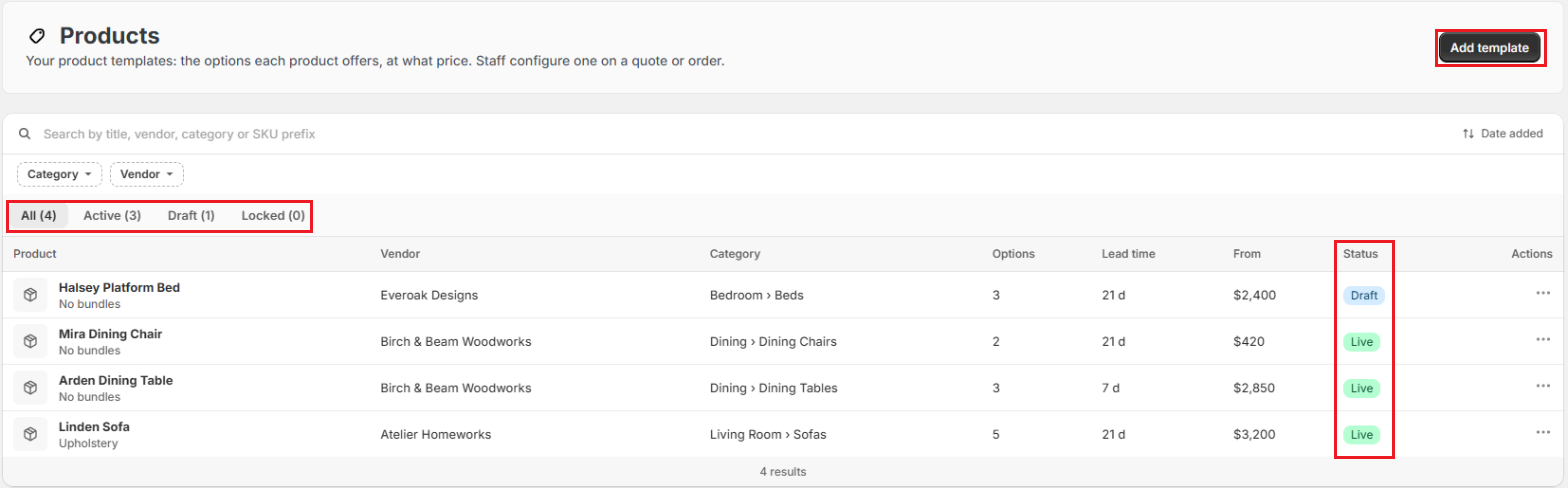
From here you can:
- Add a template: Click “Add template”. See Create Product Templates.
- Search: Search by title, vendor, category, or SKU prefix.
- Sort: Sort by Date added, Product, Last updated, or Price.
- Filter: Use the Category and Vendor filters to narrow the list. (The vendor filter and column use your store's own term if you renamed “Vendor”.)
- Switch tabs: All, Active, Draft, and Locked, each with a count. A locked template is one that's holding back changes from its bundles; it's listed under Locked rather than Active.
Each row shows:
| Column | What it shows |
|---|---|
| Product | The template's title, image, and the bundles it follows. |
| Vendor | The template's vendors. An inactive vendor is marked “(inactive)”. |
| Category | The template's categories, with their full path (for example, Living Room › Sofas). |
| Options | How many options the template offers. A * means some options were changed on this template. |
| Lead time | The template's longest lead time. A * means a lead time was set on this template. |
| From | The base price. |
| Status | The sync badge (see below), plus Locked if the template is locked. |
Click a row to open the template editor. The ⋯ menu on each row has Edit template, Duplicate template, Set to draft (or Activate), and Delete template.
When OrderPilot Creates a Product in Shopify#
| What you do | What OrderPilot creates in Shopify |
|---|---|
| Activate a product template | One product for the template, with a single variant. Its title, description, base price, SKU prefix, and first vendor come from the template. Its stock is not tracked, because it's made to order. It's tagged “OrderPilot Template” and published to Point of Sale only, not to your online store. |
| Track inventory for an option used on an active template | One add-on product for the option, with a variant for each value, named with your add-on prefix (for example, “Add-On: Fabric”). Its stock is tracked. It's tagged “OrderPilot Option” and published to Point of Sale only. See Create Options. |
| Receive units on a purchase order row set to Create stock | One product for that exact configuration (for example, a Linden Sofa in Sage Velvet), created the first time it's received, so the units can be counted and sold from stock. See PO Inventory & Stock. |
Note: Saving a quote or order never creates a Shopify product. A template line on an order is sold on the template's own Shopify product, with the chosen options shown on the line. Each tracked option on the line is added as its own line, next to the product.
What Keeps the Template's Product Up to Date#
- Saving an active template (its details or its options) sends the changes to Shopify.
- Deactivating or deleting a template archives its Shopify product. Archived products are hidden from every sales channel but never deleted, because past orders and purchase orders still point to them.
- Activating it again sets the product back to active.
- A daily check picks up any active template that has never been synced.
- Drafts are never sent to Shopify.
Sync Badges#
The template editor and the Products page show the same badge for each template:
| Badge | What it means |
|---|---|
| Draft | The template is a draft. Nothing is sent to Shopify. |
| Syncing | The template is being sent to Shopify. This usually takes less than a minute, and the editor updates on its own. |
| Live | The template's product is in Shopify and up to date. |
| Sync failed | The last sync didn't go through. See below. |
| Not synced | The template is active but hasn't been sent to Shopify yet. The daily check sends it, or you can save the template to send it now. |
When a template is Live, the editor shows when it was last synced, and an eye button next to the title opens the product in your Shopify admin.

How to Fix a Failed Sync?#
Step 1: On the Products page, find the template with the Sync failed badge. Hover over the badge to see the reason, or click the row to open the template.
Step 2: In the template editor, read the banner The last sync to Shopify failed. It shows the reason Shopify gave.
Step 3: Fix the cause. For example, correct the field the message names, or restore anything removed in Shopify.
Step 4: Click “Sync to Shopify” at the top of the editor. The badge changes to Syncing, then Live.
Note: The Sync to Shopify button appears only after a failed sync. In every other case, saving the template is enough to send your changes.
Your Shopify Products on Orders#
Staff can sell your regular Shopify products alongside templates. In the web app, the Add product dialog on a quote or order has three views: All, Templates, and Shopify products. Search by name, SKU, vendor, or category. Products that OrderPilot creates for templates and tracked options are not listed as Shopify products, so they can't be added twice.
A Shopify product line keeps its own Shopify variant and price. Any option values stored on that product in Shopify are shown on the line.
Stock and “Continue Selling When Out of Stock”#
A Shopify product line shows how many are available at the order's location. If the quantity is more than what's available, a warning appears on the line.
To sell beyond stock on one line:
Step 1: Click the line's ⋯ menu and choose “Enable Backorder”.
Step 2: Click “Enable backorder” to confirm. When the order is saved, OrderPilot sets that Shopify variant to continue selling when out of stock.
To turn it off again, choose “Disable Backorder” from the same menu.
To make this the default for every Shopify product added to new or edited orders, go to “Settings”, select “Order defaults” in the Orders and quotes group, and check Enable selling when out of stock in the Selling and stock card. In the same card, Hide out-of-stock products on POS leaves Shopify products with no stock at the register's location out of the POS product picker.
Note: Template lines don't use a stock count. They show “Made to order”, with the number of days until ready when the options add lead time.
Example: Harlow & Finch Interiors Goes Live#
Harlow & Finch Interiors has four templates on the Products page: Linden Sofa, Arden Dining Table, Mira Dining Chair, and Halsey Platform Bed. Here's what happens as they finish setup:
- They activate the Linden Sofa. Its badge shows Syncing, then Live, and a “Linden Sofa” product appears in Shopify, on Point of Sale only.
- They leave the Halsey Platform Bed as a Draft while they wait for photos. Nothing about it is in Shopify yet.
- Later, a sales rep quotes the Linden Sofa for Priya Shah and also adds a throw pillow, a regular Shopify product. Saving the quote creates no new products in Shopify.
Important Notes & Tips#
Don't Edit OrderPilot's Products in Shopify#
Make changes to a template in OrderPilot, not on its Shopify product. OrderPilot updates the Shopify product every time the template is saved, so edits made in Shopify can be overwritten.
Archiving Is Not Deleting#
When a template is deactivated or deleted, its Shopify product is archived, not deleted. Past orders, purchase orders, and stock records keep pointing to it.
The Add-On Prefix Is Visible to Customers#
The name of a tracked option's product, including its prefix, appears on the customer's invoice and receipt. Choose a prefix that reads well, such as the default “Add-On:”.
Need Help?#
Seeing a Sync failed badge you can't clear, or not sure why a product appeared in Shopify? Reach out to us at support@bevycommerce.com, and we'll help you sort it out.