Custom Fees
Custom fees are charges that aren't products: delivery, installation, freight, a tariff surcharge. In OrderPilot you save each fee once, with its amount and tax settings, and staff pick it from a list when they build a quote or order on the web app or on Shopify POS. A fee can be a fixed amount or a percentage of the order.
This article explains how to create and manage saved fees, how fees are calculated, and how staff add fees and fee discounts to quotes and orders.
Before You Start#
Which charges do you add again and again?#
List the extra charges your team adds most often, and how each one is priced. A flat delivery charge is a fixed amount. Freight that scales with the order is a percentage.
Is the fee taxable?#
Check with your accountant whether each fee should be taxed in your region. You set this once on the saved fee, and staff can still change it on an order.
Does the fee ship?#
Most fees are services. If a fee stands for something physical that ships, such as a protective cover or a spare part, mark it as a physical product.
How to Create a Custom Fee?#
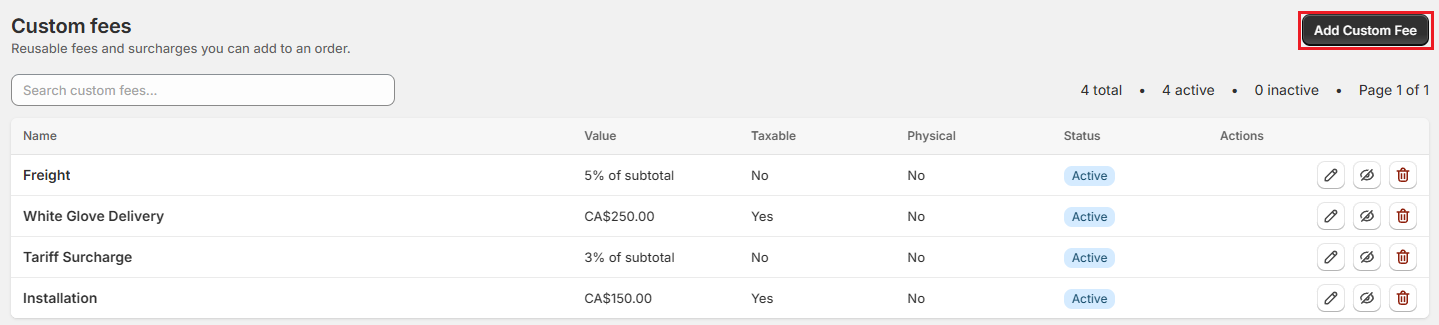
Step 1: From the OrderPilot dashboard, go to “Settings”, then select “Custom fees” in the Orders and quotes group.
Step 2: Click “Add Custom Fee”.
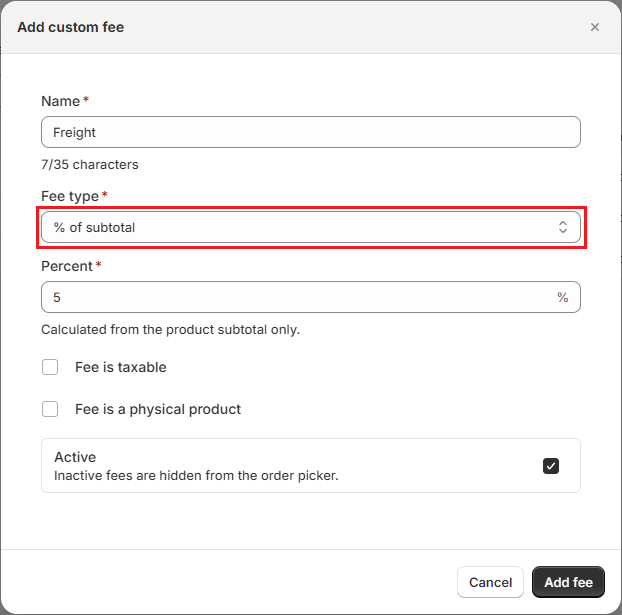
Step 3: Enter a Name (up to 35 characters), for example “White Glove Delivery”. This is the name customers see on the quote and invoice.
Step 4: Choose a Fee type: Fixed amount, % of subtotal, or % of total. See How Fees Are Calculated below.
Step 5: Enter the Amount (for a fixed fee) or the Percent (for a percentage fee, from more than 0 up to 100).
Step 6: Check Fee is taxable if tax should be charged on this fee.
Step 7: Check Fee is a physical product if the fee stands for something that ships. Shopify then treats the fee line as needing shipping.
Step 8: Leave Active switched on so staff can pick the fee on orders. Inactive fees are hidden from the order picker.
Step 9: Click “Add fee”.
How Fees Are Calculated#
| Fee type | How the amount is worked out | Example |
|---|---|---|
| Fixed amount | Applied as a fixed amount in your store currency. | White Glove Delivery, $250 |
| % of subtotal | A percentage of the product subtotal only. | Freight, 5% of a $6,000 subtotal is $300 |
| % of total | A percentage of the product subtotal plus the order's other fees. Shipping, tax, discounts, and the fee itself are not included. | A 3% fee on $6,000 of products plus a $250 delivery fee is $187.50 |
Percentage fees update automatically when products are added, removed, or repriced on the order.
How to Manage Saved Fees?#
The custom fees list shows each fee's Name, Value, whether it's Taxable or Physical, and its Status (Active or Inactive). Use the search box to find a fee by name. On each row:
- Edit icon: Opens Edit custom fee. Make your changes and click “Save changes”.
- Eye icon: Activates or deactivates the fee.
- Delete icon: Asks you to confirm, then deletes the fee. This can't be undone.
Note: Fees already on quotes and orders keep their own settings. Editing or deleting a saved fee doesn't change orders that already have it.
Default Fees and Restore Default Fees#
New stores start with four fixed fees, each set to $0 so you can fill in your own amounts: First Custom Fee, Tariff Surcharge, Freight, and Installation.
If you delete or rename Tariff Surcharge, Freight, or Installation, a “Restore default fees” button appears at the top of the page. Click it and confirm to add the missing ones back as active fixed fees of $0. Your other fees are not changed.
In the web app, Tariff Surcharge, Freight, and Installation can each be added only once per order.
Adding Fees to a Quote or Order#
In the Web App#
Step 1: On a quote or order, find the Fees card and click “Add fee”.
Step 2: Choose a saved fee under Predefined fee. Its name, type, amount, and tax settings fill in.
Step 3: Change any field if this order needs something different. For a percentage fee, the dialog shows a preview of the amount.
Step 4: Click “Add fee”. The fee is added to the Fees card, and the card shows the total of all fees.
You can also skip Predefined fee and type a one-off fee: enter a Fee name, Fee type, and amount, then click “Add fee”.
To remove a fee, click its ⋯ button and choose Remove fee.
On Shopify POS#
Step 1: On a quote or order, tap “Add product / fee”.
Step 2: Tap Add a fee.
Step 3: Tap one of your Saved fees to add it, or fill in a one-off fee under Or a one-off fee: a Name, the fee type, the Amount or Percent, and whether it's Taxable or a Physical item (ships).
Step 4: Tap “Add fee”.
Fee Discounts#
In the web app, a single fee can have its own discount, just like a product line. For example, you might take 50% off installation for a returning customer.
Step 1: In the Fees card, click the fee's ⋯ button and choose Add discount.
Step 2: Choose a Discount type: Amount (taken off each unit of the fee) or Percentage (of the fee).
Step 3: Enter the Discount value. A preview shows what the fee becomes.
Step 4: Enter a Reason for discount (optional). Only your team sees the reason.
Step 5: Click “Done”.
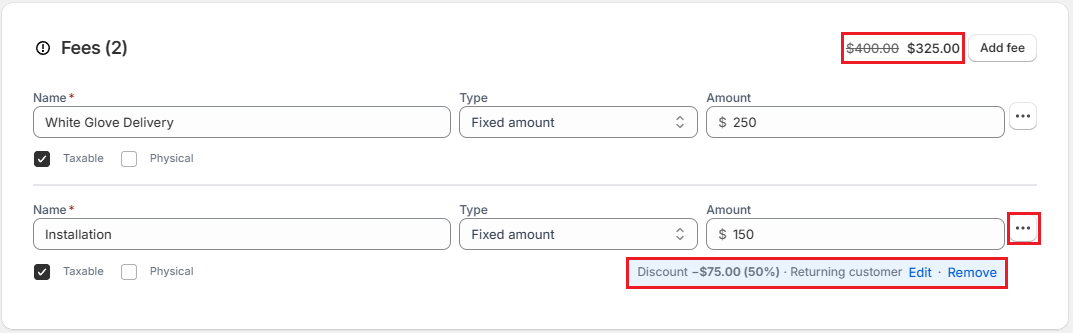
The discount appears under the fee, and the Quote Summary shows a Fee discounts row. In Shopify, the discount is applied to the fee line. The Fees card header shows the original fee total struck through, next to the discounted total. To change or remove the discount, click “Edit” or “Remove” on the discount line under the fee.
Fee discounts are set in the web app. Shopify POS shows them on the order but can't add or change them.
Note: An order-wide discount can also reach fees. The Default order discount applies to setting (under “Settings”, then “Order defaults”, in the Order discounts card) decides whether a new discount starts as Products and fees or Products only. Staff can change it on each order. Discounts added on POS apply to products and fees.
Example: Fees at Harlow & Finch Interiors#
Harlow & Finch Interiors sets up these saved fees:
| Name | Fee type | Value | Fee is taxable | Fee is a physical product |
|---|---|---|---|---|
| White Glove Delivery | Fixed amount | $250 | Yes | No |
| Installation | Fixed amount | $150 | Yes | No |
| Freight | % of subtotal | 5% | No | No |
| Tariff Surcharge | % of subtotal | 3% | No | No |
On a quote for Daniel Okafor with $6,000 of furniture, a sales rep adds White Glove Delivery and Freight. The Fees card shows $250 plus $300. When Daniel adds a dining chair, Freight updates on its own to match the new subtotal.
Important Notes & Tips#
Start From a Saved Fee#
Saved fees keep your names, amounts, and tax settings consistent across your team. Use one-off fees only for charges that really are one-off.
Keep Inactive Fees for Seasonal Charges#
Instead of deleting a seasonal fee, deactivate it with the eye icon and activate it again when you need it.
Fee Discounts Are Separate From Product Discounts#
A fee discount only reduces that fee. A Products only order discount never reduces fees.
Need Help?#
Not sure which fee type to use, or how a fee shows up in Shopify? Reach out to us at support@bevycommerce.com, and we'll help you set it up.