Create Vendors
Vendors, also called suppliers, are the businesses that build or supply the products your store sells. In OrderPilot, vendors connect to your product templates, your order lines, and your purchase orders. Every purchase order goes to a vendor, so setting up your vendor list early makes the rest of your operation run smoothly.
If your store calls them something else, such as "Supplier", you can rename the label. OrderPilot then uses your word on menus, forms, and purchase orders in the web app (see Rename "Vendor" to Your Own Term below). This article uses "vendor" throughout.
This article explains how to add a vendor, how to import vendors from Shopify, how order minimums work, how to map vendor SKUs, how to set a default lead time, and how to make a vendor required on every order line.
Before You Start#
Consider the following questions before getting started:
Are your vendors already in Shopify?#
If your Shopify products already have vendors filled in, you don't need to type them again. OrderPilot imports those vendor names when you install the app, and you can import new ones at any time with "Sync from Shopify".
Do you have the vendor's details ready?#
You'll need the vendor's name and address. An email address, phone number, and contact person are optional but useful, especially the email address, which is where purchase orders are sent by default.
Does the vendor have an order minimum?#
Some vendors won't accept an order below a set quantity or value. If you know their minimums, add them now so your team sees them when preparing purchase orders.
Does the vendor use different SKUs for your products?#
Some vendors refer to products by their own part numbers rather than your internal SKUs. You can map a Vendor SKU for each product on the vendor profile so purchase orders use the vendor's reference automatically.
How to Create a Vendor?#
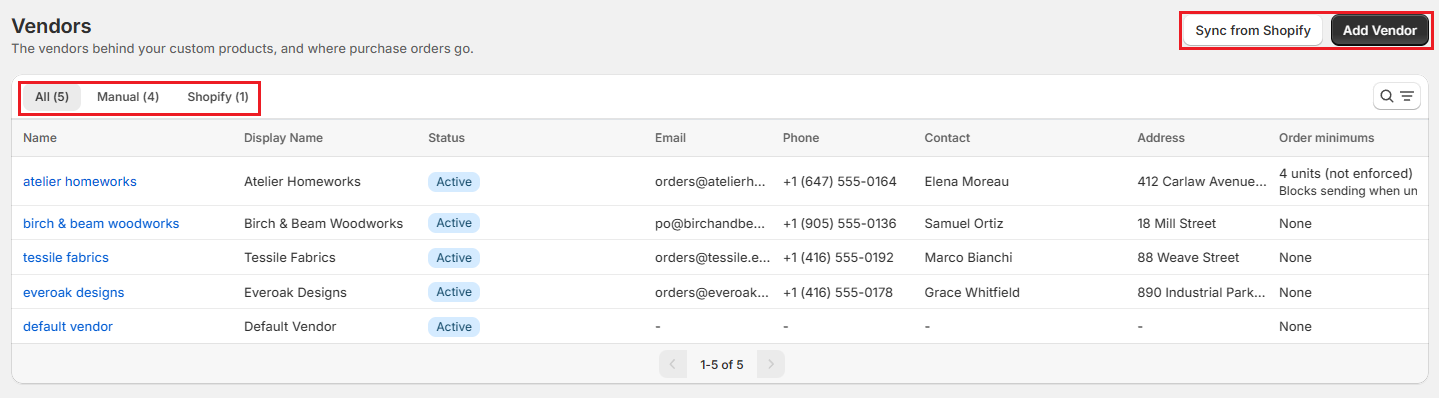
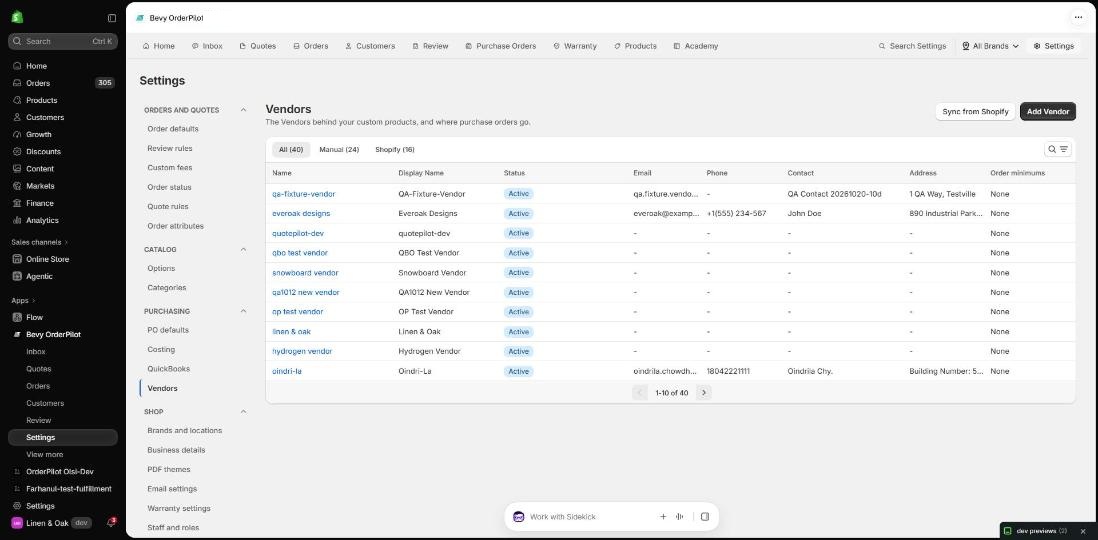
Step 1: From the OrderPilot dashboard, go to "Settings", then select "Vendors" in the Purchasing group.
Step 2: Click "Add Vendor" to open the vendor form.
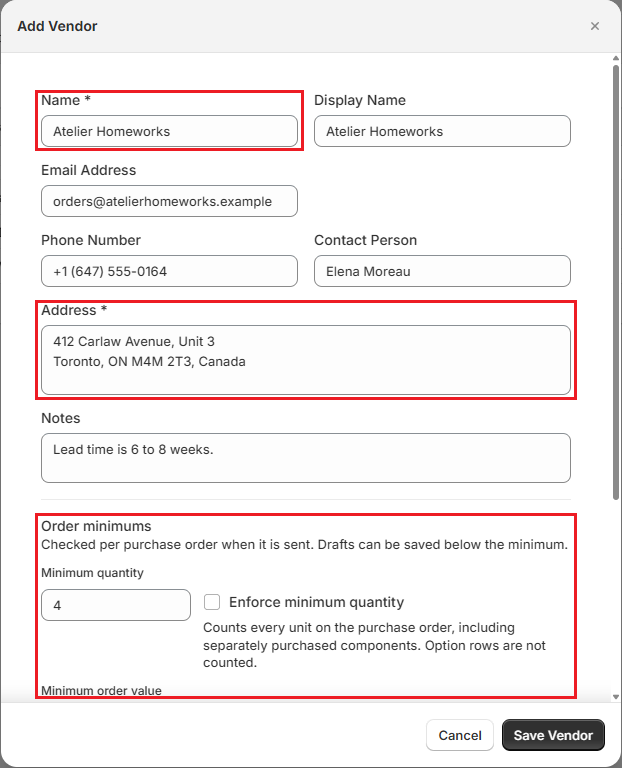
Step 3: Enter the vendor's details:
- Name: Required. The vendor's name as it appears on your Shopify products. OrderPilot uses it to match the vendor to Shopify, so two vendors can't share the same name (capital letters and extra spaces are ignored).
- Display Name: Optional. The name your team sees in OrderPilot and on purchase orders. If you leave it empty, OrderPilot uses the Name.
- Email Address: Where purchase orders are emailed by default. Leave it empty if you place orders another way.
- Phone Number: The vendor's main contact number.
- Contact Person: The main point of contact at the vendor.
- Address: Required for vendors you add by hand. Appears on purchase order documents.
Pro Tip: Use the vendor's order desk or procurement email, not a general "info@" address. Purchase orders need to reach the right person quickly.
Step 4: Add any Notes about this vendor (optional). Notes are internal only and never appear on purchase orders. They're a good place for details like "Confirm by phone before orders over $5,000".
Step 5: Set a Default lead time if the vendor has a standard production or shipping lead time (optional). See Default Lead Time below.
Step 6: Set any Order minimums (optional). See Order Minimums below.
Step 7: Add Vendor SKU mappings if this vendor uses their own product references (optional). See Vendor SKUs below.
Step 8: Choose an option under Products allowed for this vendor: "Allow all products", "Allow specific categories", or "Allow specific product templates". If you pick categories or templates, search for and select them.
Note: This setting is saved with the vendor as a reference for your team. OrderPilot does not use it to hide the vendor from any picker or purchase order.
Step 9: Leave Active Vendor switched on to make the vendor available on new orders and templates. Switch it off to keep the vendor's details without offering them.
Step 10: Click "Save Vendor". The vendor appears in your vendor list right away.
Note: If the save button is greyed out, a note at the top of the form names what's missing, for example "Add a name and an address to save this vendor."
How to Import Vendors From Shopify?#
OrderPilot reads the vendor names on your Shopify products and adds any it doesn't have yet.
Step 1: Go to "Settings", then select "Vendors" in the Purchasing group.
Step 2: Click "Sync from Shopify". The button reads Syncing... while it works.
Step 3: When the sync finishes, a message confirms that vendors were synced from Shopify, and the list refreshes. A large catalog can take a little longer; if the message says the sync is still running, refresh the page in a moment.
Keep these points in mind:
- The import runs once automatically when you install OrderPilot. After that, run "Sync from Shopify" whenever you add new vendors to Shopify products.
- If a vendor with the same name already exists in OrderPilot, the sync reuses it instead of creating a duplicate.
- Shopify doesn't track vendor renames. If you rename a vendor in Shopify, the next sync adds it as a new vendor.
- Vendors imported from Shopify don't need an address to be saved, and any order minimums you set on them are kept when you sync again.
Use the All, Manual, and Shopify tabs above the list to see every vendor, only the ones you added by hand, or only the ones imported from Shopify. Click any row to edit that vendor.
Vendor Contact Details#
Each vendor profile holds the following contact fields:
| Field | What it's for |
|---|---|
| Email Address | The default "To" address when emailing a purchase order. If set, OrderPilot pre-fills this address on the send PO dialog. |
| Phone Number | The vendor's main contact number, for your team's reference. |
| Contact Person | The name of the person to reach at the vendor. |
| Address | The vendor's mailing or warehouse address. Appears on purchase order documents. |
These fields are optional for vendors imported from Shopify, but filling in the email address saves time every time you send a PO.
Tip: If a vendor has a dedicated order desk separate from their main contact, use the order desk email here. You can always override the address when sending a specific PO.
Vendor Notes#
The Notes field on a vendor profile is a free-text area for internal information your team needs to know about this vendor. Notes are never included on purchase orders or any document sent to the vendor.
Use notes for details such as:
- Preferred communication method ("Always call to confirm before placing")
- Lead time reminders ("Allow 6–8 weeks; COM fabric must arrive first")
- Contract or pricing notes ("Annual pricing review in March")
- Payment terms or exceptions
To add or edit notes, open the vendor record and type in the Notes field, then save.
Default Lead Time#
A vendor's Default lead time is the number of days from when a purchase order is placed to when goods are expected to arrive. OrderPilot uses this value as a fallback when no lead time is set at the template level or the individual product level.
To set a default lead time:
Step 1: Open the vendor record (Settings → Vendors → click the vendor row).
Step 2: Enter the number of days in the Default lead time field.
Step 3: Save the vendor.
The lead time hierarchy is:
- Product-level lead time — set on the specific product or template line.
- Template-level lead time — set on the product template.
- Vendor default lead time — used when neither of the above is set.
Order Minimums#
Order minimums tell your team when a purchase order is too small for a vendor to accept. You can set either one, or both:
| Field | What it checks |
|---|---|
| Minimum quantity | The number of units on the purchase order, including separately purchased components. Option rows are not counted. |
| Minimum order value | The vendor goods subtotal after vendor discounts, in your store currency. Shipping, tax, and landed-cost charges are not included. |
Each minimum has its own switch: Enforce minimum quantity and Enforce minimum value.
- Switched on: A purchase order below the minimum can be saved as a draft but can't be sent. The send button is greyed out, and the purchase order shows how far short it is, for example "Minimum quantity: 12 · Currently 9 · Add 3 units".
- Switched off: The minimum is advisory only. A warning banner appears on the PO — "This PO is below [Vendor]'s $X minimum order amount" — but your team can still submit the purchase order.
The Order minimums column in the vendor list shows each vendor's minimums and whether they block sending.
Note: When the value minimum is enforced, a purchase order with an unknown vendor cost can't be sent, because OrderPilot can't tell whether the minimum is met. Add the missing costs first.
Vendor SKUs#
Some vendors refer to your products by their own part numbers or SKUs rather than the internal SKUs your store uses. The Vendor SKUs table on a vendor profile lets you map each product to the vendor's reference number.
When a Vendor SKU is set for a product, that vendor's SKU appears in the SKU column on purchase orders sent to that vendor instead of the internal SKU. This makes it easier for the vendor to process the order without any translation on their end.
How to add a Vendor SKU mapping#
Step 1: Open the vendor record (Settings → Vendors → click the vendor row).
Step 2: Scroll to the Vendor SKUs section.
Step 3: Click "Add product" and search for the product you want to map.
Step 4: Enter the vendor's SKU or part number for that product in the Vendor SKU field.
Step 5: Repeat for each product this vendor uses a different reference for.
Step 6: Save the vendor.
How Vendor SKUs appear on POs#
On a purchase order sent to the vendor:
- The SKU column shows the Vendor SKU for any product that has one mapped.
- Products without a Vendor SKU mapping show the internal SKU as usual.
- The Vendor SKU mapping is per-vendor, so the same product can have different vendor SKUs for different vendors.
Require a Vendor on Every Order Line#
By default, staff can leave a line's vendor for later. If every line must have a vendor before an order is saved, turn this on:
Step 1: Go to "Settings", then select "Order defaults" in the Orders and quotes group.
Step 2: In the Vendor settings card, check Require vendor selection, then save.
With this setting on:
- In the web app, staff can no longer skip the vendor when adding a product, and a final save needs a real vendor on every line.
- On Shopify POS, the Decide later choice is hidden from the vendor picker, and the order can't be saved with a line that has no vendor.
- Saving as a draft is still allowed, so staff can finish the vendor choice later.
Rename "Vendor" to Your Own Term#
Step 1: Go to "Settings", then select "PO defaults" in the Purchasing group.
Step 2: In the Vendor Label Terminology card, choose Custom and type your term, for example "Supplier". OrderPilot adds an "s" for the plural and shows a preview.
Step 3: Save your changes.
The new term is used across the web app, including the Settings menu, product templates, order screens, and purchase orders. Shopify POS keeps the word "vendor".
Example: Adding Vendors for Harlow & Finch Interiors#
Harlow & Finch Interiors works with four vendors. Three were imported from Shopify at install, and the team added Tessile Fabrics by hand. Here's how they set up their upholstery maker:
| Field | Value |
|---|---|
| Name | Atelier Homeworks |
| Display Name | Atelier Homeworks |
| Email Address | orders@atelierhomeworks.example |
| Contact Person | Sales desk |
| Address | Their workshop address |
| Notes | Lead time is 6 to 8 weeks. Fabric (COM) must arrive before production starts. |
| Default lead time | 49 days (7 weeks) |
| Minimum quantity | 4, with Enforce minimum quantity off (a hint only) |
| Minimum order value | 2500, with Enforce minimum value on |
| Vendor SKUs | COM-FABRIC-01 → AH-F001, TRIM-NAIL-BRASS → AH-T201 |
| Active Vendor | On |
With this setup, a purchase order to Atelier Homeworks worth less than $2,500 can be saved as a draft, but it can't be sent until more items are added. The minimum quantity of 4 shows as a reminder only. POs sent to Atelier Homeworks automatically use their part numbers (AH-F001, AH-T201) in the SKU column.
Next Steps After Creating a Vendor#
- Assign the vendor to your product templates, so it's offered when the template is added to an order. See Create Product Templates.
- Raise purchase orders for the vendor from your orders. See Create Purchase Orders.
Important Notes & Tips#
Active Status Matters#
Inactive vendors are not offered on new orders or when adding vendors to a template. A template that still lists an inactive vendor shows it as "(inactive)" on the Products page and in the template editor. If a template's only vendors are inactive, it can still be added to an order, and the line shows that it has no vendor until one is chosen.
Update Contact Info Promptly#
If a vendor changes their contact person or email, update the record right away so future purchase orders reach the right person. Click the vendor's row in the list to edit it, then click "Update Vendor".
Display Names Help With Messy Shopify Data#
Shopify vendor names are sometimes abbreviations or codes. Keep the Name exactly as it is in Shopify so syncing keeps matching, and put the friendly name in Display Name.
Vendor SKUs Are Per-Vendor#
The same product can have a different Vendor SKU for each vendor. Updating a Vendor SKU mapping on one vendor has no effect on any other vendor's mappings.
Notes Are Internal Only#
Vendor notes are never sent to the vendor. They do not appear on purchase orders, PDF exports, or any email sent through OrderPilot. Use them freely for internal reminders and context.
Need Help?#
Having trouble importing vendors, setting order minimums, or not seeing a vendor on an order? Reach out to us at support@bevycommerce.com, and we'll help you review your vendor setup.