Create Options
Options are the choices that turn a product template into one specific made-to-order product: the fabric on a sofa, the finish on a dining table, the fill in a cushion. Each option has values (such as Oatmeal Linen or Sage Velvet), and each value can carry its own price, cost, and lead time.
You create an option once for your whole store. Each product template then decides which options it uses, which values it offers, and, if needed, a different price for this product. Fields that belong to the whole order rather than to one product, such as a delivery date request, are set up separately as Order Attributes.
This article explains how to add an option, set up its values and prices, track inventory for an option, group options into bundles, and archive options you no longer use.
Before You Start#
Ask yourself the following questions:
What choices do your customers make?#
List the decisions a customer makes when ordering each product: fabric, finish, size, leg style, and any special instructions. Each of those becomes an option.
What type of input fits each choice?#
A fixed list of choices works best as a Dropdown or a Swatch. Measurements work best as a Number. Anything that varies from order to order, like special instructions, works best as Text or Text area. See Option Types below.
Do you stock any of the choices separately?#
If you keep a choice in stock and buy it on its own, such as a fabric you order by the bolt, you can track inventory for that option. Most options only describe the product and don't need tracking.
Do several products share the same set of options?#
If many templates use the same group of options (for example, every upholstered piece offers Fabric and Cushion Fill), put those options in a bundle. Templates that follow the bundle pick up its options and rules automatically.
Where to Find Options#
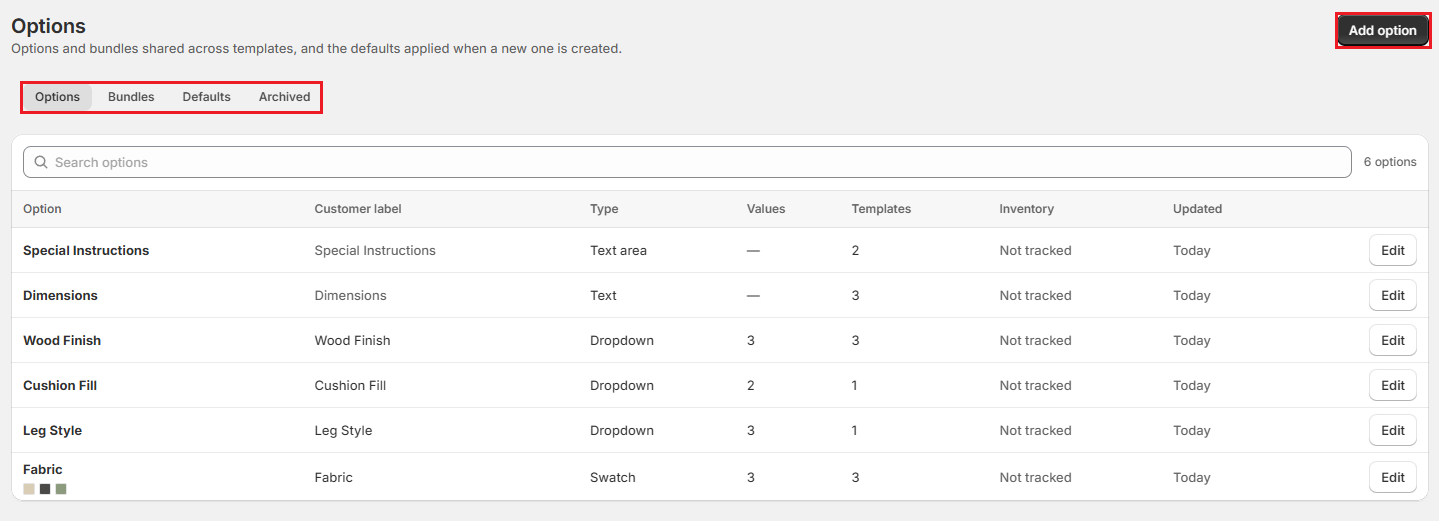
From the OrderPilot dashboard, go to “Settings”, then select “Options” in the Catalog group. The page has four tabs:

| Tab | What it shows |
|---|---|
| Options | Every active option, with its customer label, type, number of values, how many templates use it, and whether its inventory is tracked. |
| Bundles | Named groups of options that templates can follow. |
| Defaults | The default type for new options, and the name prefix for add-on products in Shopify. |
| Archived | Options you have archived. Open one to restore it. |
How to Add an Option?#
Step 1: Go to “Settings”, select “Options” in the Catalog group, and stay on the Options tab.
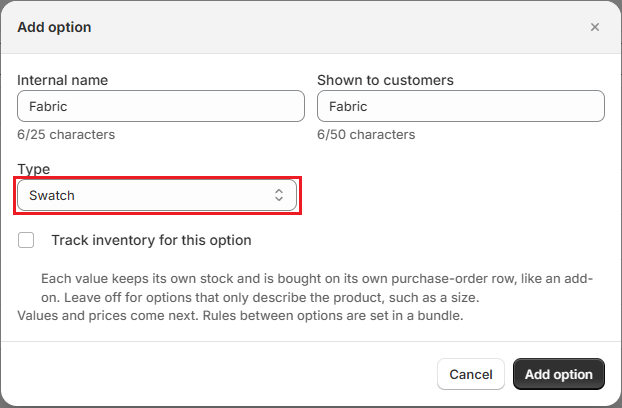
Step 2: Click “Add option”.
Step 3: Enter an Internal name (up to 25 characters). This is the name your team sees in OrderPilot, and it must be unique in your store.
Step 4: Enter the name customers should see in Shown to customers (up to 50 characters). Leave it blank to reuse the internal name.
Pro Tip: The customer label lets you keep a practical working name inside OrderPilot. For example, two different fabric books could be named “Fabric Atelier” and “Fabric Tessile” internally while customers see “Fabric” on both.
Step 5: Choose a Type. See Option Types below.
Step 6: Check Track inventory for this option only if each value keeps its own stock and is bought on its own purchase order row. Leave it off for options that only describe the product, such as a size or a finish. See Track Inventory for an Option.
Step 7: Click “Add option”. OrderPilot creates the option and opens its page, where you add values and prices.
Note: You can also create an option without leaving a product template. In the template's Options card, click “Add option or bundle”, then “Create new”. The new option is attached to that template straight away.
Option Types#
| Type | How it works | Best used for |
|---|---|---|
| Dropdown | A list of values the sales rep picks from. Each value has its own price, cost, and lead time. | Fixed choices like Wood Finish or Cushion Fill. |
| Swatch | A list of values shown with a colour chip. Each value has its own colour, price, cost, and lead time. | Fabrics, leathers, and paint colours. |
| Number | A number the sales rep types, with an optional minimum, maximum, step, and unit. Its price and cost are per unit, multiplied by the number entered. | Measurements priced by size, such as extra length in inches. |
| Text | A single-line box, with an optional character limit and placeholder. Can carry a flat price, charged only when text is entered. | Short details like a monogram or a custom paint code. |
| Text area | A larger box for longer notes, with the same settings as Text. | Special instructions and production notes. |
| Designer & Finish | An image-and-label picker backed by Shopify metaobjects. Each value stores a label and an image together. Staff and customers pick by image. | Designer collections, finish boards, or any choice best communicated as a visual tile. |
| Image | Label text with an optional image. | An older type kept for options that already use it. For new options, use Text or Swatch. |
Note: Changing a Dropdown or Swatch to a type without values removes its values when you save. OrderPilot asks you to confirm first and tells you how many values and templates are affected. Orders already placed keep the wording and price they were sold with.
How to Set Up Values and Prices?#
After you add a Dropdown or Swatch option, its page opens with a Values card and one empty row.
Step 1: Type the first value's name, for example “Oatmeal Linen”. Click “Add value” for each additional value.
Step 2: For a Swatch, pick each value's Colour, or paste a hex code such as #c8b89a.
Step 3: Set the figures for each value. Click a figure to change it:
| Column | What it means |
|---|---|
| Default price | The amount this value adds to the template's base price. A value with no extra charge shows Included. |
| Default cost | What this value costs you from the vendor. Leave it empty if you don't know it yet; it then shows a dash. Enter 0 only if it really costs nothing (it shows Free). |
| Lead time | The number of days this value adds to production. |
| On hand | Shown only when inventory is tracked. See Track Inventory for an Option. |
Step 4: Use the arrows on the left of each row to change the order values appear in.
Step 5: Click “Save” in the save bar at the top of the page.
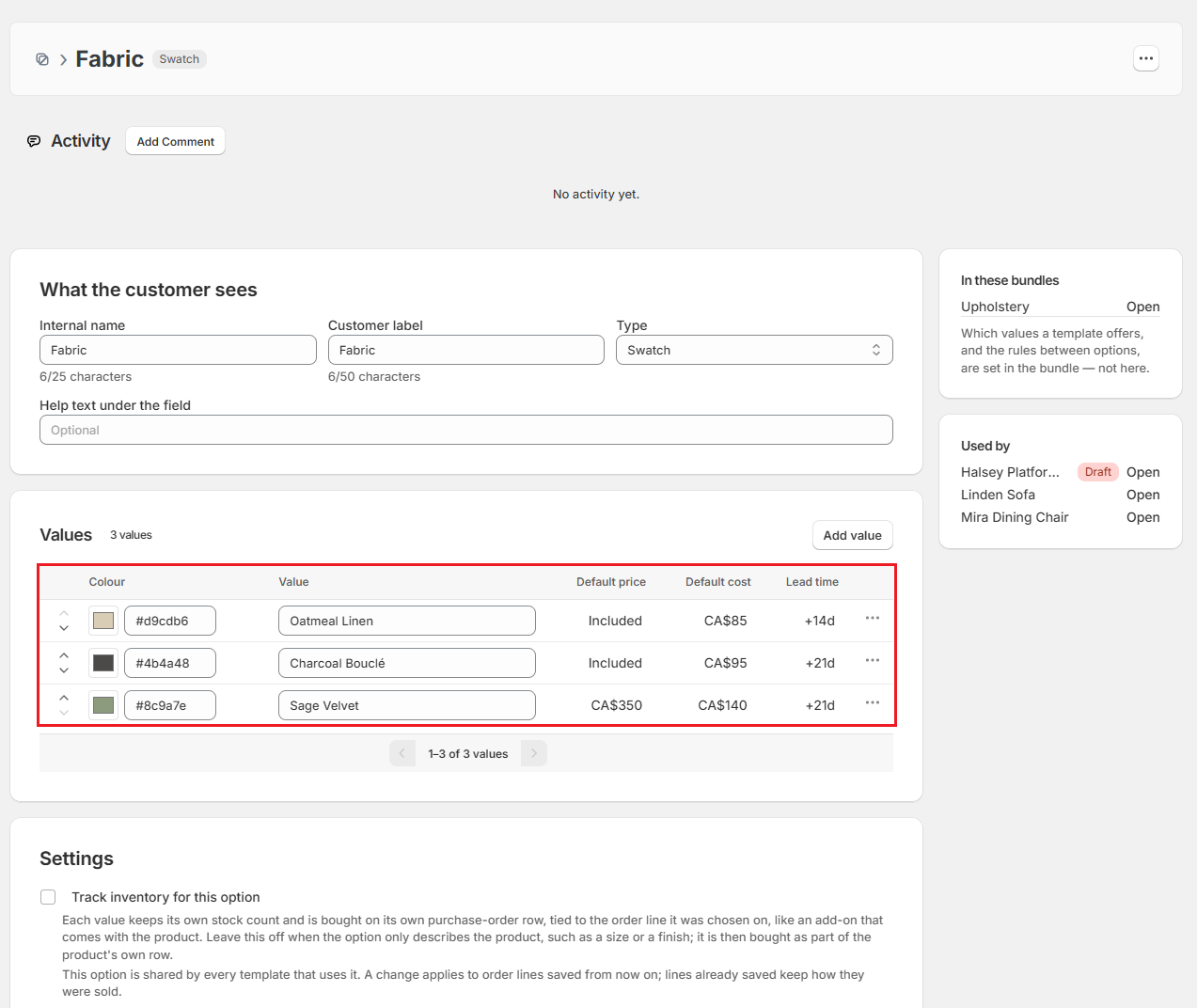
Each value also has a menu button (⋯) with these actions:
- Rename for customer: Show customers a different name for this value, while your team keeps the internal one.
- Use the value name again: Remove the customer name and go back to the value name.
- Delete value: Remove the value. An option needs at least one value, so the last value can't be deleted.
Note: These are default figures. Any product template can offer only some of the values and set its own price, cost, or lead time for a value. See Per-Template Value Offering and Create Product Templates.
Adding a Thumbnail to a Dropdown Value#
Each Dropdown (and Swatch) value can have a thumbnail image from Shopify Files attached to it. The thumbnail appears:
- In order entry forms, next to the value name when a sales rep picks from the list.
- On purchase order edit and view pages.
- In the POS product picker.
To attach a thumbnail, open the option's page, click the settings row for the value (the ⋯ button or the row settings icon), and choose "Set image". Pick an existing file from Shopify Files or upload a new one.
The thumbnail is optional. Values without one show only their name.
Designer & Finish Options (Image Picker)#
The Designer & Finish type (internally TEXT_IMAGE) is a special option that stores a label and an image together for each value. It is backed by Shopify metaobjects with label and image keys.
When a staff member places an order, Designer & Finish options appear as an image picker — a grid of visual tiles — so staff or customers can browse and select a designer collection or finish by sight.
Key points:
- Values are created and managed inside OrderPilot's option editor, the same as Dropdown values. Each value has a label and an image from Shopify Files.
- Pricing, cost, and lead time work the same way as Dropdown values.
- The option can be attached to Shopify product lines. As of 4 Oct 2026, spec values on existing Shopify product lines are shown read-only — you can view which designer or finish is set on a product line, but you cannot edit it from within OrderPilot. To change the value, edit the product directly in Shopify.
Note: Use Designer & Finish for image-led selections such as finish boards or designer collections. For colour swatches, use the Swatch type, which has a dedicated colour picker.
Number, Text, and Text Area Settings#
Options without a list of values have their own settings card instead of the Values card:
- Number settings: Minimum, Maximum, Step, and Unit (for example, inches), plus Price each, Cost each, and Lead time. The price and cost are multiplied by the number the sales rep enters.
- Text settings and Text area settings: Maximum characters and Placeholder, plus Price, Cost, and Lead time. The price is charged once when text is entered, and not at all when the box is left empty.
Every option also has Help text under the field, an optional line shown under the field on the order.
Choosing a Preselected Value#
A value that should already be selected when a product goes on an order is set on each product template, using Starts as in the template's option settings. This lets the same option start with Oatmeal Linen on one sofa and Charcoal Bouclé on another. See Create Product Templates.
Default Stock Choice for Purchase Orders#
The Settings card on the option page has a Purchase orders setting. It decides what extra units ordered on a purchase order do by default when an order line uses this option:
- Use the template's default: Follow the product template's setting.
- Do not create stock: Extra units are not added to stock.
- Create stock: Extra units are added to stock when received.
Buyers can still change the choice on each purchase order. See PO Inventory & Stock.
Track Inventory for an Option#
Turn on Track inventory for this option (in the Add option dialog or the Settings card) when a choice is stocked and bought on its own, like an add-on that comes with the product. Use it for Dropdown, Swatch, or Number options.
When an option is tracked:
- Each value keeps its own stock count and is bought on its own purchase order row, tied to the order line it was chosen on.
- OrderPilot creates one Shopify product for the option, with a variant for each value. A Number option gets one product with a single variant, and an order uses the number entered times the line quantity. For example, 72 on two sofas uses 144.
- The product is named with your add-on prefix, for example “Add-On: Fabric”. You can change the prefix on the Defaults tab.
- The product is created when an active template that uses the option is synced to Shopify. It's available on Shopify POS only, so a quote with a tracked option loads into the POS cart. It isn't offered on its own when staff add products to a quote or order.
- On the Shopify order, invoice, and receipt, the tracked choice appears as its own line next to the product.
- Once a value has its Shopify variant, its On hand figure is read-only. It's the total available across all your locations in Shopify. To change it, adjust it in Shopify (click “Manage in Shopify”) or receive it on a purchase order.
Note: Changes to an option apply to order lines saved from then on. Lines already saved keep how they were sold.
Linking a Dropdown Value to a Shopify Product#
As an alternative to letting OrderPilot create a new Shopify product automatically, you can link an existing Shopify product to a specific dropdown value. This is useful when you already have a product in Shopify that tracks stock for that choice.
To link or create a product from within the option editor, open the value's settings row (⋯) and choose “Link Shopify product” or “Create Shopify product”. Once linked:
- The value's On hand count reflects that Shopify product's inventory.
- The linked product is read-only in Shopify from OrderPilot's perspective — OrderPilot manages its state (inventory adjustments, PO receipts) and you should not edit it directly in Shopify.
Hiding out-of-stock values: When a dropdown value is linked to a Shopify product and that product's inventory reaches zero, the value can be greyed out in pickers (order forms, POS product picker) so staff know it is not currently available. This is controlled by the Hide out-of-stock setting on the option. Turn it on to grey out zero-stock values automatically; leave it off to always show all values regardless of stock.
Stock Tracking on Number Options#
Number options can also be set to tracked. A tracked Number option works differently from Dropdown tracking:
- OrderPilot creates one Shopify product with a single tracked variant for the option, rather than one variant per value.
- When a sales rep enters a number on an order line, the stock consumed is the entered value multiplied by the line quantity. For example, entering 3 metres on a line quantity of 2 consumes 6 metres from the variant's stock.
- The variant's On hand figure is read-only in OrderPilot once the product exists. Adjust it in Shopify or receive it on a purchase order.
Use this for options like fabric yardage or cut lengths, where you stock the material and the quantity consumed scales with what's ordered.
Bundles#
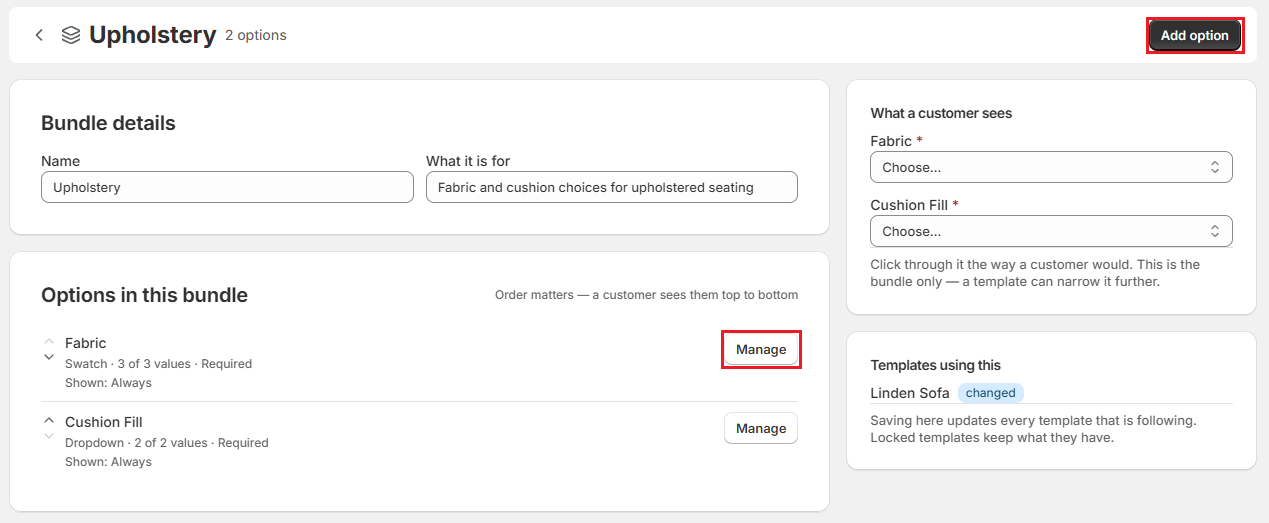
A bundle is a named group of options, along with the rules between them. When a template follows a bundle, it picks up the bundle's options, which values are offered, whether each option is required, and when it is shown. Change the bundle, and every template following it updates.
How to Create a Bundle?#
Step 1: Go to “Settings”, select “Options” in the Catalog group, and open the Bundles tab.
Step 2: Click “Create bundle”, enter a Name and an optional Description, then click “Create”.
Step 3: In the bundle page that opens, click “Add option”, tick the options to include, and click “Add selected”.
Step 4: Click “Manage” next to an option to set how it behaves in this bundle:
- When ordering: Required, Optional, or Inherit.
- Shown to customers as: The label customers see for this option in this bundle.
- Show this option: Always, or Only when… another option has a certain value.
- Values offered: Which of the option's values this bundle offers.
- Narrow the values by another option: Offer certain values only together with certain values of another option.
Step 5: Click “Save changes”.
The right side of the bundle page shows What a customer sees, a live preview of the options and rules, and Templates using this, the templates that follow the bundle.
To attach a bundle to a template, choose it under Start from these bundles when you add the template, or click “Add option or bundle” in the template's Options card and open the Bundles tab.
Note: A template can change an option it got from a bundle, for example by offering fewer values. That option then stops following the bundle for whatever was changed. A template can also hold back all bundle changes. See Create Product Templates.
Per-Template Value Offering#
When a global option is attached to a product template, the template attachment lets you restrict which values from that option are available for orders on that template. This means a shared “Fabric” option with 20 values can be narrowed to 5 values on one sofa and a different 5 on another.
To restrict values on a template attachment, open the template, find the option in the Options card, and click “Manage”. On the Values offered setting, uncheck any values you do not want to offer on this template.
Price and Cost Overrides per Value#
On the same template attachment, each offered value can have its own price and cost that override the option-level defaults for this template only. A price of $0 is displayed as Included, meaning the value carries no extra charge on this template even if it has a default price on the option.
| Column | What it means on a template attachment |
|---|---|
| Price | Overrides the option's default price for this value on this template. Leave blank to use the option's default. Enter 0 to show “Included”. |
| Cost | Overrides the option's default cost for this value on this template. Leave blank to use the option's default. |
Per-Value Lead Time Override#
Each offered value on a template attachment can also have its own lead time. When set, this overrides the template-level lead time for orders where that value is selected. Leave the field blank to fall back to the template's lead time.
Use per-value lead times when certain choices add production time beyond the template's base lead time — for example, a special-order fabric that takes two extra weeks.
Appending Values Inline from a Template#
When you are editing a template attachment and a shared Dropdown or Swatch option does not yet have the value you need, you can add a new value to the option without leaving the template editor.
In the template's Options card, open the option attachment settings and click “Add value” (or the equivalent inline append control). Type the new value's name and confirm. The value is added to the shared option and immediately offered on this template.
This avoids having to navigate to Settings → Options to add a value first and then return to the template.
Note: The new value is added to the global option and is available for all templates that use it. If you do not want it offered on other templates, uncheck it in those templates' value offerings after adding it.
Defaults#
The Defaults tab has two settings. Save your changes when you're done.
- Default type for new custom attributes: The option type that's preselected when anyone creates a new option, here or from a template or order.
- Name prefix (in Add-on products in Shopify): The text in front of the name of every Shopify product created for a tracked option. The default is “Add-On:”. Customers see it on invoices and receipts, and staff see it in POS search. Changing it renames every add-on product in Shopify within a few minutes.
How to Archive or Restore an Option?#
Options can't be deleted, because orders that used them still need their wording and prices. Archive an option instead:
Step 1: Open the option from the Options tab.
Step 2: Click the ⋯ button at the top of the page and choose “Archive option”.
Step 3: Read the summary of what changes and click “Archive”.
An archived option is removed from every bundle and template that offers it, and stops appearing on new orders. Orders already placed keep the wording and price they were sold with.
To bring it back, open the option from the Archived tab, click ⋯, and choose “Restore option”.
Options on Shopify Products#
Options are designed for product templates. When staff add one of your own Shopify products to an order, the line shows the option values already stored on that product in Shopify, plus any required options. Options are not attached to Shopify products the way they are attached to templates.
Designer & Finish on Shopify product lines: As of 4 Oct 2026, spec values on existing Shopify product lines are shown read-only. You can see which designer or finish is recorded on a product line, but you cannot change it from within OrderPilot. Edit the product directly in Shopify to update the value.
Note: Some stores have options set up to apply only to certain Shopify products or categories. That setting still applies to Shopify product lines, but it can't be changed from the option page.
Example: Options for Harlow & Finch Interiors#
Harlow & Finch Interiors sets up these options and puts Fabric and Cushion Fill in a bundle called “Upholstery” that every sofa and sectional follows:
| Internal name | Type | Values and default prices | Track inventory |
|---|---|---|---|
| Fabric | Swatch | Oatmeal Linen (Included), Charcoal Bouclé (Included), Sage Velvet (+$350) | Off |
| Wood Finish | Dropdown | Natural Oak (Included), Smoked Walnut (+$200), Ebonized Ash (Included) | Off |
| Cushion Fill | Dropdown | Feather Blend (+$250), High-Resilience Foam (Included) | Off |
| Leg Style | Dropdown | Tapered, Block, Hairpin | Off |
| Dimensions | Text | Placeholder: “e.g. 96 W x 38 D x 34 H” | Off |
| Special Instructions | Text area | None | Off |
When a sales rep adds the Linden Sofa ($3,200) and picks Sage Velvet with Feather Blend fill, the line price becomes $3,800: the base price plus $350 plus $250.
Important Notes & Tips#
Prices Add to the Base Price#
Every selected value's price is added to the template's base price. If a line uses several priced options, their prices add together. Test a new option with a sample quote before your team starts using it.
Required Is Set per Template#
Whether an option must be filled in is decided on each template (or in a bundle), not on the option. The same option can be required on one product and optional on another.
Changes Apply Going Forward#
An option is shared by every template that uses it. A change applies to order lines saved from then on. Lines already saved keep the wording and prices they were sold with.
What's Next?#
- Attach options to a product and configure per-template values, prices, and lead times: Create Product Templates
- See how options appear when taking an order: Create Quotes & Orders
- Learn about inventory receiving on purchase orders: PO Inventory & Stock
Need Help?#
Not sure which option type to use, or why an option isn't showing on a template? Contact us at support@bevycommerce.com, and we'll help you set it up.