Salespeople & Staff Permissions
In a showroom, more than one person often works on a sale. OrderPilot lets you credit one or more salespeople on every quote and order, on the web and in Shopify POS, so everyone knows whose customer it is. Staff permissions decide who can be credited and who is allowed to change the credit.
This article explains how to set staff permissions, how to assign salespeople on the web and on POS, how sales credit is split, and how salespeople affect your quote and order lists.
Before You Start#
Has Each Staff Member Opened OrderPilot?#
Staff appear in OrderPilot once they've opened the app with their own Shopify staff account. Ask each team member to open OrderPilot once before you set permissions.
Who Can Change Permissions?#
The store owner can always change staff permissions and salespeople. Other staff can do so only if they have Can manage attribution. On a new setup, only the store owner has it.
How to Set Staff Permissions?#
Step 1: From the OrderPilot dashboard, go to “Settings”, then select “Staff permissions” in the Shop group.
Step 2: In the Manage sales attribution table, find the staff member. The table lists Staff, Email, Available as salesperson, and Can manage attribution.
Step 3: Set the two checkboxes:
| Checkbox | What it means |
|---|---|
| Available as salesperson | This person can be picked as a salesperson on quotes and orders. |
| Can manage attribution | This person can change who is credited on quotes and orders, and can change these staff permissions. |
Each change saves right away. The store owner's Can manage attribution always shows Always.
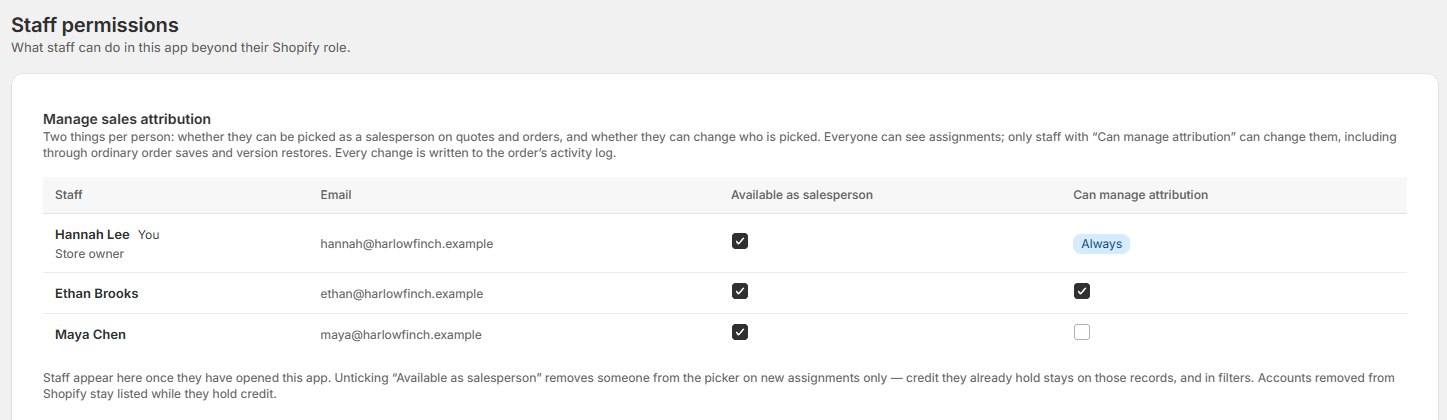
Note: Unticking Available as salesperson removes someone from the picker for new assignments only. Credit they already hold stays on those records, and the row shows how many records they're Credited on.
How to Assign Salespeople on the Web?#
Every quote and order has a Salespeople card.
Step 1: Open a quote or order, or create a new one. When you create a record, you're added automatically if you're available as a salesperson.
Step 2: In the Salespeople card, click Add salesperson and pick a name. Type to search by name or email.
Step 3: To remove someone, click the ✕ on their name.
Step 4: Save the quote or order.

Each name shows that person's share of the credit. If nobody is selected, the card shows Unassigned. On an existing record, the card also shows Created by with the name of the staff member who created it.
If you don't have Can manage attribution, the card shows a lock icon and you can see the salespeople but not change them. New records you create are credited to you if you're available as a salesperson.
How Sales Credit Is Split#
Credit is always split equally between everyone selected. There's no primary salesperson and no percentages to enter.
| Salespeople selected | Share each |
|---|---|
| 1 | 100% |
| 2 | 50% |
| 3 | 33⅓% |
| 4 | 25% |
A record can credit up to 10 salespeople.
How to Assign Salespeople on Shopify POS?#
On POS, salespeople are shown as Sold by.
Step 1: Open an order or quote in the OrderPilot POS extension, or start a new one. A new record starts with the signed-in staff member if they're available as a salesperson.
Step 2: Find the Sold by line and tap “Change”.
Step 3: On Who sold this order?, select everyone who worked on the sale. Everyone selected shares the credit equally.
Step 4: Tap “Save”. A Sold by updated message confirms the change.
If you don't have permission to manage sales credit, you can see who sold the order, but the “Change” link doesn't appear.
Note: POS rounds each share to a whole number, so three salespeople show as 33% each. The web shows 33⅓%.
How Salespeople Affect Your Lists#
Quotes and Orders Lists on the Web#
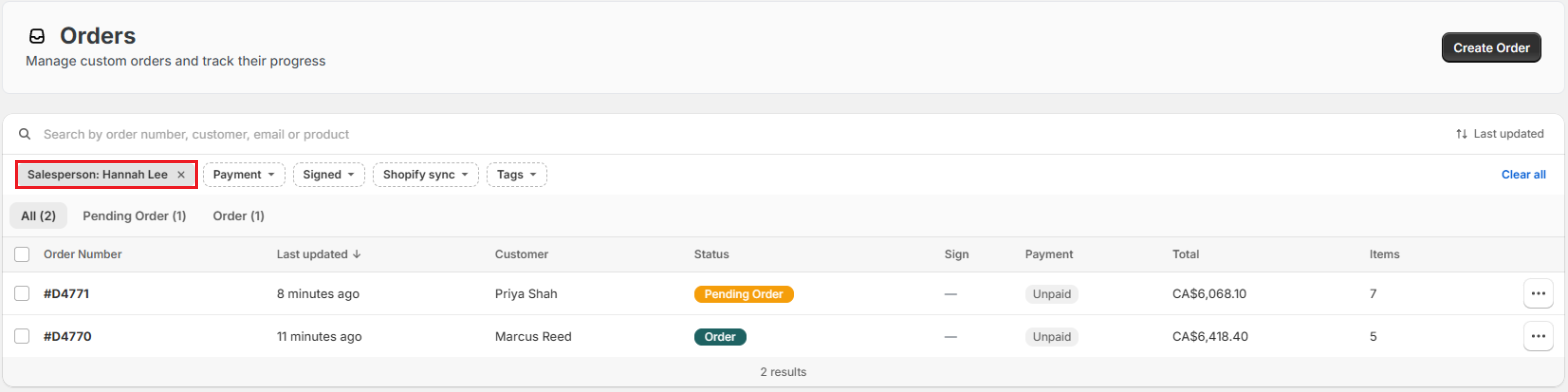
The Quotes and Orders lists open filtered to your own records. A Salesperson filter chip at the top shows your name, for example Salesperson: Maya Chen. "Your records" means the quotes and orders that credit you as a salesperson, not the ones you created.
To see everyone's records, click the ✕ on the Salesperson chip, or click “Clear all”. To see a colleague's records, open the chip and select their name. You can select several people at once.
Pro Tip: The Find a quote or order search and the View all links on Home always show every salesperson's records.
Orders & Quotes on Shopify POS#
The POS Orders & Quotes list has two tabs: All and Mine. It opens on All. Tap Mine to see only records that credit you as a salesperson.
Where Salespeople Show Up#
- Customer emails: the salespeople on an order are copied (Cc) automatically on its customer emails, so they stay on the thread when the customer replies. See Email Settings & Notifications.
- Activity log: every change to the salespeople is recorded on the order's activity, for example “changed salespeople from Hannah Lee (100%) to Hannah Lee and Ethan Brooks (50% each)”.
- Quote to order: when a quote becomes an order, its salespeople carry over.
Example: Splitting a Sale at Harlow & Finch Interiors#
Maya Chen greets Olivia Bennett in the showroom and starts a quote for a Linden Sofa on POS. Ethan Brooks, the store's design consultant, helps Olivia choose Sage Velvet and a Feather Blend cushion fill.
Maya taps “Change” on Sold by, selects herself and Ethan, and taps “Save”. Each is credited with 50%. When the quote becomes an order, both stay credited, and both are copied on Olivia's order emails.
Important Notes & Tips#
"Sales Person" on PDFs Shows the Creator#
The Sales Person printed on quote and invoice PDFs is the staff member who created the record, not the credited salespeople.
Records Missing From Your List?#
Check the Salesperson chip first. The list starts on your own records, so a colleague's quote won't appear until you clear or change the filter.
Restoring a Version Needs the Permission Too#
If an older version of an order has different salespeople, only someone with Can manage attribution can restore it.
Need Help?#
Need help setting up salespeople or staff permissions? Reach out to us at support@bevycommerce.com, and we'll help you get sales credit set up for your team.