Create Categories
Categories are the starting point for creating custom orders in OrderPilot. Before a sales representative can build a custom order, a merchant or admin needs to set up the categories that define the products your store sells.
This article walks you through how to create a category, when to use a parent-child structure, and what to do once your categories are in place.
Before You Start#
A little planning before you create your first category will save you time later. Think through the following questions:
What product types do you sell?#
Categories should reflect the types of products your store offers. Think about the broad groupings that make sense for your business. For example, a furniture store might use Sofa, Dining Table, Lighting, and Storage. A flooring company might use Hardwood, Carpet, and Tile.
Do any of your categories belong under a broader group?#
OrderPilot supports parent and child categories. If you have categories that naturally sit under a broader group, you can nest them. For example, “Accent Chairs” and “Sectionals” could both sit under a parent category called “Seating”. If a category stands on its own, it can be a top-level parent instead.
What custom attributes will this category need?#
Categories control which custom attributes appear during order creation. Once you've created a category, you can assign specific attributes to it, such as Fabric Type, Dimensions, or Wood Finish. Think about what information your sales reps will need to capture for each product type, and you'll be better prepared when you get to that step.
Will certain categories use specific vendors?#
Categories can also restrict which vendors are available when creating purchase orders for orders under that category. If you know that certain product types always come from specific suppliers, keep that in mind as you set up your category structure.
How to Create a Category?#
Step 1: From the OrderPilot dashboard, go to “Settings”.
Step 2: Select “Categories” from the settings menu.
Step 3: Click “Add Category” to open the category creation form.
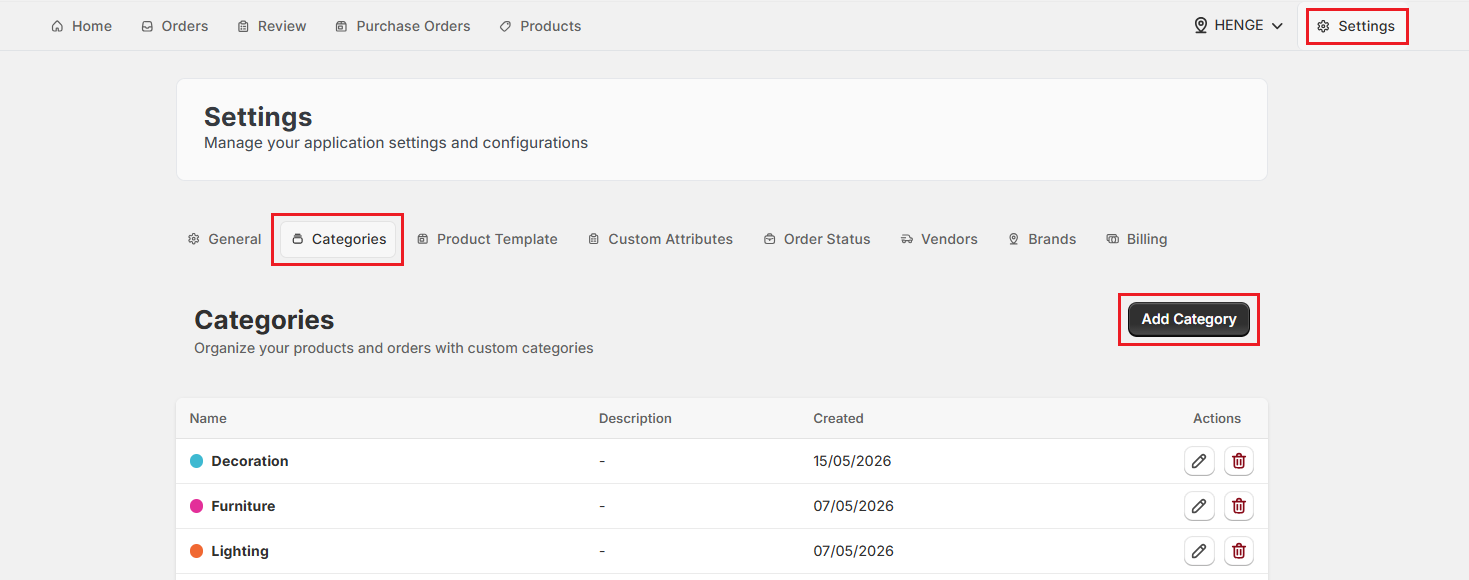
Step 4: Enter a category Name. Keep it short and descriptive so sales reps can find it quickly during order creation.
Pro Tip: Use names that match how your team already talks about products. If your sales reps say “sectional”, not “modular sofa”, name the category accordingly. Consistency between the app and how your team speaks reduces confusion on the floor.
Step 5: Search for and select a Parent Category if this category sits under a broader group.
Note: This step is optional. If you want this category to be a top-level parent (not nested under anything else), skip this step and leave the parent field empty.
Step 6: Enter a category Description (optional). This is for internal reference only and helps your team understand what belongs in this category.
Step 7: Select a Color for the category. Colors make categories easy to identify visually in the app, helping your team tell them apart at a glance.
Step 8: Click “Create Category”.
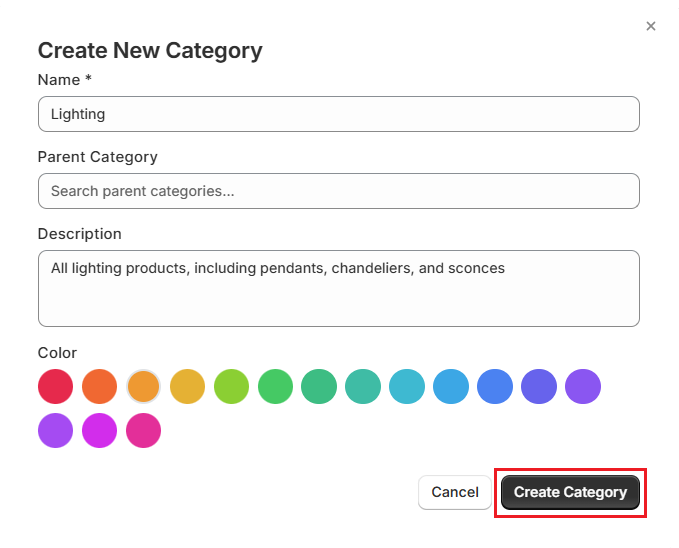
Example: Creating a Category for Lighting Fixtures#
Let's walk through a real example. Say you run a store that sells custom furniture, including lighting fixtures. You carry pendant lights, chandeliers, and wall sconces, and you want each to be a separate category under a broader “Lighting” parent. Here's how you would set that up:
First, create the parent category:
| Field | Value |
|---|---|
| Category Name | Lighting |
| Parent Category | Leave empty. This is the top-level parent |
| Description | All custom lighting products, including pendants, chandeliers, and sconces |
| Color | Yellow (to visually distinguish lighting orders in the dashboard) |
Then, create each child category:
| Category Name | Parent Category | Color |
|---|---|---|
| Pendant Lights | Lighting | Yellow |
| Chandeliers | Lighting | Yellow |
| Wall Sconces | Lighting | Yellow |
Pro Tip: If your child categories share the same custom attributes (for example, all lighting products need a “Wattage” and “Finish” field), assign those attributes to the parent category “Lighting”. They will automatically apply to all child categories under it.
What's Next?#
After setting up categories, you may want to:
- Set Up Custom Attributes: Create and link specific fields to a category to capture unique product requirements when creating orders. For a "Sofa" category, you might add custom fields for "Fabric" or "Leg Style".
- Configure Vendor Rules: Restrict which categories are available for certain vendors to simplify purchasing and fulfillment workflows.
- Create Product Templates: Build and attach templates to specific categories to speed up the order creation process.
- Edit or Delete Categories: If business needs change, keep your catalog up to date by editing or deleting obsolete categories.
Important Notes#
Simplify the Category Hierarchy#
When designing your category structure, aim for a balance between detail and simplicity. Too many specific categories can overwhelm sales reps, while too few can make it difficult to find items. A well-organized hierarchy ensures your team spends less time searching and more time selling.
Categories Affect What Sales Reps See During Order Creation#
When a sales rep starts a custom order, they select a product template. The custom attributes that appear on the order form are determined by the appropriate category assigned to the template. If a custom attribute has no category assigned, the sales rep won't have structured fields to fill in, which can lead to incomplete order details.
Need Help?#
Not sure how to structure your categories or set up parent-child relationships? Reach out to us at support@bevycommerce.com, and we'll help you organize your catalog to fit your workflow.