Create Product Templates
Product templates are the building blocks for creating custom orders in OrderPilot. Each template defines a reusable custom product complete with a category, vendor, pricing, images, and the specific fields a sales rep needs to fill in. Once a template is set up, your team can select it when creating an order and get a pre-structured form instead of starting from scratch each time.
This article walks you through how to create a product template, how visibility settings work across locations, and what to keep in mind before your sales reps start using templates.
Before You Start#
A few minutes of planning here will save you from having to edit templates after your team is already using them. Think through the following questions before you begin:
Do you have your categories set up?#
Categories control which custom fields appear on the order form when a sales rep uses this template. If you haven't created your categories yet, do that first. See Create Categories to get started.
Do you have your vendors set up?#
Every product template must be assigned to at least one vendor, so the right supplier is associated when a purchase order is created. If your vendor list isn't in the app yet, add them before creating templates. See Create Vendors for instructions.
Which locations should this template be available at?#
OrderPilot lets you control where each template is visible. Think about whether this product is sold at all your locations, at specific branches only, or across all locations tied to a single brand. Getting this right from the start means your sales reps see only the templates relevant to them.
Does this template need a review step?#
If orders created from this template should go through managerial review before they're confirmed, you can enable that option during template creation. This is particularly useful for high-value or complex products where an extra check makes sense.
Who Should Create a Product Template?#
Creating and managing product templates is a settings-level action reserved for admins and merchants.
Sales reps can select from your published templates when building a custom order, but they should not create, edit, or delete templates. If a sales rep needs a template that doesn't exist yet, an admin will need to add it from Settings.
How to Create a Product Template?#
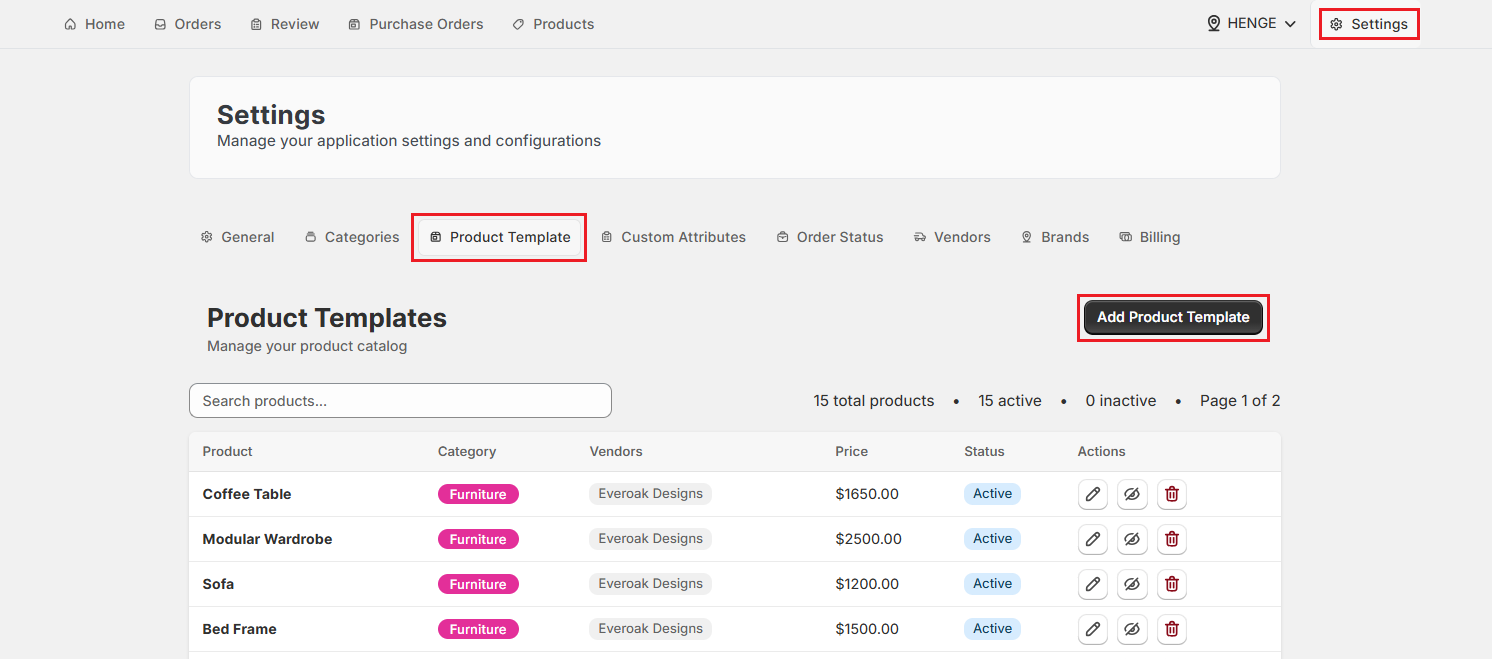
Step 1: From the OrderPilot dashboard, go to “Settings”.
Step 2: Select “Product Template” from the settings menu.
Step 3: Click “Add Product Template” to open the template creation form.
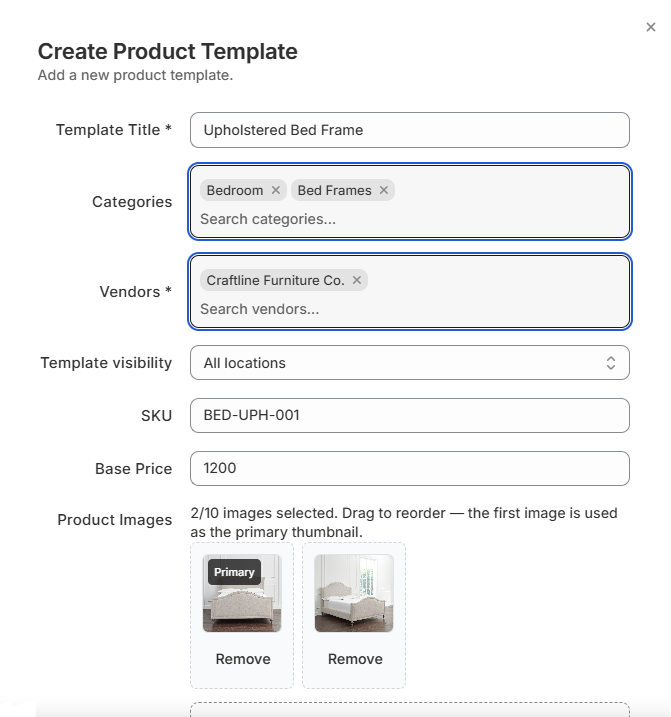
Step 4: Enter a Template Title. This is the name your sales reps will see when choosing a template during order creation, so make it specific and easy to scan.
Pro Tip: Use titles that reflect how your team talks about products on the floor. A title like “Solid Oak Dining Table” is clearer than “Table - Type A”. The more descriptive the title, the faster your sales reps can find the right template.
Step 5: Search for and select the Categories this template belongs to. A template can be assigned to more than one category if it fits across multiple product types.
Note: The categories you select here determine which custom attributes appear on the order form when a sales rep uses this template. If you don't see the right category, create it first in Settings under Categories.
Step 6: Search and select the Vendors associated with this template. This links the template to the suppliers who custom-build it, so the correct vendor is pre-selected when it's time to generate a purchase order.
Step 7: Set the Template visibility to control which locations can use this template.
| Visibility Option | What it means | When to use it |
|---|---|---|
| All locations | Every location in your Shopify account can access this template. | Products available store-wide, such as core catalog items. |
| Selected locations only | You choose specific locations that can see and use this template. | Products carried at certain branches but not others. |
| One brand (all its locations) | All locations tied to a specific brand in your account will have access. | Multi-brand operations where a product belongs to one brand's range. |
Note: If you select “Selected locations only”, a search field will appear. Search and select each location you want to include. If you select “One brand”, you'll be prompted to choose which brand to apply it to.
Step 8: Enter a SKU for this template. If you leave this field empty, the app will generate one automatically.
Pro Tip: If your store uses a structured SKU naming convention, enter the SKU manually here to keep your catalog consistent. Auto-generated SKUs are unique but won't follow your internal naming patterns.
Step 9: Enter a Base Price for the template. This is the starting price before any custom attribute adjustments are applied during order creation.
Step 10: Add Product Images. You can upload up to 10 images per template. Drag and drop to reorder them. The first image in the list will be used as the primary thumbnail in the order form.
Pro Tip: Use clear, well-lit product photos that accurately represent the base product. Since sales reps and customers can see these images during order creation and on quotes, quality matters. Include multiple angles if the product has details worth showing.
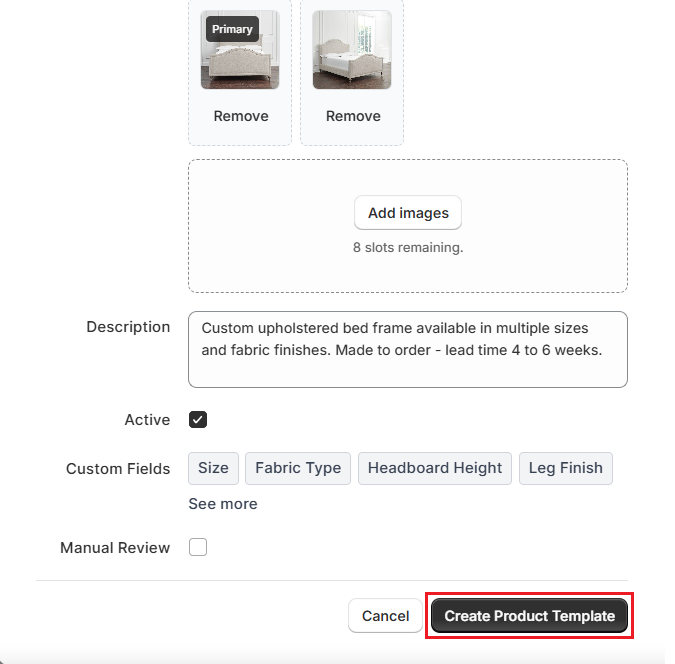
Step 11: Add a Description (optional). This is for internal reference and won't appear on quotes or order summaries sent to customers.
Step 12: Select the Active checkbox to make this template available for use. Templates that are not marked as active will not appear in the sales rep's template list when creating an order.
Note: You can leave a template inactive while you're still setting it up. This is useful when you need to come back and finish a template later, without it appearing to sales reps prematurely.
Step 13: Select the Manual Review checkbox if orders created from this template should go through a review step before being confirmed.
Note: When Manual Review is enabled, orders using this template are automatically placed in the review queue after creation. A reviewer or production manager must approve the order before it moves to the next workflow stage. This setting overrides the global review default for this specific template.
Step 14: Click “Create Product Template”. The template is saved and immediately available to sales reps at the locations you specified (as long as it's marked as active).
Example: Creating a Template for an Upholstered Bed Frame#
Let's say you run a furniture store that sells custom bed frames. Each frame is built to order and comes in multiple sizes and fabric options. Here's how you would set up a product template for it:
| Field | Value |
|---|---|
| Template Title | Upholstered Bed Frame |
| Categories | Bedroom, Bed Frames |
| Vendors | Craftline Furniture Co. |
| Visibility | All locations |
| SKU | BED-UPH-001 (enter manually to follow internal convention) |
| Base Price | $1,200 |
| Images | 2 images: front and side view (front view dragged to position 1) |
| Description | Custom upholstered bed frame available in multiple sizes and fabric finishes. Made to order - lead time 4 to 6 weeks. |
| Active | Checked |
| Manual Review | Checked (because custom bed frames are high-value and benefit from a second check before confirmation) |
Once created, a sales rep on the floor can select “Upholstered Bed Frame” when starting a custom order. The form will load with the custom attributes attached to the Bedroom and Bed Frames categories, for example, Size, Fabric Type, Headboard Height, Leg Finish, etc., so the rep captures all the right details without missing anything.
Because Manual Review is enabled, the order will sit in the review queue after creation. A manager checks that the fabric choice and dimensions are feasible before the order is confirmed and sent to Craftline Furniture Co.
Pro Tip: For high-value or complex products, it's worth setting up the full template, including images and description, before activating it. Sales reps will see this information on the order form and quotes, so a complete template builds confidence and reduces back-and-forth questions.
After Creating the Template#
Once you click “Create Product Template”, here's what happens right away:
- The template appears in the Product Template list in Settings, where you can edit or delete it at any time.
- Sales reps at the locations you selected will see the template when starting a new custom order, provided the template is marked as Active.
- The template is ready to use immediately. No further publishing step is required.
What's Next?#
- Take your first custom order using a template: Create Quotes/Orders
- Create purchase orders to send approved orders to the vendors supplying the products: Create Purchase Orders
Important Notes#
Base Price is a Starting Point, Not the Final Price#
The base price you set here is the default price that loads when a sales rep selects this template. If your custom fields include price-affecting attributes (for example, a size upgrade or an add-on), the price will adjust accordingly during order creation. Make sure the base price reflects the simplest configuration of the product.
Visibility Can't Be Partially Applied Within a Brand#
If you select “One brand (all its locations)” as the visibility option, the template will be available at every location under that brand. You cannot exclude individual locations within that brand. If you need finer control, use “Selected locations only” instead.
Deleting a Template Doesn't Affect Existing Orders#
If you delete a template, it stops appearing in the sales rep's template list for new orders. Any orders already created using that template are not affected and will continue through your workflow as normal.
Need Help?#
Sales reps not seeing a template when creating an order? Unsure how to configure visibility, categories, or vendors for a template? Reach out to us at support@bevycommerce.com, and we'll help you review your template setup.