Create Purchase Orders
Overview#
A Purchase Order (PO) is a formal document that your business sends to a supplier to request specific products or materials. In OrderPilot, purchase orders are the bridge between a confirmed order and your vendor. Once a customer order is approved, you create a PO to procure the made-to-order items from your supplier.
Unlike standard Shopify orders, which work well for off-the-shelf inventory, purchase orders in OrderPilot are built around custom products. Each PO automatically pulls in the exact specifications captured during the sale, so your vendor receives accurate and detailed instructions every time.
Who Should Create Purchase Orders?#
Purchase orders are typically handled by the procurement manager or operations lead responsible for inventory coordination. In OrderPilot, this person generates purchase orders after an order has been approved, tracks supplier fulfillment, and marks items as received once inventory arrives.
When to Create a Purchase Order?#
You should create a purchase order after one or more orders have been approved through the review workflow. Purchase orders should not be created for orders that are still pending review or have been rejected. Common scenarios for creating a purchase order include:
- An order has been approved, and the custom product needs to be procured from a supplier.
- Multiple approved orders share the same vendor and can be batched into a single purchase order to reduce procurement overhead.
- Vendors need written confirmation of product specifications before starting production.
- You want to maintain an auditable paper trail between orders and supplier communications.
How to Create a Purchase Order?#
OrderPilot uses a feature called the PO Workbench to streamline purchase order creation. The Workbench groups your approved orders by vendor so you can create one or more POs in just a few clicks.
Step 1: Go to the Purchase Orders tab
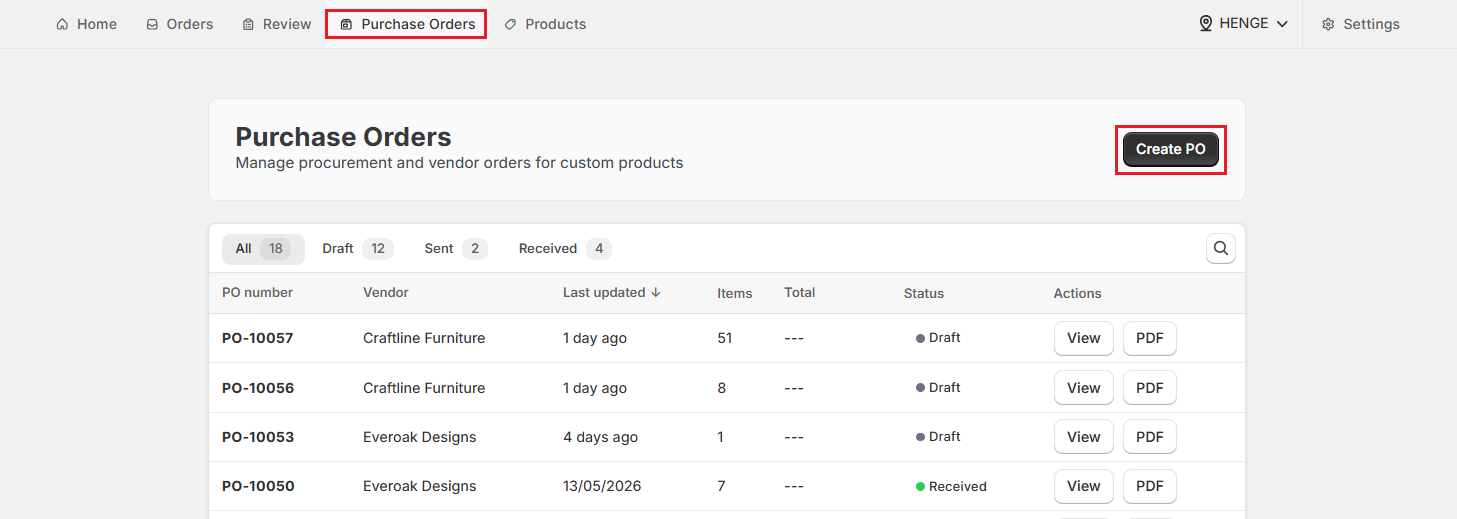
- From the OrderPilot dashboard, navigate to the “Purchase Orders” tab in the top navigation bar.
- Click the “Create PO” button in the top right corner. This opens the PO Workbench.
Step 2: Select vendors and review items
-
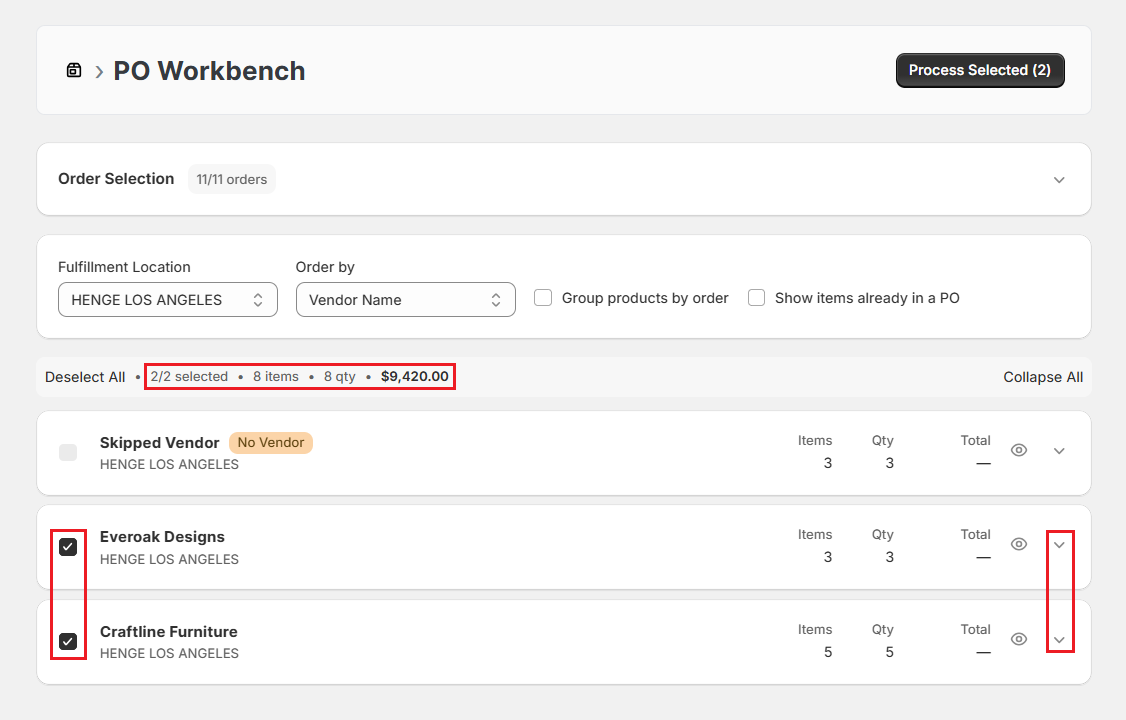
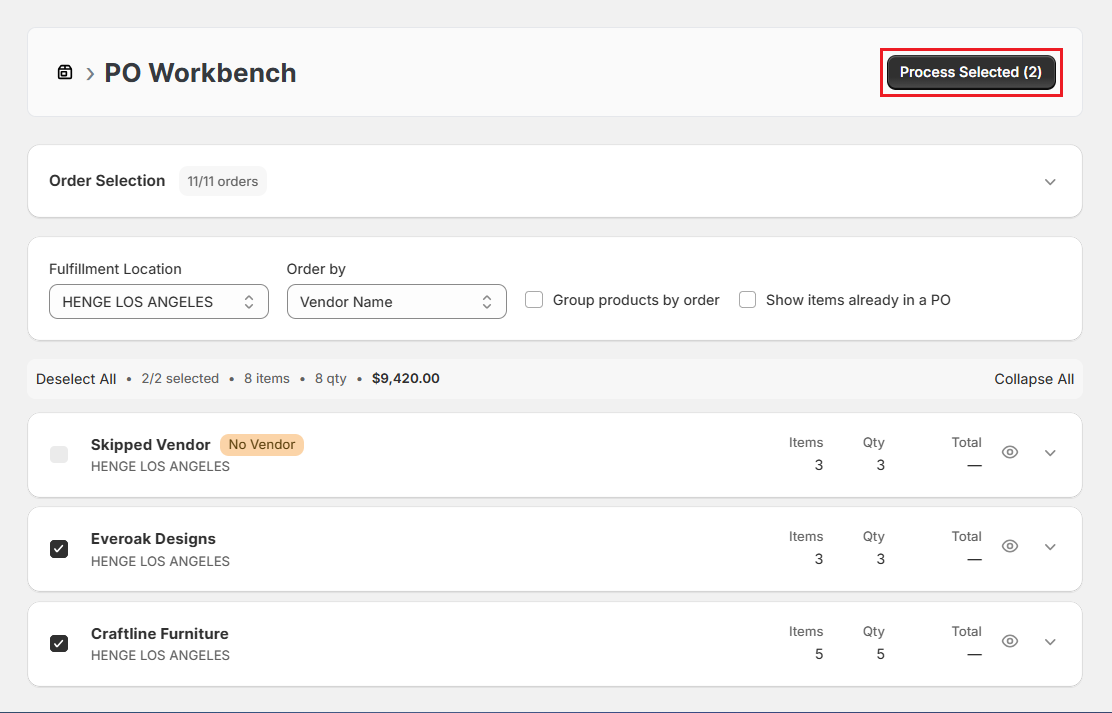
In the PO Workbench, you will see your approved orders grouped by vendor. A summary bar at the top shows the total number of orders, items, quantity, and total value.
-
Select the checkbox next to each vendor whose products you want to order. You can choose multiple vendors to create several POs at once.
-
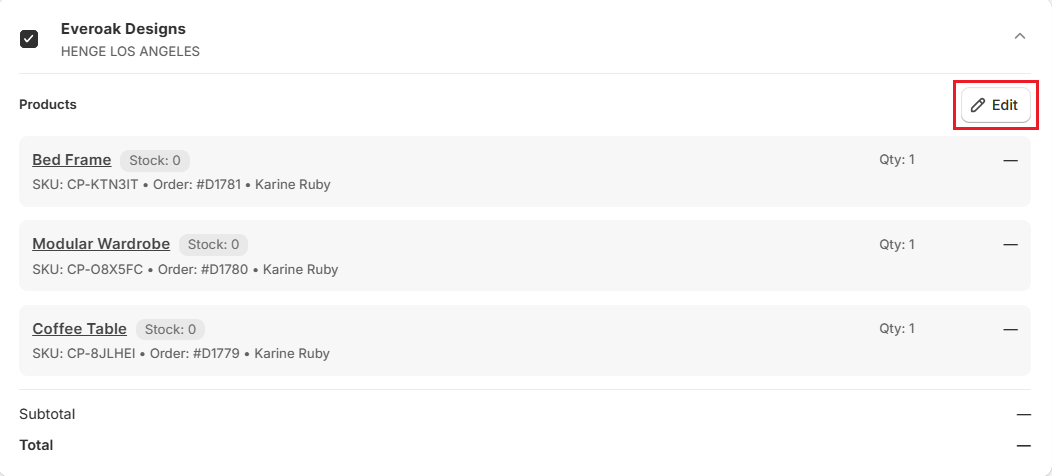
Expand each vendor's section by clicking the expand icon to review the individual items, SKUs, order ID, customer name, and quantities before proceeding.
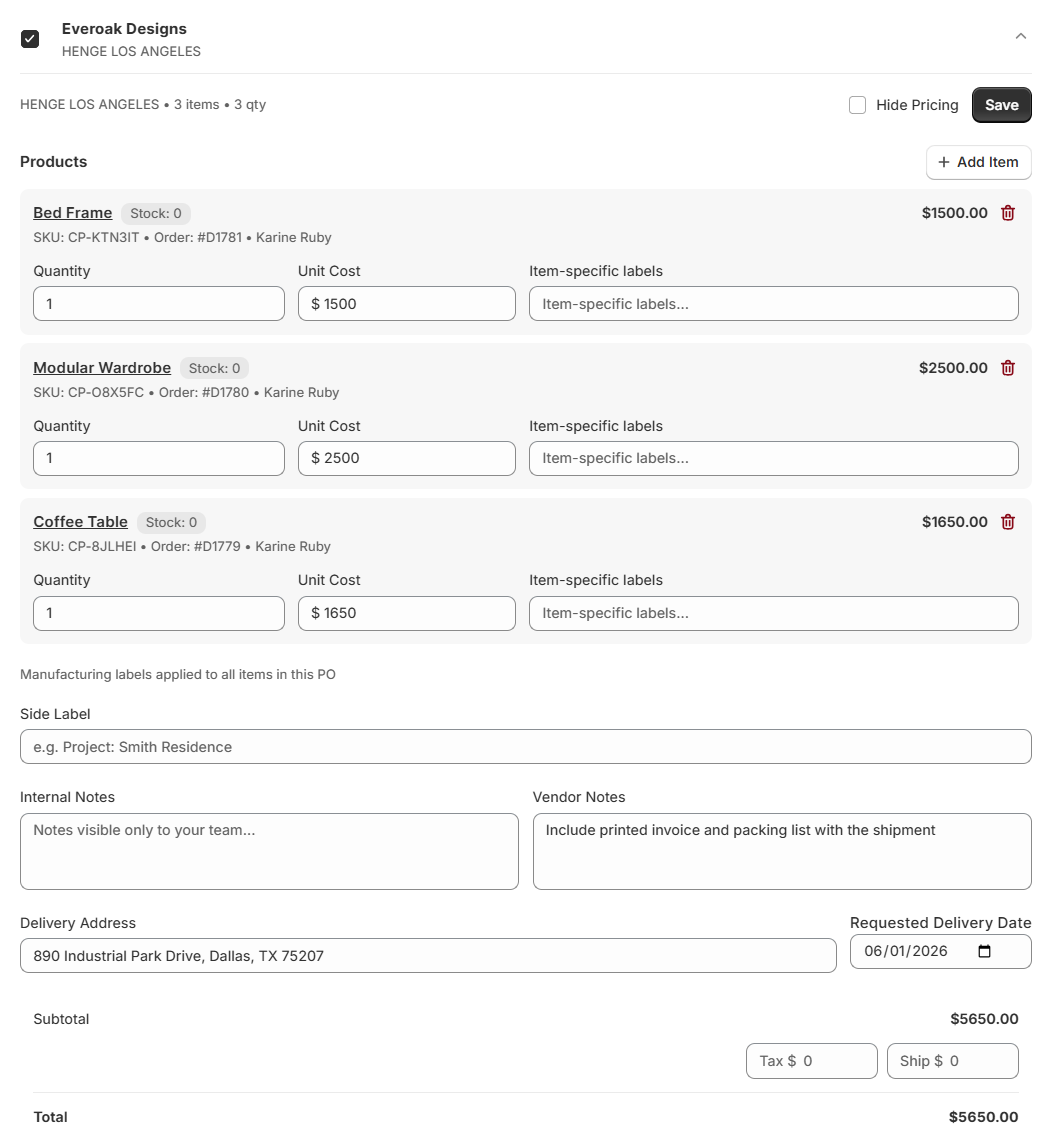
- If needed, use the “Edit” option within an expanded vendor section to adjust quantities, add or remove specific items, show pricing of each item (hidden by default), add vendor notes, and set a delivery date before creating the purchase order.
Note: Items listed under Skipped Vendor have no vendor assigned to the product. These cannot be added to a purchase order until a vendor is linked.
Step 3: Process the selected vendors
- After reviewing your selections, click the “Process Selected (X)” button, where X is the number of vendors you have selected.
-
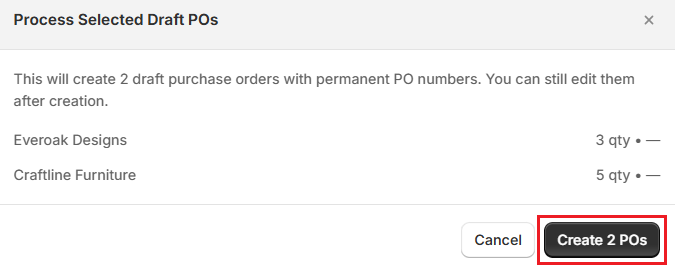
A confirmation dialog will appear listing the vendors and item counts included in the PO. Review the details carefully.
-
Click “Create X POs” to confirm. The system will generate a separate draft PO for each selected vendor and assign a unique PO number to each (for example, PO-10042).
How to Send a Purchase Order?#
Once you're satisfied with the draft, you can send it directly to your vendor from within the app.
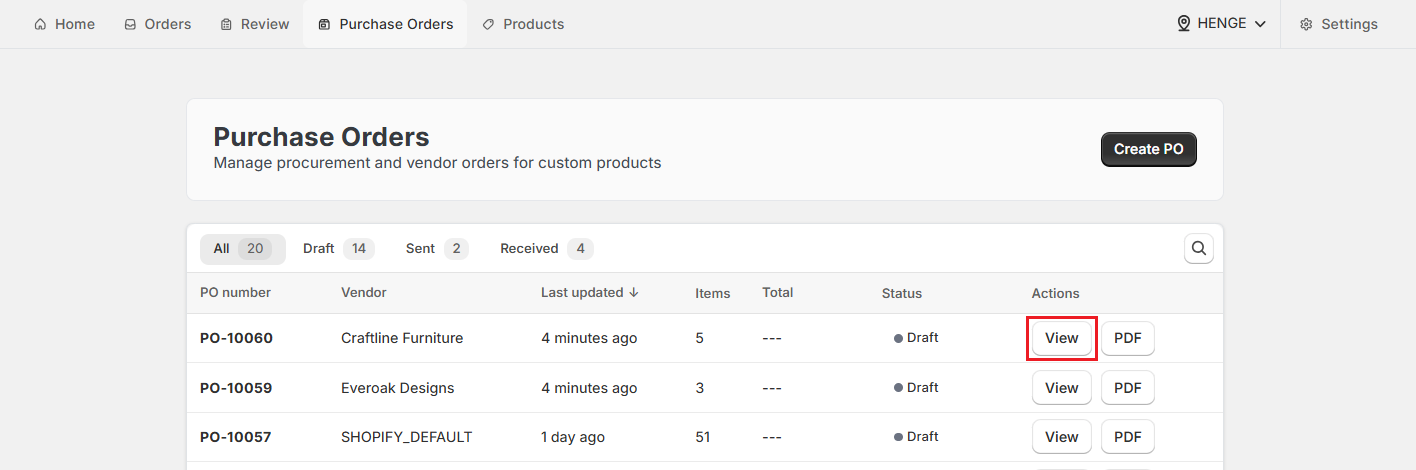
Step 1: On the Purchase Orders tab, click “View” next to the PO you want to send.
Step 2: Review the purchase order details, including the vendor information, line items, order summary, and delivery information.
Step 3: Click “Send to Vendor”. The app will send the PO to the email address saved for that vendor in your vendor settings.
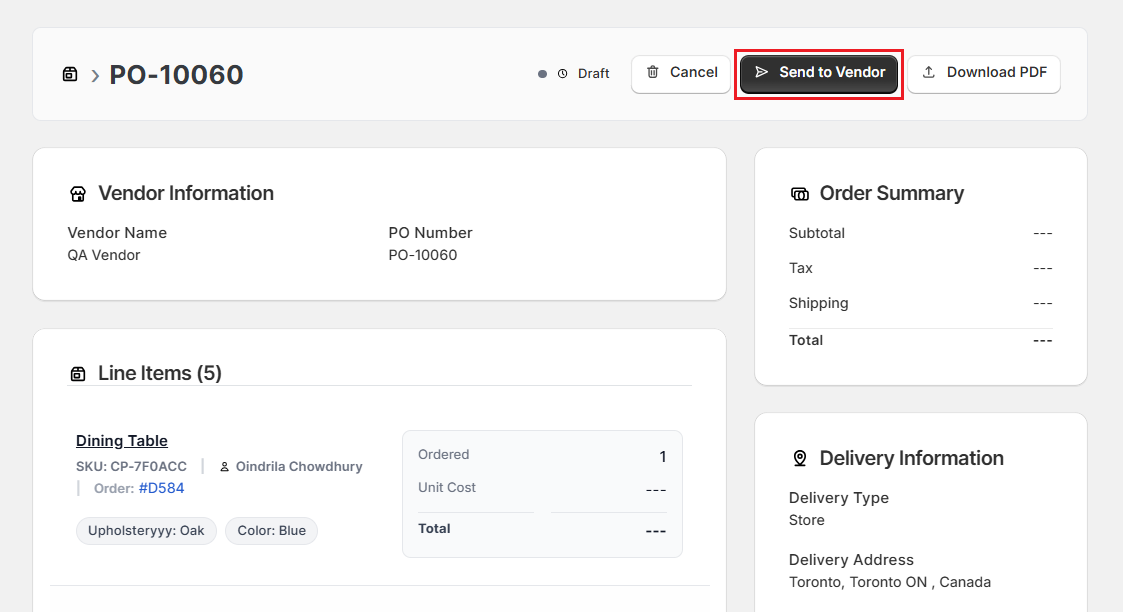
Step 4: The purchase order status automatically changes from “Draft” to “Sent”.
Important: Make sure the vendor's email address is correctly saved before clicking Send to Vendor. If the vendor email is missing or incorrect, the PO will not be delivered.
How to Download a PO as a PDF?#
You can download a formatted PDF version of any purchase order to share it with vendors manually, keep it for your records, or attach it to an email.
-
Go to the Purchase Orders tab.
-
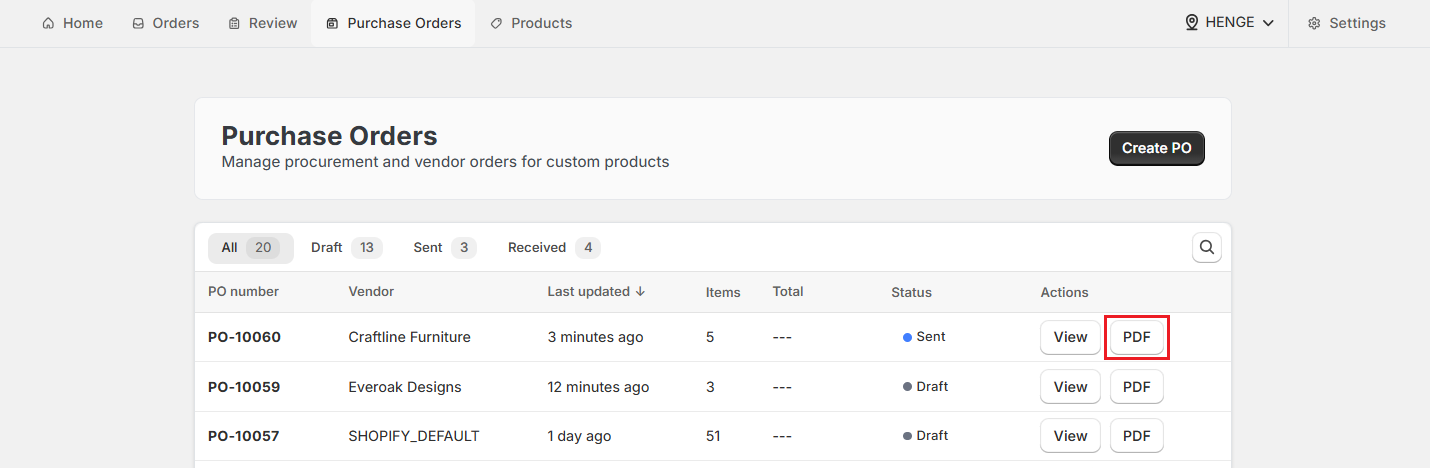
Click “PDF” under Actions for a purchase order.
The PDF will download to your device. It includes the vendor details, the PO number, all line items with SKUs, custom specifications, quantities, pricing, and delivery information.
Quick Recap: Understanding PO Statuses#
Every purchase order in OrderPilot moves through a defined set of statuses. Understanding these helps you track procurement at a glance:
| Status | What It Means |
|---|---|
| Draft | The purchase order has been created but has not yet been sent to the vendor. You can still cancel it at this stage. |
| Sent | The purchase order has been emailed to the vendor. |
| Received | The vendor has fulfilled the order. Inventory has been updated in Shopify. The associated customer orders are marked as “Ready to Ship”. |
| Cancelled | The draft purchase order was canceled before being sent. Canceled POs disappear from the system. |
How to Manage Purchase Orders?#
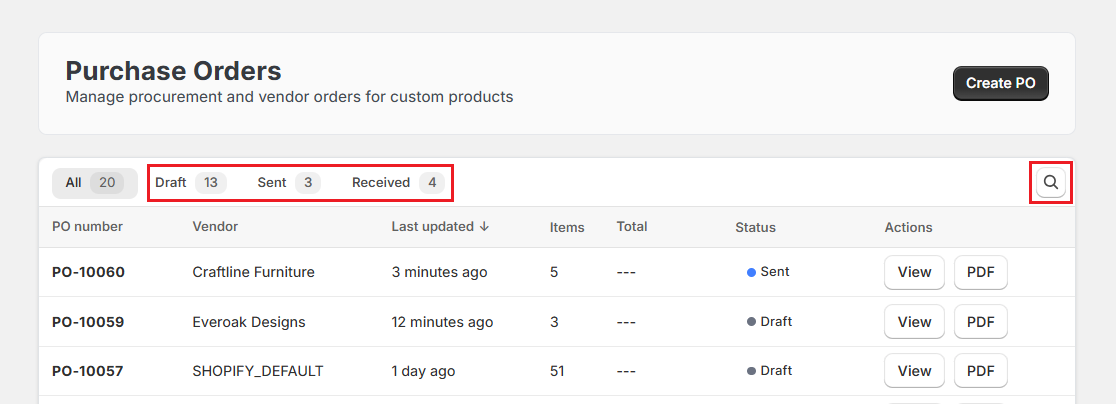
The Purchase Orders tab gives you a complete view of all POs across all statuses. You can:
- Search by PO number, vendor name, or item name using the search bar.
- Filter by status - Draft, Sent, and Received.
- Track summary counts at the top of the page for Total POs, Draft, Sent, and Received.
Best Practices#
Batch Purchase Orders#
Process multiple approved orders together at the end of the day rather than creating individual POs one by one. This reduces vendor communication overhead and keeps your procurement organized.
Add Notes for Your Vendor#
Use the notes field on the purchase order to communicate special instructions, delivery preferences, or production timelines. This reduces back-and-forth emails.
Review Before You Send#
Always expand each vendor section in the PO Workbench to verify line items, quantities, and order IDs before clicking Process Selected. Errors caught here are much easier to fix than after a PO has been drafted.
Keep Vendor Emails Up to Date#
A missing vendor email is the most common reason a purchase order fails to send. Audit your supplier list periodically to keep contact details current.
Download a PDF for Your Records#
Even if you send the purchase order by email through the app, download a PDF copy and store it in your internal filing system as a backup.
Mark Items as Received Promptly#
Delaying the marking of a purchase order as received will prevent your team from fulfilling customer orders and may cause confusion about what is in stock. To learn more, see the Receive PO and Fulfill Orders guide.
Need Help?#
Having trouble creating purchase orders, sending them to vendors, or understanding why certain orders are missing from the PO Workbench? Reach out to us at support@bevycommerce.com, and we'll help you troubleshoot the workflow.