Receive PO & Fulfill Orders
When a vendor's delivery arrives, you record it against the purchase order (PO) in OrderPilot. Each delivery becomes a dated receipt with the units that arrived, the units you rejected, and what they cost. Receiving updates the linked customer orders, so your team knows which orders are ready to hand over to customers, and it updates stock in Shopify where the line calls for it.
This article explains how to receive a delivery, how to handle rejected and extra units, how to correct a receipt, how linked orders move as goods arrive, how to track fulfillment with the Awaiting Pickup tab, and how to mark items as collected or delivered.
Note: Your shop can rename "Vendor" (for example, to "Supplier"). Labels in the app follow your shop's terminology setting, so you may see your own word wherever this article says "vendor".
Before You Start#
Consider the following questions before getting started:
Can this PO be received?#
You can receive a PO when its status is Sent, Partially received, or Received, some rejected. A Draft PO has not gone to the vendor yet, and a Sending PO is still waiting for its email to go out. A finalized PO takes no more deliveries until someone reopens it.
Have you checked the delivery?#
Count the units and check their condition against the PO before you record anything. Note any damaged or wrong items so you can reject them with a reason.
Do you have the vendor's invoice and freight bill?#
The receive screen lets you confirm the vendor's cost and add charges such as freight or duty for this delivery. Having the paperwork to hand keeps your landed costs accurate. See PO Costs and Landed Cost.
How to Receive a Delivery?#
Step 1: From the OrderPilot dashboard, go to "Purchase Orders". Search by PO number, vendor, or item name, and click the PO's row to open it.
Step 2: Click "Receive Items".

Step 3: The Receive · PO-XXXX page opens. The badge in the header shows progress, such as Nothing received yet or Partial · 2 of 6 received. The New receipt card lists every line with these columns:
| Column | What it shows |
|---|---|
| Item | The product, its SKU, how many remain, and the customer order it is for. |
| Ordered | Units on the PO. |
| So far | Units received on earlier receipts, plus any rejected. |
| Receiving now | Units arriving on this delivery. Enter a number. |
| Rejected | Units you are turning away from this delivery. Enter a number. |
| Vendor cost | Prefilled from the PO. Switch between Unit and Total to enter the cost per unit or as the invoice total for this line. The other figure is worked out for you. |
| Landed / unit | The vendor cost plus this line's share of charges, per unit. |
Step 4: Enter the units in Receiving now for each line. If everything still due has arrived, click "Receive all remaining" to fill in every line at once.
Step 5: If any units were damaged or wrong, enter them in Rejected. A Rejection reason field appears under the item. It is required, for example "Damaged in transit" or "Wrong fabric".
Step 6: Add any charges billed on this delivery, such as inbound freight, duty, or brokerage, under Additional charges on this receipt by clicking "Add charge". Each receipt keeps its own charges separate from the overall PO charges. See PO Costs and Landed Cost.
Step 7: Check the Receipt summary (Units, Goods, Charges, and Landed). A badge shows whether the receipt's cost is Final, Estimated, or has a Cost missing.
Note: Receipt costs are locked after the receipt is posted. If you need to change a cost later, use the correction flow described in How to Correct a Receipt? below. Once a PO is finalized, receipt costs are frozen and cannot be changed even via correction.
Step 8: Optionally, add a Receiving note, such as carton condition or who signed for the delivery. Each receipt keeps its own note.
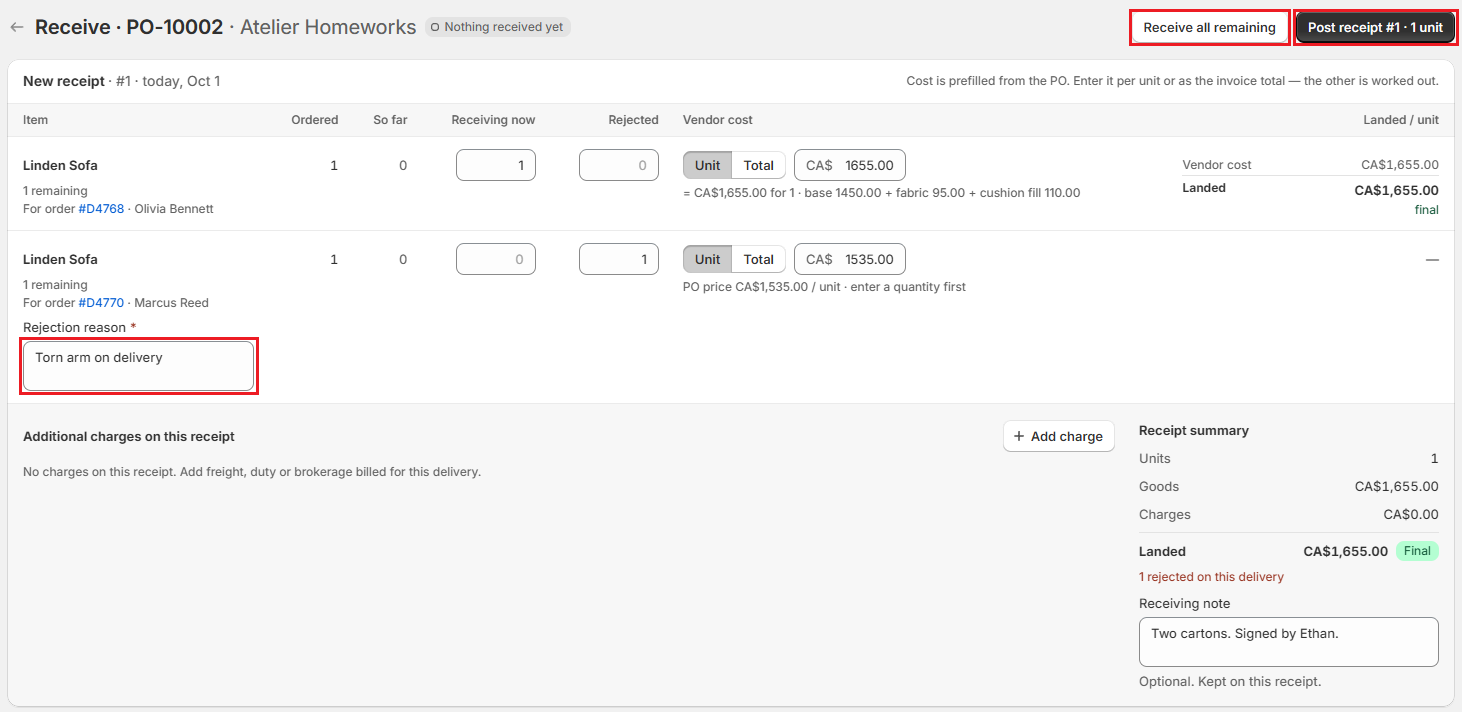
Step 9: Click "Post receipt #N · X units" in the header. If you are only rejecting units on this delivery, the button reads "Save X rejected" instead.
OrderPilot saves the receipt, updates the PO's status, updates stock in Shopify where the line calls for it, and moves the linked customer orders forward.
Note: If the post button is greyed out, hover over it to see why, for example a missing rejection reason or a vendor cost below zero. Every problem is also listed under the Receipt summary.
Receiving more than ordered#
When a line has nothing left to receive, it shows Nothing left to receive with a "Receive extra units" link. Click it to enter extra units. When you post, OrderPilot asks Receive more than ordered? and lists each line's ordered, remaining, and new totals. Click "Save anyway" to continue.
The final delivery and PO charges#
If your PO has charges and this delivery completes it, OrderPilot first shows Review PO charges before the final receipt. Keep each charge that still applies, or tick a charge to cancel it, then click "Keep charges and post receipt" or "Cancel charges and post receipt".
Rejected units#
Rejected units are not received and do not count as stock. They go back to the customer's order line, so you can order them again on a new PO, from the same vendor or a different one. If a rejected item is reordered on a replacement PO, its row on the original PO shows that receiving moved to the new PO.
How to Correct a Receipt?#
Mistakes at the dock happen. Every receipt can be corrected afterwards, and each correction is logged with a reason.
Step 1: Open the PO and click "Receive Items". Your receipts are listed under Receiving history below the new receipt. On a PO that cannot take more deliveries, choose "Receiving history" from the ••• menu instead.
Step 2: Click "Edit" on the receipt you want to correct.
Step 3: Change the Received, Rejected, or Vendor cost figures. To add a line that was missed at check-in, click "Add another item to this receipt" and choose it under Item missed at check-in. You can also add or change charges under Charges on this receipt.
Step 4: Enter a Reason for change, such as "Vendor credit note" or "Carton missed at check-in". It is required.
Step 5: Click "Save adjustment". Click "Discard" to leave without saving.
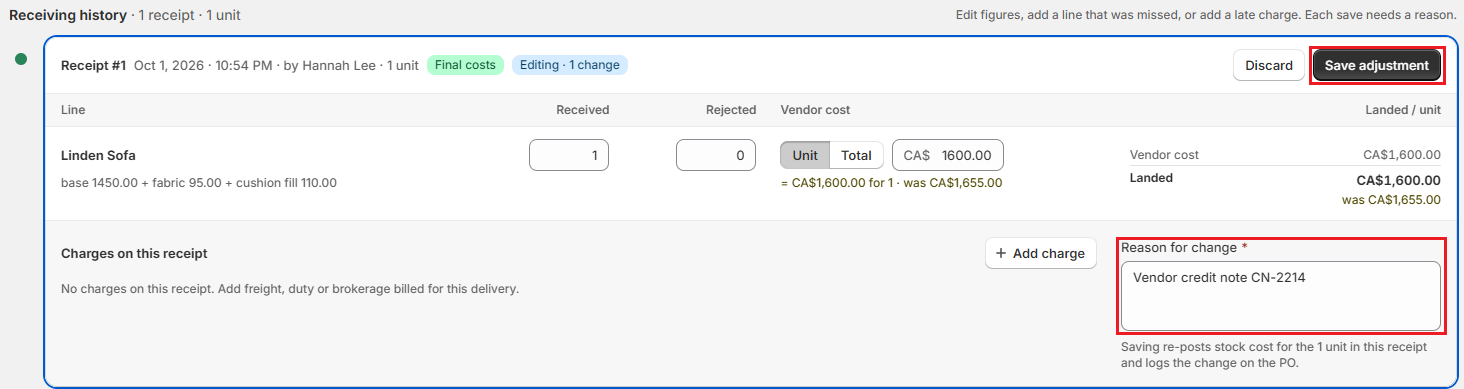
Saving recalculates the stock cost for the units on that receipt and records the change on the PO. Keep these limits in mind:
- Lowering a count takes those units back out of Shopify stock. OrderPilot refuses it if the units are already sold or allocated.
- Lines received into stock (the Create stock choice) cannot have their received count changed on the receipt. Correct the stock in Shopify instead. Their costs and rejections can still be corrected.
- A finalized PO cannot be corrected until it is reopened. Once reopened, receipt costs that were frozen at finalization become editable again.
Finalizing a Purchase Order#
When all goods are in and all costs are confirmed, click "Finalize" on the PO page. Finalizing closes the PO's costs and stops further receiving. If units are still due or a charge is still an estimate, OrderPilot tells you and asks you to confirm with "Finalize anyway".
To change a finalized PO, choose "Reopen" from the ••• menu (or "Reopen to edit" on the banner), enter a Reason, and click "Reopen". The reason is recorded in the PO's activity. See PO Costs and Landed Cost for more.
How Linked Orders Move as Goods Arrive#
Each time you post a receipt, OrderPilot looks at every line on the linked customer orders and updates their status:
| Order status | When it is set |
|---|---|
| Ready to Ship | Every line on the order has been fully received. |
| Partially Ready to Ship | Some units have been received, but not every line is complete. |
| Rejected | Every unit ordered for the order was rejected. |
Note: A quote that has not been confirmed yet does not move to Ready to Ship, even when its goods arrive. It keeps its current status until it is signed and paid, or converted to an order.
Note: Lines that never go on a purchase order, such as lines you excluded because they were already in stock, are not counted as received. An order with such lines stops at Partially Ready to Ship. Change its status yourself when it is ready to go.
Line groups by status on the order#
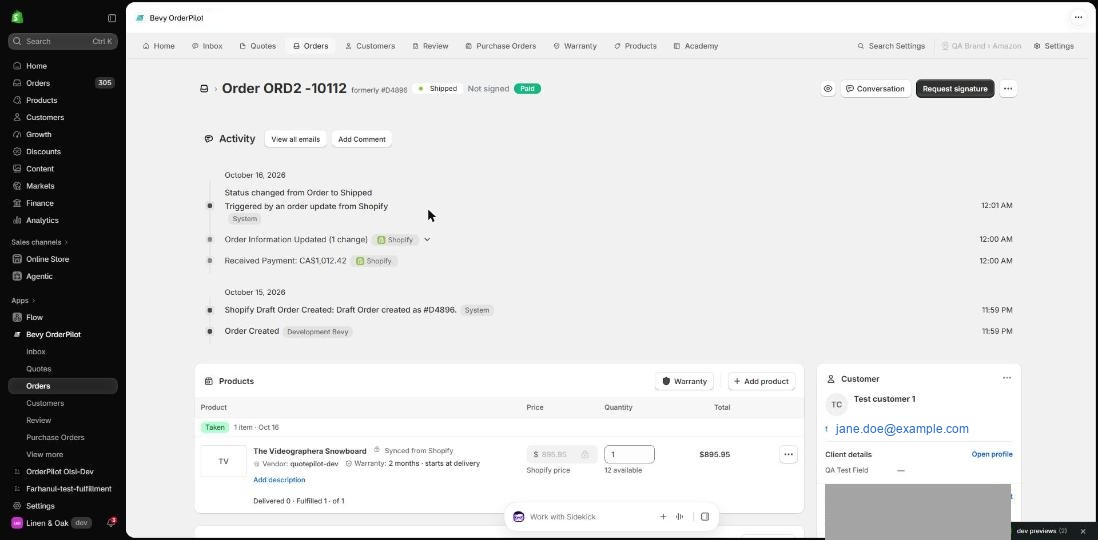
Once fulfillment activity starts on an order, the Products card groups lines by where they are in the fulfillment journey rather than showing them in a flat list. The groups are:
- Waiting for pickup — received and ready, but not yet handed over to the customer.
- Taken — lines that have been marked collected (in-store pickup) or marked delivered.
- On order — lines that are on a PO and have not been received yet.
Lines move between groups automatically as you receive goods and mark them collected or delivered. An order with lines in multiple groups shows all groups at once so you can see the full picture at a glance.
Each line also shows its delivery progress: units delivered out of units ordered, and the hand-over date(s) per line once any have been marked collected or delivered.
Awaiting Pickup Tab#
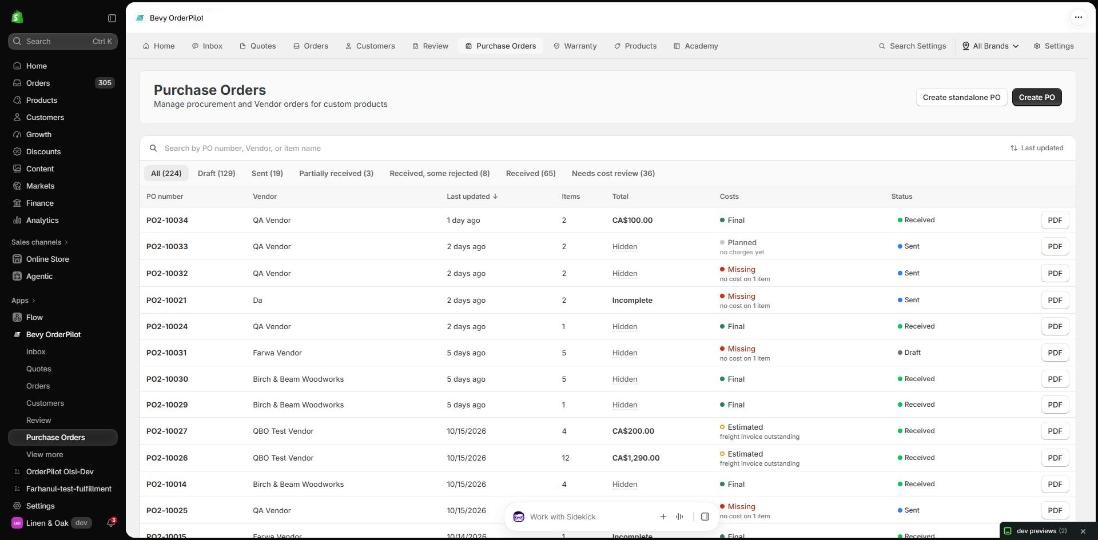
The Awaiting Pickup tab in the orders and quotes list is a focused view of orders that have received, in-stock items waiting to be collected by the customer. Use it to spot orders your team needs to action before goods sit too long.
The tab shows the Waiting column alongside the usual order details. This column displays the number of days since the oldest ready item on that order became available. When an order has been waiting 14 days or more, the badge turns amber to flag it for attention.
Items leave the Awaiting Pickup list once they are marked collected or marked delivered (see below).
Marking Items Collected or Delivered#
Once goods are in and a customer is ready to take possession, you record that hand-over in OrderPilot. There are two separate actions depending on how the order is fulfilled:
- Mark collected — for in-store pickup. Use this when the customer comes to your showroom or warehouse and takes the goods away themselves.
- Mark delivered — for delivery orders. Use this when your team delivers to the customer's address.
Both actions are available from the order line on the web app and from the edit screen in the POS extension.
Payment gate#
Neither action is available until the order has been paid enough to cover what is leaving. If the customer still owes money on the items you are trying to hand over, the action is blocked. The order must be fully paid, or the outstanding balance must be on lines that are not part of this hand-over, before you can proceed.
How to mark items collected (web app)#
Step 1: Open the order. Find the line (or lines) in the Waiting for pickup group on the Products card.
Step 2: Click the ••• menu on the line and choose "Mark collected".
Step 3: Confirm the hand-over. The line moves to the Taken group and the collection date is recorded.
How to mark items delivered (web app)#
Step 1: Open the order. Find the line (or lines) in the Waiting for pickup group on the Products card.
Step 2: Click the ••• menu on the line and choose "Mark delivered".
Step 3: Confirm the hand-over. The line moves to the Taken group and the delivery date is recorded.
Marking collected or delivered from POS#
Staff at the point of sale can also record hand-overs without going to the web app.
Step 1: In the POS extension, open the order from the orders list.
Step 2: On the order edit screen, find the line to hand over.
Step 3: Tap "Mark collected" or "Mark delivered" on the line. The same payment gate applies: the action is blocked if the order is not sufficiently paid.
The hand-over is recorded immediately and syncs back to the web app.
What Receiving Changes in Shopify#
What happens to Shopify inventory depends on the kind of line:
- Shopify catalog products and stock-tracked options: the received units are added to stock at the PO's Fulfillment Location.
- Product template lines set to Do not create stock: Shopify inventory is not changed. The units only move the order forward.
- Product template lines set to Create stock: OrderPilot creates a Shopify product for that exact configuration on its first receipt and adds the units to it, holding the order's units for that order.
If a stock update fails, the PO shows a Stock not updated in Shopify banner with a "Retry" button. See PO Inventory and Stock for the full picture.
How to Fulfill Orders?#
OrderPilot does not ship orders itself. You fulfill them in Shopify, and the status comes back to OrderPilot.
Step 1: Go to "Orders" and find orders with the status Ready to Ship or Partially Ready to Ship.
Step 2: Open the order to check the product, options, and quantities before packing.
Step 3: Fulfill the order in your Shopify admin, using Shopify's usual fulfillment steps.
Note: On the Shopify order, each stock-tracked option chosen on a product template line (for example, a tracked fabric) appears as its own add-on line beside the main product. Fulfill those add-on lines together with the product they belong to.
Statuses coming back from Shopify#
As Shopify reports fulfillment and delivery, OrderPilot updates the order's status:
| Status | What it means |
|---|---|
| Partially Shipped | Some units have been fulfilled in Shopify. |
| Shipped | All units have been fulfilled. |
| Partially Delivered | Some units have been delivered. |
| Delivered | All units have been delivered. |
Delivery is counted when carrier tracking reports the package as delivered, when you mark a shipment or local delivery as delivered in Shopify, or when a local pickup is collected. A shipment with no carrier tracking stays at Shipped until you click Mark as delivered on the fulfillment in Shopify.
Each line on the order also shows how many of its units have been fulfilled and delivered.
Serial numbers after fulfillment#
If a product template or an extended warranty plan requires a serial number, the line asks for one per fulfilled unit once Shopify fulfills it. The line shows Serials X of Y missing until every fulfilled unit has one.
To add them, click the ••• menu on the line and choose "Serial numbers" (or "Add serial numbers" on a line where they are optional), enter one serial per unit, and save. See Warranty and Serial Numbers.
Example: Receiving a Sofa Delivery#
Harlow & Finch Interiors sent PO-10002 to Atelier Homeworks for two Linden Sofas: one for Olivia Bennett and one for Marcus Reed. The truck arrives with both sofas, but Marcus's has a torn arm.
- Open PO-10002 and click "Receive Items".
- On Olivia's sofa line, enter 1 in Receiving now.
- On Marcus's sofa line, enter 1 in Rejected and type "Torn arm on delivery" in Rejection reason.
- Add a Receiving note: "Two cartons. Signed by Ethan."
- Click "Post receipt #1 · 1 unit".
PO-10002 moves to Received, some rejected. Olivia's order moves to Ready to Ship and appears in the Awaiting Pickup tab. Marcus's sofa goes back to his order line, ready to reorder on a new PO from Atelier Homeworks.
When Olivia arrives to collect her sofa, a staff member opens her order, finds the Linden Sofa line in the Waiting for pickup group, and clicks "Mark collected". Olivia's line moves to the Taken group with today's date, and her order drops off the Awaiting Pickup list.
Important Notes & Tips#
Receive on the day goods arrive#
The sooner you post a receipt, the sooner your team sees which orders are ready and the sooner items appear in the Awaiting Pickup tab.
Use unit or total cost entry to match your invoice#
When entering vendor cost at receive time, switch between Unit and Total to match however the invoice presents the figures. OrderPilot calculates the other value for you.
Add per-receipt charges at receive time#
Freight, duty, and brokerage charges that arrive with a specific delivery belong on that receipt, not on the overall PO. Adding them at receive time keeps your landed cost accurate per delivery.
Always give a clear rejection reason#
The reason is kept on the receipt and helps when you claim a credit or replacement from the vendor.
Correct receipts rather than working around them#
If a count or cost was wrong, edit the receipt with a reason. Do not post an extra receipt to balance it out, because that adds stock that never arrived.
Watch the Awaiting Pickup tab for items waiting too long#
Items that have been ready for 14 days or more are flagged with an amber badge in the Waiting column. Follow up with the customer before goods tie up valuable floor space.
Use Mark as delivered for untracked shipments#
If you deliver with your own van or a carrier without tracking, mark the fulfillment as delivered in Shopify so the order reaches Delivered and any warranty cover starts. For in-store hand-overs that bypass Shopify fulfillment entirely, use Mark collected directly on the order line.
Need Help?#
Need help receiving a delivery, correcting a receipt, or understanding why an order hasn't moved to Ready to Ship? Reach out to us at support@bevycommerce.com, and we'll help you work through the receiving and fulfillment flow.