Edit Quotes/Orders
After a quote or order is created, it has its own page in OrderPilot. This is where you change lines and prices, move it to the next status, turn a quote into an order, and see what changed and who changed it. OrderPilot keeps the matching Shopify draft order up to date each time you save.
Some statuses lock a record so it cannot be changed by accident once it is in production. This article explains how saving works, how to change a status, how locks and Force Edit work, how to restore an earlier version, and what the Shopify sync badges mean.
Before You Start#
Where do you open a record?#
Go to “Quotes” or “Orders” and click the row. If you cannot find it, see Find Quotes/Orders.
What is on the page?#
The page has the same cards as the create screen (Customer & location, Products, Fees, Quote Summary, Salespeople, Quote Notes, Quote Tags), plus a Quote Settings card for the status, and the Activity card for comments and history. On an order, the cards say "Order" instead of "Quote". See Create Quotes/Orders for what each card does.
The page title shows the record number with three badges: the status, the signature (Signed, Re-Sign, or Not signed), and the payment status (for example Unpaid or Partially Paid).
How to Edit and Save a Quote or Order?#
Step 1: Open the quote or order.
Step 2: Make your changes, for example change the Fabric on the Linden Sofa line or add a fee.
Step 3: As soon as something changes, Shopify's save bar appears at the top of the screen. Click “Save” to keep your changes, or “Discard” to undo them.
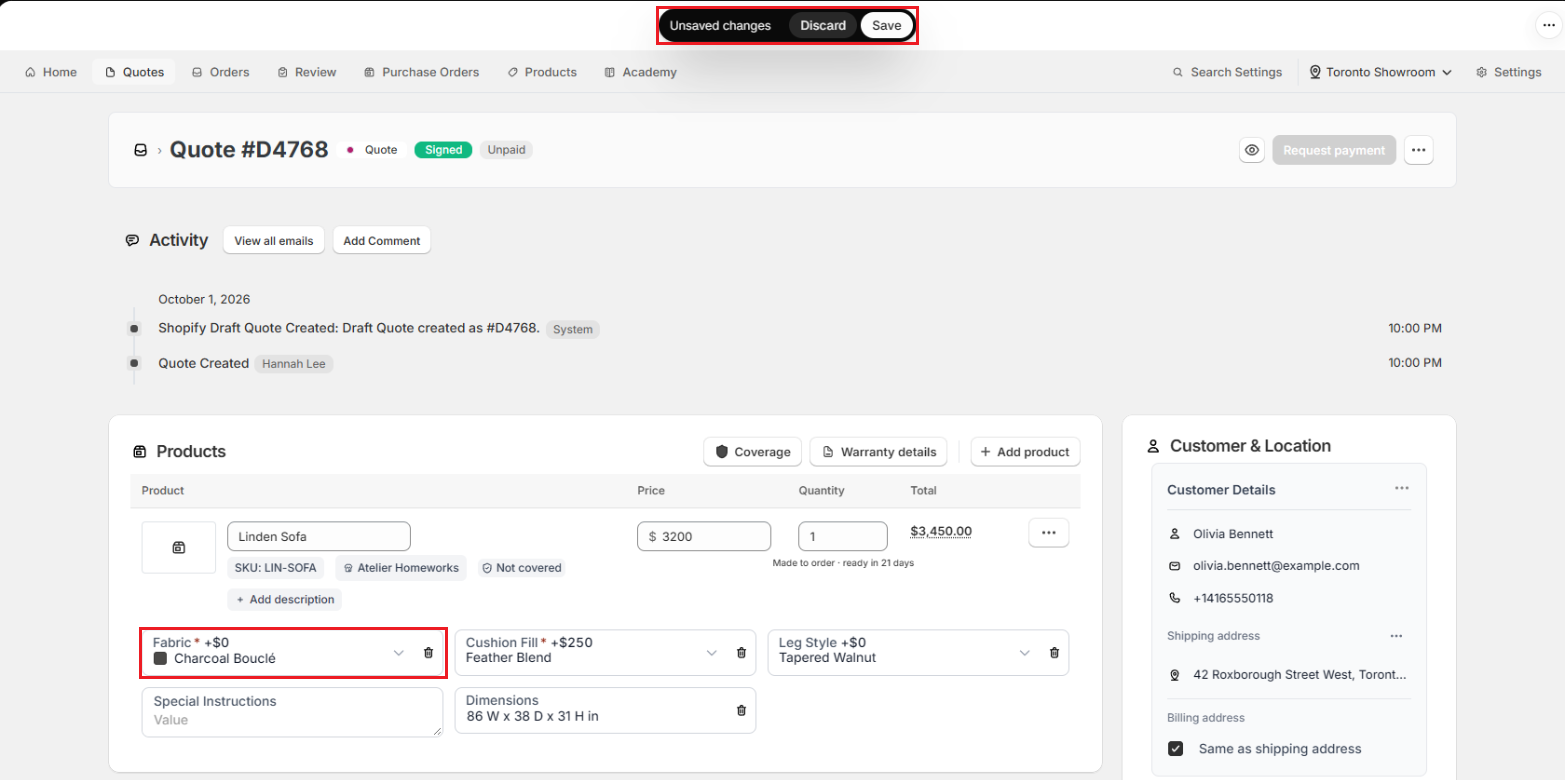
If Save is greyed out, a These changes cannot be saved yet banner on the page says why, for example a missing location, a missing customer, a line without a vendor, or a sync that is still running.
Note: If you try to leave the page with unsaved changes, OrderPilot stops you with You have unsaved changes. Save or discard before leaving. Save or discard first.
Draft records#
A record saved with Save as Draft is not in Shopify yet. Its page shows “Save as draft” and “Create Quote” (or “Create Order”) buttons at the top. Click “Create Quote” when it is complete to send it to Shopify. Until then, you cannot email it, copy its links, or take payment.
Auto-save for quotes#
If Auto-save quotes after the first save is turned on in “Settings”, then “Order defaults” (in the Saving quotes card), quotes save on their own a few seconds after you stop typing. Auto-save covers quotes and unpaid drafts that have been saved once, are not signed, have no payment, and are not yet a Shopify order. Status changes, payments, and emails are never sent on their own.
Under the title you will see:
| Indicator | What it means |
|---|---|
| Saving… | A save is in progress. |
| Saved · time | Your changes are saved. |
| Couldn’t save · Retry | The last save failed. Click “Retry”. |
| Not saved: reason | Auto-save is paused for the reason shown. Use the save bar instead. |
| Auto-save stopped | Someone else saved the quote while you had it open. |
When auto-save stops because someone else saved, a This quote changed since your last save banner appears. Click “Reload quote” to see their version. Changes you made since your last save are not kept.
Changing the Status#
Every record has a status, shown in the Quote Settings (or Order Settings) card.
Step 1: In the Quote Status (or Order Status) dropdown, choose the new status.
Step 2: Click “Save” in the save bar.
The list includes every active status in your workflow. In this list, Pending Review shows as Pending Quote or Pending Order, and Draft shows as Draft Quote or Draft Order. You manage the statuses in “Settings”, then “Order status”. See Create Order Statuses.
Turning a quote into an order#
Set Quote Status to Order and save. The record moves from the Quotes list to the Orders list and keeps everything else, including its salespeople, which the Activity card confirms. A quote that has been signed and paid (in full or a deposit) becomes an order automatically.
Note: By default the Order status locks editing, so make any last changes to the quote before you convert it.
Requires Review#
The Requires Review switch in the same card flags the record for a manager's review. See Review Quotes/Orders.
Locked Statuses and Force Edit#
A status can be set to lock editing. By default, Order and every status after it lock the record: Partially Sent to Vendor, Sent to Vendor, Ready to Ship, Partially Ready to Ship, In Production, Quality Check, Partially Shipped, Shipped, Partially Delivered, and Delivered. You can change which statuses lock in “Settings”, then “Order status”. When a record is locked:
- An Editing disabled banner says This order can't be edited because it's in the status name status.
- Fields are greyed out. Hover over one to see why.
- You can still add comments in the Activity card.
How to edit a locked record?#
Step 1: In the Editing disabled banner, click “Force Edit”.
Step 2: Read the Force edit this locked order? window. Saving may invalidate signatures, leave quotes you already sent out of date, and need purchase-order follow-up.
Step 3: Click “Enable Force Edit”. The banner turns green and reads Force Edit enabled.
Step 4: Make your changes and click “Save”. The record stays in its current status.
To stop without saving, click “Keep Locked” in the banner. Your unsaved changes are discarded and the record locks again.

Note: Force Edit lasts only while you have the page open. Saves made with it are marked as forced edits in the Activity card. If you pick a locking status in the dropdown but have not saved yet, an Editing locked by the selected status banner explains why the form stopped taking input. Choose another status to keep editing.
Lines on a purchase order#
A line that is already on a purchase order is locked on its own, even when the record is not. The line says Locked by purchase order and the PO number, with an “Enable edit” link.
Step 1: Click “Enable edit” on the line, or click the line's ••• button and choose “Enable Edit”.
Step 2: Confirm in the Edit PO-linked item? window by clicking “Yes, enable editing”.
Step 3: Make your change and save. To lock the line again without saving, choose “Lock” from the line's ••• menu.
Note: Editing a PO-linked line does not change the purchase order's quantities or costs. Check the purchase order afterwards. See Purchase Orders From an Order.
Shopify Sync Badges#
Under the page title, a badge tells you where the record stands in Shopify:
| Badge | What it means |
|---|---|
| Syncing with Shopify | Your latest save is being sent to Shopify. Editing waits until it finishes. |
| Draft synced | The Shopify draft order is up to date. A Shopify order is created when payment is collected. |
| Draft on Shopify | The order exists only as a Shopify draft so far. It becomes a Shopify order when payment is collected. |
| Sync complete | The Shopify order is up to date. |
| Shopify Sync Failed | The last save did not reach Shopify. Hover for the reason. |
Next to the buttons, “View draft in Shopify” (or the eye icon, View in Shopify) opens the record in your Shopify admin.
How to retry a failed sync?#
Step 1: Click the ••• button at the top of the page.
Step 2: Click “Retry Shopify Sync”. OrderPilot sends the record to Shopify again and shows Retrying Shopify sync.
Retry Shopify Sync appears when the last sync failed, when the record was never created in Shopify, or when its draft order was deleted in Shopify (the record then shows a red Deleted badge). Retrying recreates the draft.
Changing the Customer or Location#
Customer#
In the customer card, click the ••• button next to Customer Details:
- “Edit customer” changes their name, email, phone, or addresses in Shopify.
- “View customer” opens their profile in Shopify.
- “Change customer” lets you pick a different customer.
Location#
To move a record to another location, choose the new location in the location picker at the top of the app while the record is open, then save.
You can move a record while it is a draft in OrderPilot or a draft order in Shopify. The location is fixed once payment is collected and it becomes a Shopify order, once any line is on a purchase order, or if its Shopify draft was deleted. The picker is greyed out in those cases. Hover over it to see why.
Signatures After an Edit#
If the customer has already signed, any change they would see (prices, quantities, lines added or removed, options, Quote Information fields, fees, discounts, or shipping) cancels the signature. The Sign badge changes from Signed to Re-Sign, and the customer must sign the new version. Internal changes, such as tags, notes, or salespeople, do not.
Pro Tip: After changing a signed quote, click “Request signature” to send the customer the updated version straight away. See Request Signature & Payment.
Version History and Restore#
Every save is recorded in the Activity card at the bottom of the page, with who made it and what changed.
Step 1: In the Activity card, click a change entry to expand it. Below the list of changes you will see Version and its number, for example Version 4 · how the order looked after this change.
Step 2: Click “Restore this version”.
Step 3: Read the Restore version 4? window. A table lists each Field, its Current value, and its value After restore.
Step 4: Click “Restore version 4”.
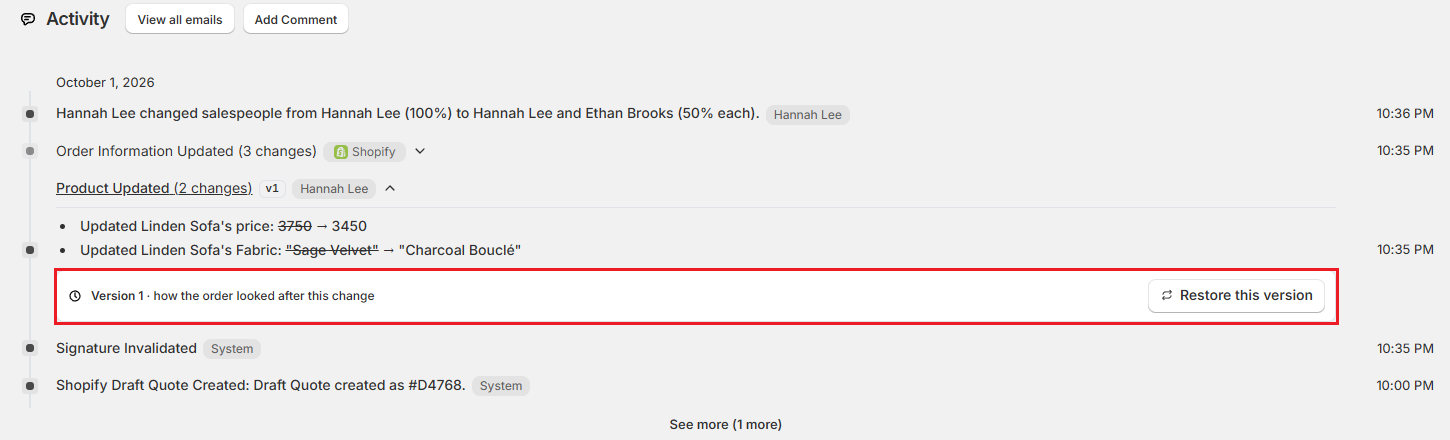
Note: Nothing is deleted. The restore is saved as a new entry in Activity, and every later version stays available. A restore is a normal save, so the same rules apply: a locked record needs Force Edit first, and a signed quote will need signing again. The newest entry shows Current version. An entry that cannot be restored shows Restore unavailable. Hover for the reason.
Example: Changing a Signed Sofa Quote#
Olivia Bennett signed her Linden Sofa quote, then called to switch from Sage Velvet to Charcoal Bouclé.
- The designer opens the quote from the Quotes list. The title shows Quote, Signed, and Unpaid.
- On the Linden Sofa line they change Fabric to Charcoal Bouclé. The line total drops by $350, and the save bar appears.
- They click “Save”. The sync badge shows Syncing with Shopify, then Draft synced.
- The Sign badge now reads Re-Sign, because the price changed.
- They click “Request signature” and send Olivia the updated quote.
Important Notes & Tips#
Status changes are saved like any other edit#
Choosing a status in the dropdown does nothing until you save. If the new status notifies customers, the email or text goes out after the save.
Payment terms and discounts lock with the Shopify order#
Once payment is collected and the record becomes a Shopify order, Payment due later, the deposit, and the order discount can no longer be changed.
Use comments instead of Force Edit for small notes#
If you only need to record something on a locked order, add a comment in the Activity card. It does not unlock the order or change Shopify. See Order Actions & Documents.
Need Help?#
Stuck on a locked order, a failed sync, or a restore that will not go through? Reach out to us at support@bevycommerce.com, and we'll help you sort it out.