Request Signature & Payment
After a custom quote or order is approved, the next step is for the customer to confirm the details and pay. OrderPilot gives you two links to do exactly that: a signature link and an invoice link.
Both links are available for orders and quotes. They are independent of each other, meaning you can use one, both, or neither depending on your store's process and the customer's situation.
- Signature Link: Copied from the quote or order and sent to the customer to sign it before payment.
- Invoice Link: Copied from the quote or order and sent to the customer to complete payment through Shopify checkout.
- Both in Sequence: Request a signature first, then share the invoice link once the customer has signed.
When to Use Each Link?#
Request Signature#
Use the signature link when you need the customer to formally confirm they've reviewed and accepted the order before production begins or payment is collected. This is most common for:
- High-value custom orders with complex pricing or specifications.
- Commercial or trade projects that need a paper trail of customer acceptance.
- Orders where the customer has requested changes, and you want written confirmation of the final version.
- Any situation where your store policy requires written consent before manufacturing.
Request Payment#
Use the invoice link when the customer is ready to pay, and you want to send them directly to checkout. This applies to:
- Collecting the full payment for a confirmed order.
- Following up after a customer has signed but hasn't paid yet.
- Any order where the customer prefers to pay remotely rather than in-store.
How to Request a Signature?#
Collecting a customer's signature involves copying a link from the order and sharing it through your preferred channel. Here's how:
Step 1: Go to the “Orders” tab in OrderPilot.
Step 2: Find the quote or order for which you want to request a signature.
Note: Signature links can be shared for any order or quote that is not in “Draft” status.
Step 3: Click the “...” (three dots) icon under the Actions column for that order.
Step 4: Click “Copy Sign Link”. The signature link is copied to your clipboard automatically.
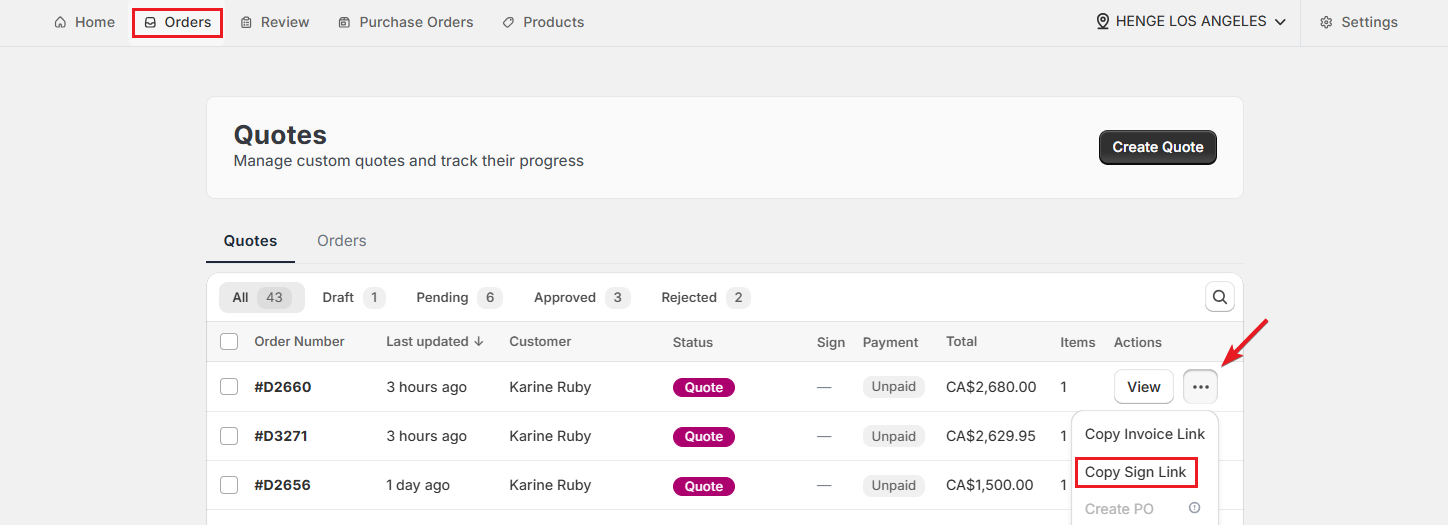
Step 5: Paste the link into an email, text, or any other channel to share with the customer.
The customer opens the link, reviews the quote or order details, and submits their signature. For a step-by-step guide to the customer-facing experience, see the Sign Quote/Order guide.
After the Customer Signs#
The signature is recorded against the order. The order and quote table displays “Signed” when a signature is submitted. At this point, you can proceed to share the invoice link if you haven't already. See details below.
How to Request Payment?#
The invoice link takes the customer directly to Shopify checkout with their custom order items pre-loaded. Here's how to send it:
Step 1: From the Orders tab, locate the quote or order for which you want to send the invoice.
Note: Invoice links can be shared for all orders except those in “Draft” or already marked as “Paid”.
Step 2: Click the “...” (three dots) icon under the Actions column.
Step 3: Click “Copy Invoice Link”. The invoice link is automatically copied to your clipboard.
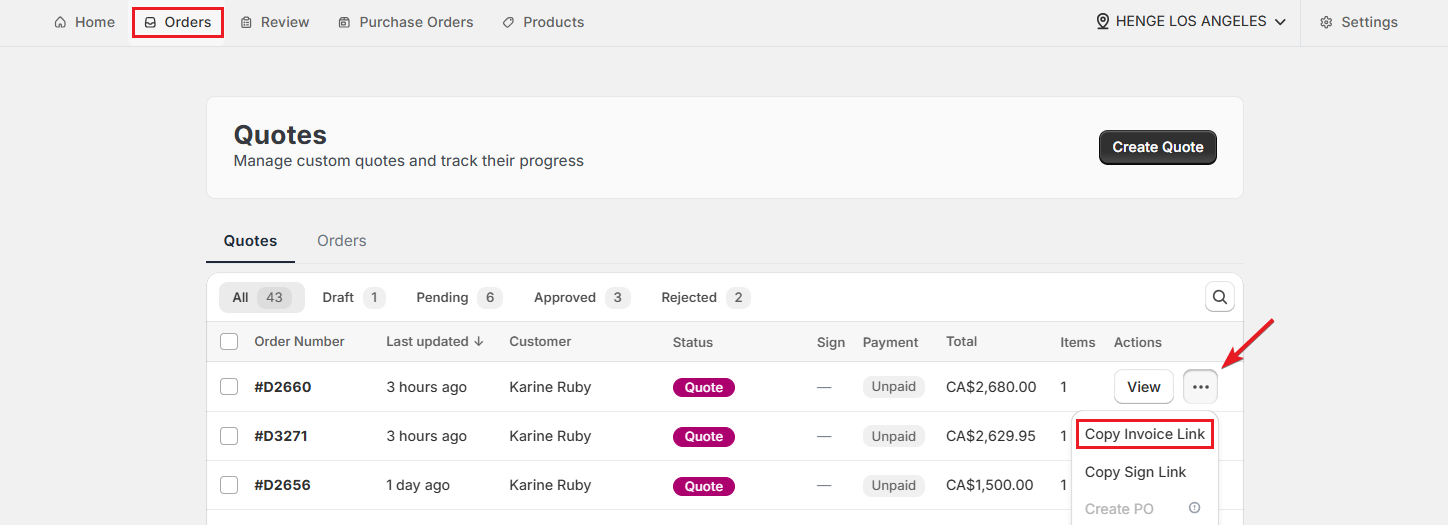
Step 4: Share the link with the customers through email, text, or preferred platform.
The customer clicks the link, lands on the Shopify checkout page with the order items already in their cart, and completes payment using any method your store supports. For details on what the customer experiences, see the Pay for Quote/Order guide.
After the Customer Pays#
The payment status for the order or quote updates automatically in OrderPilot once the customer completes Shopify checkout and displays “Paid”. Your team can see this in the quote and order tables and on their details page. The order is now ready for purchase order creation and production to begin.
Example: Request Signature & Payment for Armchair Order#
Here's how a real-world workflow looks for a high-value custom order:
A sales rep has just received approval on a custom armchair order worth $4,200. The customer specified a premium fabric and a custom leg finish. Before the purchase order goes to the supplier, the rep needs a signed acknowledgment from the customer and full payment.
Step 1: The rep opens the Orders tab, finds the approved armchair order, clicks “...” under Actions, and clicks “Copy Sign Link”. They paste it into an email and write: “Hi Sarah, your custom armchair order is confirmed and ready for your approval. Please click the link below to review the full details and add your signature.”
Step 2: The customer opens the link on her phone, reviews the details, and submits her signature.
Step 3: The rep returns to the Order tab, clicks “...”, then “Copy Invoice Link”. They send it to the customer: “Thank you for signing! Click the link below to pay for the order and get it into production.”
Step 4: The customer pays $4,200 through Shopify checkout. The order payment status updates to show “Paid”. The procurement manager raises the purchase order, and the supplier is notified.
Best Practices#
Request the Signature Before the Invoice Link#
Sharing the invoice link before collecting a signature means the customer could pay without formally acknowledging the order specifications. For orders above a certain value, or where custom details are particularly specific, signature first is a safer sequence.
Be Explicit in Your Message About What to Do#
Don't just drop a link with no context. A short note like “Click to review and sign” or “This takes you to checkout to complete payment” makes a significant difference to completion rates. Customers who don't know what to expect are more likely to ignore the link.
Use Both Links Together for a Clean Remote Sales Process#
For customers who aren't coming back to the store, combining the sign link and invoice link into a two-step email sequence creates a professional, guided experience: review and sign first, then pay. It also reduces disputes because the customer has explicitly confirmed the order details before any money changes hands.
Need Help?#
Need help sharing signature or invoice links, checking whether a customer has signed, or confirming payment status? Reach out to us at support@bevycommerce.com, and we'll help you manage the signature and payment collection flow smoothly.