Installing OrderPilot
Installing OrderPilot is quick. No coding or technical setup is required, and OrderPilot adds starter data during installation so your store is ready for its first quote within minutes.
This article explains how to install OrderPilot, what the app sets up for you, and what to do first.
Before You Install#
Here's what you should know before you begin:
- You need to be logged in to your Shopify admin as the store owner or a staff member with permission to install apps.
- OrderPilot works on all Shopify plans. Deposits and manual partial payments require Shopify Plus.
- You get a 14-day free trial. You aren't charged during the trial.
- Your store needs at least one active location to start a subscription.
- If you plan to use the POS extension at a physical location, make sure Shopify POS is already set up for that location.
How to Install OrderPilot?#
Step 1: Log in to your Shopify admin.
Step 2: Visit the OrderPilot page on the Shopify App Store.
Step 3: Click “Install” to add the app to your store.
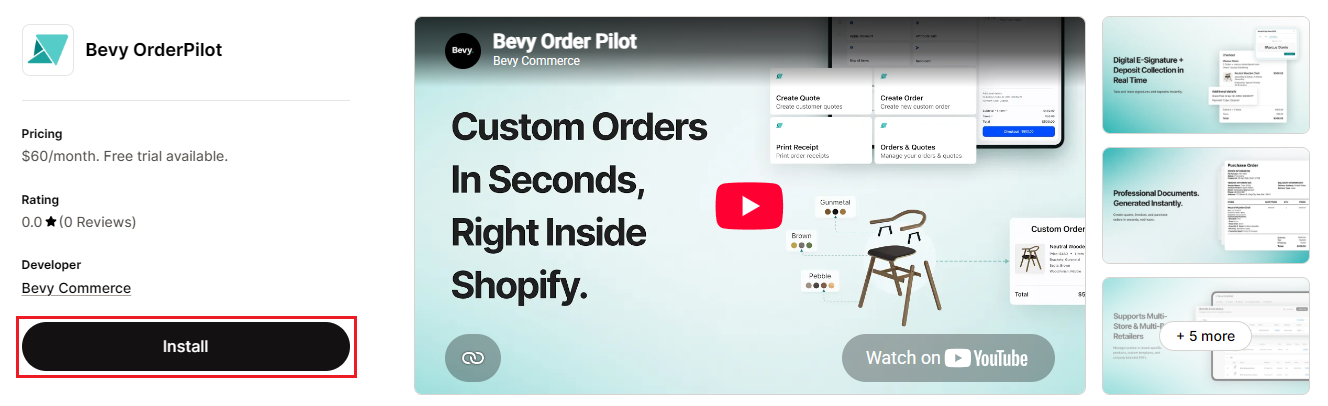
Step 4: Shopify shows the permissions the app needs. Review them and click “Install”.
Step 5: On the Get started with OrderPilot screen, review your monthly price. It shows how many active locations your store has, multiplied by $60 per location.
Step 6: Click “Start 14-day free trial”, then approve the subscription in Shopify.
Note: If you see a message that you need at least one active location, activate a location in Shopify first, then return to OrderPilot.
What Happens After Installation?#
Once installation is complete, OrderPilot sets up a few things automatically so you're not starting from a blank slate.
Your 14-day Free Trial Begins#
The trial starts when you approve the subscription. Every feature is available from the first minute, including the POS extension, the review queue, and purchase orders.
Your Locations and Vendors Are Brought In From Shopify#
OrderPilot imports your Shopify locations and keeps them up to date automatically when you add, edit, or remove a location in Shopify. It also brings in the vendor names already used on your Shopify products.
Starter Data Is Added#
To help you take a first quote right away, OrderPilot adds:
- A set of default order statuses, such as Draft and Ready to Ship.
- A starter set of options, such as Specifications, Notes, and Dimensions, plus one order attribute.
- A Default Category and a Default Vendor.
- A starter product template called First Custom Template.
- Ready-made custom fees, including Tariff Surcharge, Freight, and Installation.
You can edit or replace any of these at any time.
The App Appears in Your Shopify Admin#
OrderPilot shows up under Apps in your Shopify admin. Open it any time to reach Home, your quotes and orders, purchase orders, products, and settings.
First Steps After Installation#
Here's what we recommend doing before you take your first live order:
1. Work Through the Getting Started Checklist#
The first time you open OrderPilot, Home shows a Getting started checklist with four steps: Add a category, Add a vendor, Create a product template, and Create your first quote or order. Click “Take tour” for a guided walkthrough of the app. For more on Home, see Home & Navigation.
2. Add Your Business Details#
Go to “Settings”, then select “Business details” in the Shop group. Enter your company name, support email, and store logo. These appear on customer documents and emails.
3. Set Up Your Catalog#
Add your vendors, categories, options, and product templates. See Create Categories, Create Vendors, Create Options, and Create Product Templates.
4. Set Up Customer Emails#
Verify your sending domain so OrderPilot can email quotes, invoices, and order updates from your own address. See Email Settings & Notifications.
5. Configure Order Statuses#
Create the order statuses that match your production process, choose which ones customers can see, and decide which ones send an email. See Create Order Statuses.
6. Place a Test Order#
Create a test quote or order from the Shopify admin or the POS extension. Walk your team through the full flow before handling a real customer order. Read Create Quotes/Orders to see how it works.
Need Help?#
If you run into any issues during installation or have questions about getting started, we're here to help. Reach out to us at support@bevycommerce.com for personalized assistance.