Sign Quote/Order
Overview#
Signing a quote or order formally confirms the sale between you and a merchant. When a sales representative shares a sign link with you, it means your quote or order has been reviewed and approved internally, and the merchant is ready to proceed with production as soon as you confirm.
Your signature locks in the exact product specifications captured during the sale, including materials, dimensions, custom attributes, and pricing.
How Signing Fits Into the Workflow?#
The signing step sits between quote approval and order fulfillment. Here is where it falls in the overall process:
| Stage | Who Acts | What Happens |
|---|---|---|
| Order creation | Sales rep | Custom order is created in the POS or web app with product specifications. |
| Internal review | Reviewer / Production Manager | The order is checked for accuracy and feasibility. It is approved, rejected, or returned for changes. |
| Signature request | Sales Rep | A sign link is shared with the customer for their review and confirmation. |
| Signing | Customer | Customer opens the link, reviews the quote, and confirms with their signature. |
| Payment request | Sales Rep | An invoice link is shared with the customer to pay for the order. |
| Payment | Customer | The customer opens the link, reviews the pre-loaded Shopify checkout cart, and completes the payment. |
| Purchase order | Procurement Manager | Purchase orders are raised, and items are procured for fulfillment. |
What Does the Sign Page Include?#
The sign page is designed to give customers a clear, complete view of their order before they commit. Here is what you will see:
Quote/Order Reference and Dates#
The quote/order number, quote/order date, validity period, and the name of the sales contact.
Deposit Field#
If a deposit has been agreed upon, the deposit amount is shown on the sign page.
Billing and Shipping Details#
The addresses associated with the order, so you can confirm delivery details at a glance.
Line Items#
Each product on the order, with its base price, add-ons, quantity, discount, and total. Custom specifications such as material choices, dimensions, and special notes are listed beneath each item.
Terms and Conditions#
Your store's governing law clause and agreement terms. The customer must scroll through these before signing.
Before You Sign#
Take a moment to:
- Read the full quote or order details, including all line items, custom specifications, pricing, and add-ons.
- Review the terms and conditions shown at the bottom of the sign page.
- Confirm that the billing and shipping details on the quote are correct.
- Note the validity date. Sign links have an expiry date and cannot be signed after they expire.
How to Sign the Quote or Order?#
Once the sales representative shares the sign link with you, follow these steps to review and confirm your order.
Step 1: Open the sign page
(a) Click the link shared by the merchant. It will open a secure sign page in your web browser.
(b) The page displays your full quote or order, including the quote or order number, date, validity period, sales contact details, billing and shipping addresses, and all line items with their custom specifications and pricing. Review each section carefully before proceeding.
Step 2: Accept and sign the quote
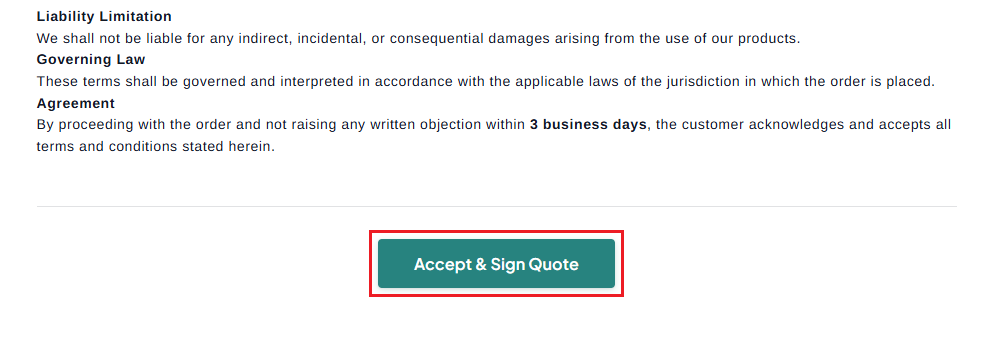
(a) Scroll to the bottom of the page. You will find a Terms & Conditions section. Read the terms carefully. By signing, you acknowledge and accept these conditions.
(b) Click “Accept & Sign Quote”. A signature dialog box will appear.
Step 3: Create your signature
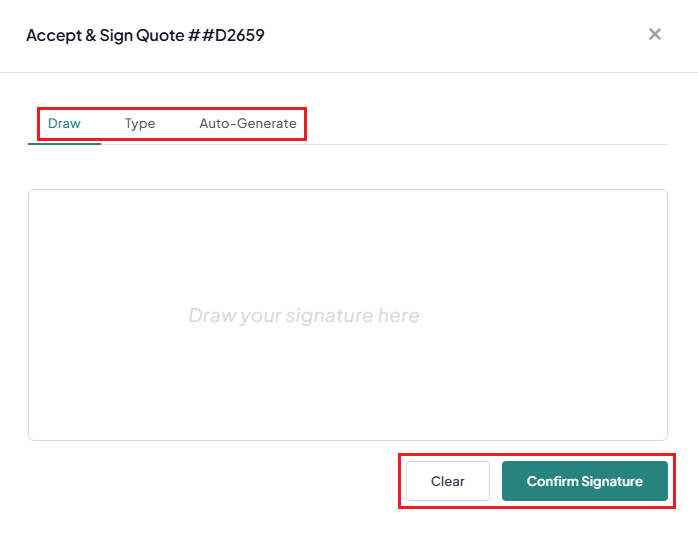
OrderPilot gives you three ways to create your signature:
| Option | How It Works | Best For |
|---|---|---|
| Draw | Use your mouse, trackpad, or finger (on touch devices) to draw your signature freehand in the signature box. | Customers who prefer a handwritten look. |
| Type | Type your name, and it will be rendered in a signature-style font. | Quick signing on a desktop or laptop. |
| Auto-Generate | The app automatically generates a styled signature based on your name. | Fast, no-effort signing when appearance is not a priority. |
(a) Choose your preferred signing method and create your signature.
(b) If you want to start over, click the “Clear” button to reset the signature field.
(c) Click “Confirm Signature” to finalize.
What's Next?#
Once you've signed the quote or order, the sales representative will share a secure invoice link with you. You can use this link to complete payment through Shopify checkout. After payment is completed, your order is confirmed and sent to production.