My Orders & Order Tracking
Your customers don't have to call or email to find out where their custom order is. OrderPilot adds pages to your Shopify storefront where customers can request a quote, see every quote and order on their account with its current status, message your store, ask for changes, and pay the remaining balance. A tracking link also lets customers check one order without signing in.
This article explains how to set up the storefront blocks in your theme, what customers see on the quote cart, My orders, and tracking pages, and how messages, change requests, and balance payments reach your team.
Before You Start#
Consider the following questions before getting started:
Are customer accounts turned on in Shopify?#
Customers sign in with their account on your store to submit a quote request, see My orders, send messages, and request changes. Make sure customer accounts are turned on in your Shopify settings. The tracking link works without an account.
Which statuses should customers see?#
The My orders and tracking pages only show statuses marked Visible to Customers. A status that isn't visible shows as In progress, so internal steps stay private. To change this, go to “Settings”, then select “Order status” in the Orders and quotes group, and edit each status. See Create Order Statuses.
Which Shopify products can be quoted?#
The Add to Quote button appears on a product page only when the product is allowed by your quote rules. If you haven't set up any active quote rules, every product can be quoted. To limit it (for example, to one collection or to products with a tag), go to “Settings”, then select “Quote rules” in the Orders and quotes group.
The Storefront Blocks#
OrderPilot adds four blocks to your theme. Add only the ones you need.
| Block | What customers see | Settings you can change |
|---|---|---|
| Quote Template Catalog | A list of your active product templates (heading Request a quote by default). Customers open a template, choose its options, and add it to their quote cart. | Heading, Button text, Empty state text, Quote cart URL, My quotes URL |
| Add to Quote | An Add to Quote button on product pages, for the variant the customer has selected. Product pages only. | Button text, Success message |
| Quote Cart Drawer | A quote cart icon that opens a side panel with the items, plus links to the full quote cart and to the customer's orders. | Trigger accessibility label, Drawer title, Empty state text, Quote cart URL, My quotes URL |
| Quote Cart Badge | An Open quote cart link with the number of items. | Button text, Quote cart URL |
Note: Keep the URL settings at their defaults. They already point to the quote cart and My orders pages on your store.
How to Add the Blocks to Your Theme?#
Step 1: In your Shopify admin, go to “Online Store”, then “Themes”, and click “Customize” on your current theme.
Step 2: Open the template where you want a block. For the Add to Quote button, open a product template; for the catalog, open the page you want it on (for example, a new "Request a quote" page).
Step 3: In the section where the block should go, click “Add block” and choose the block from the app blocks list. If your theme supports app sections, you can also click “Add section” and choose it under Apps.
Step 4: Select the block to change its text, for example the button label.
Step 5: Add the Quote Cart Drawer or Quote Cart Badge to a section that shows on every page (such as your header) so customers can always reach their quote cart.
Step 6: Click “Save”.
Pro Tip: Add a "My orders" link to your store's menu so signed-in customers can find their quotes and orders. Copy the address from the My quotes URL setting of the Quote Cart Drawer or Quote Template Catalog block.
How Customers Request a Quote#
Step 1: The customer adds items to their quote cart: a template from the catalog (after choosing its options) or a product with Add to Quote. They see Added to quote cart.
Step 2: They open the quote cart. In the drawer, store products show Quote pending instead of a price, because your team sets the final price on the quote.
Step 3: On the full quote cart page (Request a Quote), they review Your items, change quantities, add a Line note, and remove anything they don't want. Estimated subtotal shows the template prices.
Step 4: Under Your information, contact details come from their store account. They check the Shipping address and Billing address and can add Order notes.
Step 5: They click “Submit quote request”. Guests can look at their quote cart, but they need to sign in to submit (Sign in required to submit). After submitting, they see Quote request submitted.
The request arrives in OrderPilot as a quote for that customer, ready for your team to review, price, and send for signature.
What Customers See on My Orders#
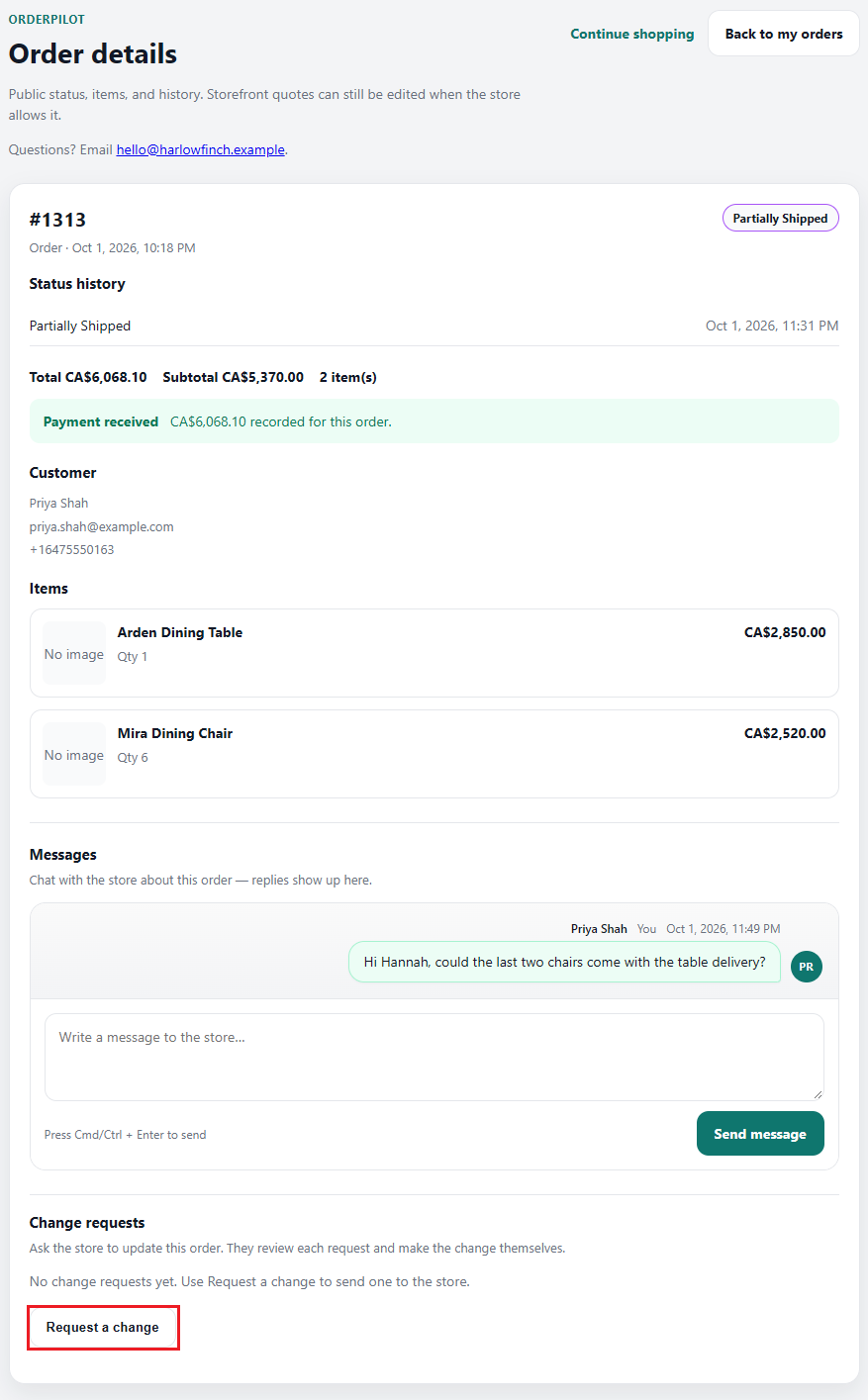
When a signed-in customer opens My orders, they see every quote and order on their account, whether it was created on your storefront, in the web app, or on POS. Each row shows the status (or In progress) and a “View” link. If they aren't signed in, the page asks them to sign in first.
Opening a quote or order shows:
- Items: Each item with its quantity and price.
- Payment: What's been paid and the Balance due, with a “Pay Remaining Balance” button (see Paying the Balance below).
- Status history: Each customer-visible status the order has been through.
- Messages: A conversation with your store about this order.
- Change requests: Requests the customer has sent, and “Request a change” to send a new one.
For a quote the customer submitted from your storefront, they can also change quantities or remove items and click “Update quote”, as long as the quote's status allows edits. Otherwise the quote shows This quote is read-only and can no longer be edited.
When an order is paid in full, the payment area shows Payment received with the amount instead of a balance and pay button.
Messages and Change Requests#
Messages#
On the order's page in My orders, the customer types in Write a message and clicks “Send message”. Your team sees the conversation in the Messages card on the quote or order in OrderPilot and can reply there. Replies show on the customer's page.
Change Requests#
The customer clicks “Request a change”, picks a Request type, fills in the details, and clicks “Submit request”:
| Request type | What the customer fills in |
|---|---|
| Attribute or color | The item and the change they want. |
| Edit a note | The item or order note and the new wording. |
| Add a product | A description of what they'd like to add. |
| Cancel or refund | Why the order should be cancelled or refunded. |
A change request never edits the order by itself. It appears in the Change requests card on the quote or order in OrderPilot, where your team makes the change by hand and clicks “Mark complete”, or clicks “Decline”. If your store has a status named Changes Requested, the order moves to it when a request comes in.
The Order Tracking Page#
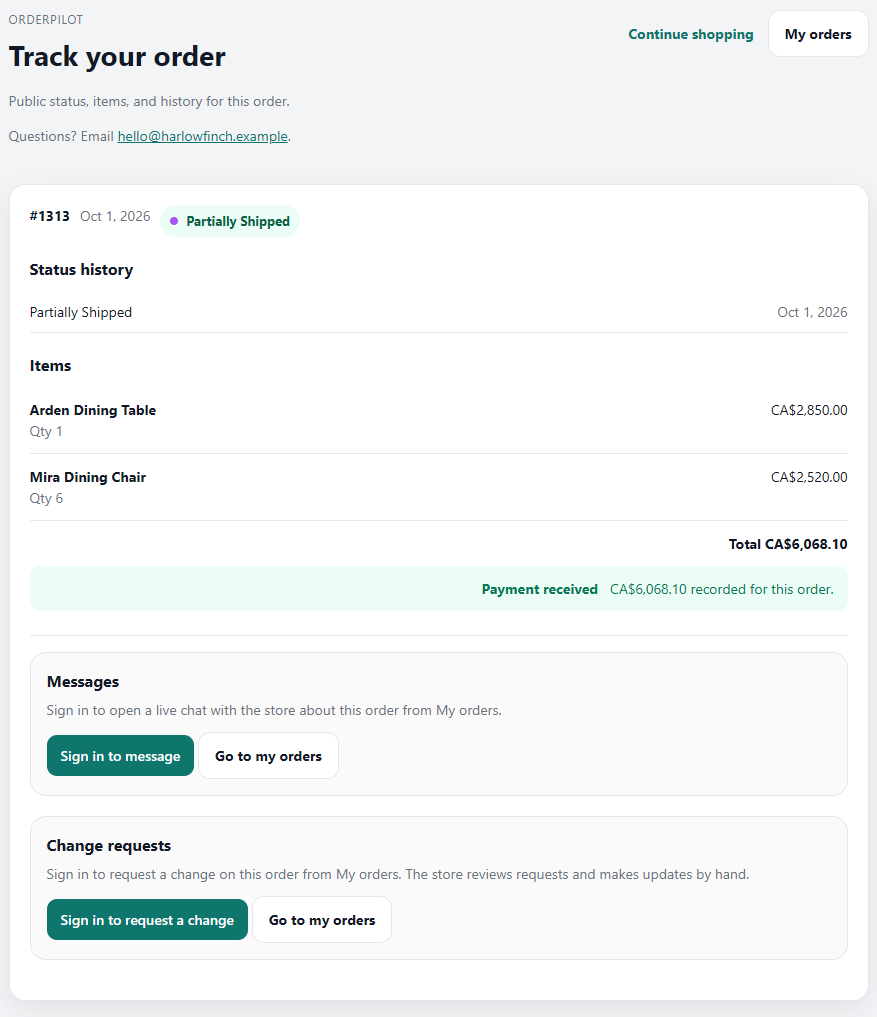
The tracking page shows one order without signing in: its status, items, status history, and payment. It's useful for customers who checked out as guests or don't have an account.
To share it, add a Track order button or link to your OrderPilot emails. In the email designer, a button can link to Track order, and the Track order link variable is available in your templates. See Email Settings & Notifications.
On the tracking page, Messages and Change requests ask the customer to sign in (Sign in to message, Sign in to request a change) and take them to My orders. If a link is damaged or belongs to another store, the page says This link is invalid, expired, or does not belong to this store.
Paying the Balance#
When an order has a balance due, both My orders and the tracking page show it, along with the amount already paid. The button depends on your setup:
| What appears | When |
|---|---|
| Pay Remaining Balance | The order has a checkout link. It opens Shopify checkout in a new tab for the balance. |
| Contact store to pay | No checkout link is ready yet. It opens an email to your store. |
| Thanks. We'll let you know when this is ready for payment. | Your store requires payment to be enabled on each order, and it isn't enabled yet. |
| Payment received | The balance is paid in full. |
See Pay for Quote/Order for what the customer sees at checkout.
Example: Daniel Okafor Checks on His Bed#
Daniel Okafor ordered a Halsey Platform Bed in Smoked Walnut and paid a deposit in the showroom.
- A week later, he signs in to the Harlow & Finch Interiors website and opens My orders. His order shows In Production, a status the store marked Visible to Customers.
- He clicks “View”. Status history shows when the order moved from Order to In Production, and the payment area shows his deposit and the Balance due.
- He wants to confirm the headboard height, so he types a question under Messages and clicks “Send message”. The store replies from the order's Messages card in OrderPilot.
- When the bed is ready, he clicks “Pay Remaining Balance” and pays in Shopify checkout. The page now shows Payment received.
Important Notes & Tips#
Decide Which Statuses Are Public#
Customers see the names of statuses marked Visible to Customers. Use clear, customer-friendly names for those, and leave internal steps hidden.
Answer Messages Promptly#
Messages come in on the order itself, not by email. Check the Messages card on open quotes and orders as part of your daily routine.
Review Storefront Requests Before Sending Them Back#
A quote request from your storefront is the customer's wish list, not a final price. Store products show Quote pending in their quote cart. Review each request, adjust items and pricing, then send it for signature.
Need Help?#
Need help adding the storefront blocks to your theme, or a customer can't see their orders? Reach out to us at support@bevycommerce.com, and we'll help you set it up.