Pay for Quote/Order
Paying for a quote or order in OrderPilot can be done in two ways: online via a secure invoice link or in person through the Shopify POS extension. Both paths are designed to be straightforward, and which one applies to you depends on where and how you are completing your purchase.
Where Payment Fits in the Workflow?#
Payment typically happens after a quote or order has been signed. Here is the full picture:
| Stage | Who Acts | What Happens |
|---|---|---|
| Order creation | Sales Rep | Custom order is created with all product specifications in the POS or web app. |
| Internal review | Reviewer / Production Manager | Order is approved, rejected, or returned for changes. |
| Signing | Customer | The customer reviews the quote or order and digitally signs it to confirm. |
| Payment | Customer / Sales Rep | The customer pays online through the invoice link, or the sales rep collects payment through the POS. |
| Purchase order | Procurement Manager | Purchase orders are created, and items are procured for fulfillment. |
Two Ways to Pay#
OrderPilot supports two payment paths. They lead to the same result but suit different scenarios:
| Payment Path | How It Works | Best For |
|---|---|---|
| Online through the invoice link | The merchant shares a secure link with the customer. The customer opens it, reviews the quote or order, and pays through Shopify's standard checkout. | Customers who are not physically in the store or who want to review and pay at their convenience. |
| In-store through Shopify POS | The sales rep opens the order on the POS app and processes payment on the spot by loading items into the cart. | Customers who are present in the showroom and ready to pay immediately. |
Before You Pay#
Before you open the invoice link and complete payment, check the following:
You Have Already Signed the Quote or Order#
For most stores, the signing step happens before payment. If you have not yet signed, look for the sign link in a previous message from the sales rep and complete that first.
The Quote or Order Details Are Correct#
Once you pay, the quote or order is confirmed and locked. Review the items, specifications, pricing, and shipping details carefully before entering your payment information.
How to Pay Using the Invoice Link?#
This option is ideal if you're not in the store or prefer to pay at your own convenience.
Step 1: Open the invoice link shared by the sales rep. The page displays a shopping cart pre-loaded with your custom products.
Step 2: Review the order summary on the right side of the screen, including each line item, add-ons, quantities, discounts, and the total amount due.
Step 3: Fill in your personal and payment details on the left side of the screen.
Step 4: Click “Pay now” to confirm and complete the payment.
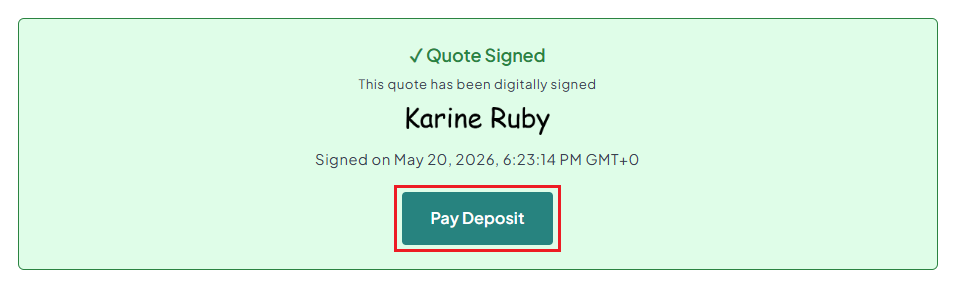
Alternatively, if you have just signed a quote and are still on the sign page, you can click “Pay Deposit” directly after signing without needing a separate link. This takes you straight to the checkout for your confirmed order.
How to Pay In-Store (POS)#
When you visit the store, a sales representative will guide you through the payment process step by step:
Step 1: Your order is opened
The sales rep retrieves your quote or order from the system and brings it up on their POS screen.
Step 2: Your items are prepared for checkout
The sales rep loads your selected products into the cart, so they are ready for payment.
Step 3: You review everything
Before payment, you can confirm:
- Products included in your order
- Quantities and custom details
- Total price and any discounts
Step 4: You complete the payment
You can choose your preferred payment option (cash or card) and complete the transaction on the spot.
Step 5: You receive confirmation
Once payment is processed:
- You receive a receipt immediately.
- Your order is confirmed in the system.
- Your order moves forward for production.
Partial Payments (Deposits)#
In some cases, you may choose to pay a deposit instead of the full amount.
- You pay a portion of the total order upfront.
- The remaining balance is recorded and paid later when your order is ready.
To learn more about how sales reps collect payment in Shopify POS, see the Collect Payment guide.