Settings
Settings is where you shape OrderPilot around your business. Before your team starts taking custom orders, spending a few minutes here will make everything else run more smoothly. This article walks you through every section so you know what to configure and why.
How to Access Settings?#
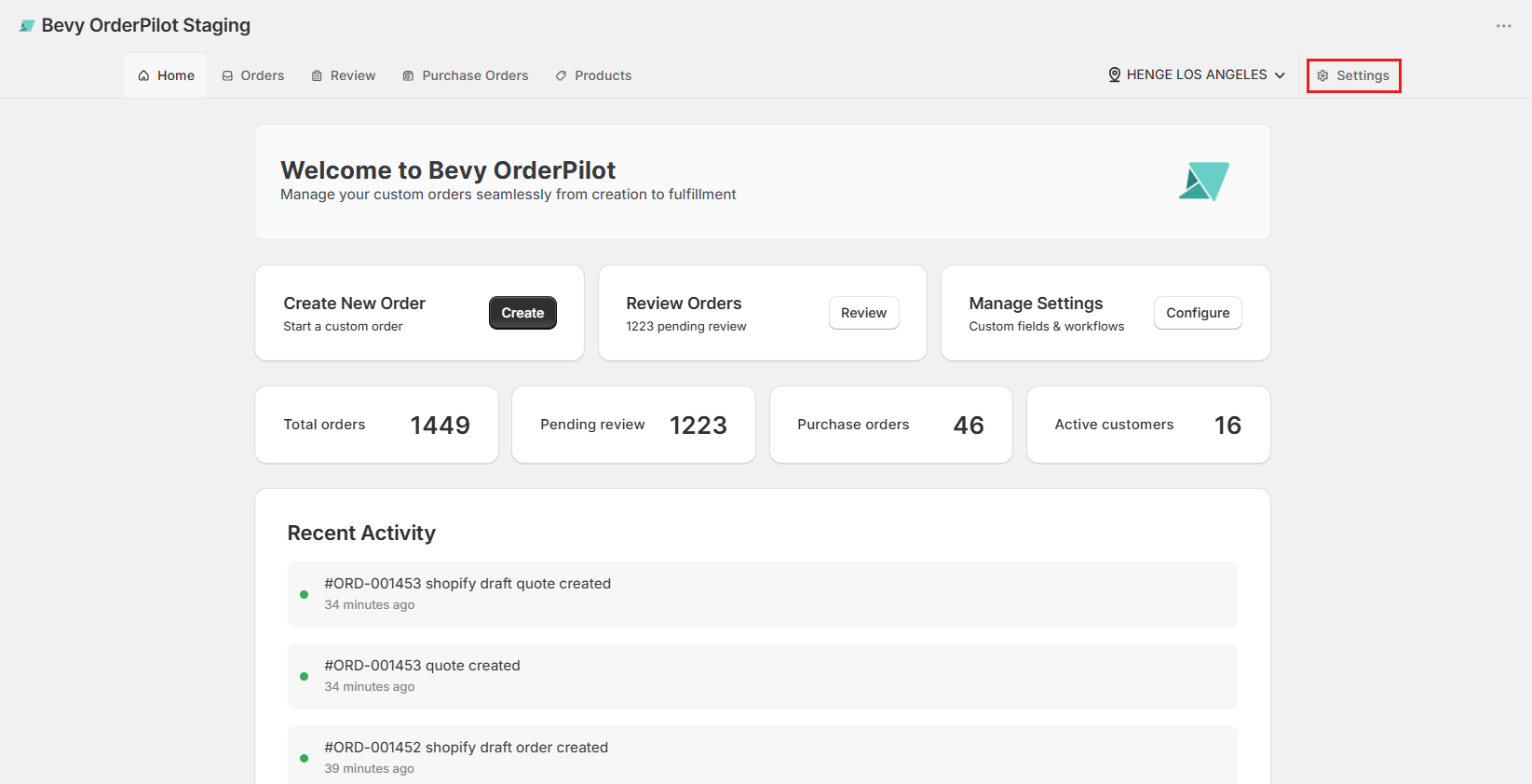
1. Visit the OrderPilot dashboard (Home).
2. Click “Settings” at the top-right corner.
How to Configure Settings?#
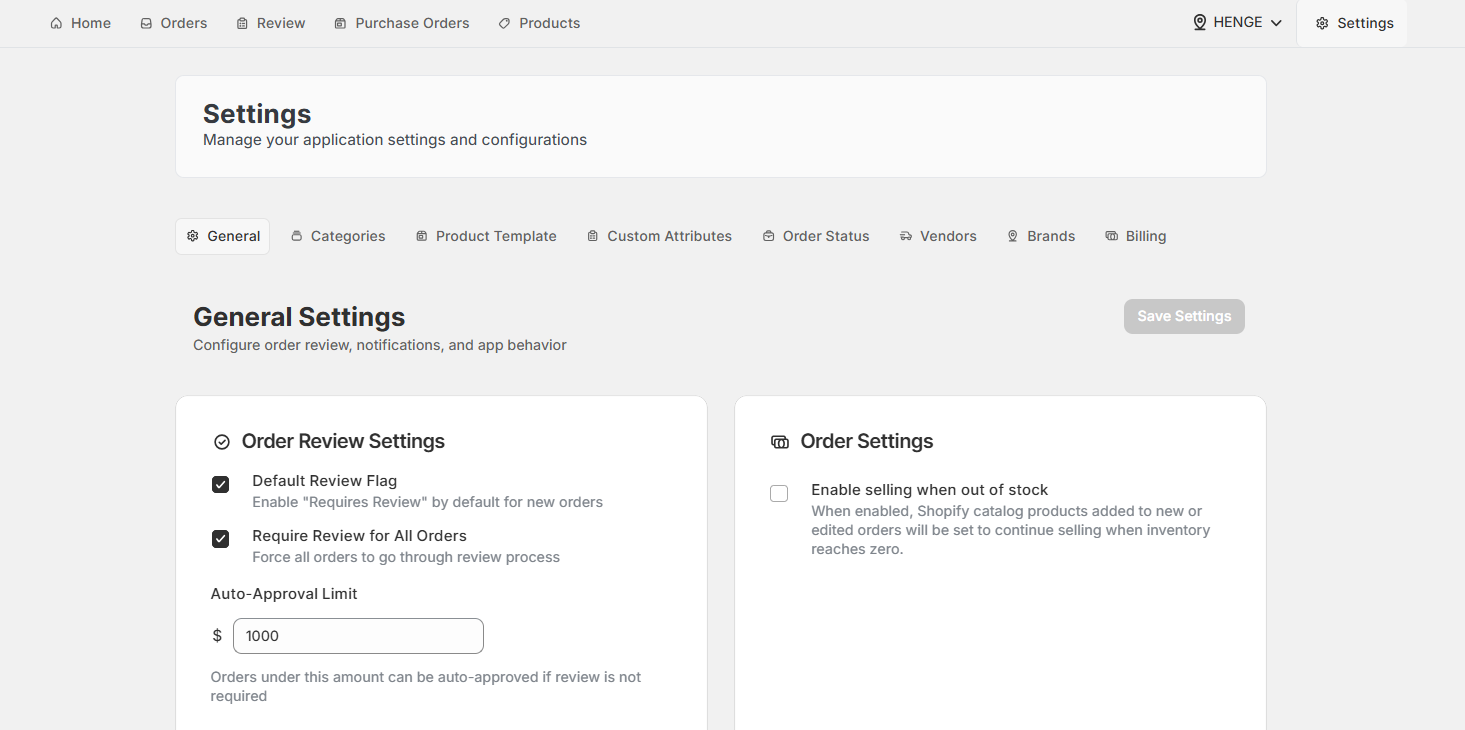
Settings is divided into eight tabs: General, Categories, Product Template, Custom Attributes, Order Status, Vendors, Brands/Locations, and Billing. Each tab controls a specific part of how OrderPilot behaves across your store.
General#
The General tab controls your app's core behavior. Think of it as your store's operating rules. There are four groups of settings here:
Order Review Settings#
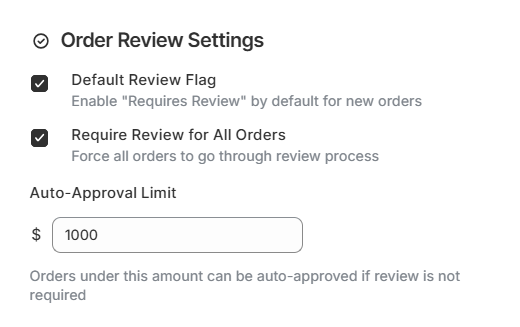
These settings determine how new orders are handled when they're first created.
1. Default Review Flag#
When checked, every new order is automatically flagged as “Requires Review”. Your production manager will need to approve it before it moves forward. This is the recommended setting for most stores.
2. Require Review for All Orders#
A stricter option. When checked, sales reps can't remove the review flag during order creation. Every single order must pass through the review queue, no exceptions. Use this if your workflow requires full oversight.
3. Auto-Approval Limit#
Enter a dollar threshold, say, "$1,000". Orders below this amount are auto-approved when the review flag is not required, which is useful for smaller repeat orders that don’t need manager approval.
Not Sure Which to Use?#
Start with the “Default Review Flag” enabled. Once your team is comfortable with the workflow, you can set an “Auto-Approval Limit” for smaller or repeat orders to reduce the queue volume for your production manager.
Order Settings#
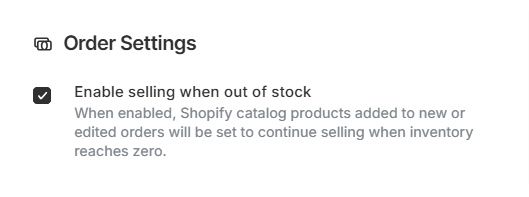
Enable selling when out of stock#
When checked, products added to new or edited orders will automatically be set to “Continue selling when out of stock”. This is useful for made-to-order businesses where products are built, sourced, or replenished after an order is placed, allowing sales to continue even when inventory reaches zero.
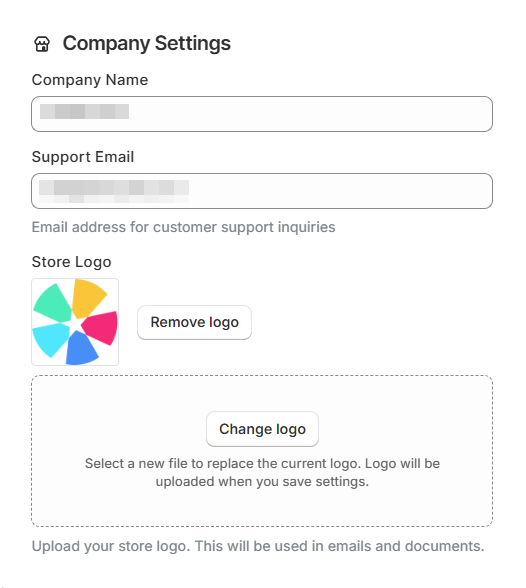
Company Settings#
This information appears in customer-facing documents like quotes, invoices, and email templates. Make sure it's accurate before you send anything to a customer.
1. Company Name#
Your business or brand name as it should appear on customer-facing documents and emails.
2. Support Email#
The email address customers can use to reach out with order questions. This appears in automated emails sent by the app.
3. Store Logo#
Upload your logo here. It's used on PDF documents, order confirmation emails, quotes, and invoices.
Locations & Brands#
Enable Brand Grouping#
When checked, you can group your Shopify locations into named brands from the “Brands” tab. This is useful if you operate multiple showrooms or store locations under different brand names. When unchecked, the app treats all locations as a flat list.

Purchase Order Settings#
Hide Price by Default in PO Workbench#
When checked, new purchase orders open with pricing hidden. This is helpful if your team reviews POs on screen in front of customers or suppliers.

Saving & Resetting#
After making any changes in the General tab, you have two options at the top of the page:
- Save Settings: Applies your changes immediately across the entire store and all users.
- Discard Changes: Reverts any unsaved changes to what they were before you started editing.

Reset Settings#
This button at the bottom of the General tab restores all General settings to their factory defaults. This cannot be undone. Use it only if you want to start from scratch.

Categories#
Categories let you organize your products by type, like Sofas, Tables, or Lighting. They're more than labels. When you assign a category to a product template, OrderPilot can surface the right custom attributes and limit which vendors are available for that category.
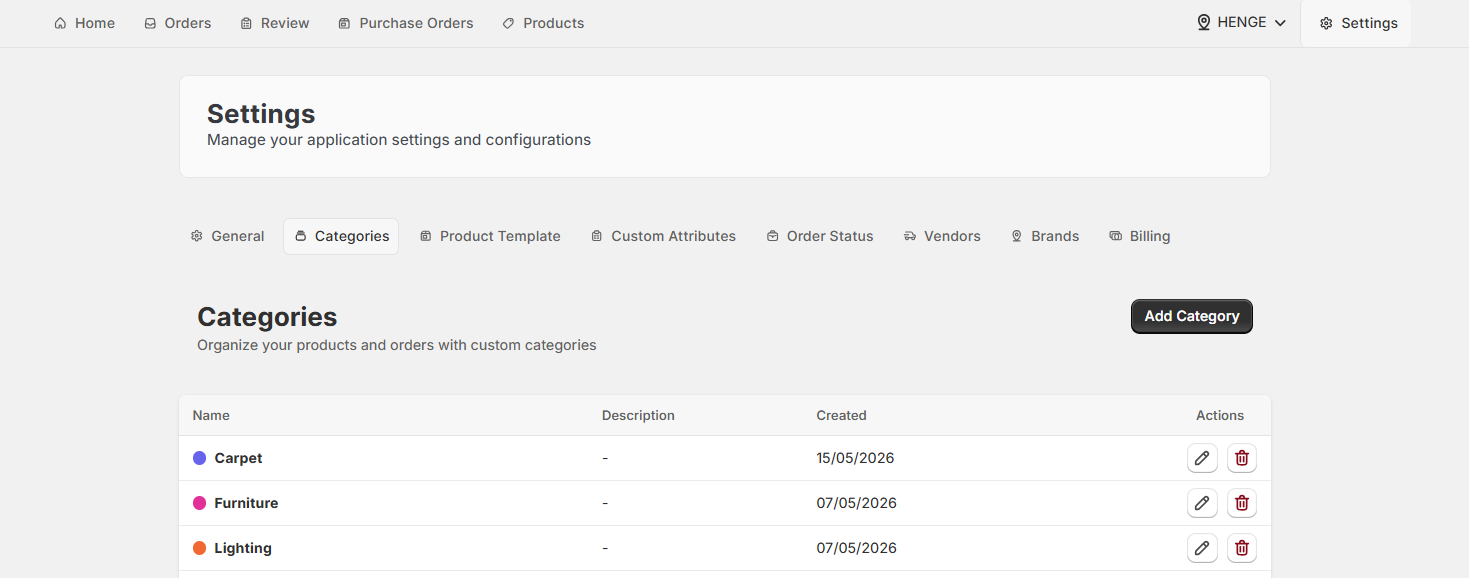
How to Create a Category?#
- Click “Add Category”.
- Enter a Name, optional Parent Category, a short Description, and a Color for easy visual identification.
- Click “Create Category” to save.
For a detailed walkthrough, see the Create Categories guide.
How to Manage Existing Categories?#
| Action | How to do it | What changes |
|---|---|---|
| Edit | Click the pencil icon under Actions. Edit the Name, Parent Category, Description, or Color, then click “Update Category”. | Updates the category immediately. Existing product templates assigned to this category are also affected. |
| Delete | Click the trash icon. Confirm in the modal by clicking “Delete Category”. | Permanently removes the category. Make sure no active product templates are using it before deleting. |
Plan Your Category Structure First#
Categories drive how custom attributes are filtered on an order. If you reorganize categories later, you may need to reassign categories for attributes and product templates. It's worth taking a few minutes to sketch your structure before creating anything.
Product Template#
Product Templates are reusable order definitions that your team picks when building a custom order. Each template ties together a product category, a vendor, and the relevant custom attributes. Instead of setting up the same product details every time, your sales reps just pick a template and fill in the customer-specific values.
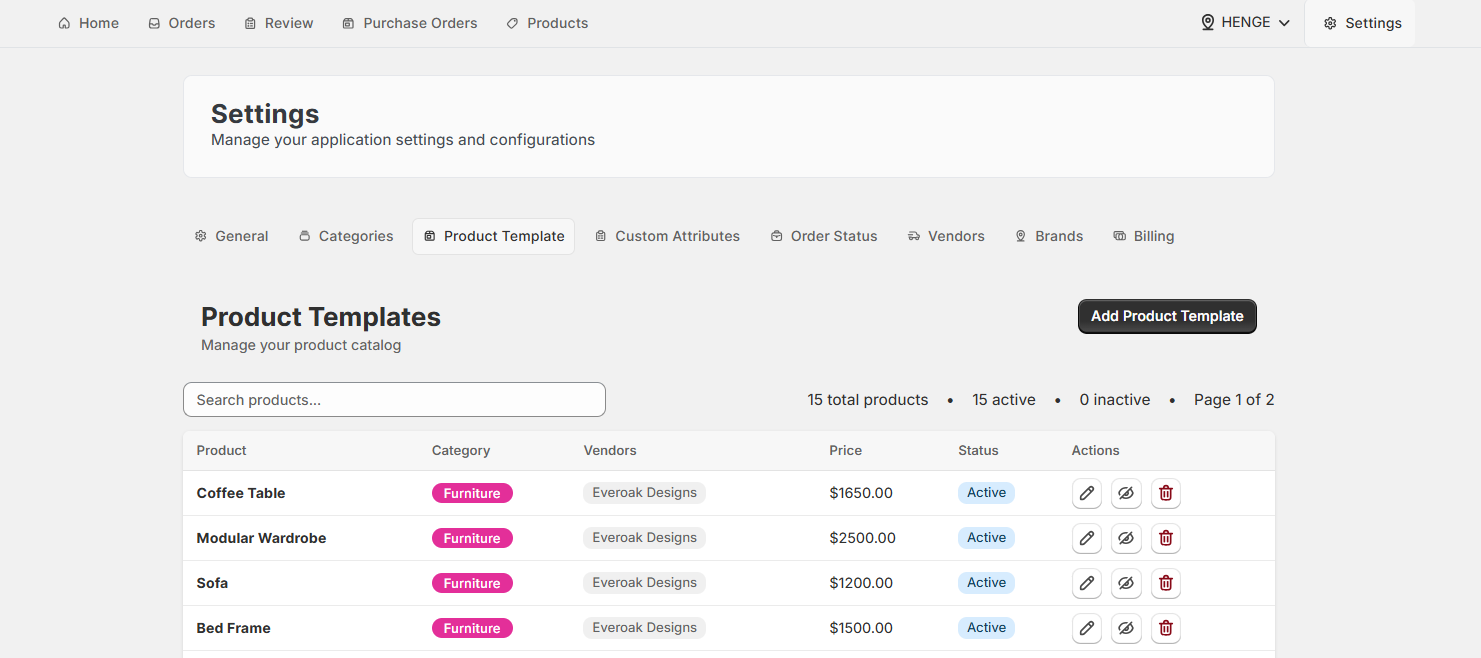
How to Create a Product Template?#
- Click “Add Product Template”.
- Give the template a Title, assign Categories, select Vendors, and choose Visibility.
- Add SKU (Optional), Base Price, Product Images, and a Description as needed.
- Mark it as Active and set the Manual Review preference.
- Click “Create Product Template” to save.
For a full walkthrough, see the Create Product Templates guide.
How to Manage Existing Templates?#
| Action | How to do it | Result |
|---|---|---|
| Edit | Click the pencil icon under Actions. You can update the Title, Category, Vendor, Visibility, SKU, Base Price, Images, Description, Active status, and Review settings. Click “Update Product Template”. | Changes will apply to all new orders assigned to this template. Existing orders are not affected. |
| Deactivate | Click the eye icon next to the template. The status changes from “Active” to “Inactive”. | The template no longer appears as an option when creating new orders. No data is lost. You can reactivate it at any time by clicking the eye icon again. |
| Delete | Click the trash icon. Confirm in the modal by clicking “Delete Product”. | Permanently removes the template. This can’t be undone. |
Use Deactivate Before Delete#
If you're not sure whether you'll need a template again, deactivate it instead of deleting it. Deactivated templates are hidden from sales reps but still exist in the system and can be restored at any time.
Looking for a Specific Template?#
Use the search box at the top of the Product Templates tab to find templates by title. This is especially handy once you've built out a large catalog.
Custom Attributes#
Custom Attributes are the input fields that appear on an order form when a sales rep is capturing customer specifications. Think of Dimensions, Material, Color, Finish, or any other detail specific to your product type. You create them here and assign them to categories so they automatically appear on the right orders.
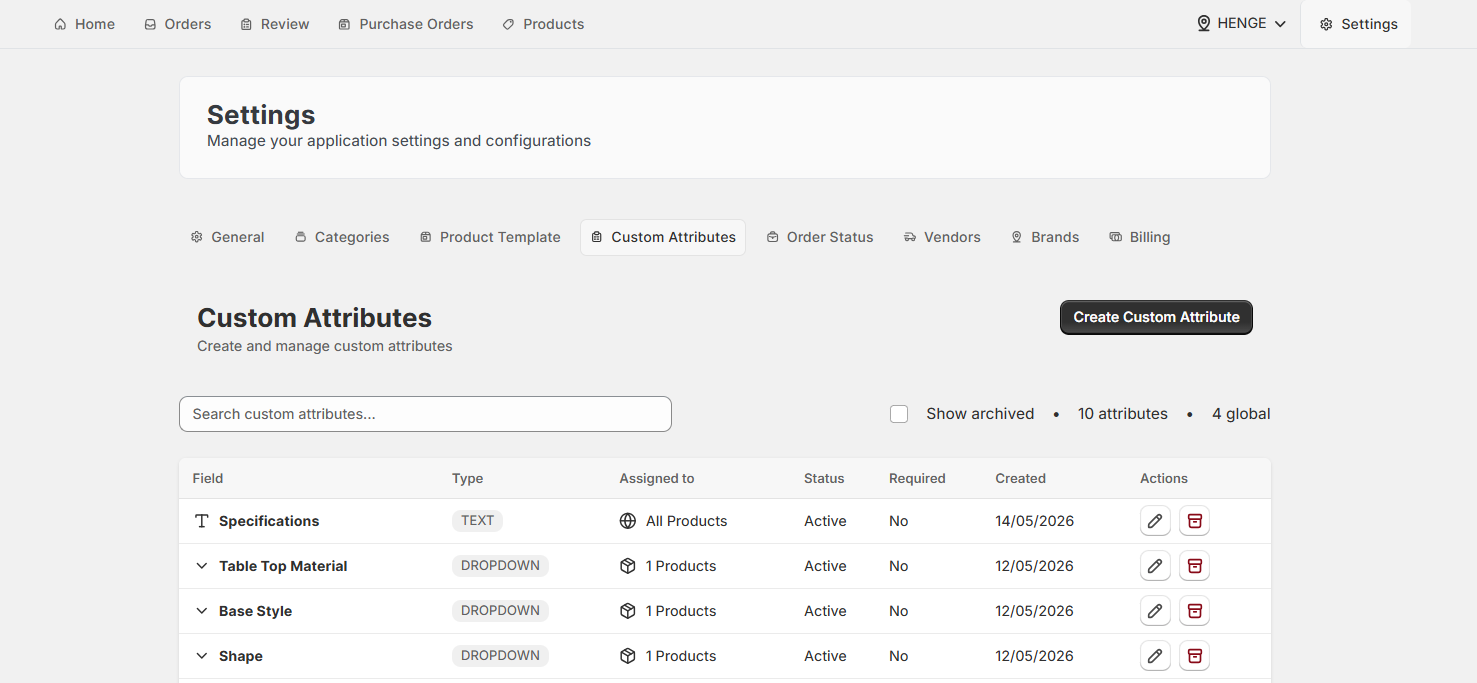
How to Create a Custom Attribute?#
- Click “Create Custom Attribute”.
- Enter a Field Name, for example, “Fabric Color” or “Seat Depth”.
- Choose a Field Type, such as Text, Text Area, Number, or Dropdown.
- Add a Description and set whether the attribute field is Required.
- Add Placeholder text or Dropdown Options depending on the field type.
- Assign the attribute to one or more categories or products and set Location visibility.
- Click “Create Field” to save.
For a detailed walkthrough, see the Create Custom Attributes guide.
How to Manage Existing Attributes?#
| Action | How to do it | Result |
|---|---|---|
| Edit | Click the pencil icon under Actions. Update the Field Name, Type, Description, Placeholder/Dropdown Options, Required field setting, Assign To setting, and Location visibility. Click “Update Field”. | Changes will apply to all new orders. Existing orders retain the original values they were created with. |
| Archive | Click the red archive icon. Confirm in the modal by clicking “Archive”. | The attribute is hidden from new orders but preserved in the system. To see archived attributes, select the “Show archived” checkbox above the table. |
Archive Instead of Delete#
Custom attributes don't have a delete option because removing a field that exists on past orders would break historical records. Archiving hides the field from new orders while keeping your data intact.
How to Search Attributes?#
Use the search box to find specific attributes by name. For stores with many attributes across multiple categories, this saves a lot of scrolling.
Order Status#
Every business has its own way of tracking an order from quote to delivery. The Order Status tab lets you define exactly what those stages look like. Instead of working with generic statuses, you can create a flow that matches how your team actually operates, for example, "Pending Review", "In Production", "Quality Check", "Ready to Ship".
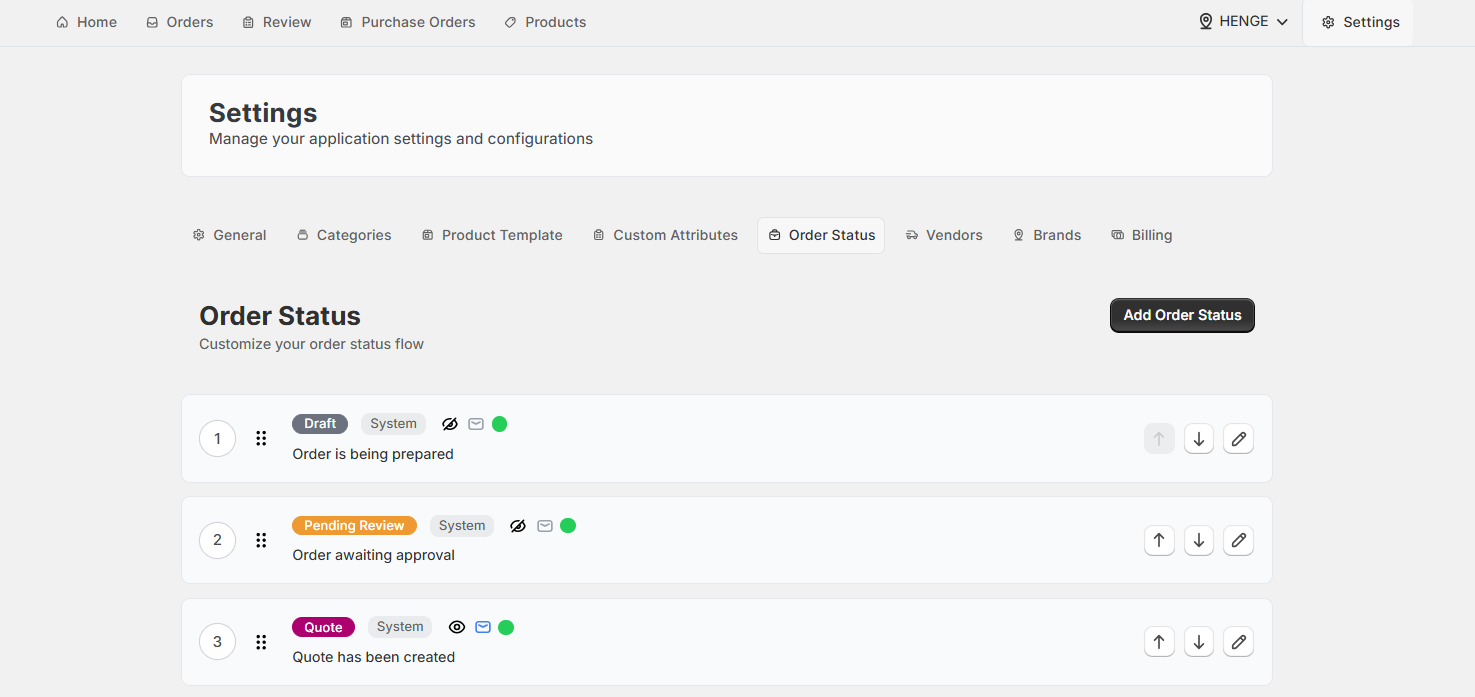
How to Create an Order Status?#
- Click “Add Order Status”.
- Give the status a Name that clearly reflects the stage, for example, “In Production”.
- Add a Description explaining the status or stage, for example, “Items are being manufactured”. (Optional)
- Set a Status Color to identify it visually.
- Select if it is an Active Status and can be used for orders.
- Configure if orders with this status can be selected when creating Purchase Orders.
- Configure Disable Edit to make orders with this status editable/uneditable.
- Click “Create Status” to save.
For a full walkthrough, see the Create Order Statuses guide.
How to Edit & Reorder Statuses#
Click the pencil icon next to any status to edit its Name, Description, Status Color, Visibility, Active Status, Eligibility for Purchase Orders, and Editing ability.
To reorder your statuses, use the up and down arrows or drag and drop them into the sequence that reflects your actual workflow.
Vendors#
Vendors are the suppliers you source products from. In OrderPilot, you assign vendors to Product Templates and then generate purchase orders for them when an order is approved. Adding your vendors here is a prerequisite for creating purchase orders.
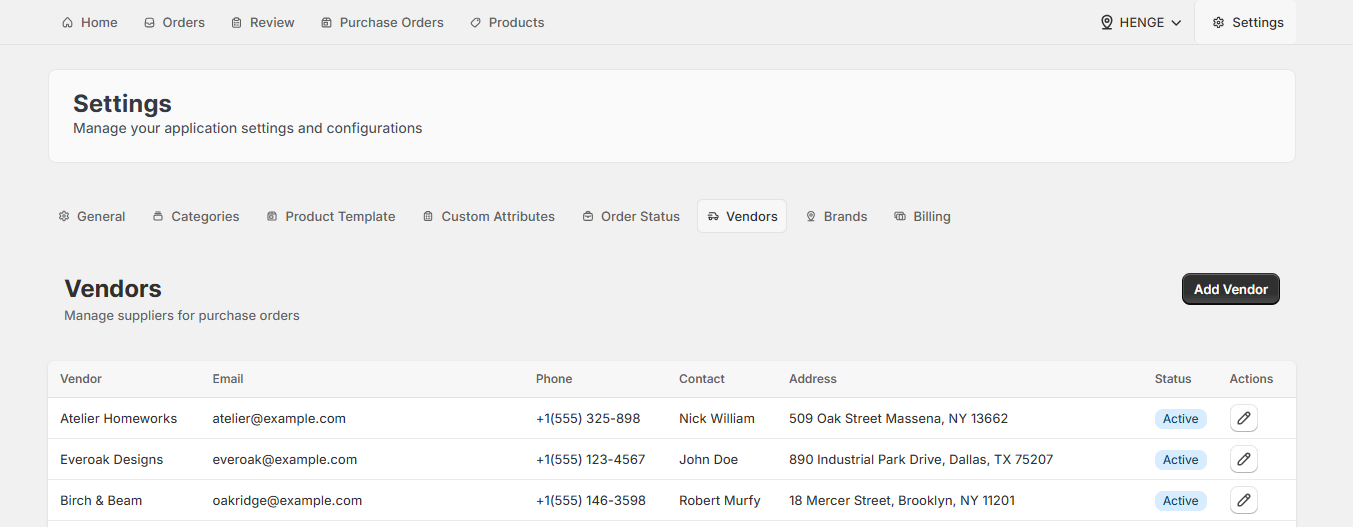
How to Add a Vendor?#
- Click “Add Vendor”.
- Enter the supplier’s Name, Email Address, Phone Number, Contact Person, Address, and any relevant Notes.
- Select the products or categories allowed for this vendor.
- Mark the vendor as Active so it can be assigned to Product Templates.
- Click “Save Vendor”.
For a step-by-step guide, see the Create Vendors article.
How to Update Vendors?#
- Click the pencil icon under Actions.
- Edit the supplier’s Name, Email Address, Phone Number, Contact Person, Address, and any relevant Notes.
- Update vendor allowed products or categories.
- Mark or unmark the vendor as Active.
- Click “Update Vendor”.
Set Up Vendors Before Product Templates#
When you create a Product Template, you'll need to assign a vendor to it. Add your vendors first, so they're available to select during template setup.
Brands#
The Brands tab is available when you've enabled “Brand Grouping” in the General tab. It lets you organize your Shopify locations into named brands, which is useful for businesses that operate multiple showrooms or retail locations under different brand identities.
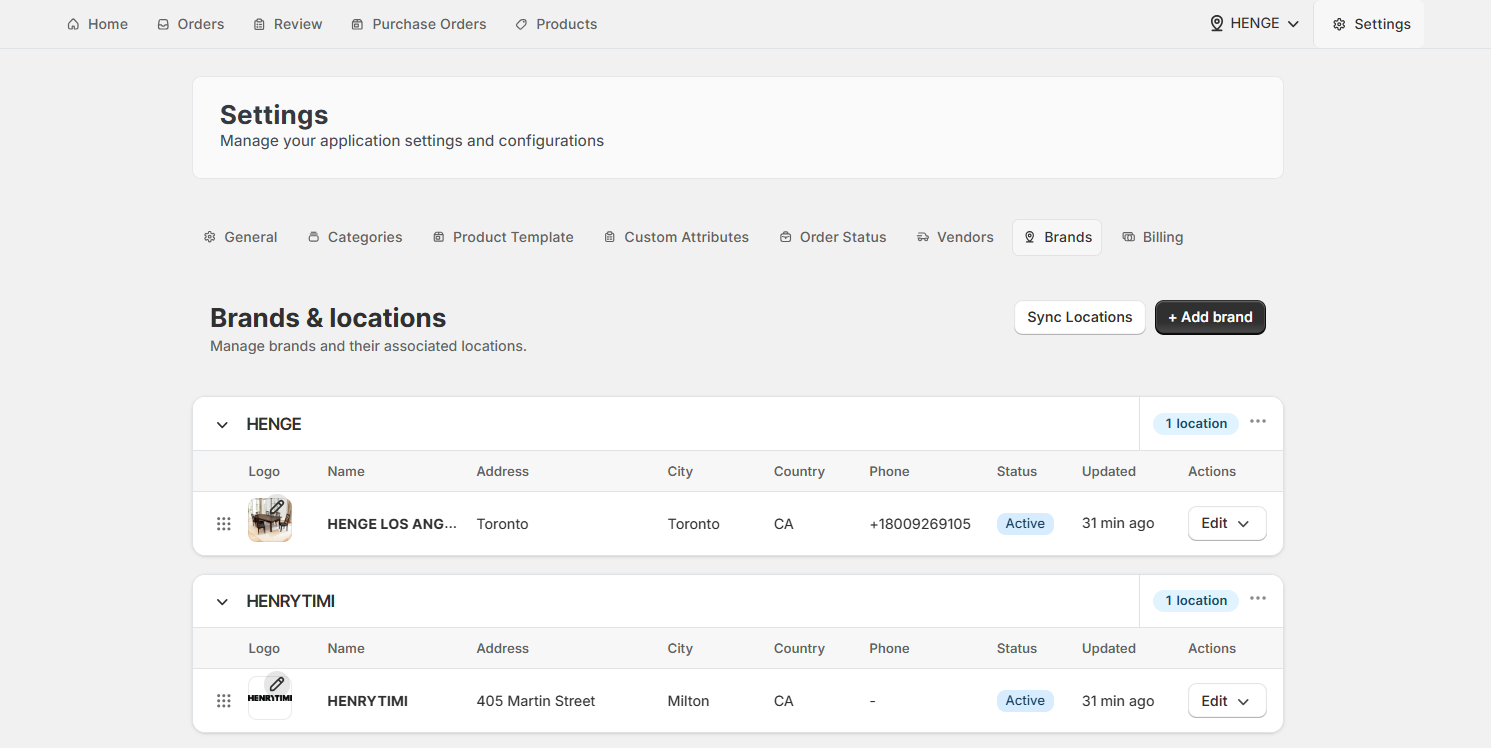
How to Sync Locations?#
Before you can assign locations to brands, you need to pull them in from Shopify. Click “Sync Locations” to import all active locations from your Shopify store into OrderPilot.
How to Add a Brand?#
- Click “+Add brand”.
- Enter the brand Name and upload a brand Image.
- Click “Create brand” to save.
How to Edit Brands?#
Click the “Edit” button next to a brand to update its terms and conditions or display information such as the Brand name, Address, Phone, Email, and Domain. These details appear on customer-facing documents.
How to Group Locations?#
Drag and drop a Shopify location under a brand to group them together.
Grouping is Optional#
If you operate a single-location store or don't need to differentiate between locations, you can leave “Brand Grouping” disabled. OrderPilot will use a flat list of your Shopify locations throughout the app.
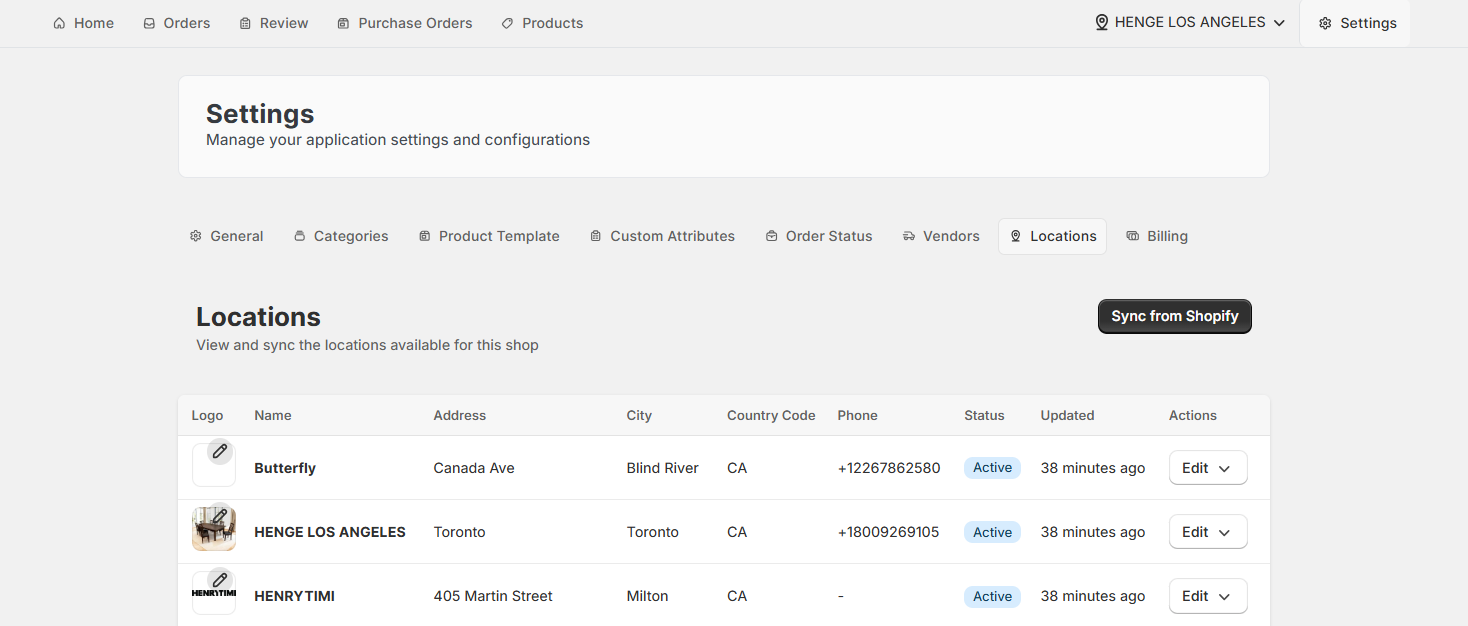
Locations#
When “Brand Grouping” is turned off, the Brands tab is replaced by the Locations tab. Here, you can sync locations from Shopify and edit their terms and conditions or display information.
Billing#
The Billing tab shows your current subscription plan and what's included.
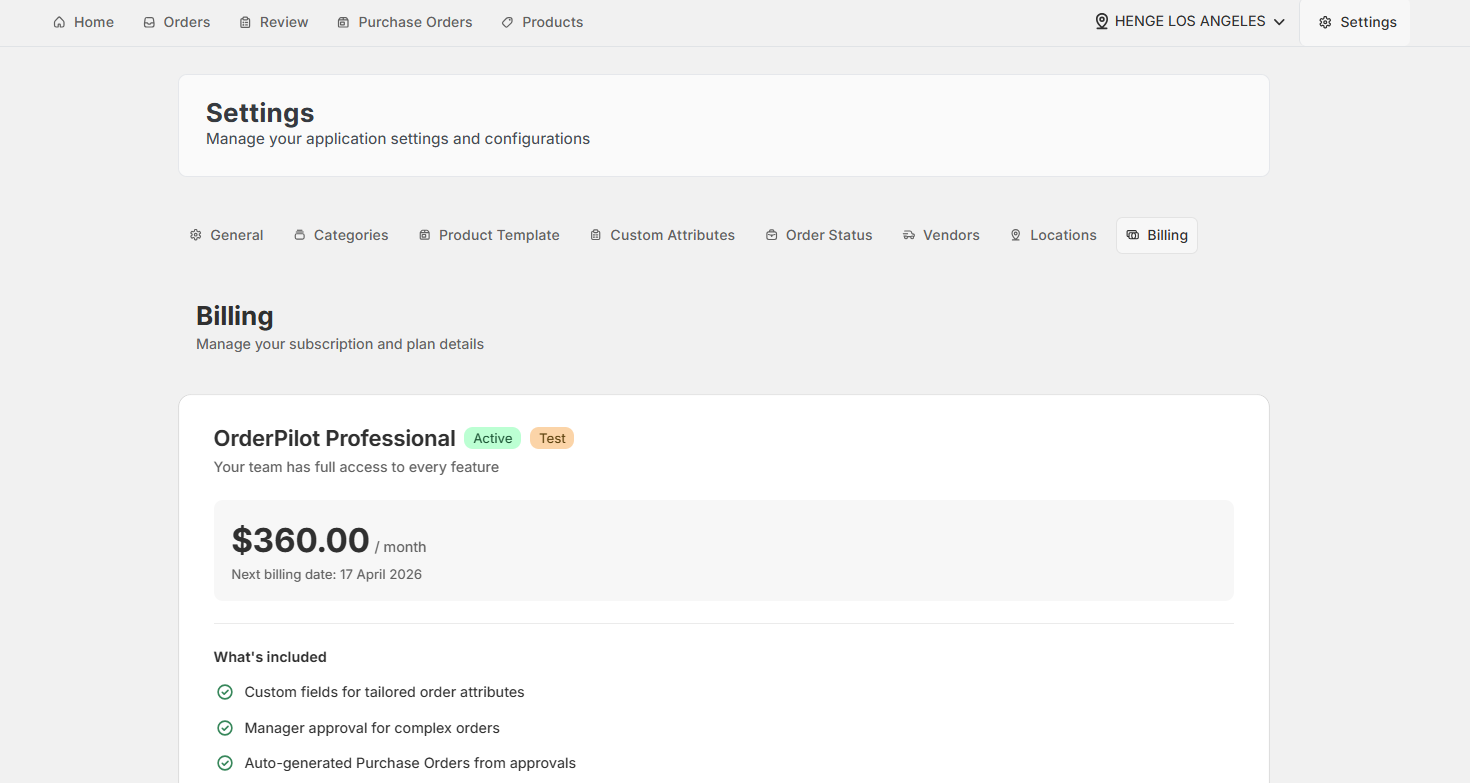
How to Cancel Your Subscription?#
Click “Cancel subscription” to end your plan. Cancellation takes effect immediately. You won't be billed for the next cycle, but you'll retain access until the end of the current billing period.
Before You Cancel#
If you're having trouble with the app or a specific feature, reach out to support before canceling. Most issues can be resolved quickly, and our team is happy to help.
Recommended Setup Order#
If you're configuring OrderPilot for the first time, work through Settings in this sequence. Each step builds on the previous one.
- General: Set your review preferences, company info, and store logo first. These affect everything else.
- Vendors: Add your suppliers before creating product templates, since templates require a vendor assignment.
- Categories: Create your product categories next so you can assign them to templates and attributes.
- Custom Attributes: Build your custom fields and assign them to the appropriate categories.
- Product Templates: Now combine everything, category, vendor, and attributes, into reusable templates.
- Order Status: Map out your workflow stages and configure which ones are active and can be used on orders.
- Brands (Optional): Set up brands only if you run multiple locations under different brand names.
Need Help?#
Need help setting up attributes, categories, templates, or other settings? Reach out to us at support@bevycommerce.com, and our team will help you get everything configured correctly.