Order Attributes
Order attributes are fields that belong to the whole quote or order, not to one product on it. Use them for details like a requested delivery date, the site access at the delivery address, or a project name for a trade client. They appear in their own card on every quote and order, so your team captures the same information every time.
Order attributes are different from Options, which describe a single product line (such as the fabric on a sofa) and can change its price.
This article explains how to create, edit, and archive order attributes, and where they appear.
Before You Start#
What does your team need to know about every order?#
List the questions your team asks for every sale that don't relate to one product: when the customer wants delivery, whether the building has an elevator, who the designer is. Each of those becomes an order attribute.
Must it always be filled in?#
A required attribute must be filled in before a quote or order can be saved (saving as a draft is still allowed). Make an attribute required only if every order really needs it.
Is it needed at every location?#
Each attribute can show at all your locations or only at the ones you choose. A delivery question might apply only to showrooms that deliver.
How to Create an Order Attribute?#
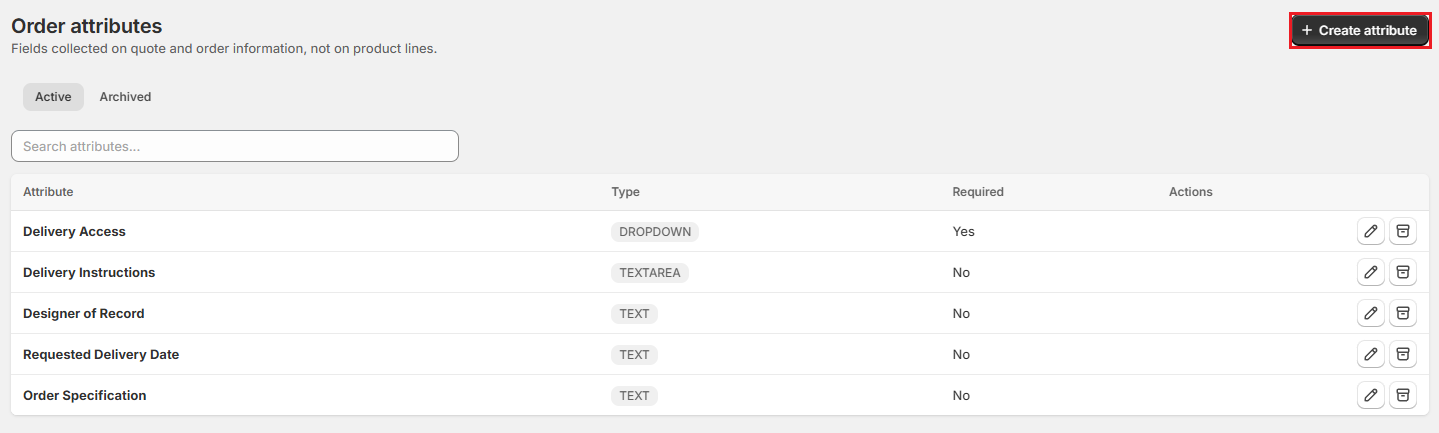
Step 1: From the OrderPilot dashboard, go to “Settings”, then select “Order attributes” in the Orders and quotes group.
Step 2: Click “Create attribute”.
Step 3: Enter an Internal name (up to 25 characters). It must be unique in your store, and it's the label staff see on the order.
Step 4: Choose a Type:
| Type | Best used for |
|---|---|
| Text (single line) | Short answers, such as a project name or a PO reference from the customer. |
| Text Area (multi-line) | Longer notes, such as delivery instructions. |
| Number | Numeric answers, such as the floor number. |
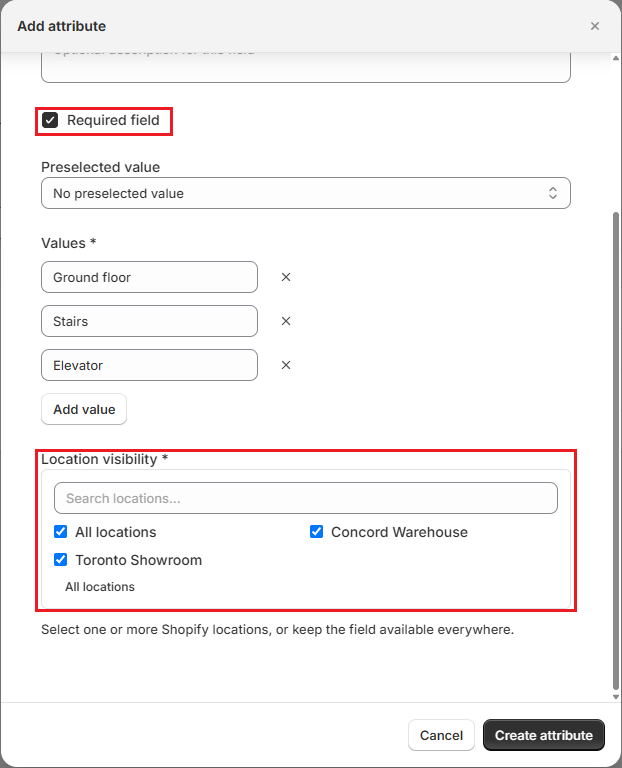
| Dropdown | A fixed list of answers, such as Ground floor, Stairs, or Elevator. |
| Image | Label text with an optional image. |
Step 5: Add a Description (optional) to explain what the field is for.
Step 6: For Text, Text Area, Number, and Image types, add a Placeholder (optional). This example text shows inside the empty field, for example “e.g. Weekday mornings only”.
Step 7: Switch on Required field if the attribute must be filled in before a quote or order is saved.
Step 8: Set a Preselected value (optional). For a Dropdown, choose one of its values, or No preselected value. For other types, type the value the field should start with.
Step 9: For a Dropdown, enter its answers under Values. Click “Add value” for each additional answer, and use the arrows to change their order.
Step 10: Under Location visibility, keep All locations checked, or uncheck it and pick the locations where this attribute should appear. At least one location must be selected.
Step 11: Click “Create attribute”.
Where Order Attributes Appear#
- Web app: In the Quote Information card when creating or editing a quote, and the Order Information card on an order.
- Shopify POS: On the order details when staff create or edit a quote or order on the register.
- Storefront quote requests: If you accept quote requests from your online store, the request form asks for your order attributes too.
If a required attribute is empty, OrderPilot names it when staff try to save, for example “Delivery Access is required for the order.”
How to Edit, Archive, or Restore an Order Attribute?#
- Edit: Click the attribute's row (or its edit icon), make your changes, and click “Update attribute”.
- Archive: Click the archive icon on the attribute's row, then click “Archive” to confirm. The attribute stops appearing on new quote and order forms. Orders and quotes that already have a value for it keep that value.
- Restore: Open the Archived tab and click the restore icon on the attribute's row.
Example: Order Attributes for Harlow & Finch Interiors#
Harlow & Finch Interiors delivers large pieces and works with interior designers, so they set up these order attributes:
| Internal name | Type | Required field | Notes |
|---|---|---|---|
| Delivery Access | Dropdown | On | Values: Ground floor, Stairs, Elevator |
| Requested Delivery Date | Text (single line) | Off | Placeholder: “e.g. Week of March 10” |
| Designer of Record | Text (single line) | Off | Used for trade clients like Studio Lumen Design |
| Delivery Instructions | Text Area (multi-line) | Off | Placeholder: “Parking, building hours, doorman” |
When a sales rep creates a quote for Olivia Bennett, the Quote Information card asks for all four. The quote can be saved as a draft, but it can't be created until Delivery Access is answered, so the delivery team always knows whether to bring extra hands.
Important Notes & Tips#
Your Store Starts With One Attribute#
New stores start with an order attribute called Order Specification. Edit it, archive it, or keep it as a general notes field.
Order Attributes Don't Change the Price#
Order attributes record information only. To charge for something on an order, such as delivery or installation, use Custom Fees. To charge for a product choice, use Options.
Archive Instead of Starting Over#
Archiving keeps the record of what was agreed on past orders. If you need a slightly different field, create a new attribute and archive the old one.
Need Help?#
Not sure whether something should be an order attribute or an option? Reach out to us at support@bevycommerce.com, and we'll help you set it up.