Create Quotes/Orders
Your salespeople don't need a desktop or an admin login to write up a custom sale. With OrderPilot on Shopify POS, they can build a full quote or order on the showroom floor: pick the customer, add Shopify products or made-to-order product templates, choose options, add fees, shipping, a discount, and payment terms, then save it in one pass.
This article explains how to create a quote or order on POS, what each part of the screen does, and why the create button may be greyed out.
Before You Start#
Consider the following questions before getting started:
Is the POS extension set up?#
The Create Quote, Create Order, or Orders & Quotes tile must be on the POS smart grid at your location, and you need a Shopify POS staff account. See the POS Overview if the tiles are missing.
Do you know what you're selling?#
POS lists two kinds of items in one picker. Knowing which one fits the sale saves time on the floor:
| Item type | What it is | Use it when |
|---|---|---|
| Shopify product | A regular product from your Shopify catalog, with its variants, price, and stock at your location. | The customer is buying something you stock or sell as-is. |
| Product template | An OrderPilot made-to-order item with options (for example, fabric, wood finish, or dimensions) and their prices. | The customer is configuring something that will be built or ordered for them. |
Quote or order?#
Create a quote when the customer is still deciding and you want them to review and sign before they commit. Create an order when the customer has confirmed the sale. You can switch between the two with Mark as Quote right up until you save.
How to Create a Quote or Order?#
Open Shopify POS on your device and make sure you're signed in at the right location. Then follow these steps:
Step 1: On the POS home screen, tap the "Create Quote" or "Create Order" tile. You can also open the "Orders & Quotes" tile and tap "Create Quote" or "Create Order" at the top of the list.
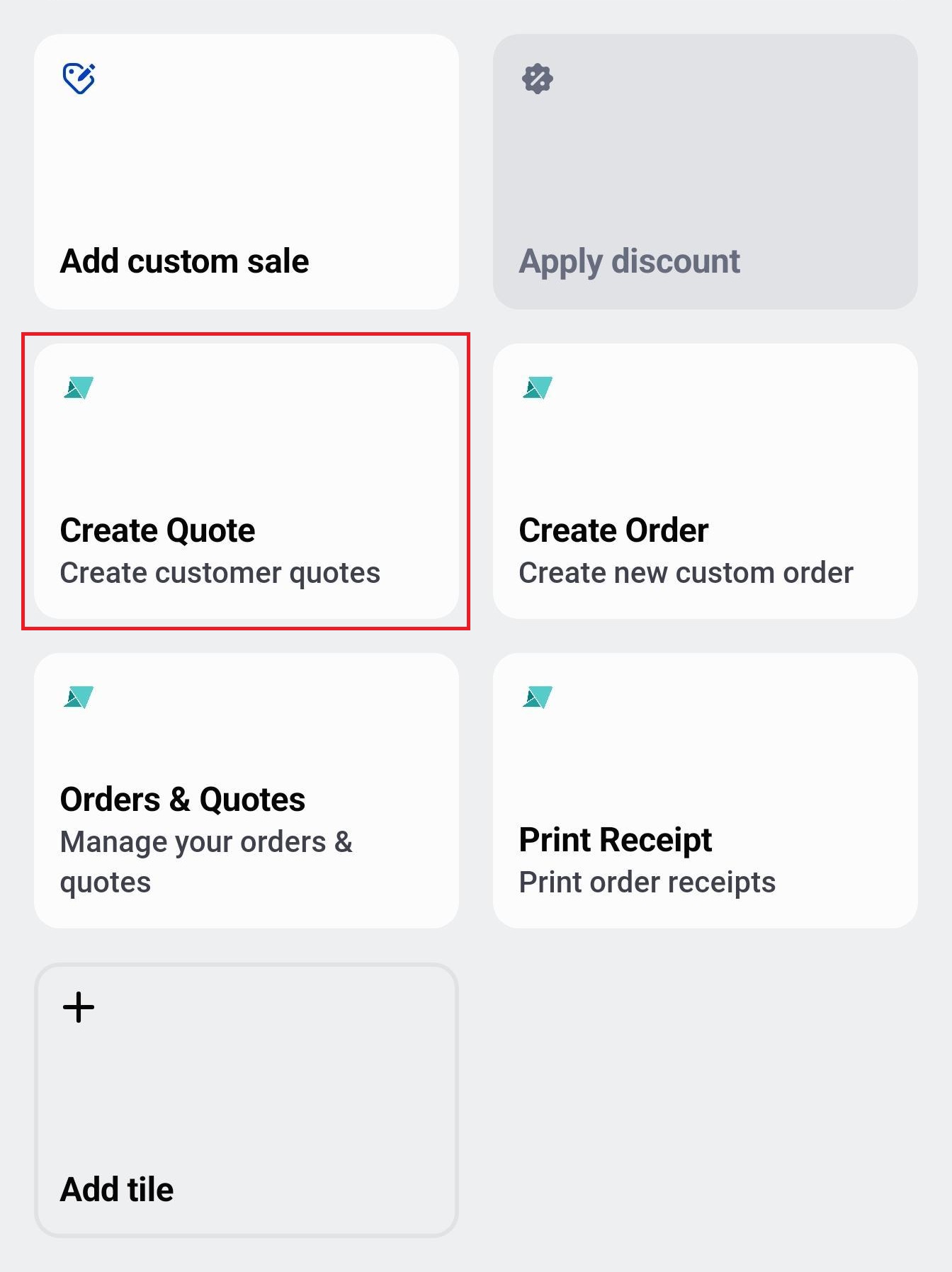
The New quote or New order screen opens. The left side holds who it's for and what's on it. The right side holds the total, the create buttons, and the order summary.
Step 2: Tap "Add customer". The Add customer screen asks Who is this for?
- Search by name or email in Search name or email, or pick someone from Recent customers (each shows their last order date).
- If the customer is new, tap "New customer" and fill in First name, Last name, and Email (all required), plus Phone and their shipping and billing addresses if the order ships. Tap "Create customer" to save them to Shopify and add them to the quote.
Note: Enter a phone number with its country code, for example +12025551234. Shopify rejects numbers without one.
Step 3 (Optional): Check where the order is going. Under the customer's name, POS shows Ships to with their address, or No saved address. Tap the line (or "Change") to open Ship to, then tap one of the customer's saved addresses, or tap "Add a new address", fill it in, and tap "Save and ship here". A new address is saved to the customer in Shopify, and their other addresses stay.
Step 4 (Optional): Check Sold by. It starts with the staff member signed in to POS. Tap "Change" to credit someone else, or several people; everyone selected shares the credit equally. Only staff allowed to manage sales credit can change it.
Step 5: Next to Items, tap "Add product / fee". The Add product or fee screen opens with your Shopify products and product templates in one list.
- Chips: Tap All, Shopify products, or Templates to narrow the list. Each row is tagged Shopify or Template.
- Search: Type in Search Shopify products and templates. Search matches product names as well as details such as SKU, vendor, tag, type, and category. When a Shopify product matched on something other than its name, a hint under it says why, for example Matched SKU.
- Filters: Tap a filter chip (Category and Vendor; the Shopify products view also offers Type, Collection, and Tags), tick the values you want, and tap "Done". Tap "Clear" to remove all filters.
- Scan: Tap "Scan" to scan a barcode with the device camera. A Bluetooth or built-in scanner works any time this screen is open, with no tap needed. One match opens straight away; if several products share the code, they are listed at the top for you to pick from. If no product matches the barcode, POS shows No product found for barcode XXXX so you know the scan was read but nothing matched.
- Stock: Shopify products show their stock in two parts: the count at your location and the count across all other locations, for example 12 here · 4 elsewhere. This helps you confirm availability before adding the item. Templates show the vendor (if your shop shows it), made to order, and a "from" price.
Tap a row to open it. For a Shopify product with several variants, tap it to show its variants, then tap the one you want.
Step 6: Set up the item on the Add item screen.
- Options: For a product template, choose each option, for example Fabric or Wood Finish. Each choice shows its price, such as +$350, or Included. Required options are listed first. Badges at the top show how many options are chosen and how many required fields are left.
- Vendor: Shows who supplies the item. A template with one vendor fills it in for you, and a Shopify product starts with its Shopify vendor. Tap "Change" to pick another (see Choosing a Vendor below).
- Fulfillment method: Each line defaults to Store pickup or Delivering based on the quote's delivery setting. Tap the line's fulfillment badge to toggle it individually. Mixed-method quotes show a delivery/pickup breakdown in the summary. See Pickup vs Delivery per Line Item below.
- Price and quantity: The right side shows Price each, with the Base price and the Options total when options add to it. Tap Price to change the base price, use the quantity stepper, and check the line Total.
- Discount: Tap Discount on the line to apply a percentage or flat amount off. You must enter a reason. This requires the discount permission on your POS staff role. See Item Discounts at the Register below.
Tap "Add to quote" (or "Add to order"). If a required option is still empty, POS tells you which ones to complete first.
Note: On a Shopify product, Product name and Price are locked and show a lock icon, because they come from your catalog. They unlock once the line has an option filled in. On a template, you can edit the name, SKU, and price.
Step 7 (Optional): Add fees, such as delivery or installation. Tap "Add product / fee" again, then tap "Add a fee" at the top of the list.
- Under Saved fees, tap a fee your store has set up to add it in one tap.
- Or, under Or a one-off fee, enter a Name, choose Fixed amount, % of subtotal, or % of total, enter the Amount or Percent, turn on Taxable and Physical item (ships) if they apply, and tap "Add fee".
Fees are listed after the products. Tap a fee to edit it ("Save fee") or remove it ("Remove").
Step 8: If your store uses order attributes, fill in the Quote information (or Order information) fields below the items. Required fields must be filled in before you can create the quote or order.
Step 9 (Optional): Use the summary on the right to add shipping, a discount, and payment terms. Each row shows "Add" until you set it.
- Shipping & delivery: Tap "Add", enter a Name (it starts as "Standard Shipping") and a Price, then tap "Apply delivery".
- Discount: Tap "Add", choose Fixed Amount or Percentage (%), enter the discount, type a Reason for discount (required), and tap "Apply Discount". The reason shows under the discount in the summary. A discount added on POS applies to products and fees, and can't be more than the subtotal.
- Payment Terms: Tap "Add", turn on Payment due later, pick the terms, set the issue or due date if the terms need one, and tap "Apply Payment Terms". The terms listed come from your Shopify store.
Tax shows By Shopify until the quote or order is saved, because Shopify calculates it.
Step 10 (Optional): Add anything the team should know in Special notes, for example delivery access or installation details.
Step 11: Check the Mark as Quote switch at the bottom of the right column. On saves a quote; off saves an order. The screen title and the create button change to match.
Step 12: Tap "Create Quote" (or "Create Order"). OrderPilot saves it, shows Quote created successfully (or Order created successfully), and opens it on the order screen, ready for the customer to sign or pay.
To finish later, tap "Save as Draft" instead. See Saving a Draft below.
Choosing a Vendor#
If an item has no vendor when you add it, or you tap "Change" next to Vendor, the Choose vendor screen asks Who makes this item?
- For a product template, the list shows only the vendors on that template, under Vendors on this product template.
- For a Shopify product, search All vendors to find the one you need.
- Tap "Decide later" to add the item without a vendor and let the back office choose one. The item then shows Not chosen yet, and the quote shows Vendor not chosen in the Orders & Quotes list.
If your store turns on Require vendor selection, Decide later is hidden and every item needs a vendor before you can create the quote or order. Vendors are added in the web app under Settings, then Vendors.
Note: POS always says Vendor, even if your shop calls vendors something else (for example, "Supplier") in the web app.
Why Is Create Greyed Out?#
The create button tells you what's missing right under it:
| Message under the button | What to do |
|---|---|
| Add a customer and a product first | Add a customer (Step 2) and at least one product (Step 5). |
| Add a customer first | Tap Add customer at the top of the screen. |
| Add a product first | Add at least one product or template. A fee on its own isn't enough. |
| Add a product to save a draft | Save as Draft needs at least one product, but no customer. |
Other checks run when you tap the button. If something is missing, a message tells you, for example that a required Quote information field is empty, or Choose a vendor for Linden Sofa before saving. This shop needs a vendor on every item.
Saving a Draft#
Save as Draft saves the quote or order without a customer and without checking required fields or vendors. Use it when you need to step away mid-sale. The draft appears in Orders & Quotes as Draft Quote or Draft Order.
To finish a draft, open it from Orders & Quotes, add anything that's missing, and tap "Create Quote" or "Create Order". See Edit Quotes/Orders.
What Happens After You Tap Create?#
When you tap Create Quote or Create Order, OrderPilot saves a Draft Order in the background — not a full Shopify order yet. The order becomes a real Shopify order only once the customer has both signed and paid in full, or when you use Create Order (Pay Later) to confirm without payment.
This draft-first model means your Shopify order list stays clean: you won't see partially started orders sitting open in Shopify Admin until the sale is actually settled on POS.
- The quote or order opens on the order screen, where you can take a deposit, show the signing QR code, or print it.
- It gets the status Quote or Order. If an item needs approval under your review rules, it starts as Pending Quote or Pending Order and waits in the Review tab of the web app.
- It belongs to the register's location and is credited to the people under Sold by.
- OrderPilot sends it to Shopify as a Draft Order in the background. No new Shopify product is created; template lines use the template's existing Shopify product.
If you tap Back with changes on screen, POS asks Discard unsaved changes? Tap "Discard" to leave without saving, or stay and save.
Placing an Order: Deposit, Signature, and Pay Later#
A created quote or order moves through the following steps before it is fully Placed. You can do them in any order that fits your workflow, but the order isn't placed in Shopify until both signing and full payment are complete.
Taking a Deposit#
Tap "Take Deposit" on the order screen.
- First tap: OrderPilot converts the Draft Order into a Shopify Order and opens the Shopify checkout for the deposit amount. The customer completes payment in Shopify's standard checkout flow.
- Subsequent taps: POS reopens the same Shopify checkout. No new order is created — the existing Shopify Order is reused every time.
Getting the Customer's Signature#
The customer can sign three ways:
- Sign on iPad — hand them the device and they sign directly on screen.
- QR code — tap "Show QR to Sign" and they scan it on their own phone. The signature page opens in their browser.
- Email to sign later — tap "Email to Sign". The customer receives a link and can sign at their convenience. The order waits in a Pending Signature state until they do.
Once Signed and Fully Paid#
When both conditions are met — the order is signed and all payments are collected — OrderPilot marks the order as Placed. The Shopify Order is finalized, inventory is committed, and the back-office fulfillment flow begins.
Create Order (Pay Later)#
If the customer will pay outside the Shopify checkout — for example by bank transfer or a future invoice — tap "Create Order (Pay Later)" instead of taking a deposit. This converts the Draft Order into a Shopify Order immediately, without opening a checkout. The order proceeds to fulfillment and the payment is tracked separately through your payment terms.
Pickup vs Delivery per Line Item#
Each line on a POS quote can be fulfilled by Store pickup or Delivering — independently of the other lines. This lets you handle mixed sales where a customer picks up one item today and has another delivered later.
- The fulfillment toggle is in the line detail view. Tap a line item, then tap the fulfillment badge to switch between Store pickup and Delivering.
- The order summary shows a breakdown of how many lines are set for each method, so the salesperson can confirm the split before creating.
- Quotes with a mix of pickup and delivery lines show both sections in the PDF and in the web app order view.
Note: A checked In-Store Sale switch overrides the delivery method: the whole order is treated as a store sale regardless of individual line settings.
Item Discounts at the Register#
Staff can apply a discount to any individual line item directly on POS — without going to the web app.
- Tap a line item to open its detail view, then tap "Discount".
- Choose Percentage (%) or Fixed amount ($), enter the value, and type a Reason (required). The reason is saved with the line and visible in the web app and on the PDF.
- The discounted price updates immediately in the line total and the order summary.
Permission: applying item discounts is controlled by a POS staff permission. If the Discount option is not visible or is greyed out, your staff role does not have this permission. Ask an admin to update your role under Settings → Staff in the web app.
Sales Credit at the Register#
Salespeople can be credited for individual line items or for the whole order, directly on POS.
- To credit the whole order, tap "Change" next to Sold by (Step 4 above).
- To credit a specific line, open the line detail view and tap "Change" next to the salesperson shown for that line.
PIN unlock: changing sales credit attribution requires a PIN confirmation. The staff member whose credit is being added or removed must enter their PIN to confirm the change. This prevents accidental or unauthorized reassignment of commission.
Example: Quoting a Linden Sofa for Olivia Bennett#
Olivia Bennett visits Harlow & Finch Interiors and wants a quote for a Linden Sofa in Sage Velvet with a feather cushion fill, delivered with white glove service. She wants to think it over, so the salesperson creates a quote.
- The salesperson taps the "Create Quote" tile.
- They tap "Add customer", search "Olivia", and pick Olivia Bennett from the results. Ships to shows her saved home address.
- They tap "Add product / fee", tap the Templates chip, and tap Linden Sofa (made to order, from $3,200).
- On the item screen, they choose Fabric → Sage Velvet (+$350) and Cushion Fill → Feather Blend (+$250). Price each shows $3,800. Vendor is already Atelier Homeworks. The fulfillment badge shows Delivering, which is correct. They tap "Add to quote".
- They tap "Add product / fee", then "Add a fee", and tap White Glove Delivery ($250) under Saved fees.
- In Special notes, they type "Third-floor apartment, elevator available."
- Mark as Quote is on. They tap "Create Quote". The quote total is $4,050 before tax, and the quote opens on the order screen, where they tap "Show QR to Sign" so Olivia can review it on her phone.
Important Notes & Tips#
Search for the Customer Before Creating a New One#
Search by name or email before tapping New customer. Duplicate customers make reporting harder in Shopify and in OrderPilot.
Use Fees for Extras, Not the Base Price#
Add delivery, installation, or other services as fees rather than raising the item's price. The customer sees a clear breakdown, and your team can see what was charged for the product itself.
Out-of-Stock Products May Be Hidden#
If your store turns on Hide out-of-stock products on POS, Shopify products with no stock at your location don't appear in the picker or in scans. If a product seems to be missing, check its stock at your location or ask an admin about the setting.
Review the Summary Before You Create#
A quick look at the items, fees, discount, and total on the right takes a few seconds and catches mistakes before the customer sees the quote.
Check Stock Before Adding an Item#
The product search list shows N here · M elsewhere for every Shopify product. Use the "here" count to confirm the item is in your store before promising it to a customer. If stock is low, the "elsewhere" count tells you whether another location can transfer it.
Need Help?#
Want a walkthrough of the POS quote flow, or not seeing a product or template you expect? Reach out to us at support@bevycommerce.com, and we'll help you get your register ready.